


3175x175(CURRENT).thumb.jpg.b05acc060982b36f5891ba728e6d953c.jpg)
These features can help you unblock important Windows 11 or 10 updates.
Microsoft releases various Windows updates including quality updates, feature updates, security fixes, and more, via the Windows Update channel. The latest one published this week, for example, is the April 2026 Patch Tuesday update including new OS recovery releases.
However, these updates can get blocked for some reasons like safeguard holds, wherein Microsoft stops an update on purpose in case there is a known compatibility issue on certain devices. A manual delay initiated by the user may also be in place. Besides those, Windows updates can also be blocked due to limited storage. The OS understands this and Microsoft notes that "before the installation process starts, Windows checks to make sure there’s enough storage space on your device for the installation process and for these new features and security improvements. If there isn’t enough space, you’ll be prompted to free up storage."
There are several popular third-party, unofficial Windows apps available for the purpose of removal of 'junk' files including controversial ones like CCleaner.
Microsoft itself also offers its own version of PC optimizer and performance boosting app called the "Microsoft PC Manager" and much like certain third-party apps, it too has had its fair share of critics and for good reasons.
In a support article that was updated sometime after the release of Windows 11 version 24H2, the tech giant has outlined in some good bit of detail on how to use official native tools like Storage Sense, Disk Cleanup, and more. All of these features are available inside Windows for free. While the article had already existed, these tools were not mentioned before for some reason, even though they have had existed for a long time. We discovered this while scouring support documents.
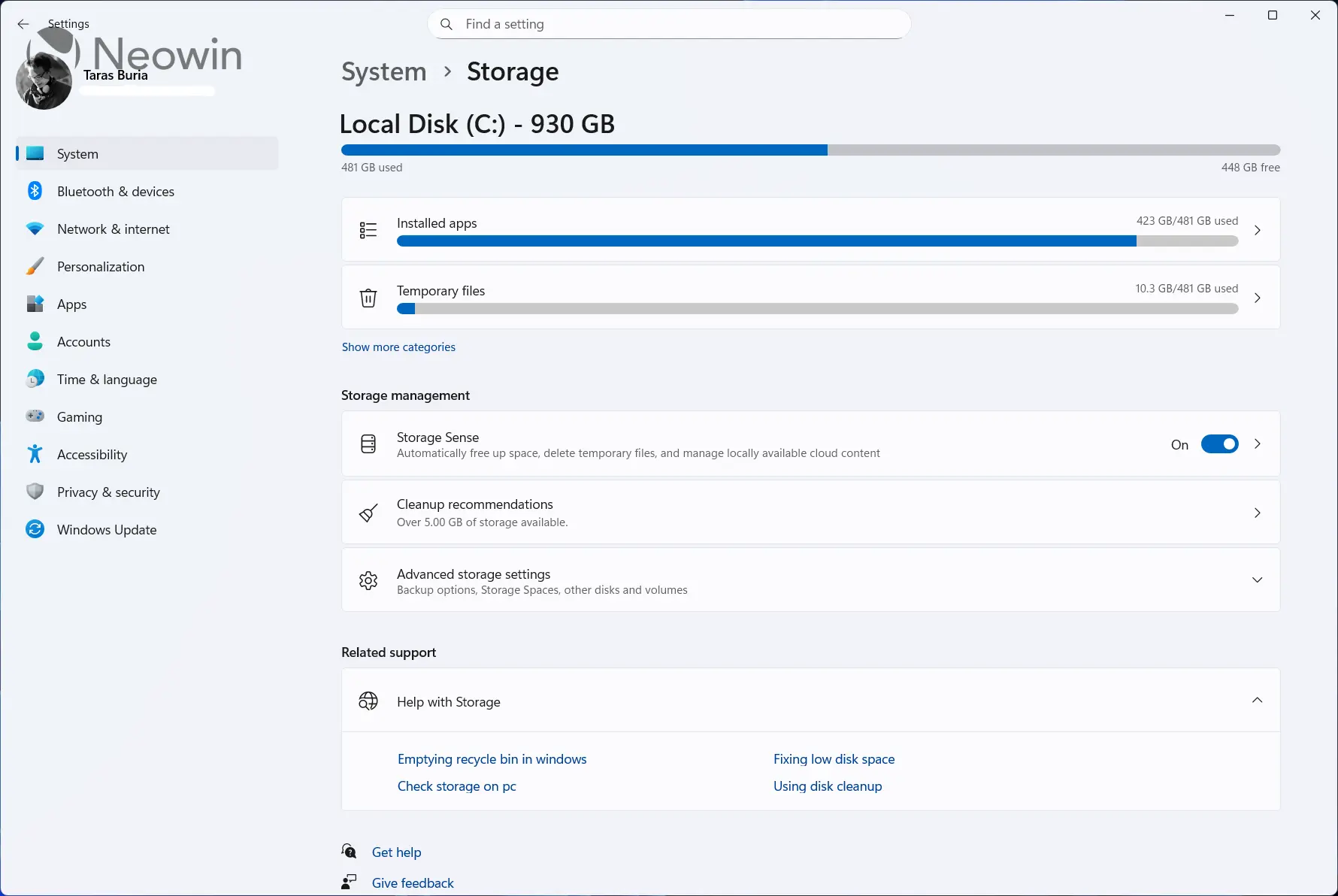
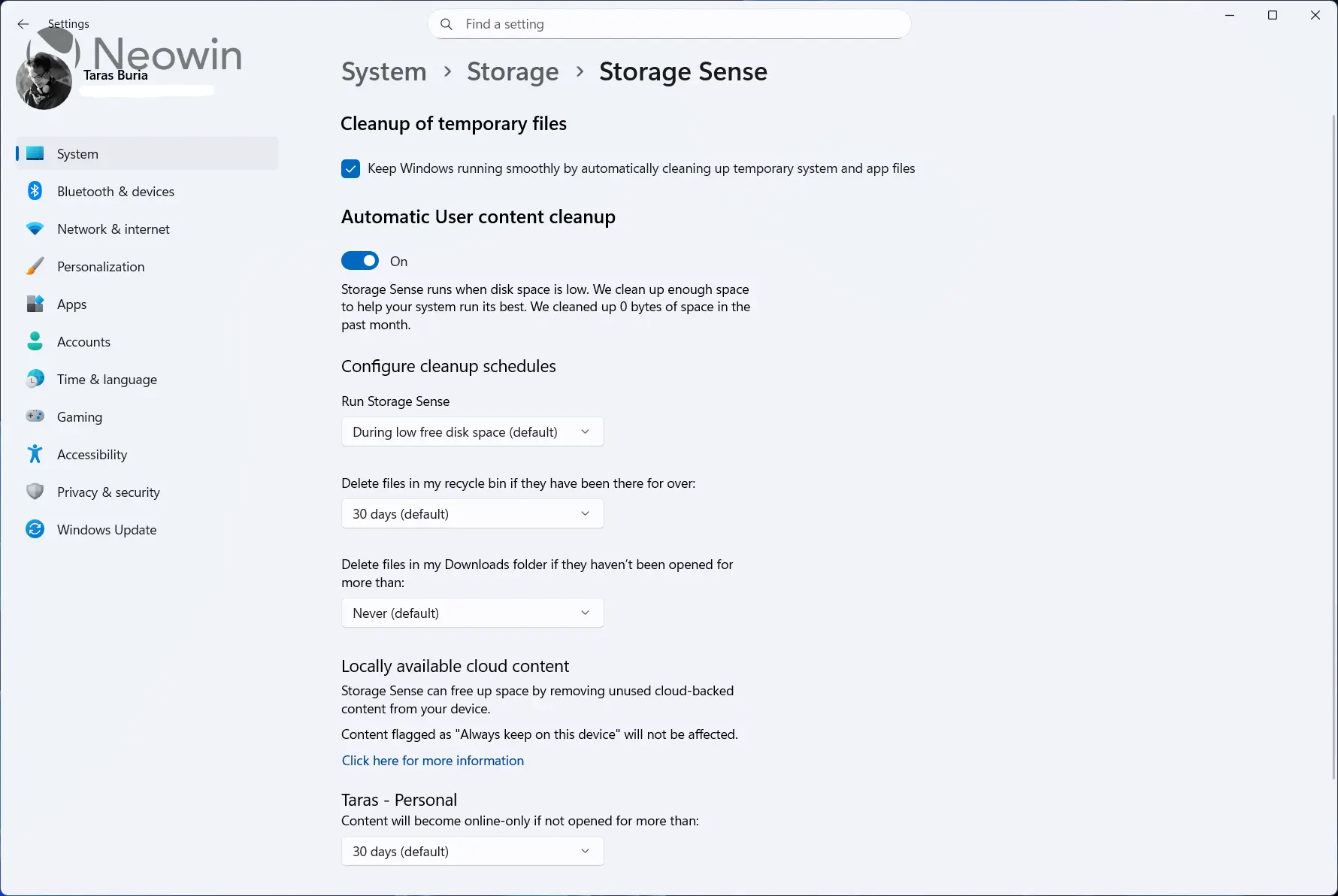
First, we have Storage Sense which essentially automatically frees up the system drive (the Windows installation drive or C:) space by getting rid of items that you no longer need, like temporary files and items in your Recycle Bin. Typically, the setting is not enabled on Windows 10/11 by default; you can check and switch it on by visiting Settings > System > Storage and toggling Storage Sense to "On" if it is not already.
Up next, Microsoft discusses Disk Cleanup, which also helps clear up lots of space across your different disk drives. It works by first scanning the selected drive, say C:, and then letting the user choose what they want to delete.
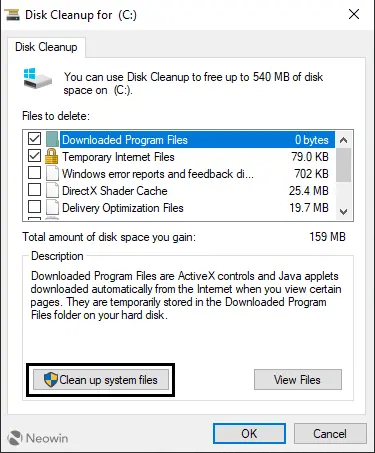
Microsoft also notes that by opting for the elevated "Clean up system files" option, users can free up "several gigabytes" of storage space. That is because the system files also include Windows Update Cleanup alongside the likes of Delivery Optimization Files (something we recently covered), DirectX Shader cache, and more.
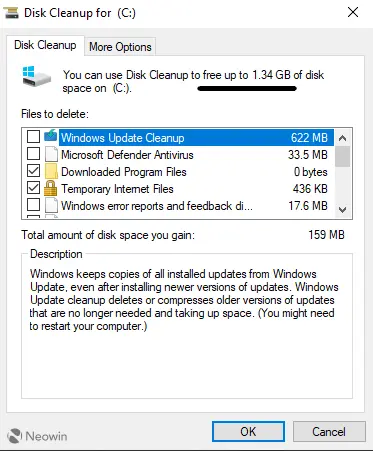
Additional elevated options feature removal of system restore points and volume shadow copies though neither Neowin nor Microsoft recommends you do that unless you have some specific reasons to.
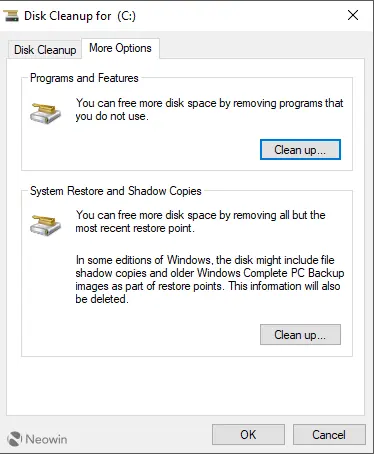
It is very important that users pay attention to the chosen options here on Disk Cleanup, since in the past, Microsoft had even attempted to delete the entire Downloads folder.
Besides these free software-based fixes, Microsoft also mentions using an external storage to carry out the update. The company says that the external drive must have 10 GB of free space to proceed. If that's ensured, you can go ahead with the external download via the "Fix Issues" option. You can view the official support article here on Microsoft's site.
Hope you enjoyed this news post. Feedback welcome.
Posted Sunday 19 April 2026 at 2:18 pm AEST (my time).
News posts: 2023 5,800+ | 2024 5,700+ | 2025 5,700+ | 2026 (to end of March) 1,297
Recommended Comments
There are no comments to display.
Join the conversation
You can post now and register later. If you have an account, sign in now to post with your account.
Note: Your post will require moderator approval before it will be visible.