

3175x175(CURRENT).thumb.jpg.b05acc060982b36f5891ba728e6d953c.jpg)
Windows 11 is getting a new customizable Start menu, and I've gone hands-on to see just how configurable it is.
Microsoft has announced major customization upgrades coming soon to the Start menu on Windows 11, addressing top feedback and requests from users for enabling control over what does and doesn't appear when you open it.
The new customization options are now available in preview via the Windows 11 Insider Program, and I've been testing the new changes over the last week. It's awesome to see so many new options available for users to configure, but it makes me wonder why this wasn't added sooner.
So, what's new in regards to customization? Well, users can now fully configure which segments of the Start menu actually appear. Up until now, the Start menu has consisted of three main segments: Pinned, Recommended, and All apps.

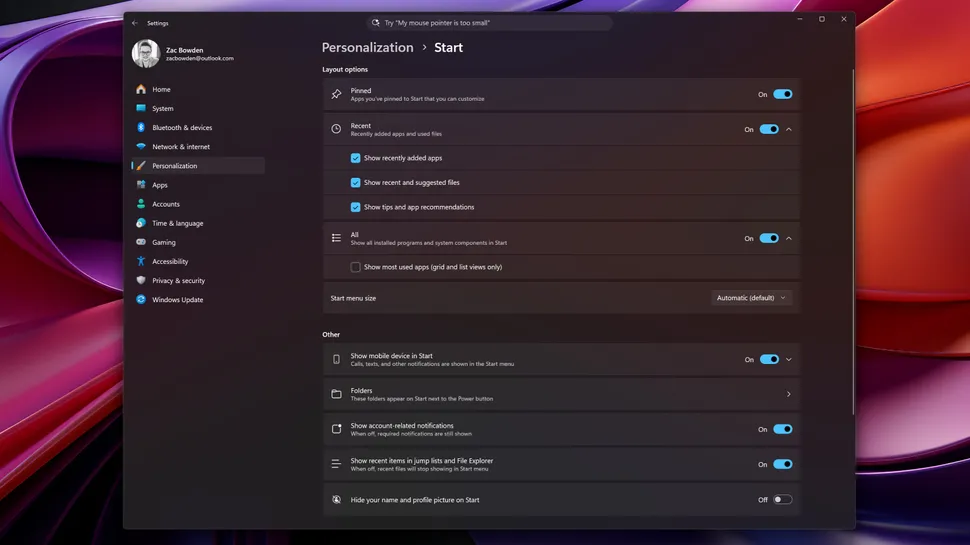
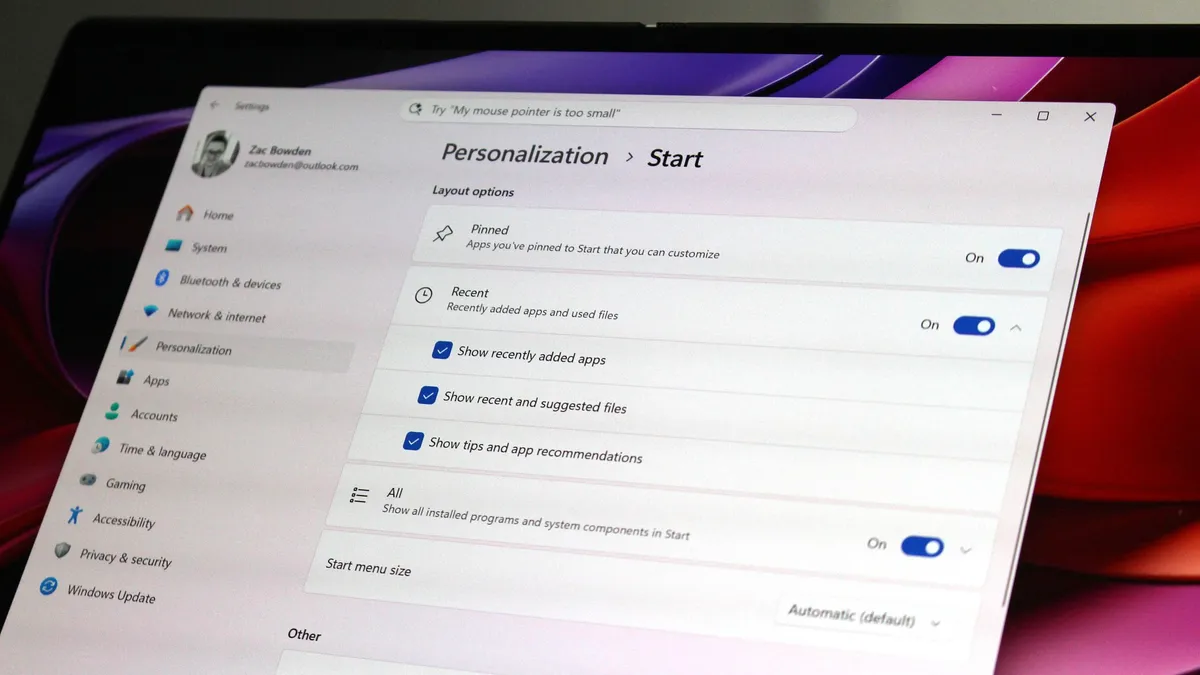
There are a number of new configurable settings that apply to Start.
(Image credit: Zac Bowden / Windows Central)
These segments have historically been fixed, but users now have the option to toggle off individual segments should they choose. All the Start menu's customization options are present in the Windows Settings app, or by right-clicking an empty space in Start and selecting "Start settings."
Once in the Settings page, you'll see three categories that represent the different segments in Start. In addition to being able to turn off the segments, two of the categories have their own configurable options that users can now customize too.
For example, for the Recommended feed, you now have the option of choosing the kind of things that show up there. If you don't want to see recommended apps, but do want to see recent files and installed apps, you can make it so.

You can now disable all elements of Start.
(Image credit: Zac Bowden / Windows Central)
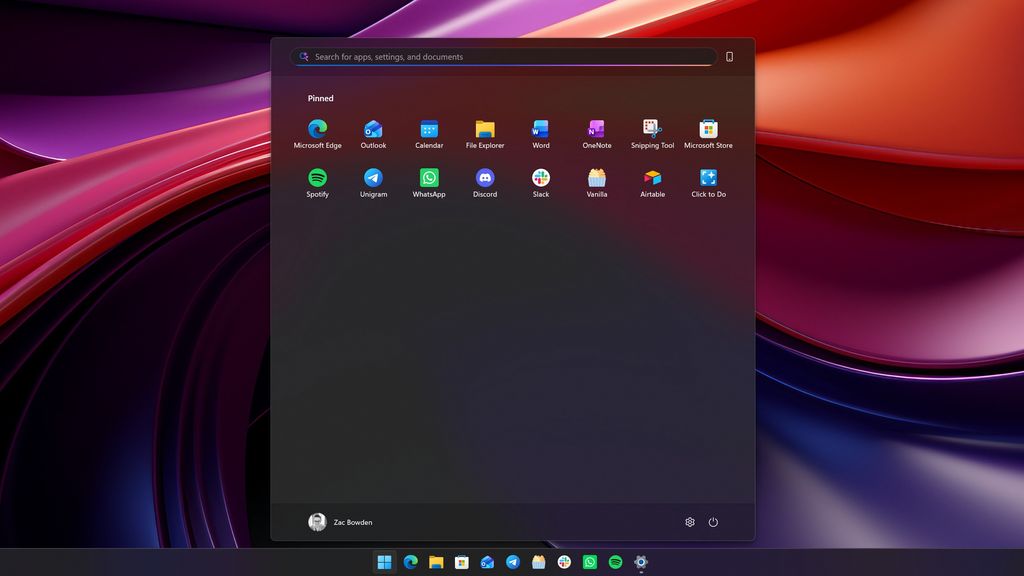
Being able to outright turn off segments of the Start menu is a super nice addition. I don't usually find use in the Recommended feed, and so being able to toggle it off and save space within the Start menu is great. You can mix and match different configurations depending on your needs too.
Unfortunately, you can't customize the order of the segments. Meaning Pinned is always at the top (unless disabled,) followed by Recommended and All apps. If you wanted Pinned apps at the bottom, for example, that's not something you can do currently.
In addition to being able to hide and customize the segments, Microsoft is also adding the ability to adjust the size of the Start menu. There's two options to choose from: small and large, and by default Windows is set to choose the size based on your screen size.
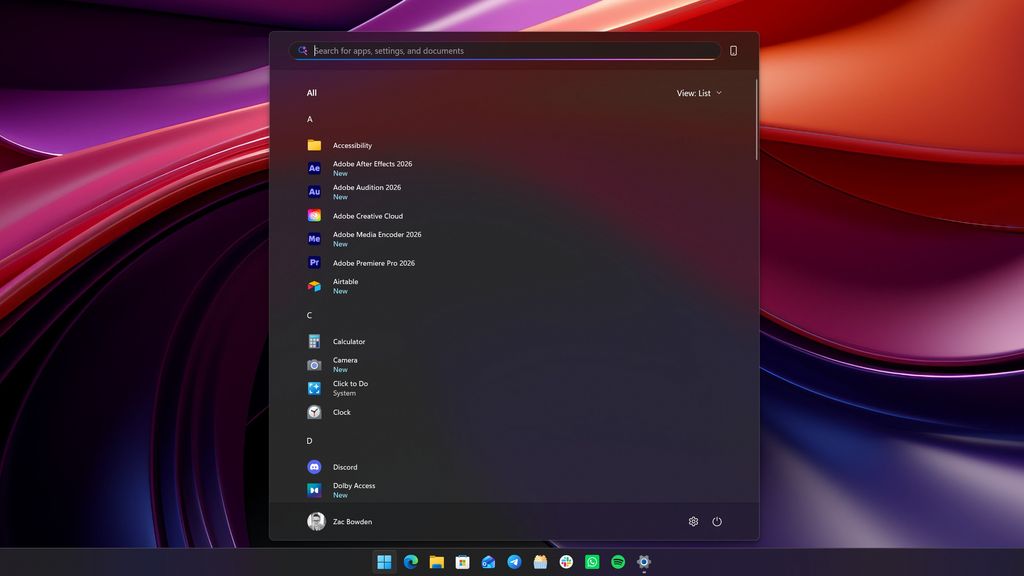
The Start menu when only "Apps" is selected
(Image credit: Zac Bowden / Windows Central)
Recommended Comments
There are no comments to display.
Join the conversation
You can post now and register later. If you have an account, sign in now to post with your account.
Note: Your post will require moderator approval before it will be visible.