

3175x175(CURRENT).thumb.jpg.b05acc060982b36f5891ba728e6d953c.jpg)
Microsoft's new Intelligent Terminal brings AI agents to the command line without changing the Windows Terminal experience developers already know.
Windows 11 has a new command-line terminal with AI agent integration, but don't worry, Microsoft's not adding AI to the Windows Terminal. Instead, the company forked the open-source terminal project and created a new tool known as "Intelligent Terminal."
The tool was introduced during the company's developer conference (Build 2026), and it's basically the Windows Terminal you already know, which comes with a side panel that lets you interact with the GitHub Copilot agent by default.
The tool is being advertised as an assistant that you can use to explain errors, build commands, and troubleshoot issues without leaving the terminal to complete the research in other applications, such as the browser.
In my opinion, Microsoft took the right approach by forking a new version of the original tool rather than integrating Copilot into the existing Windows Terminal. This was a smart approach to avoid another AI backlash.
In this guide, I'll outline everything you need to know about the Intelligent Terminal.
Intelligent Terminal for Windows 11
The Intelligent Terminal won't come as part of the default Windows 11 setup. Instead, it's a tool that you have to download and install manually.
You can access this command-line tool by launching the Windows Terminal as an administrator from the Start menu and then running the "winget install Microsoft.IntelligentTerminal" command.

(Image credit: Mauro Huculak)
When you run the terminal for the first time, you'll choose which Agent Client Protocol (ACP) compatible agent to use in the Agent pane. Intelligent Terminal automatically detects agents installed on your computer, with GitHub Copilot appearing as the default option when available.
From the initial setup, you can also enable automatic error detection and suggestions, session management, and pane positioning within the terminal.
One thing to note is that during the setup, enabling error detection installs shell integration that allows Intelligent Terminal to monitor command failures. In contrast, session management installs hooks that track agent activity across terminal sessions.
Terminal interface
The terminal with AI integration offers two main experiences, including agent chat and agent management.
The agent chat pane can be accessed through the toggle at the bottom-left (if you're using a bottom position), or by pressing the "Ctrl + Shift + ." (period) keyboard shortcut. Or use the "Ctrl + Shift + I" shortcut to hide it.

(Image credit: Mauro Huculak)
In this area, that's where you'll also find the error detection icon, which lights up whenever a fixable error is detected. Of course, you can always bring up the chat page to manually ask to explain an error or anything you need.
Now, if the agent has to complete multiple tasks or something complex, it'll run a background task automatically without leaving you out of focus.
The idea behind the experience is for the terminal to lend a hand and help you resolve command-line-related issues without breaking your current flow by having to jump to another app, like the browser, for research.
Although the default agent is GitHub Copilot, you can use Claude Code, Google Gemini, and OpenAI Codex. Also, since the terminal uses the open ACP standard, you're not limited to cloud-based AI agents. However, you'll have to install the agent CLI locally on your computer before the Intelligent Terminal can see it.
Agent management pane
Also, at the bottom-right (assuming you're using the bottom position) is the agent management icon, which opens the session management pane. Microsoft has also assigned the "Ctrl + Shift + /" keyboard shortcut.

(Image credit: Mauro Huculak)
On the management pane, the Intelligent Terminal will track your active and past agent sessions. At any time, you can jump back to any specific activity.
In other words, it's a central hub to view all agent activity. Using this experience, you can view every AI agent currently running, check task details, monitor long-running tasks, resume previous sessions, and dismiss completed tasks.
For instance, imagine you have multiple tabs, including one creating a Python script and another running tests and fixing errors, without agent management, you'd need to remember which tab contains which task.
On the other hand, with the agent Management panel, you can open one view and see all the details.
Command Palette with AI
Intelligent Terminal also extends the Command Palette with AI actions. By using the "Alt + Shift + /" keyboard shortcut followed by a request, you can send the current terminal context to an agent and start a task without interrupting your workflow.

(Image credit: Future)
The agent runs in the background while you continue working in the active terminal session.
Intelligent Terminal settings
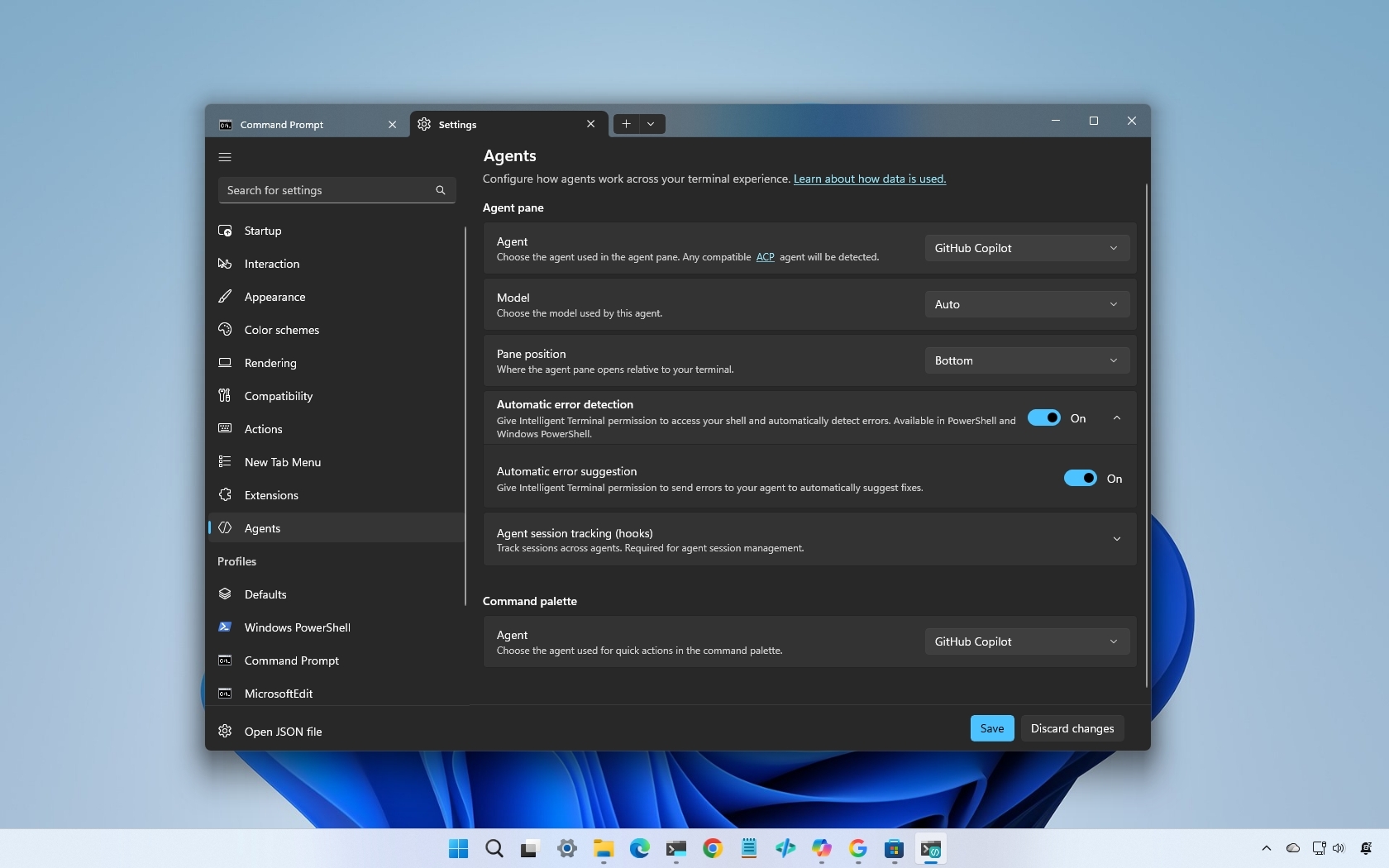
When you open the settings for this (Windows) Terminal with AI integration, you'll be able to customize the terminal as well as agent settings.

(Image credit: Mauro Huculak)
First, you have control over the AI agents, depending on the agents previously installed on your computer.
Second, from this page, you can change the pane position, as well as configure automatic error detection and error suggestions.
If you ever change any of the settings, remember to click the "Save" button. Sometimes, I even forget, and I assume the changes apply automatically, but that's not the case in the terminal.
Windows Central's Take
I think Microsoft made the right call by keeping AI out of the Windows Terminal and building a separate experience instead. Over the last few years, we've seen the company add AI to everything from the Settings app to Notepad, and not every integration has landed well with users. Developers tend to be especially protective of their tools, so forcing AI into an established terminal experience would have likely created unnecessary friction.
At the same time, I can see the appeal of the Intelligent Terminal. Looking up command syntax, troubleshooting errors, and figuring out why something failed usually means jumping between the terminal, browser tabs, support pages, and forums. If the AI can help reduce those context switches without getting in the way, it could become a genuinely useful productivity tool.
What are your thoughts about Intelligent Terminal and AI-powered command-line tools? Let me know in the comments.
Hope you enjoyed this news post. Feedback welcome.
Posted Sunday 14 June 2026 at 7:53 am AEST (my time).
News posts: 2023 5,800+ | 2024 5,700+ | 2025 5,700+ | 2026 (to end of May) 2,092
- xkryptonx
-
 1
1
Recommended Comments
There are no comments to display.
Join the conversation
You can post now and register later. If you have an account, sign in now to post with your account.
Note: Your post will require moderator approval before it will be visible.