

3175x175(CURRENT).thumb.jpg.b05acc060982b36f5891ba728e6d953c.jpg)
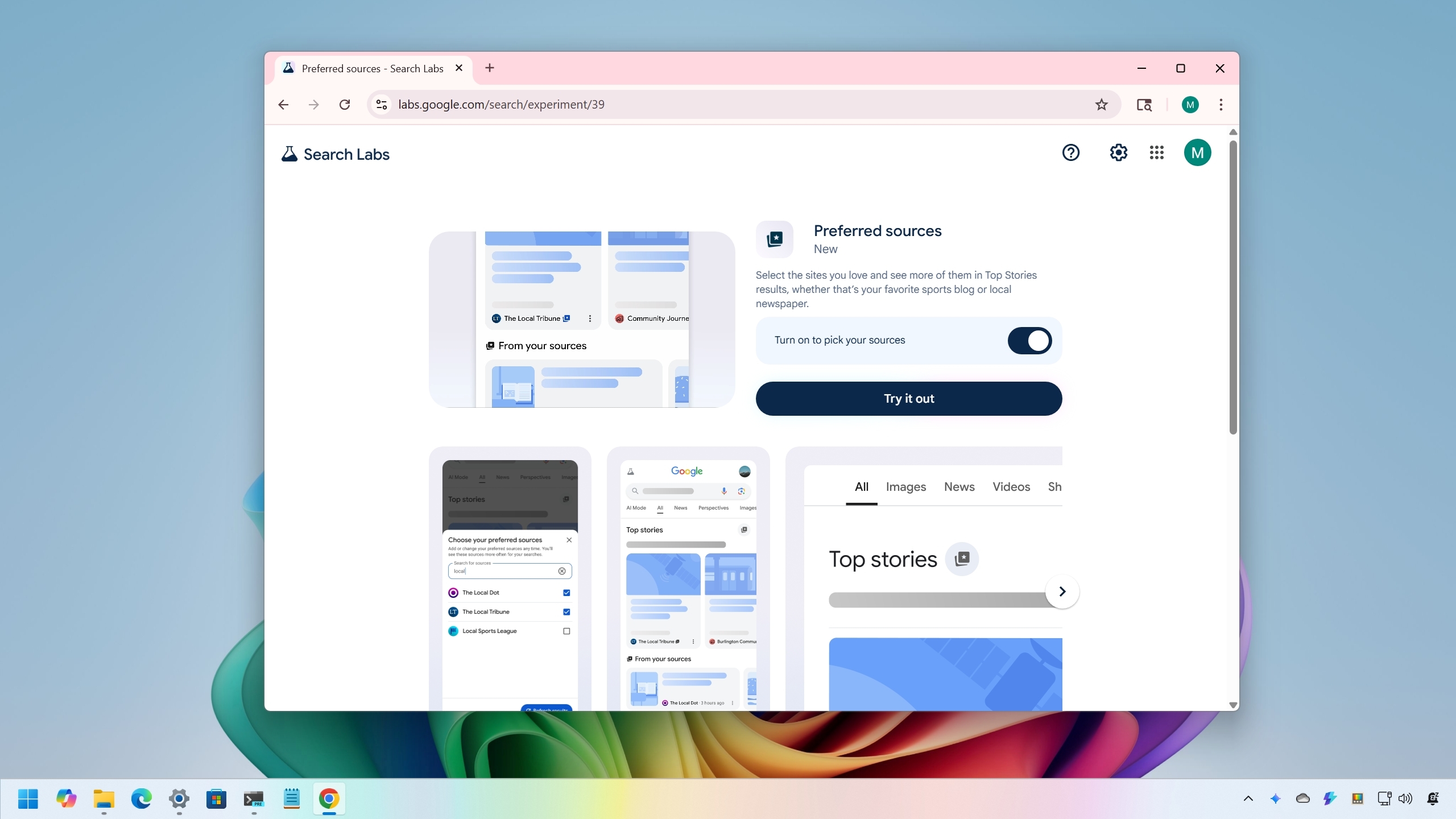
You can now tell Google the sources you would like to see more in search results.
If you're still using Google as your search engine of choice, the company is now experimenting with a new feature known as "Preferred sources," which allows you to choose the news sources you want to see more in the "Top Stories" results. In this guide, I'll outline the steps to configure it to improve your search experience.
Since Google started making changes to its search engine by implementing AI, search results have been changing significantly, and not always for the better. If you're noticing that the sources you care about are not appearing as often on your results, Google is adding a new feature to its search engine to select your preferred sources you would like to see more in the "Top Stories" section.
This feature works virtually on any platform, including Windows 11, Windows 10, macOS, mobile devices, and others, and on any browser, such as Microsoft Edge, Google Chrome, Mozilla Firefox, or any other modern browser.
In this how-to guide, I'll outline the easy steps to enable and configure "Preferred sources" on Google Search.
How to choose the websites you want to see more of in Google Search
To select the preferred websites that should appear in your Google search results, use these steps:
- Quick note: You can use this feature on your PC, Mac, or mobile device, and on virtually any browser. However, the option may or may not be available on your account as it's an experimental feature.
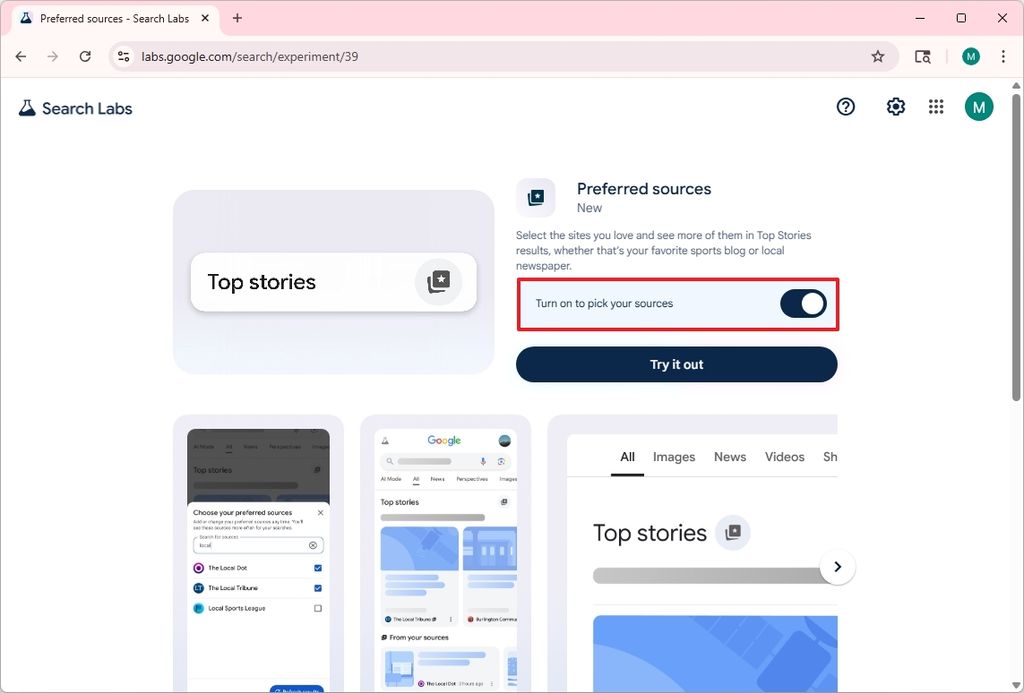
- Sign in with your Google account (if applicable).
- Switch on the "Turn on pick your sources" toggle.
(Image credit: Mauro Huculak)
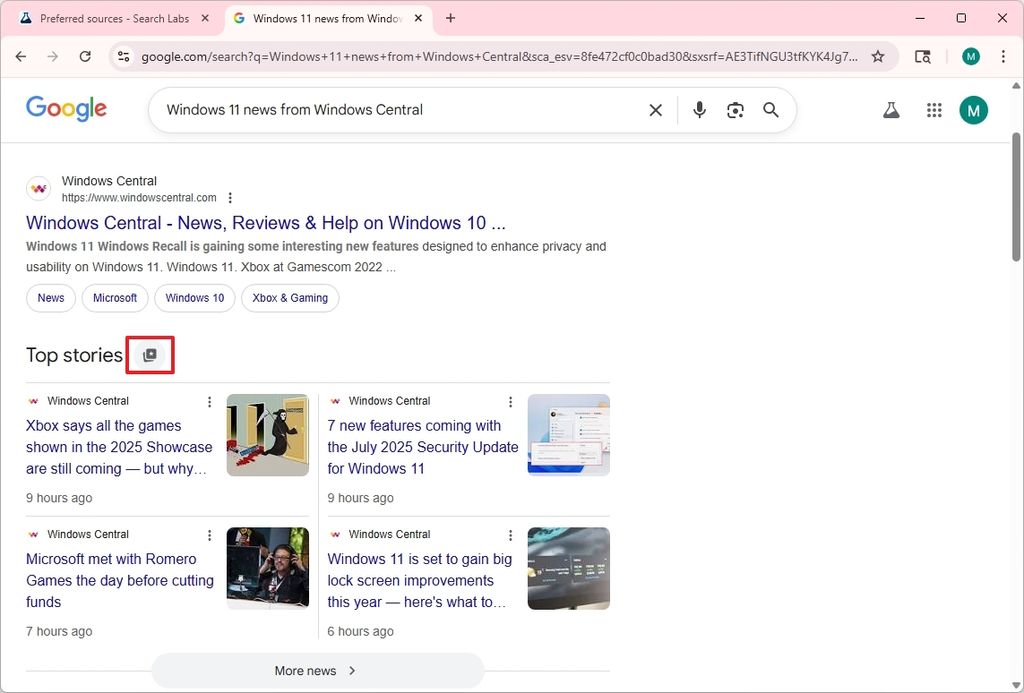
- Open the Google Search page.
- Perform a search query, such as "Windows 11 news from Windows Central."
- Click the star button next to "Top stories" to open the feature.
(Image credit: Mauro Huculak)
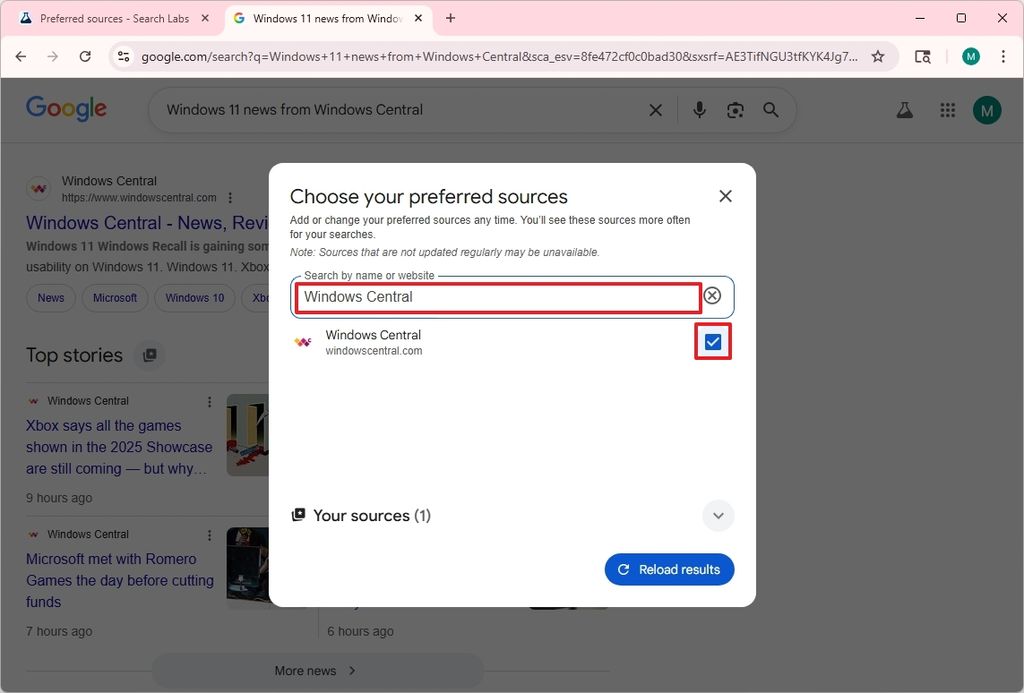
- Search for the website name you preferred as a source, such as "Windows Central."
- Check the source from the list.
(Image credit: Mauro Huculak)
- Click the Reload results button.
- (Optional) Repeat steps 5 through 9 to add more sources.
Once you complete the steps, the next time you perform a search on Google, the "Top Stories" results will be prioritized using your preferred sources.
It's important to note that this feature will remain effective as long as the publications continue to publish fresh content. Otherwise, Google can always ignore your settings and show stories from other sources.
Recommended Comments
There are no comments to display.
Join the conversation
You can post now and register later. If you have an account, sign in now to post with your account.
Note: Your post will require moderator approval before it will be visible.