

3175x175(CURRENT).thumb.jpg.b05acc060982b36f5891ba728e6d953c.jpg)
Keep Windows 10 secure with updates after 2025 by enrolling in the Extended Security Updates program.
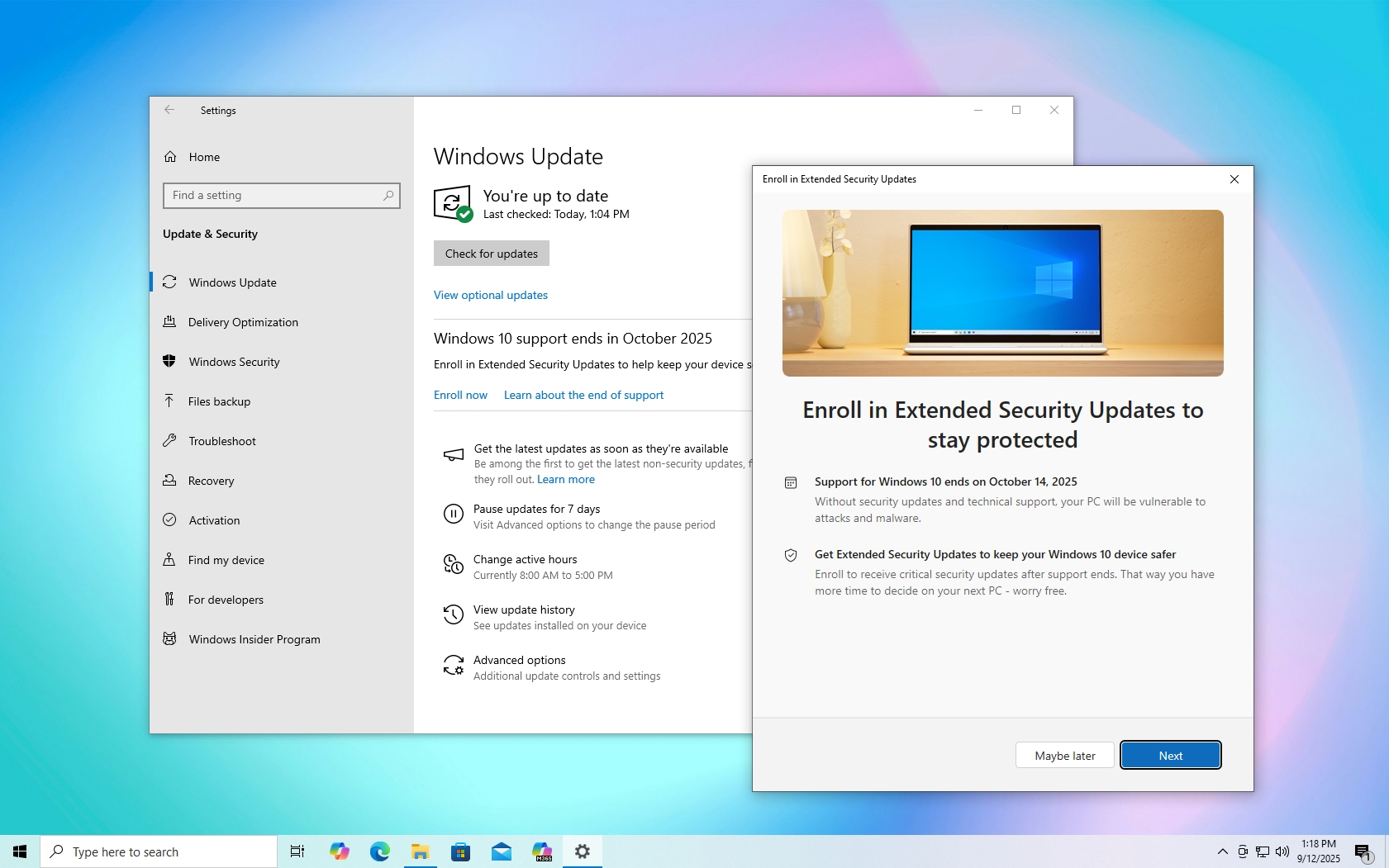
As the support of Windows 10 comes to an end on October 14, 2025, it's now the time to sign up for the Extended Security Updates (ESU) program to continue getting critical security updates after 2025.
When a version of Windows reaches the end of life, it typically marks the time when Microsoft officially abandons the development of that specific version of the operating system and stops providing security and maintenance updates, as well as technical support.
However, this doesn't mean that the operating system will stop working. Actually, the computer will continue to work normally, but as time passes, it'll become vulnerable to hackers and malware, and eventually, the device may start experiencing compatibility problems with apps and hardware.
Although the next logical step is to upgrade Windows 10 to the next supported version, which in this case is Windows 11, many people are still not ready to switch, and a significant number of devices are incompatible with the newer version due to the stricter hardware requirements imposed by Windows 11.
As a result of these challenges, Microsoft is currently offering regular users access to the Extended Security Updates (ESU) program to extend support for another year, until October 13, 2026.
The program has been available for a long time. However, it was initially limited to commercial customers, allowing them to keep devices running on retired versions of the operating system for up to three years. However, the option is now available to regular consumers, but it is limited to one year since the operating system reached the end of its support.
The company offers at least three options for signing up for the program:
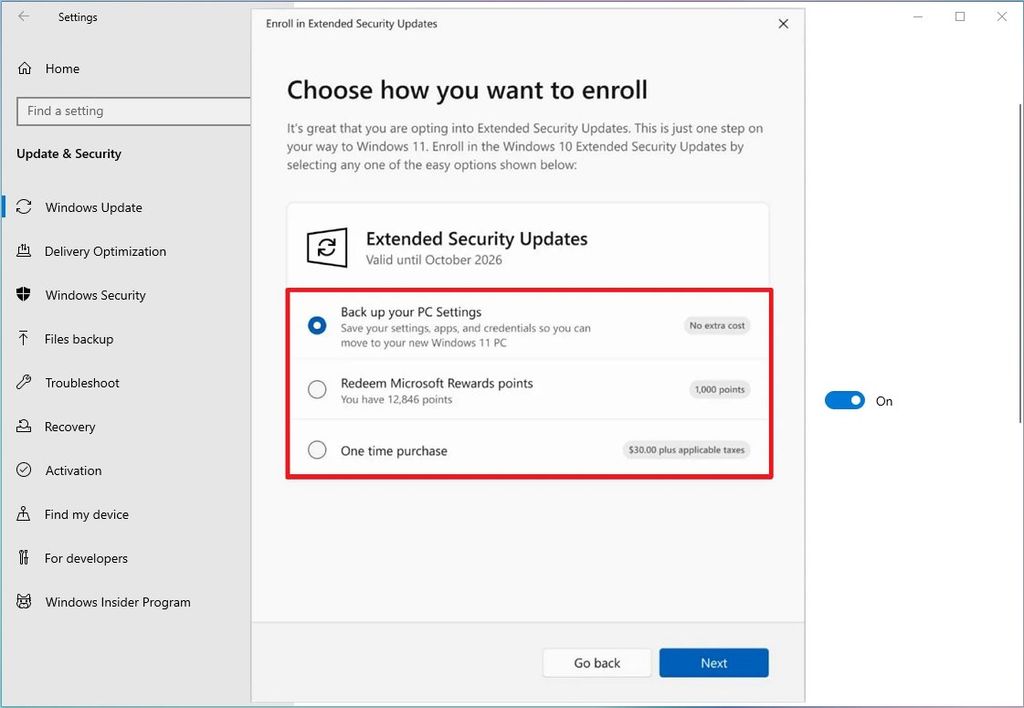
- Free – This option is available if you're backing up files to OneDrive, regardless of whether you have a Microsoft 365 subscription.
- Microsoft Rewards – You can also redeem 1,000 points if you're enrolled in the rewards program.
- Paid – If you don't want to use the other options, you can pay $30 to access the program.
You can enroll up to 10 computers tied to the same Microsoft account, regardless of the option you choose. The only requirement is that you must be signed in with a Microsoft account, since the enrollment information is stored in this account.
Also, the computer must be running Windows 10 version 22H2 with the latest updates already applied. The device doesn't have to be compatible with Windows 11 to be eligible to enroll.
In this how-to guide, I'll outline the steps to enroll your PC running Windows 10 in the Extended Security Updates program.
How to enroll Windows 10 in the Extended Security Updates program
To sign up for the ESU program, use these steps:
- Open Settings.
- Click on Update & Security.
- Click on Windows Update.
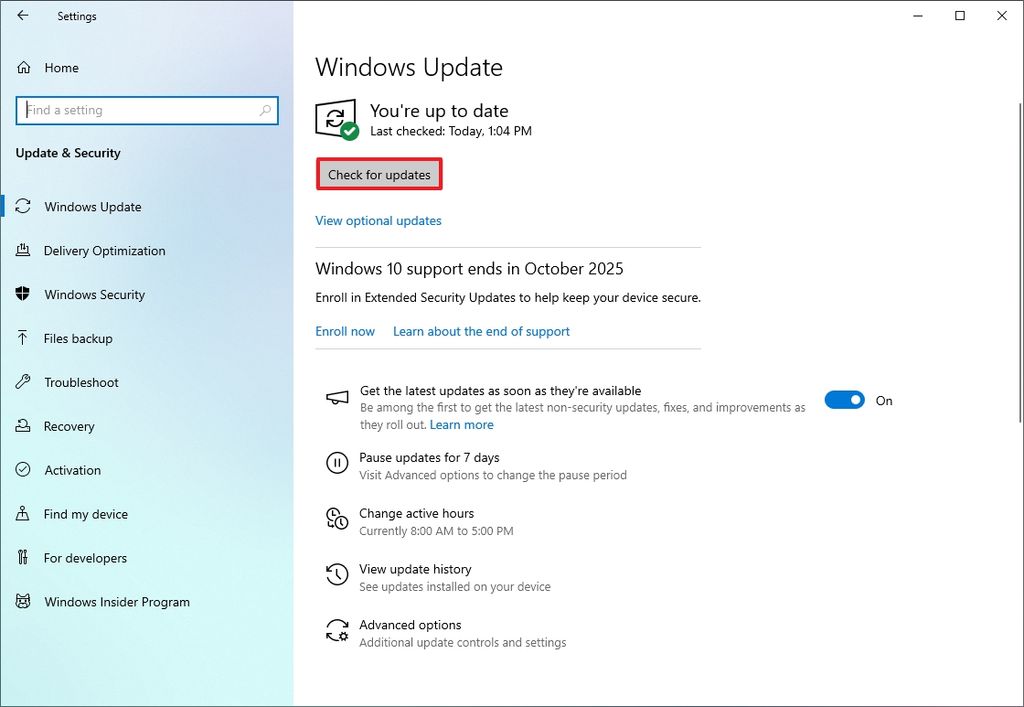
- Click the "Check for updates" button to ensure the device has the latest updates, and the enrollment option becomes available.
(Image credit: Mauro Huculak)
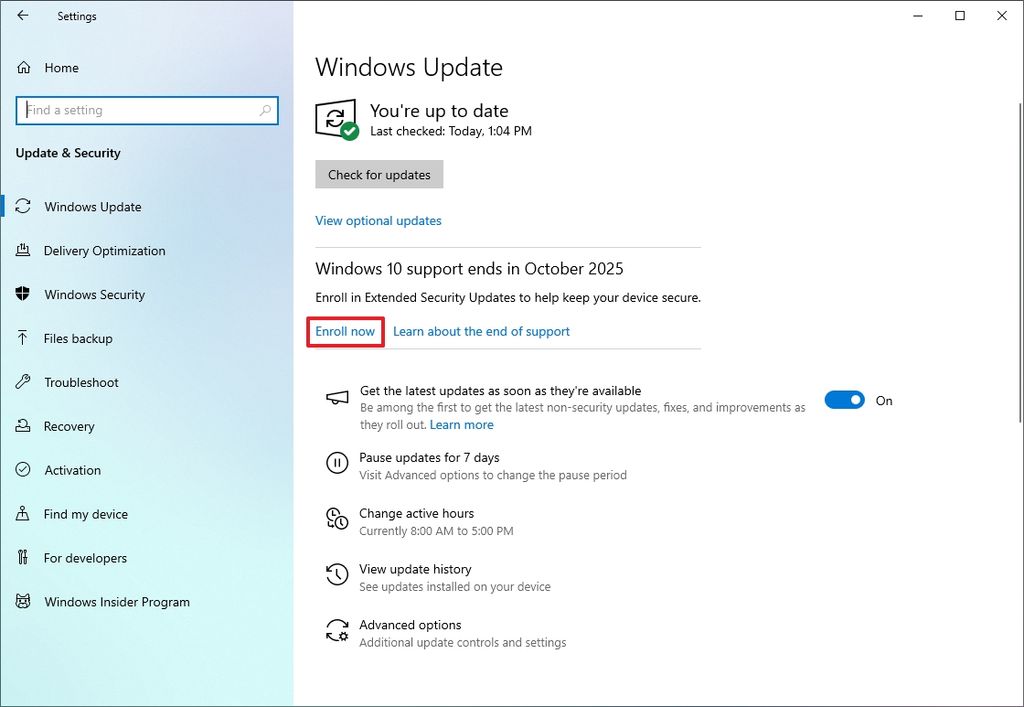
- Click the Enroll now option under the end of support notification.
(Image credit: Mauro Huculak)
- Click the Next button.
- Select the option to enroll your device, including "Back up your PC settings," "Redeem Microsoft Rewards points," or "One time purchase."
(Image credit: Mauro Huculak)
- Quick note: If the system detects that you're already backing up files to the cloud, you'll see the "Enroll" option immediately. If you're adding a second device, you'll see the "Add device" option instead.
- Click the Next button.
- Continue with the on-screen directions, depending on the option you have selected.
- Click the Done button.
- Check for the "Your PC is enrolled to get Extended Security Updates" message in the Windows Update settings to confirm the enrollment.
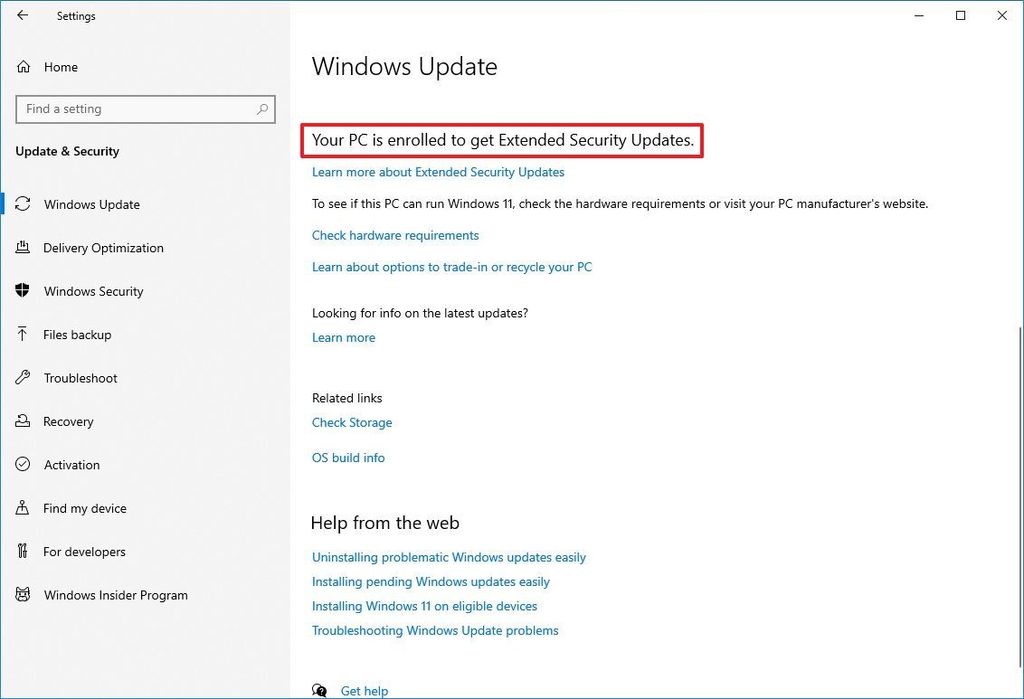
(Image credit: Mauro Huculak)
After you complete the steps, the computer will continue getting critical and security updates (only) until October 2026. However, consider that this program won't offer updates to improve the system, changes, or introduce new features. Also, this program doesn't include technical support.
The Microsoft Defender Antivirus definition updates are independent from Windows Update, and the company plans to continue making available updates until 2028.
Additionally, your Microsoft 365 apps (formerly Office) will continue to receive updates. However, after Windows 10 support ends, these apps won't receive new features.
Furthermore, on October 14, the company will end support for Office 2016 and Office 2019 for all operating systems. In addition, Office 2021 and 2024 (as well as the LTSC versions of Office) will continue to run, but they will no longer receive support on Windows 10.
If you don't find the option to enroll, it's important to note that Microsoft has previously said that the option is rolling out gradually, meaning that it could take some additional time before it's fully visible to everyone.
Finally, if you have a compatible computer, the best option is to upgrade to Windows 11 instead of using the ESU program. This process will keep your computer supported, and you'll continue to receive updates that patch vulnerabilities as well as roll out improvements, bug fixes, and new features.
Are you enrolling in the ESU program or upgrading to Windows 11? Let me know in the comments.
Hope you enjoyed this news post. Feedback welcome.
Posted Tuesday 16 September 2025 at 3:02 am AEST (my time).
News posts... 2023: 5,800+ | 2024: 5,700+ | 2025 (till end of August): 4,048
- hullboy
-
 1
1
Recommended Comments
Join the conversation
You can post now and register later. If you have an account, sign in now to post with your account.
Note: Your post will require moderator approval before it will be visible.