


3175x175(CURRENT).thumb.jpg.b05acc060982b36f5891ba728e6d953c.jpg)
Learn three built-in Windows methods to identify your motherboard manufacturer, model, version, and serial number without opening your PC.
Although Windows is considered a fairly user-friendly operating system, below that abstraction is an understandably complex system that makes sure that all your software and hardware is communicating with each other and running correctly. Users still have a way to dive deep into some of the OS' complexities through interfaces like Command Prompt and PowerShell, which let you generate battery reports, retain your drivers, update apps in one go, and find your product key, among many other things. Today, we'll be talking about a few methods to determine your Windows 11 and Windows 10 PC's motherboard model and other details without opening up your hardware.
There are several scenarios in which you may need to know details about your motherboard. You might need it when upgrading your PC's internals, troubleshooting a problem, checking BIOS and hardware compatibility, and more. If you're a newbie in this space, it might sound a bit daunting to open up your desktop or laptop PC to find out these details.
Luckily, Microsoft offers a way to find out this information without tearing apart your machine. These methods should work if your PC OEM has programmed the System Management BIOS (SMBIOS) information correctly. If you see that model number fields are populated by generic text like "To Be Filled By O.E.M.", you may need to check up on your PC's information on the OEM's website. That said, the following methods should reliably bring up motherboard details in most cases.
Method 1: System Information
- Open Windows Run (Windows + R)
-
Type the following, and press Enter:
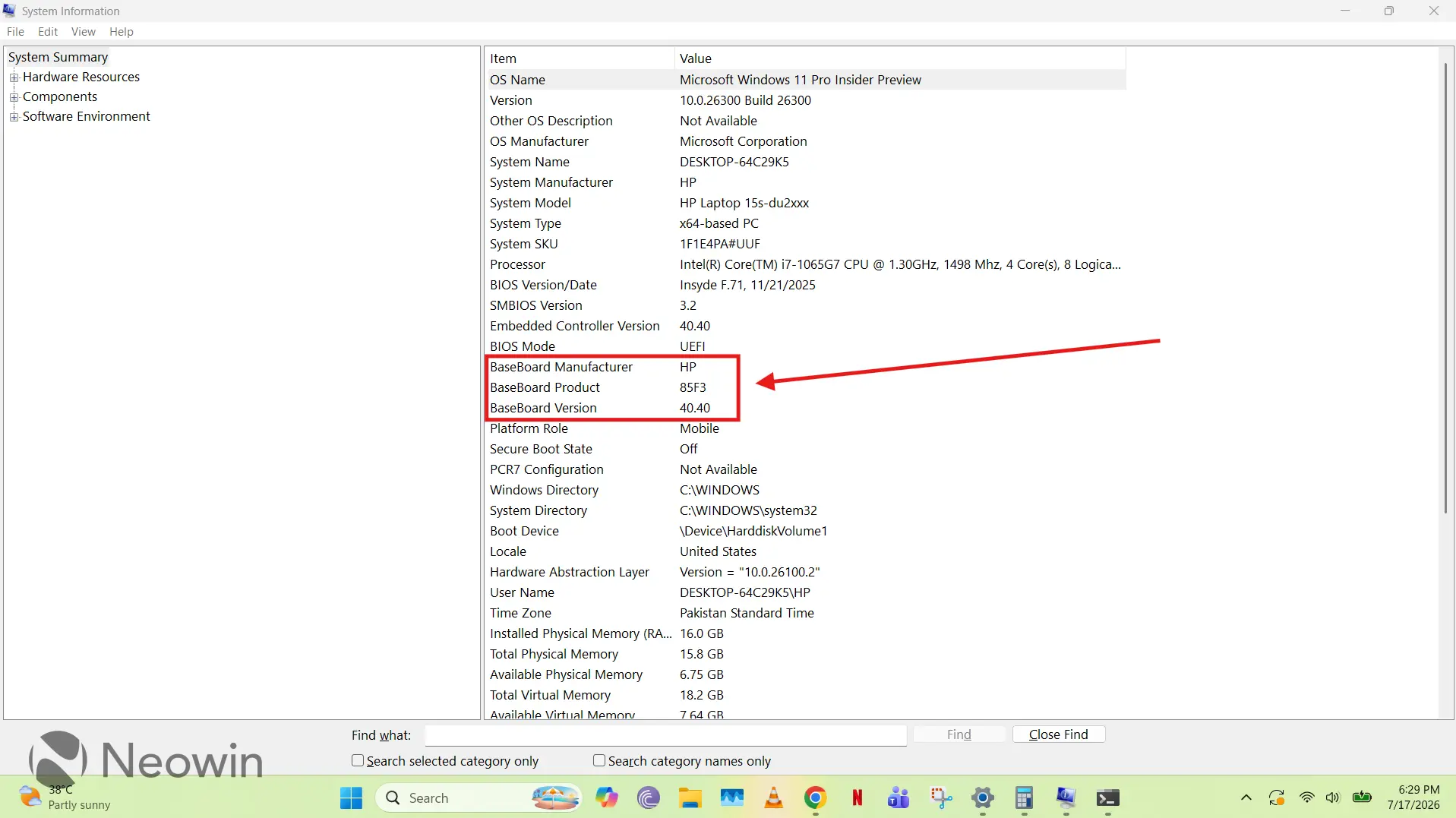
msinfo32 - You'll be able to see all your available system details, but you only need the Baseboard Manufacturer, Baseboard Product, and Baseboard Version, as shown in the enclosed box below:
Method 2: Windows PowerShell
- Search Windows PowerShell after pressing the Windows key
- Right-click and run as administrator
-
Run the following command:
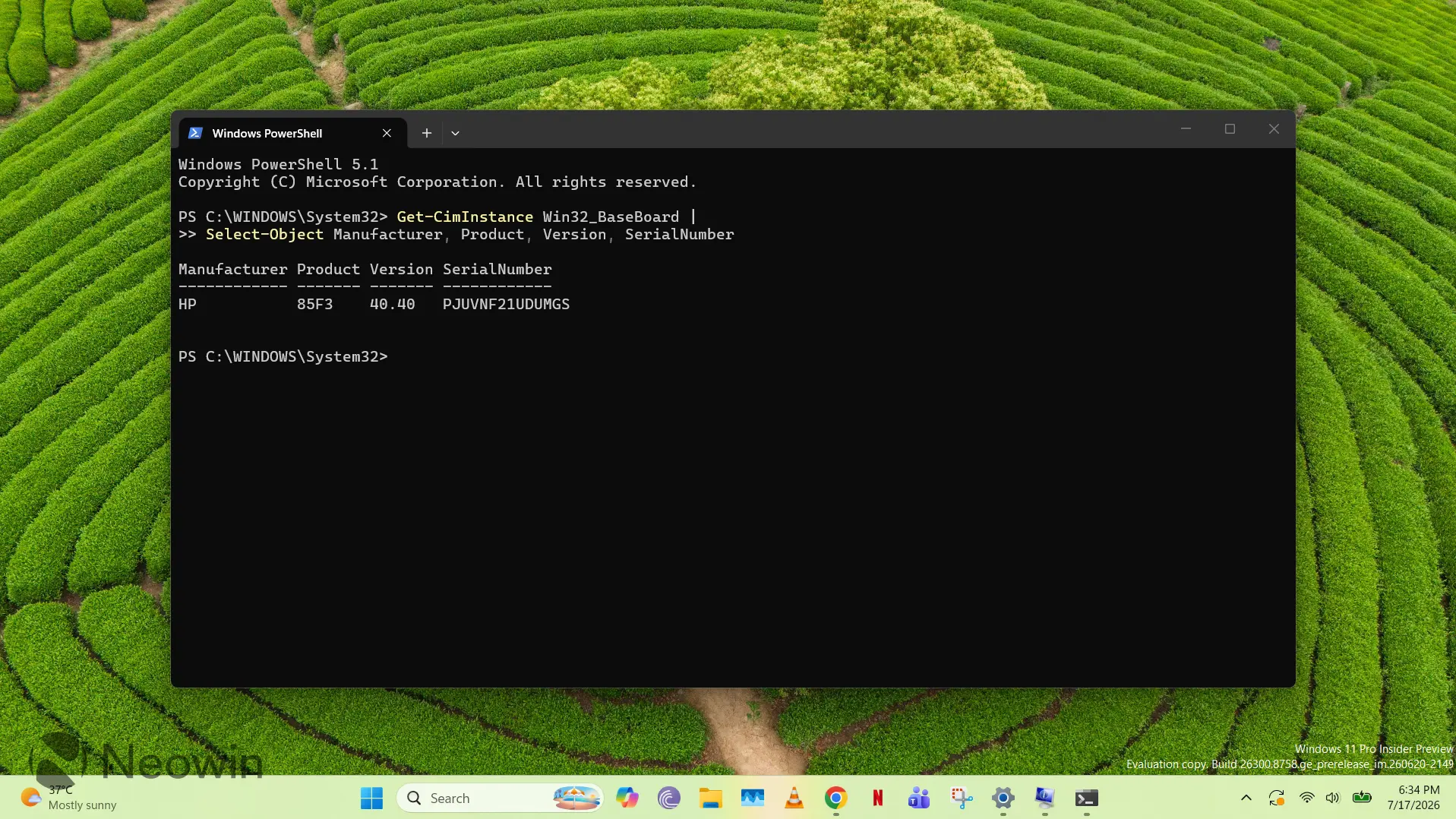
Get-CimInstance Win32_BaseBoard |
Select-Object Manufacturer, Product, Version, SerialNumber
Method 3: Command Prompt (deprecated)
- Note: Windows Management Instrumentation Command-line (WMIC) is a command-line utility that is deprecated in modern versions of Windows, but it still works on most installations. However, it is recommended that you leverage Method 2 (Windows PowerShell)
- Search Command Prompt after pressing the Windows key
- Right-click and run as administrator
-
Run the following command:
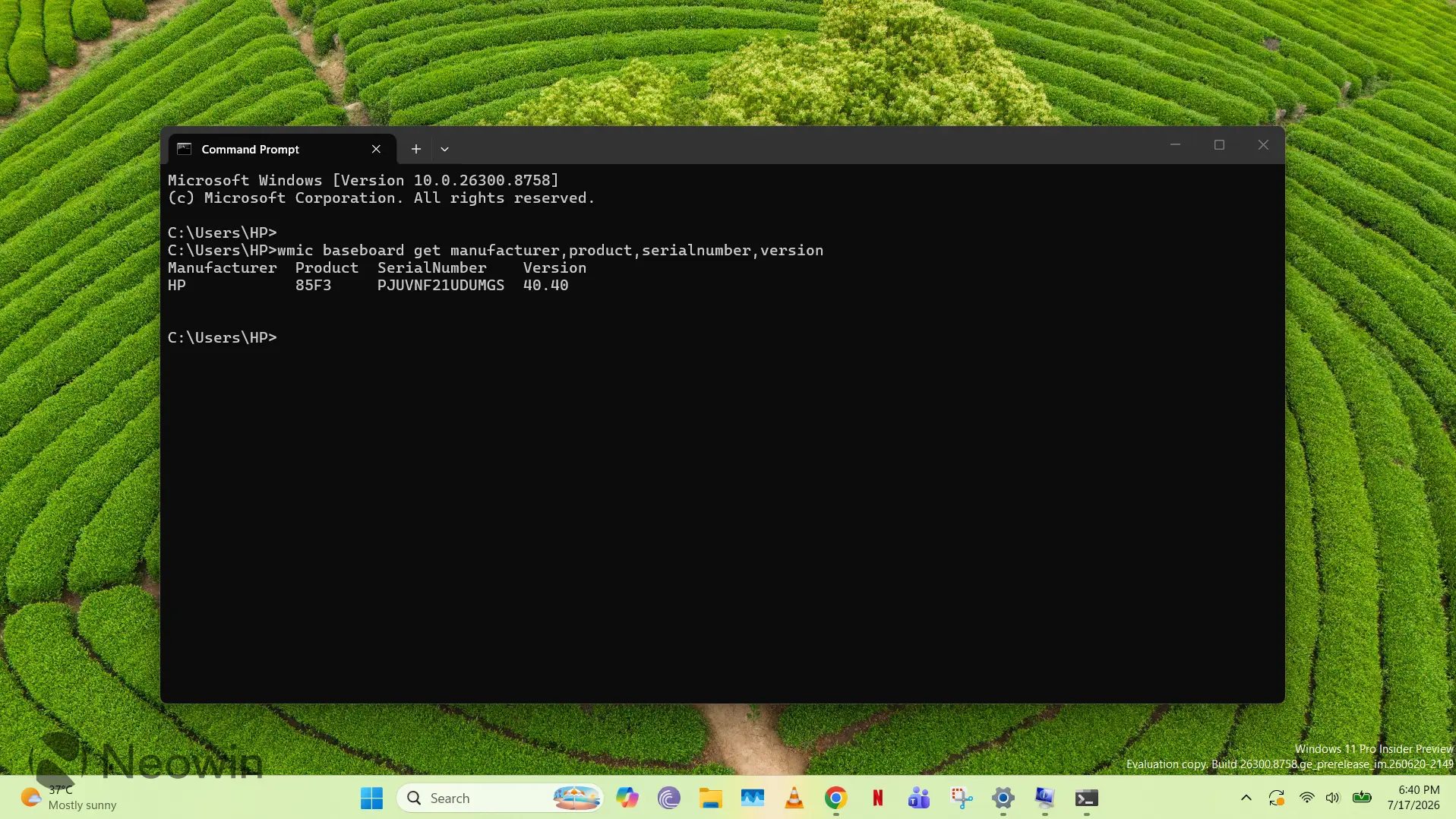
wmic baseboard get manufacturer,product,serialnumber,version
That's pretty much all there is to it! Although Method 1 seems the most user-friendly, you might get overwhelmed with information. To get just what you need, you should leverage Method 2 or Method 3 (while it works).
Do you know of an even simpler way to get to the motherboard details? Let us know in the comments section below!
Hope you enjoyed this news post. Feedback welcome.
Posted Sunday 19 July 2026 at 7:33 am AEST (my time).
News posts: 2023 5,800+ | 2024 5,700+ | 2025 5,700+ | 2026 (to end of June) 2,475
Recommended Comments
There are no comments to display.
Join the conversation
You can post now and register later. If you have an account, sign in now to post with your account.
Note: Your post will require moderator approval before it will be visible.