


3175x175(CURRENT).thumb.jpg.b05acc060982b36f5891ba728e6d953c.jpg)
Windows 11 has a built-in tool to check the health of your SSD before it fails. Here is a guide on how to check if your disk is about to fail.
Your SSD or HDD is probably the most important component of your PC, but over time they can fail. They’re very easy to replace if they do fail, but if they fail unexpectedly, they can create a big headache. Your system won’t boot after a drive fails because that’s where the operating system is installed, and you’ll likely lose access to all of your important documents.
There are several telltale signs that your disk is failing; they include:
- Clicking or grinding noises
- Frequent system crashes or sudden blue screens during operation
- Slow boot times and slow file access
- Corrupted or missing files and folders you cannot open
- Sudden temperature spikes that make your device overheat
- Frequent error messages when the system reads or writes data
- Applications freezing or crashing when you access large files
You can avoid losing your data by routinely performing health checks. If you do a check and the drive says that it is failing, then you have time to back up your important data before any data loss occurs.
Windows 11 allows you to check the state of your HDD or SSD using built-in tools. Here’s how you can go about finding the status of your drive:
- Open Settings (Press Win + i)
- Go to System > Storage
- Scroll down and click on Advanced storage settings
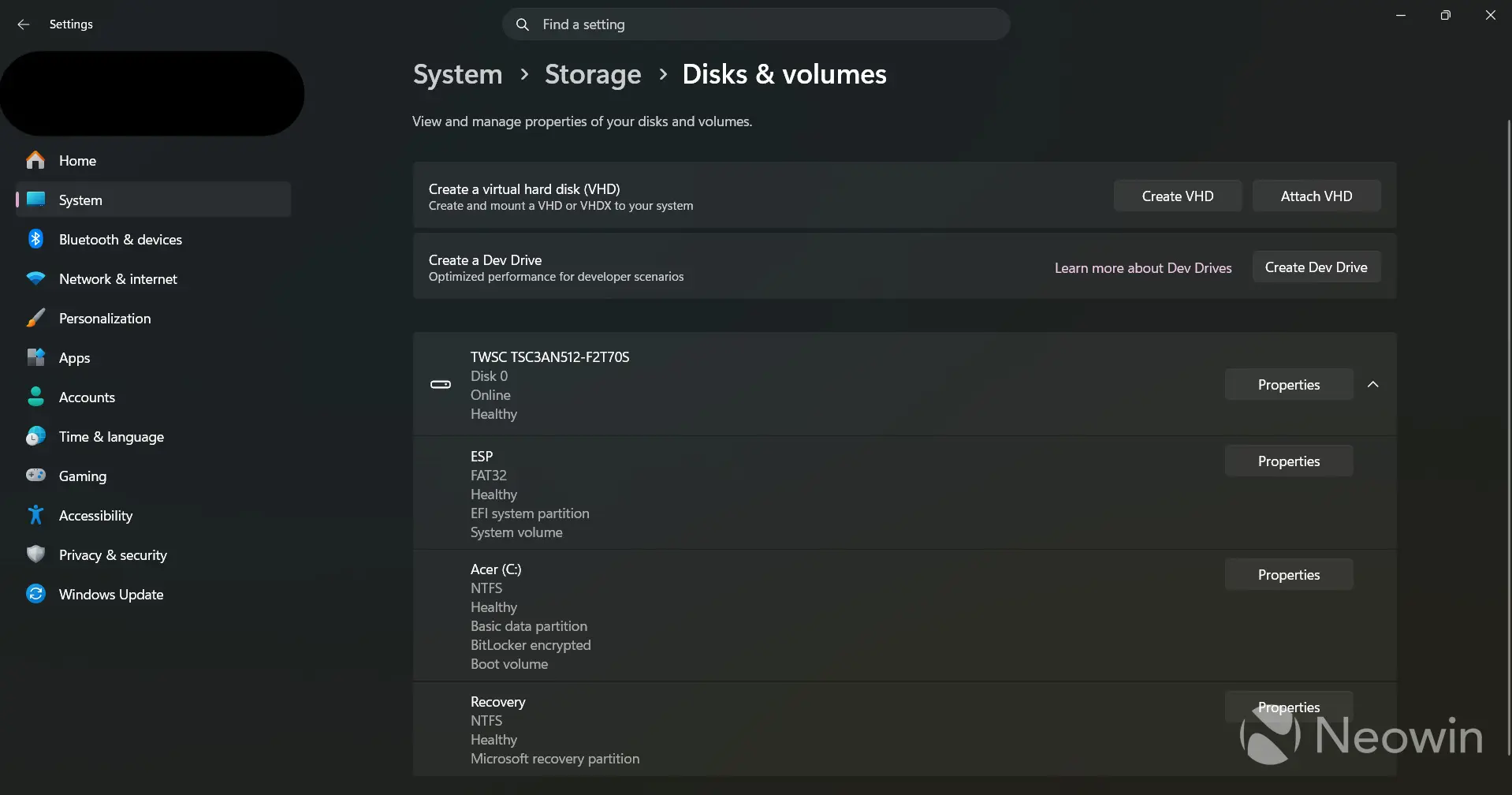
- Click on Disks & volumes
- Under each disk it will give the status, such as Healthy
- Select your main drive from the list and click the Properties button next to it
- Look at the Drive Health section; it will show you: Estimated remaining life, Available spare, and Current Temperature
It is a good idea to check the health every few months so that you don’t get caught out. However, don’t rely on it 100%; keep backing up regardless in case it misses a drive failure.
Hope you enjoyed this news post. Feedback welcome.
Posted Monday 13 July 2026 at 7:58 am AEST (my time).
News posts: 2023 5,800+ | 2024 5,700+ | 2025 5,700+ | 2026 (to end of June) 2,475
Recommended Comments
There are no comments to display.
Join the conversation
You can post now and register later. If you have an account, sign in now to post with your account.
Note: Your post will require moderator approval before it will be visible.