


3175x175(CURRENT).thumb.jpg.b05acc060982b36f5891ba728e6d953c.jpg)
Microsoft Word users have several options when it comes to saving their documents: from local saves to storing documents on network shares or an integrated cloud service such as Microsoft OneDrive. AutoSave and AutoRecover were introduced several years ago by Microsoft in Office products to enable cloud saving and restoration.
Microsoft announced that it is changing the default save location for Word documents on Windows. "Anything new you create will be saved automatically to OneDrive or your preferred cloud destination", writes Raul Munoz, product manager at Microsoft on the Office Shared Services and Experiences team.
Munoz backs up the decision with half a dozen advantages for saving documents to the cloud. From never losing progress and access anywhere to easy collaboration and increased security and compliance.
While cloud saving is without doubt beneficial in some cases, Munoz fails to address the elephant in the room. Some users may not want that their documents are stored in the cloud. There are good reasons for that, including privacy.
Summed up:
- If you do not mind that Word documents are stored in the cloud, you do not need to become active.
- If you mind that Word documents are stored in the cloud by default, you need to modify the default setting.
Any document in Word that has the autosave option set to on at the very top of the window is saved in the cloud.
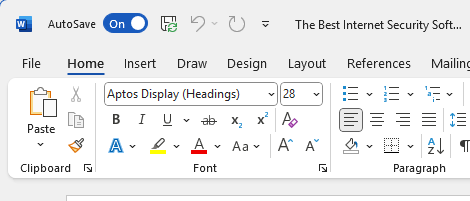
Furthermore, any new document will be named with the date instead of a traditional name by default. Microsoft notes that users may use the save option, e.g., by using the shortcut Ctrl-S, to change the file name or file location.
Word will display a prompt to the user when closing the document, if no save action was performed prior to the step.
The change is rolling out with Word for Windows version 2509 and later. Microsoft notes that the same change is coming to Excel for Windows and PowerPoint for Windows at a later stage as well.
Changing the default save location
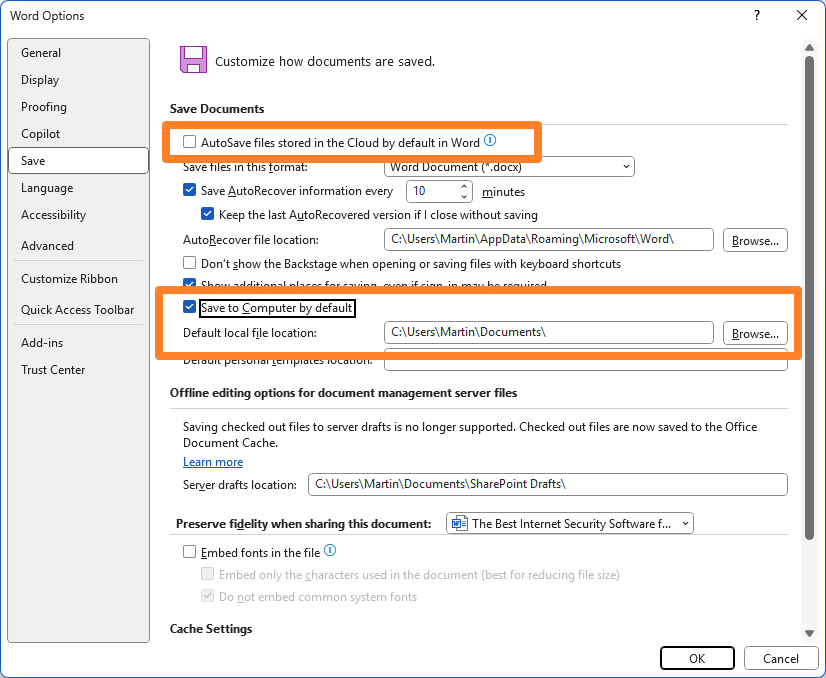
Word customers who do not want their documents to be saved to the cloud by default need to become active to change the default save location.
Here is how that is done:
- Open Word or any Word document.
- Select File > Options.
- Switch to the Save category in the Word Options window.
- Uncheck "AutoSave files stored in the Cloud by default in Word".
- Check "Save to Computer by default".
- Make sure that the path under "Default local file location" is set correctly. Otherwise, click on browse to pick a new path or edit it manually.
Closing Words
Switching the default from local saves to cloud saves is a major change. It is unclear whether Microsoft intents to highlight it to every Word user before it is made, but my guess is that it will be one of those silent changes that you may not recognize for a while.
Now You: what is your preferred location for saving documents? Feel free to leave a comment down below.
Hope you enjoyed this news post. Feedback welcome.
Posted Thursday 28 August 2025 at 4:56 am AEST (my time).
News posts... 2023: 5,800+ | 2024: 5,700+ | 2025 (till end of July): 3,458
- scarabou
-
 1
1
Recommended Comments
Join the conversation
You can post now and register later. If you have an account, sign in now to post with your account.
Note: Your post will require moderator approval before it will be visible.