


3175x175(CURRENT).thumb.jpg.b05acc060982b36f5891ba728e6d953c.jpg)
You can use the Clipboard History panel to manage your clipboard, but the real magic happens in PowerShell.
When you think of your PC’s clipboard, you have a simple flow in mind: Ctrl + C to copy something and Ctrl + V to paste it. But did you know how much more Windows can actually do with the clipboard?
Some of it lives in a hidden panel behind a keyboard shortcut, the one that some users probably already know about. But some of it only shows up if you're willing to open PowerShell, and it's actually quite useful for anyone who uses the command-line tool. Either way, it's already built into Windows, no extra software required.
Best Clipboard History panel features
Let’s start with the most common tips. If you press Win + V, you’ll open the Clipboard History panel. If it's your first time, you'll see a prompt to turn it on, or you can enable it manually at Settings > System > Clipboard.
Once it's on, Win+V shows up to 25 of your most recent clipboard entries instead of just the last one. It handles text, HTML, and small images, though not full files or documents. So, if something you initially wanted to copy “ran away” because you accidentally copied something else, you can still access it here.
Pin the stuff you use constantly: Hover over any entry in the panel and click the pin icon. Pinned items never get pushed out once you hit the 25-item cap, which makes this a decent lightweight snippet bank for addresses, boilerplate text, or command lines you paste often.
Restarting your PC clears the whole list, except for anything you've pinned.
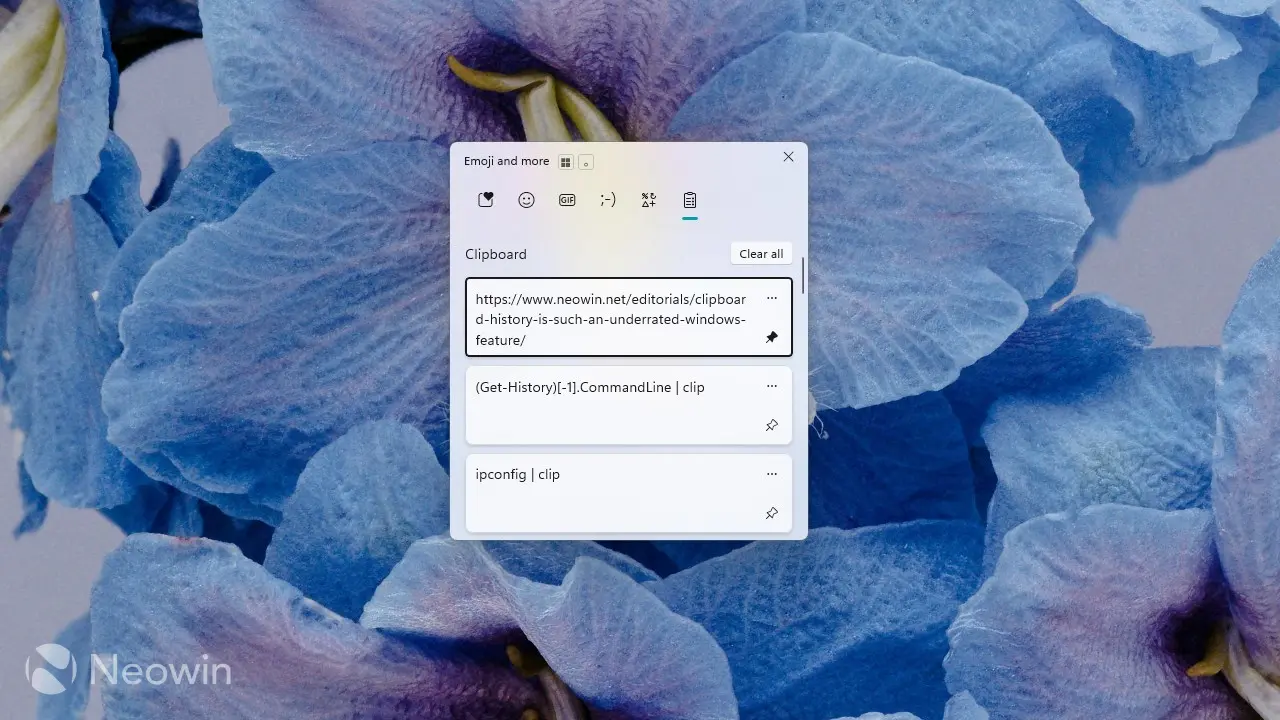
Sync your clipboard across devices: Turn on Settings > System > Clipboard > Sync across devices. Once you do this, you’ll be able to share the clipboard across every machine on which you’re logged in with the same Microsoft account. You can choose automatic sync for everything you copy, or manual sync so you decide item by item.
One thing worth mentioning before you turn sync on is that anything synced gets uploaded to Microsoft's servers. That’s fine for addresses and code snippets, but avoid syncing passwords, credit card numbers, or other sensitive info.
Clipboard commands for PowerShell
The Clipboard History feature is one of the most useful “small” features in Windows 11, but using clipboard commands in PowerShell is even more powerful.
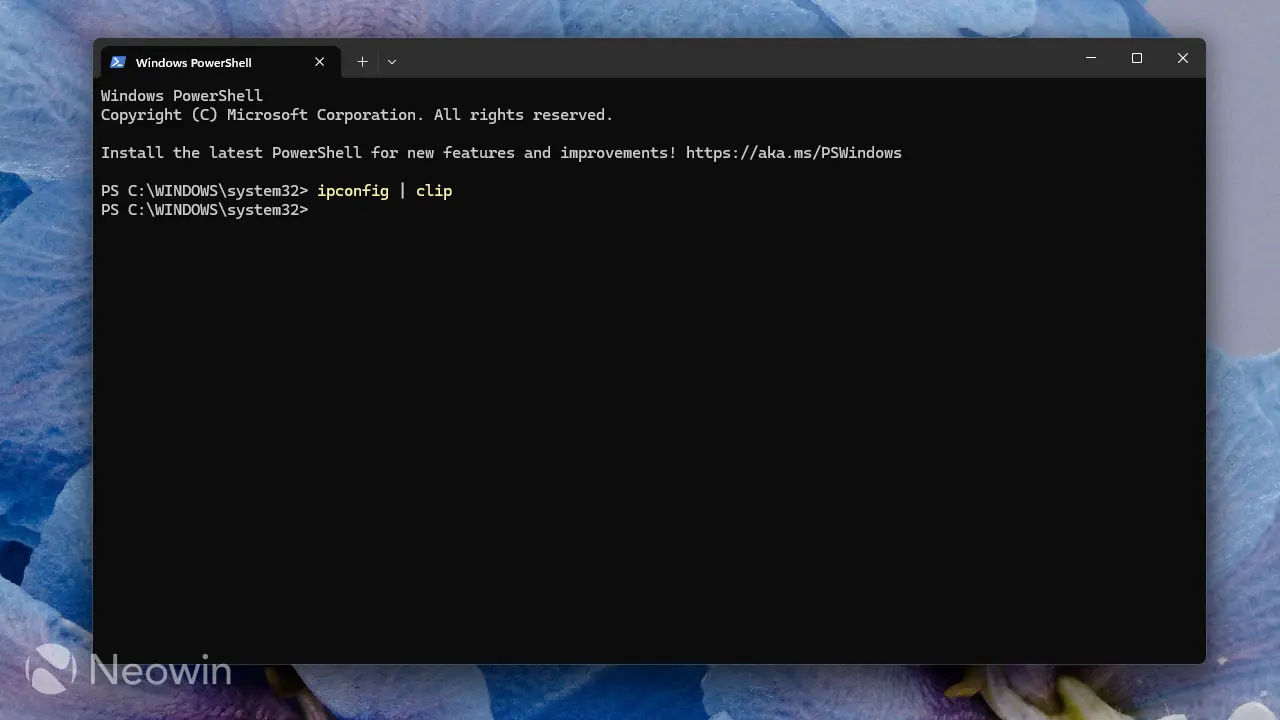
One of the most useful clipboard features in PowerShell is the ability to automatically copy the output. So if you need to paste that output somewhere, you don’t need to manually select it, which can get messy. To do this, simply add the | clip pipe to any command, and the output will automatically get copied to the clipboard upon completion.
For example:
ipconfig | clipThis works with pretty much anything. Just add the | clip pipe, and it will automatically copy the output of any command you'd normally select with your mouse. Once you use this a few times, going back to manual selection feels painfully slow.
Bonus tip: If you’re already in PowerShell, you can wipe your clipboard clean without going to the Clipboard
History panel. Just run this command: Set-Clipboard -Value $null
Copy the command itself, not just its output
If you’re frequently reusing commands, sometimes you want to copy the command itself, not the output. And using Ctrl + C is risky, as you can accidentally terminate a running command. Unfortunately, there's no built-in one-word shortcut for that, so you have to reach into your session history instead.
To grab your last command:
(Get-History)[-1].CommandLine | clipNow, while this command gets you what you want, it’s not very practical, because you need to either type it manually or have it saved somewhere. This doesn’t save you too much time over just typing the actual command you want.
There’s a better way, but it requires some groundwork. If you'd rather have a permanent shortcut for this instead of typing it out every time, you can save a small custom command into your PowerShell profile. A profile is just a script file that runs automatically every time you open PowerShell, so anything you add to it becomes available in every session from then on.
Here's how to set it up:
- Open PowerShell and type notepad $PROFILE.
- If Notepad says the file doesn't exist, click Yes when it asks to create it.
- In the file that opens, paste this line: function ccmd { (Get-History)[-1].CommandLine | Set-Clipboard }
- Save the file and close Notepad.
- Close PowerShell completely and reopen it, since profiles only load when a new session starts.
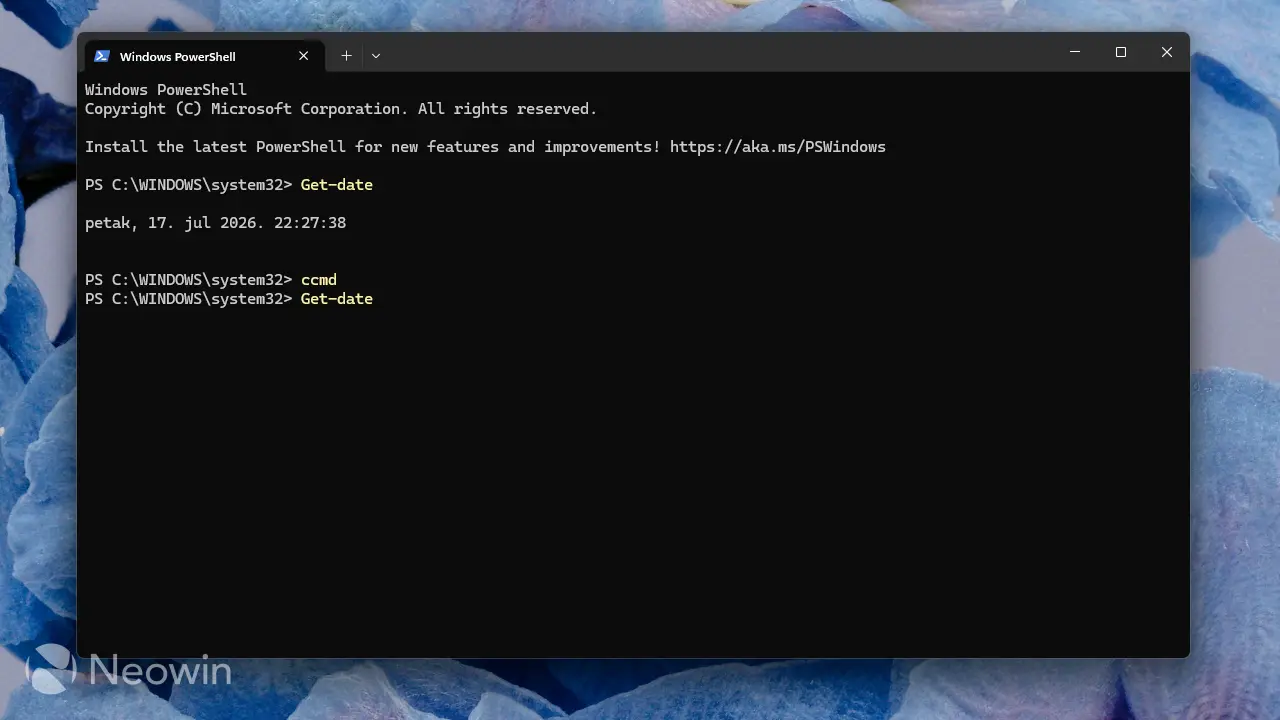
From then on, typing ccmd after any command copies that command's text straight to your clipboard. Run something like ipconfig, or whatever command, then type ccmd right after; the last command you run will automatically be copied to your clipboard. It still requires some work, but it’s easier to type ccmd than to type the entire Get-History command I mentioned above.
These were some of the most useful clipboard commands for PowerShell that fix real pain points users face. If you know about some other useful clipboard feature or command, feel free to share it with us in the comments below.
Hope you enjoyed this news post. Feedback welcome.
Posted Monday 20 July 2026 at 7:23 am AEST (my time).
News posts: 2023 5,800+ | 2024 5,700+ | 2025 5,700+ | 2026 (to end of June) 2,475
- coopers
-
 1
1
Recommended Comments
There are no comments to display.
Join the conversation
You can post now and register later. If you have an account, sign in now to post with your account.
Note: Your post will require moderator approval before it will be visible.