

3175x175(CURRENT).thumb.jpg.b05acc060982b36f5891ba728e6d953c.jpg)
A new "Describe Image" feature is coming soon to Click To Do, which will allow Windows 11 to use AI to describe an image that's currently on your screen.
Microsoft has announced that a new AI action is coming soon to the new Click To Do feature on Windows 11 that will allow the OS to describe an image that's currently on your screen using AI. The feature is exclusive to Copilot+ PCs and can be accessed by holding down the Windows key and clicking the mouse.
Because this feature is a Copilot+ PC exclusive, that means it utilizes on-device AI models to achieve the descriptions it provides when the user asks Click To Do to describe an image. That means it shouldn't require an internet connection and can be used when offline.
"We are introducing a new “describe image” action in Click to Do to get detailed descriptions of images, charts and graphs – useful to get a quick overview of the visual content," a Microsoft blog post states. "When you use the action for the first time, the required models are set up, and the descriptions are generated locally on your device making sure your sensitive data stays on your PC."
Once the user selects the option to describe an image on screen, a popup will appear that will generate a description. That popup gives the user the option to generate another description or vote up and down how accurate the description was. It also lets you copy the description straight to your clipboard. It should work with any app on your screen.
The new describe image feature is part of a wider array of features and actions built into the Click To Do AI overlay on Windows 11. This feature is tied to Windows Recall and uses on-device AI models to analyze content on screen and provide useful tasks and actions based on what it can see.
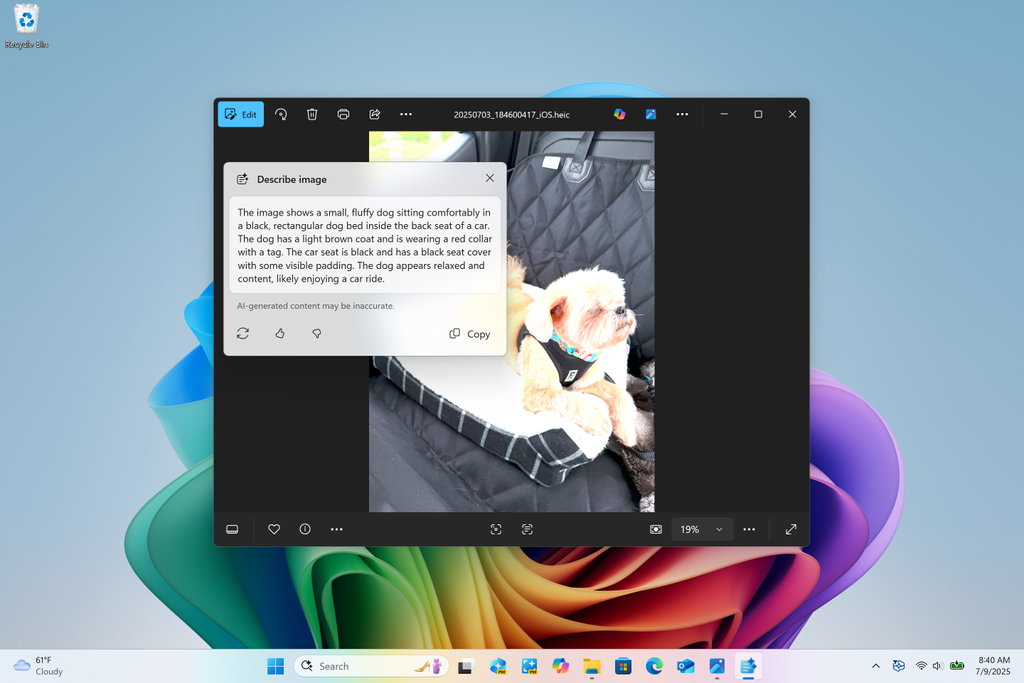
The describe image popup will work in any app on Windows.
(Image credit: Microsoft)
So far, Click To Do is capable of analyzing text that it can then summarize, create lists with, and even rewrite. It can also identify images and offer quick actions such as blurring or removing the background of an image on screen and search the web with the image to find out more.
Many of the actions that appear in Click To Do are customizable, and you can turn some of them off if you find yourself never intending to use them. Most of the actions that hand-off to an app can be disabled if you don't want to see them in the Click To Do menu.
Recommended Comments
There are no comments to display.
Join the conversation
You can post now and register later. If you have an account, sign in now to post with your account.
Note: Your post will require moderator approval before it will be visible.