

3175x175(CURRENT).thumb.jpg.b05acc060982b36f5891ba728e6d953c.jpg)
A new feature now in preview testing in the Windows 11 Canary Channel is designed to increase battery life by adaptively enabling energy saver mode based on your current workflow, not battery level.
Microsoft is trying out a new feature for Windows 11 that is designed to adaptively enable energy saver mode based on your current usage of your PC. The feature is dubbed "adaptive energy saver," and will switch on battery saver mode regardless of your battery level, based on how you're using your PC.
"Adaptive energy saver is an opt-in feature that automatically enables and disables energy saver, without changing screen brightness, based on the power state of the device and the current system load" says Microsoft in the blog post announcing the feature.
On paper, it actually sounds like a good idea. Windows devices are notorious for having not great battery life, and so adaptively enabling energy saving mode could help increase the longevity of your laptop if you're only conducting tasks that don't require a lot of compute power.
Microsoft doesn't go into any technical details as to how this feature works, but I suspect it will essentially measure your current CPU and GPU usage, and weigh up whether you need extra power to complete the task you're currently working on. If not, it will enable energy saving mode.
If you're just writing emails and browsing the web, adaptive energy saver will likely kick in to save battery life. Alternatively, if you're trying to render a video or play a game, then it's likely adaptive energy saver will disable itself to give you as much performance as possible.
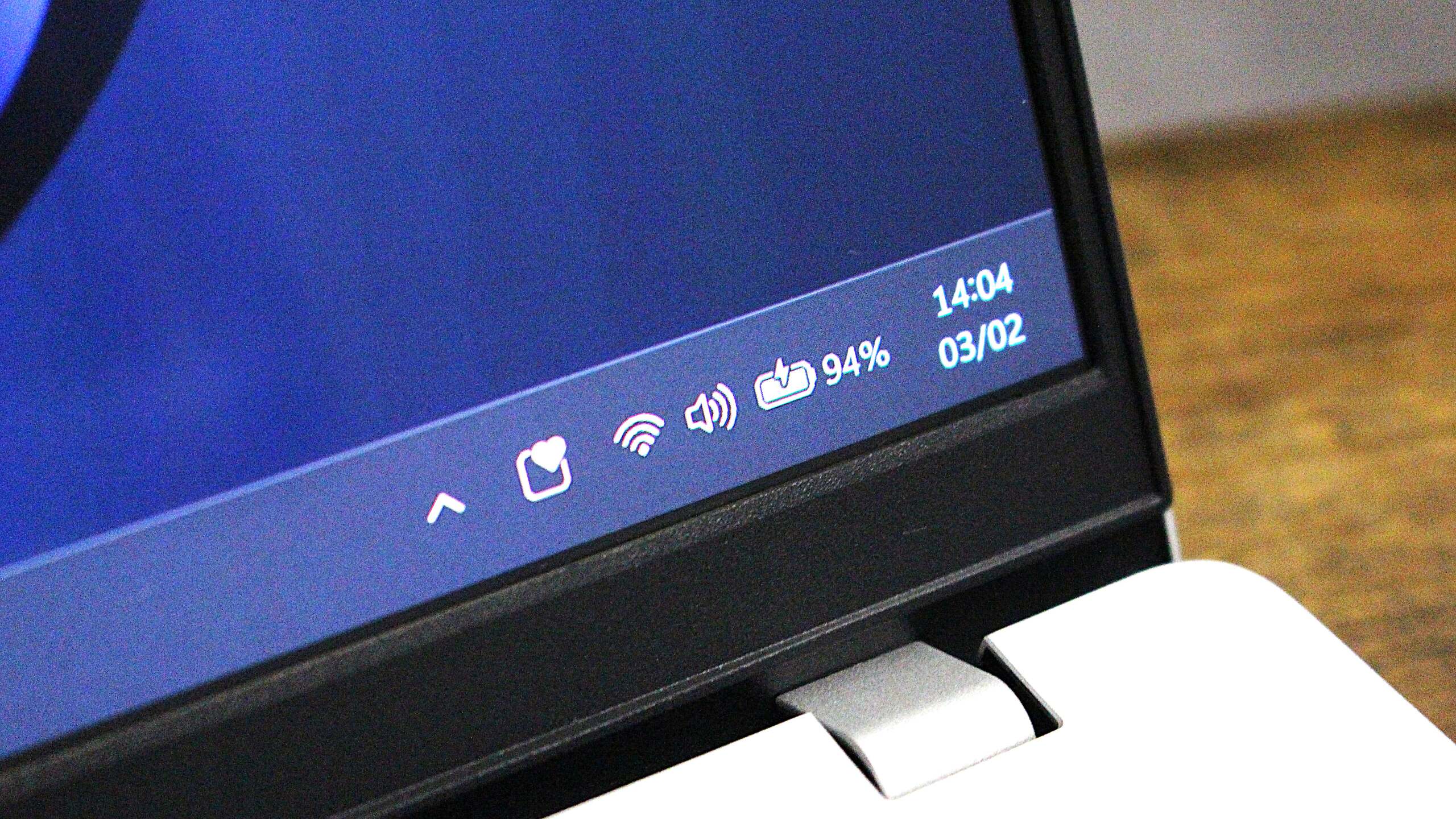
Notably, adaptive energy saver won't change your screen brightness, likely in an attempt to make the feature as subtle as possible in its operation. It would be annoying to have your screen constantly changing brightness whenever it enters energy saver mode adaptively. The icon on the Taskbar will still change to show when energy saver is active.

You can configure which energy saver mode is enabled in Settings.
(Image credit: Microsoft)
Additionally, the new adaptive energy saving mode is optional. It doesn't appear to be on by default, meaning you will need to head into Settings to turn on the feature yourself if you want your PC to adaptively enable energy saver while you use it. Otherwise, it will be set to the old school way of doing things.
Recommended Comments
There are no comments to display.
Join the conversation
You can post now and register later. If you have an account, sign in now to post with your account.
Note: Your post will require moderator approval before it will be visible.