

3175x175(CURRENT).thumb.jpg.b05acc060982b36f5891ba728e6d953c.jpg)
Last month, news emerged about the Snipping Tool app, Windows 11's default screenshot and screen-recording tool, getting a much-needed feature—the ability to save screen recordings as GIFs. Today, Microsoft officially announced this capability, and it is rolling out to Windows 11 insiders in the Dev and Canary Channels. In case you missed it, the latter received a new build with context menu improvements, new accessibility features, and more.
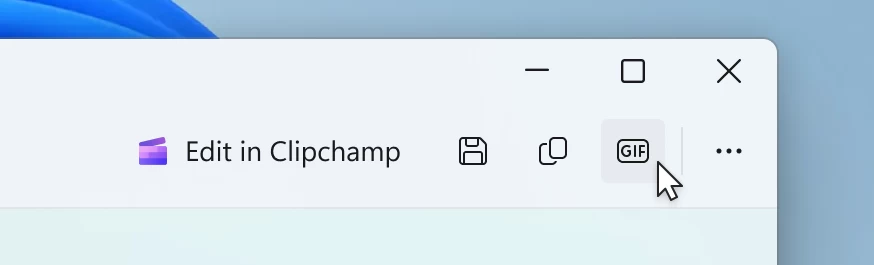
GIF export in Snipping Tool works simply: Start screen recording as usual, then click the GIF button in the upper-right corner of the editor once you've finished. After that, the app will ask you to specify GIF quality and display your GIF's size info: duration, resolution, and FPS. Now, all it takes is pressing Export (save as a file) or Copy (copy to clipboard).
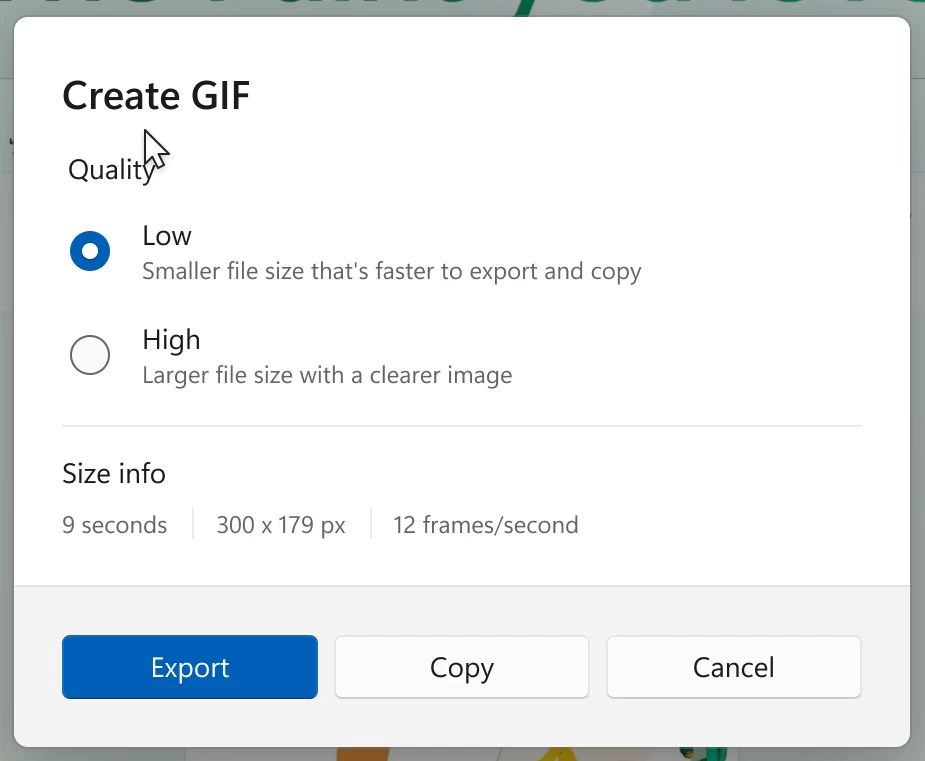
Note that as of right now, GIF export is limited to 30-second videos or less. When exporting longer videos, the app will save only the first 30 seconds of the recording.
GIF export in the Snipping Tool app is rolling out in version 11.2505.21.0. If you do not have the feature after installing the update (your computer should be enrolled in the Canary or Dev Channel of the insider program), try force-enabling it with the ViVeTool app:
- Download ViveTool from GitHub and unpack the files in a convenient and easy-to-find folder.
- Run Command Prompt as Administrator and navigate to the folder containing the ViveTool files with the CD command. For example, if you have placed ViveTool in C:\Vive, type CD C:\Vive.
- Type vivetool /enable /id:47081492 and press Enter.
- Restart your computer.
The announcement post can be found on the official Windows Blogs website. Other changes recently introduced for the Snipping Tool app include the so-called "Perfect Screenshot" feature, which snaps the screenshot area to shapes and objects like tables and charts.
Credit for the ID goes to @phantomofearth on X
Hope you enjoyed this news post.
Thank you for appreciating my time and effort posting news every day for many years.
News posts... 2023: 5,800+ | 2024: 5,700+ | 2025 (till end of May): 2,377
RIP Matrix | Farewell my friend
Recommended Comments
There are no comments to display.
Join the conversation
You can post now and register later. If you have an account, sign in now to post with your account.
Note: Your post will require moderator approval before it will be visible.