

3175x175(CURRENT).thumb.jpg.b05acc060982b36f5891ba728e6d953c.jpg)
The new Windows 11 Search is faster, simpler, and better in most ways. It finally feels like a search box, and not an ad platform for Microsoft.
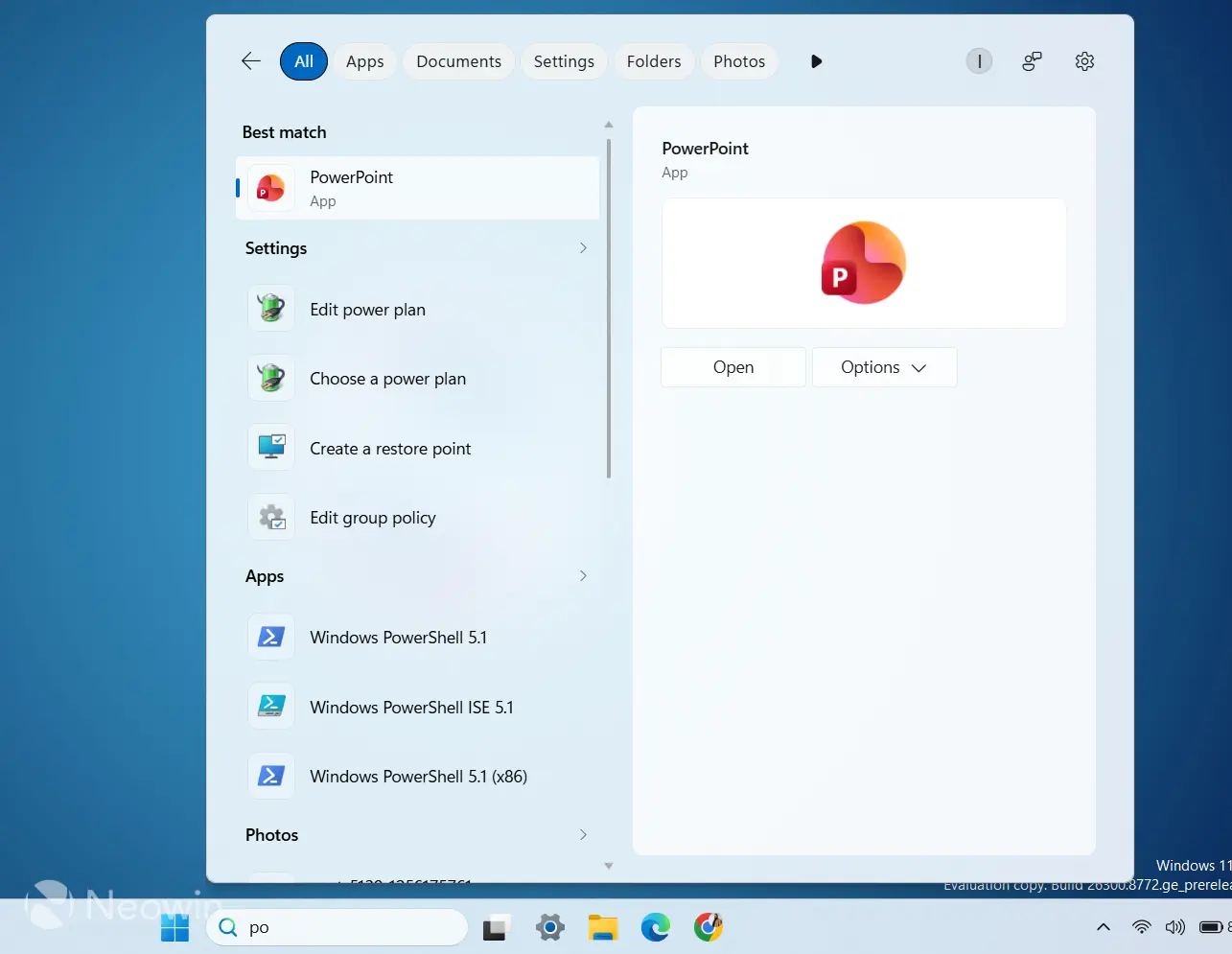
Microsoft is rolling out a batch of improvements to Windows Search, and it's live for Insiders on the Experimental channel. Mind you, this is still an experimental feature, so not even every Insider can try it yet, but it will be rolling out to everyone in the coming months. I was lucky enough to receive it early and put it through its paces, so you’ll know what to expect when it finally arrives on your PC.
The first thing that stands out immediately is the new search home screen. Open Search without typing anything, and instead of the usual mix of widgets, trending searches, and recommended content, you just get a clean list of recent searches.
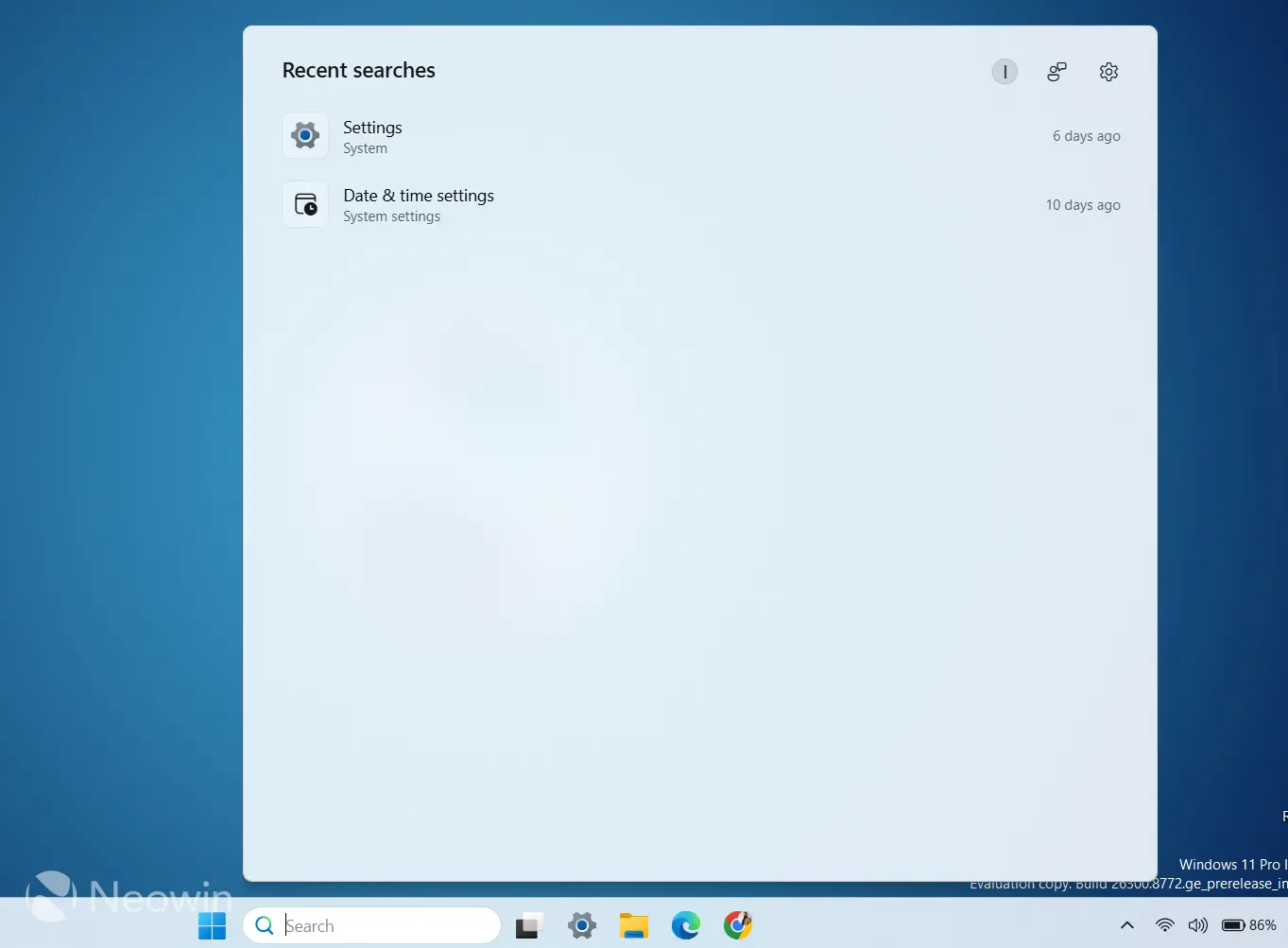
Mine showed everything I'd searched for over the past couple of days, nothing more. It's minimal to the point of feeling almost bare. To be fair, I think the old version looked nicer in a purely aesthetic sense. It was more colorful, with more things going on. But it was also cluttered with information nobody actually asked for. When I open Search, I want to search. This new version finally treats that as the whole point.
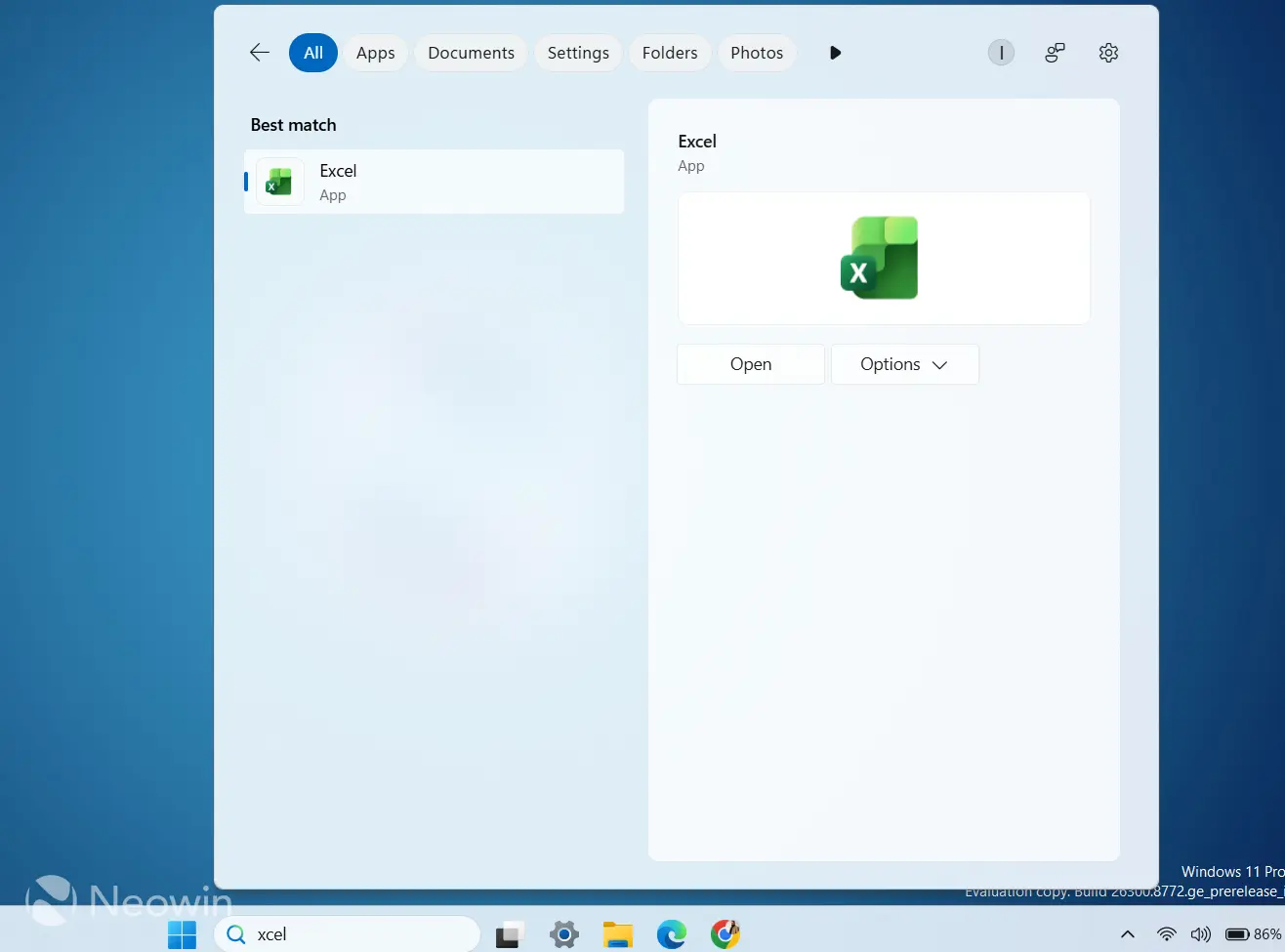
Speed is the next thing you notice. Microsoft says results are faster now, and that tracks with what I saw. Type a single letter and something shows up almost instantly. It also handles small typos better than before. I tested this by typing "ecel" and then "xcel," and both times Search correctly figured out I meant Excel. It's not magic; if you're too far off the mark, it won't guess right, but for small typos everyone makes while typing quickly, it works well.
Web and Microsoft Store suggestions are still present by default, and honestly they don't feel dramatically different from before, just tidied up a bit visually. What actually changes things is the new option to turn them off entirely. Once you do, you're left with a search experience that only pulls from what's actually on your PC, apps, files, documents, settings, etc.
To remove web searches and app suggestions, go to Settings > Privacy & Security > Search, and disable Web searches and Microsoft Store in the Show suggested search results section.
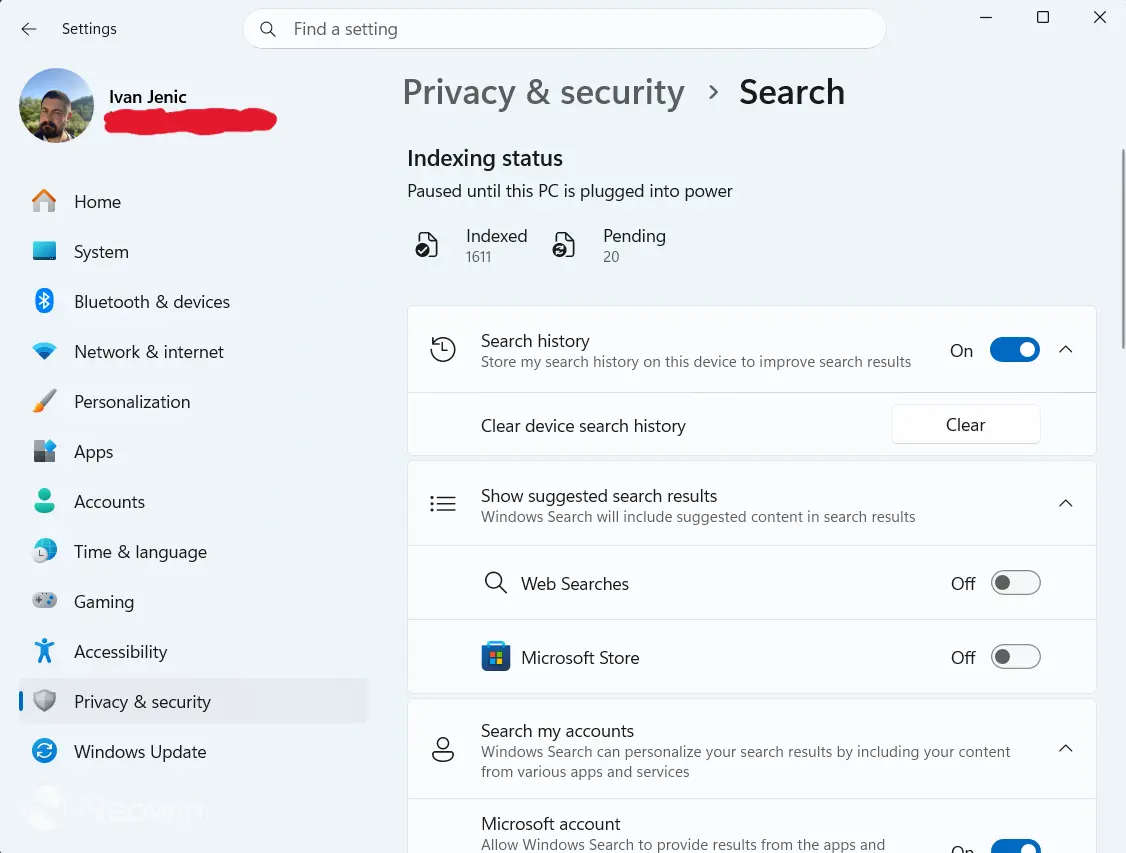
That's the version I'd recommend enabling immediately, because it strips away everything that made Windows Search feel like an ad platform for Bing and Microsoft's own apps instead of a tool for finding your own stuff.
Put together, this is the first time in a while that Windows Search has felt like it's actually doing its job. It's fast, it's accurate enough to forgive small typos, and with web and Store suggestions switched off, it becomes a genuinely local, no-nonsense search tool rather than something trying to sell you on other Microsoft products.
If I had to make one request, it wouldn’t be a new feature, because right now it does just enough. It would actually be the ability to resize the search box itself, just like you can resize the taskbar. Right now, the search is streamlined, but its shell is the same as it was when the whole thing was more cluttered.
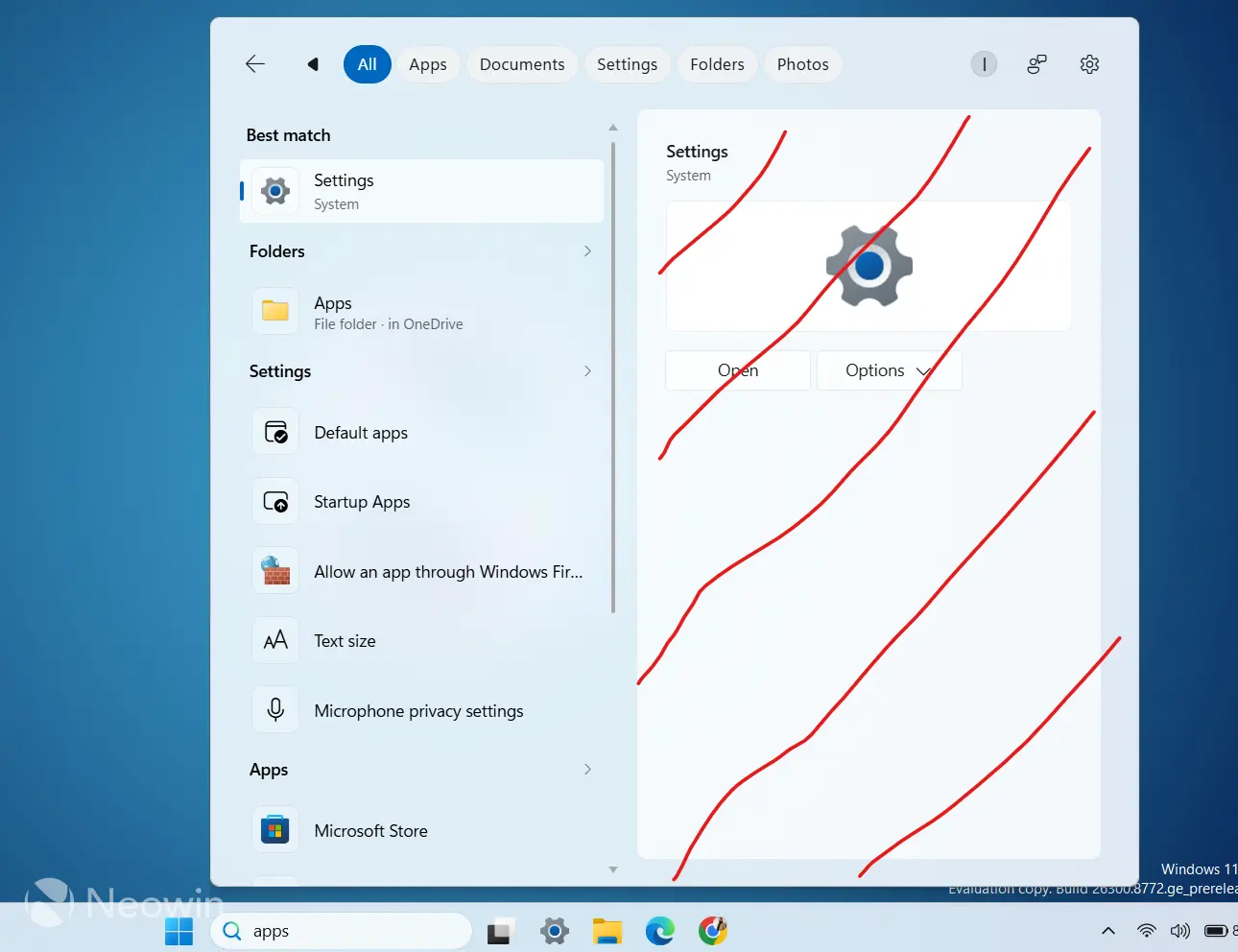
I would maybe even cut the second part of the search window when web searches and app suggestions are disabled, because it just shows an icon and two buttons. So there’s a lot of empty space on the right side, which feels visually imbalanced. But there’s always room for improvement, and the recent changes are definitely a step in the right direction.
I can say that Windows 11 Search finally feels like a search box again; it has one job, and it does it well. Sometimes, less is truly more.
Hope you enjoyed this news post. Feedback welcome.
Posted Wednesday 15 July 2026 at 7:56 am AEST (my time).
News posts: 2023 5,800+ | 2024 5,700+ | 2025 5,700+ | 2026 (to end of June) 2,475
Recommended Comments
There are no comments to display.
Join the conversation
You can post now and register later. If you have an account, sign in now to post with your account.
Note: Your post will require moderator approval before it will be visible.