

3175x175(CURRENT).thumb.jpg.b05acc060982b36f5891ba728e6d953c.jpg)
These are the last features and improvements you'll be getting in 2025.
On Tuesday, December 9, 2025, Microsoft is expected to begin rolling out the final Patch Tuesday update of 2025 for Windows 11, which introduces several significant features, improvements, and bug fixes.
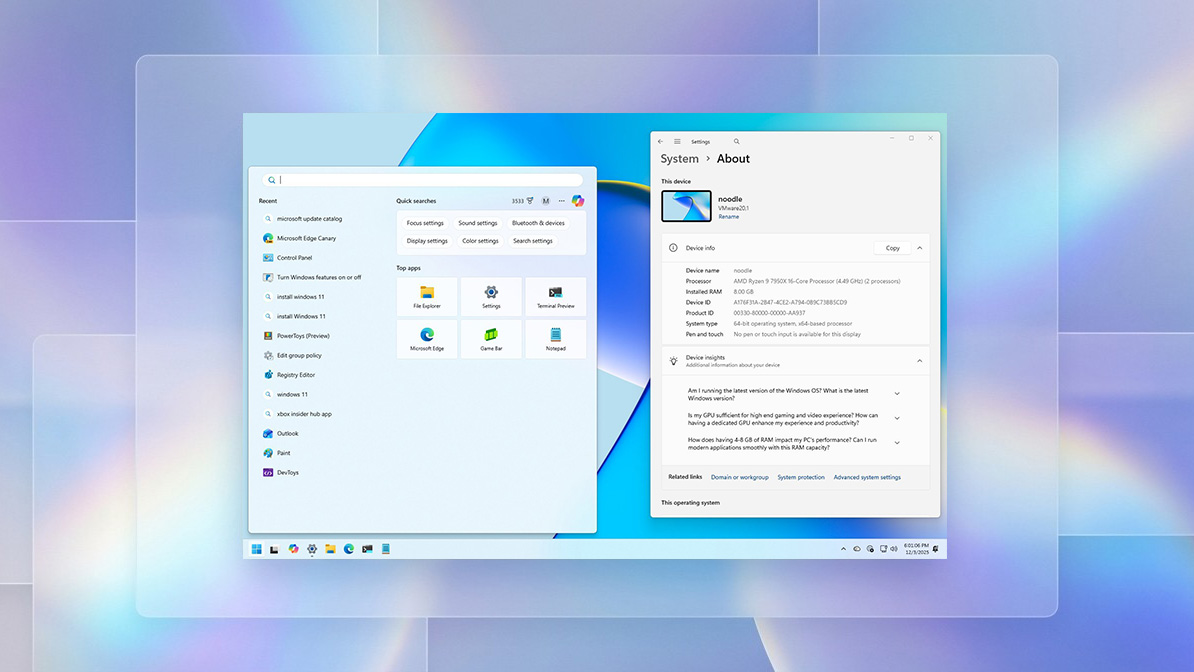
In this update, the company is finally addressing design inconsistencies between the Start menu and Windows Search, and an updated version of File Explorer brings dark mode improvements.
Windows 11 new features coming in December 2025
Microsoft uses the Controlled Feature Rollout (CFR) technology to push new features and changes gradually, so it may take some time before you see them all on your computer.
1. Windows Search visual improvements
One noticeable improvement in the last cumulative of 2025 is the Windows Search panel, which now (finally) matches the height of the new Start menu design, fixing some design inconsistencies across the operating system.

(Image credit: Mauro Huculak)
2. Taskbar's new Share with Copilot feature
In this release, Microsoft is adding a feature no one asked for. A new "Share with Copilot" option in an app's thumbnail on the Taskbar that allows you to start a conversation with the chatbot using quickly.

(Image credit: Mauro Huculak)
You can manage this feature from the Copilot app settings, using the "Start Vision from app in taskbar" feature under the "Copilot Vision" settings.
Additionally, this update introduces a new animation that makes transitions smoother when hovering and sliding between apps in the Taskbar.
3. Windows Spotlight for desktop changes
If you use the Spotlight feature to set dynamic wallpapers on the desktop, starting with this release, you can right-click the desktop to access the "Next background" option to switch backgrounds more quickly.

(Image credit: Mauro Huculak)
Also, there is a new "Explore background" option that will open a Bing page with more information about the wallpaper.
4. Drag Tray disable option
On Windows, Drag Tray is a fly out that appears when you select and drag a file to the top of the screen, but this feature isn't for you. Microsoft has added a new toggle in the Settings app to disable it.

(Image credit: Mauro Huculak)
You can turn Drag Tray off on Settings > System > Nearby Sharing.
5. File Explorer dark mode improvements
Microsoft is also rolling out a more consistent dark mode experience for File Explorer. As part of the December 2025 Security Update, you'll find more dark theming across dialogs, such as copy, move, and delete.
Furthermore, the improvements are also reaching progress bars, chart views, and confirmation dialogs, such as skip, override, errors, and file selection.

(Image credit: Mauro Huculak)
The company also mentions that it is gradually rolling out a more straightforward context menu that groups common actions, such as share, copy, and move, into a single, organized menu. However, this design change may take time to reach everyone, since the software giant is still evaluating the best approach.
While the new dark mode improvements are a welcome addition, the implementation is still a work in progress, as the company has noted that when launching File Explorer, you may notice a giant white flash while loading files.
Microsoft says that it's working on a fix, but if this implementation is still buggy, then why roll it out now (even as a preview in the Stable Channel)? What type of quality control is the company using? I'm just wondering.
6. Device info card in Home Settings
On the Home page of the Settings, after installing this update, you'll find a new "Device info" card that includes key technical specifications about your computer, including processor, storage, memory, and graphics card information.

(Image credit: Mauro Huculak)
If you click the "About your device" button, you'll be directed to the "About" page.
This card may appear only to users in the United States who are signed in with a Microsoft account.
7. Mobile Devices settings in Settings
In the Settings app, this update also integrates the Mobile Devices configuration options into this experience.
Although you have been able to manage your mobile device features through the Settings app, you have to use a separate window to change the settings.

(Image credit: Mauro Huculak)
Starting with this update, on Settings > Bluetooth & devices > Mobile devices, you'll find an option to add a new device, and under the "Mobile devices" section, you can access your device's settings.

(Image credit: Mauro Huculak)
The page even includes an option to remove the mobile device from your account.
8. About page redesign
Microsoft is testing a new overhaul of the "About" page. In this new design, you'll no longer find the top cards with key technical specifications. Instead, you'll find a thumbnail of the desktop background with an option to rename your computer.

(Image credit: Mauro Huculak)
"Device Specifications" has been renamed to "Device info," and Frequently Asked Questions is now a separate section known as "Device insights."
"Windows Specifications" has been renamed to "Windows info," and the "Related" options now include an entry to access the "Storage" settings.
9. Advanced settings with Virtual Workspaces
In this update, the development team is making changes to the Advanced section with a new "Virtual Workspaces" page that gives you the ability to manage virtualization features, including:
- Containers.
- Guarded Host.
- Virtual Machine Platform.
- Windows Hypervisor Platform.
- Windows Sandbox.
- Hyper-V GUI Management Tools.
- Hyper-V Module for Windows PowerShell.
- Hyper-V Hypervisor.
- Hyper-V Services.

(Image credit: Mauro Huculak)
In the past, you had to enable these features on the legacy "Windows Features" page.
10. Keyboard and text cursor settings
The Patch Tuesday update for December 2025 also ports keyboard and text cursor features to the Settings.
In Settings > Bluetooth & devices > Keyboard, you'll find options to control the keyboard's character repeat delay and repeat rate.

(Image credit: Mauro Huculak)
On this page, you'll also find the setting to remap the Copilot key on your keyboard, and the option to control the "Print screen" key to open the Snipping Tool controls to take screenshots.
In addition, if you open Settings > Accessibility> Text cursor, you'll find the option to control the cursor blink rate.

(Image credit: Mauro Huculak)
11. Quick Machine Recovery new default configuration
The Quick Machine Recovery feature isn't new to this update, but the company is updating how it works. First, the "Continue searching if a solution isn't found" option has been renamed to "Automatically check for solutions."
Second, the "Look for solutions every" and "Restart every" settings have been replaced with a single "Look for solutions" setting that is set to "Once."

(Image credit: Mauro Huculak)
The new configuration will only look for solutions once, and then it'll prevent the user from using other ways to resolve the issue. The new changes aim to prevent the computer from continuing to search for solutions in a loop that could confuse some users.
12. Widgets board redesign
Windows 11 also introduces a new Widgets board design that separates your "Widgets" from the "Discover" board using a navigation page. In addition, the company is integrating the settings page into the feature rather than using a page overlay, making the experience more consistent.

(Image credit: Mauro Huculak)
If there are new alerts in the dashboards, you will notice a badge with the number in the board's icon.

(Image credit: Mauro Huculak)
On the new settings page, you can choose which board is the default. Also, when the Widgets icon in the Taskbar shows live weather, opening the experience will open the first dashboard rather than the most recently used.
13. Haptic feedback for digital pens
This update also adds haptic feedback for pens on touch-enabled devices, so you'll feel small vibrations that simulate touch when interacting with certain interface elements, such as the close button, snapping, and resizing windows.
14. Click to Do new actions menu
As part of this Patch Tuesday update, Microsoft is introducing a new context menu for Click to Do on Copilot+ PCs.
The new design aligns actions like Copy, Save, Share, and Open at the top in a single row similar to the context menu in File Explorer.

(Image credit: Microsoft)
In addition, the new menu features a prompt box for quicker access to Copilot, and as per usual, you'll find the content-specific features.
Furthermore, if the screen has a large image or table, the context menu will open automatically for faster access to the actions.
15. Xbox Full Screen Experience for more handheld devices
The cumulative update for December also expands the Xbox Full Screen Experience (FSE) to more handheld devices.
Previously, the experience was only available for ASUS ROG Ally and Ally X, but now, it's expanding to more handheld gaming devices. In the future, this feature for gaming will expand to regular computers, but this is not the update.
The Full Screen Experience switches the traditional desktop into a console-like interface that's easier to navigate with a controller using the Xbox app for Windows 11 in full-screen.

(Image credit: Mauro Huculak)
The company explains that loading this experience reduces the complexity and resource overhead of the standard desktop, saving around 2GB of memory.
If you're installing the December 2025 Security Update on a handheld device, you can enable the feature from Settings > Gaming > Full screen experience.

(Image credit: Mauro Huculak)
After completing the steps, you'll have to restart the computer to apply the changes and access the experience.
If you want to switch to the regular desktop, use the "Windows key + Tab" keyboard shortcut, click the "Windows Desktop" button, then in the Settings app, turn off the Xbox Full Screen Experience, and reboot.
16. Windows Studio Effects for external cameras
If you have a Copilot+ PC, starting with this update, the development team is expanding the AI-powered camera enhancements part of the Windows Studio Effects to secondary cameras, including USB webcams and built-in rear cameras.
You can enable these features in Settings > Bluetooth & devices > Cameras, then open the camera's properties and turn on the "Advanced camera options" and "Use Windows Studio Effects" options.

(Image credit: Mauro Huculak)
It's worth repeating that this guide focuses on the most interesting features and changes arriving with the December 2025 Security Update, as this update also ships other improvements. For example, Microsoft is improving the AI agent in the Settings app and the search experience in the File Explorer and Windows Search for Copilot+ PCs.
In addition, you'll find other small improvements, bug fixes, and security patches.
Hope you enjoyed this news post. Feedback welcome.
Posted Sunday 7 December 2025 at 11:50 am AEST (my time).
News posts... 2023: 5,800+ | 2024: 5,700+ | 2025 (till end of November): 5,412
- scarabou
-
 1
1
Recommended Comments
There are no comments to display.
Join the conversation
You can post now and register later. If you have an account, sign in now to post with your account.
Note: Your post will require moderator approval before it will be visible.