

3175x175(CURRENT).thumb.jpg.b05acc060982b36f5891ba728e6d953c.jpg)
Check out the latest features and changes that Microsoft has been testing during the last two weeks of November.
Although November is coming to an end fast, it gave Microsoft some time to begin the rollout of several significant features to Windows 11, and in this guide, we're going to take a look at them.
In addition to the improvements rolled out during the first half of November, in the last two weeks, Microsoft has made available previews for version 25H2 and 26H1.
Biggest improvements from the Windows Insider Program in November 2025
These are the most significant changes Microsoft has unveiled since the last roundup.
Xbox Full Screen Experience for all PCs
The Xbox Full Screen Experience (FSE) isn't new, but it was originally only available for handheld gaming devices. Starting with build 26220.7271, the company began testing to bring the experience to every computer as another feature for the operating system.
The feature transforms the desktop into a console-like experience, where the Xbox app serves as the main interface, removing the complexities and resource overhead of the typical Windows experience. When using this feature, the system won't load the standard shell of Windows 11 and turn off unnecessary background processes, which, according to Microsoft, should reduce memory consumption by approximately 2GB.
Microsoft is rolling out this feature gradually, but when it becomes available on your device, you'll be able to enable it by going to Settings > Gaming > Full screen experience.

(Image credit: Mauro Huculak)
On this page, you will have to select the Xbox app and make sure to turn on the option to enter full-screen mode during startup.
Furthermore, there's an option to add an FSE button in the Task View experience.
The option to access the feature can also be found in the Game Bar experience and when using the "Windows key + F11" keyboard shortcut.
It's important to note that the feature is not only rolling out gradually, but the company is also requiring users to enroll in the Xbox Insider program before the feature becomes available on their devices.
Point-in-time Restore
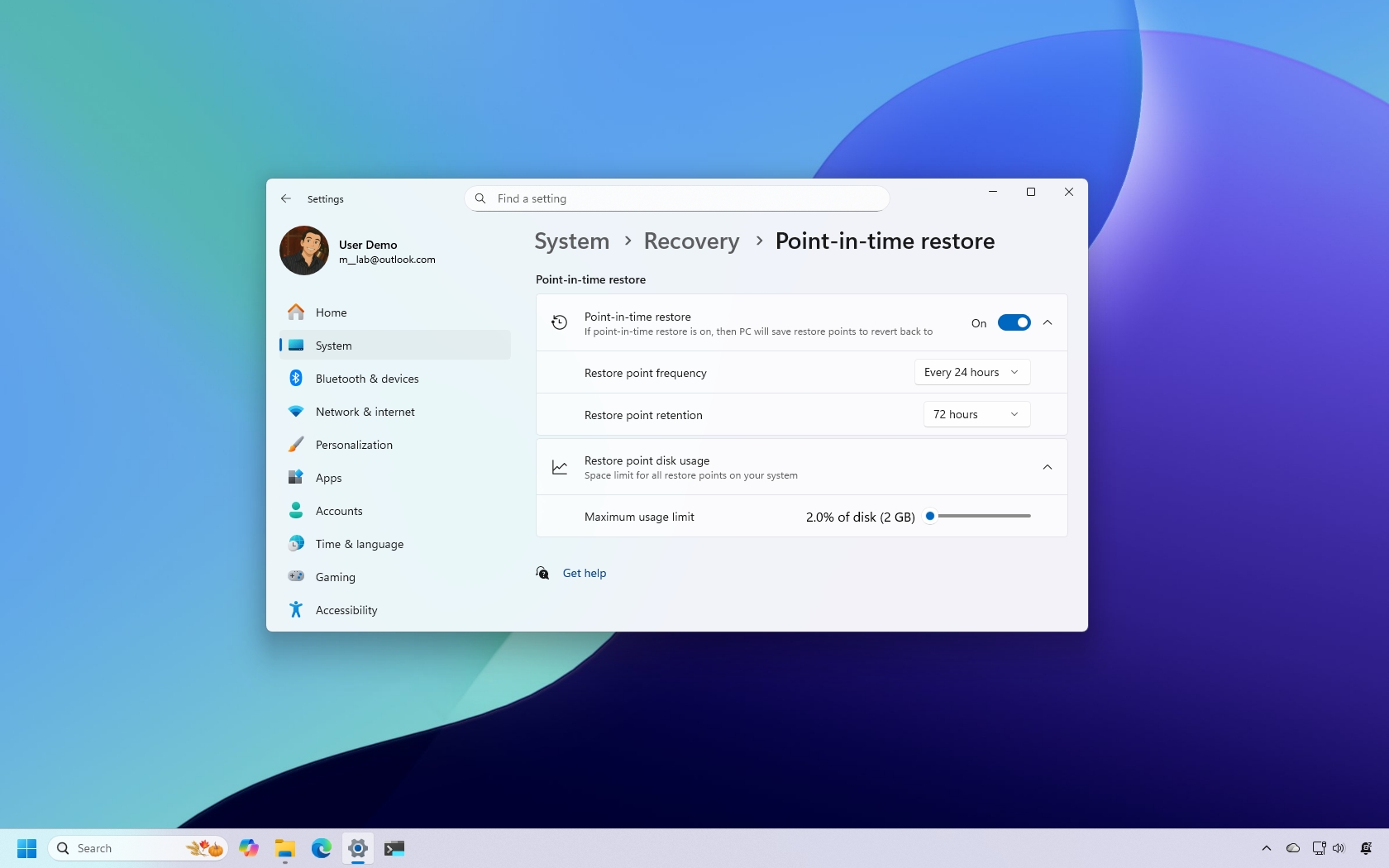
The preview build 26220.7271 also introduced Point-in-time Restore, which is a feature designed to help you roll back your computer to an earlier point in time to recover from buggy updates, broken drivers, misconfiguration, malware, and more.
If the feature sounds familiar, it's because it's a modern version of System Restore. However, the new feature has been designed to be modern, predictable, and easier to manage for users and network administrators.
Point-in-time Restore uses Volume Shadow Copy Service (VSS) to create restore points that include the entire state of the operating system, apps, configurations, passwords, secrets, credentials, and, more importantly, your data.
The feature is enabled by default on devices with at least 200GB of storage and running the Home and Pro editions of the operating system.
If you want to manage the feature, open Settings > Recovery > Point-in-time, and turn on the "Point-in-time Restore" toggle switch.

(Image credit: Mauro Huculak)
Once the feature is enabled, you'll be able to control how often the feature creates restore points and how long the system should retain each restore point.
In addition, there's a slider to manage the maximum storage limit to store restore points.
By default, the system creates restore points once a day and keeps them for three days. A configuration that should be optimal for most users.
If you plan to use this feature, it's critical to understand that it is a comprehensive recovery solution, which could affect some of your files. The reason is that every restore point will roll back your device to a specific time, and anything that has been created, added, or changed will be deleted.
File Explorer context menu redesign
Microsoft is also adding changes to the context menu for File Explorer to continue the efforts to make it less cluttered.
The design retains the same design as the preview version, but in this update, the development team is grouping common actions in new submenus.
For example, there's a new "Manage files" submenu that houses the options like “Compress to ZIP file," "Copy as Path,” "Set as Desktop Background," "Rotate Right," and "Rotate Left."

(Image credit: Mauro Huculak)
If you use the OneDrive service, in this folder you'll now find the "OneDrive" submenu, which includes "Always Keep on this Device" and "Free Up Space."
The new changes will be available depending on the file type and where in the operating system you're accessing the context menu.

(Image credit: Mauro Huculak)
Furthermore, the company is testing out an option that preloads File Explorer in the background to speed up the launching process. If you don't want this behavior, you'll have to turn off the "Enable window preloading for faster launch times" option in the Folders Options page.
Voice Typing with Fluid Dictation
In this release, the Fluid Dictation feature previously available in Voice Access is now coming to Voice Typing.

(Image credit: Mauro Huculak)
The feature makes dictation smoother and smarter to reduce the manual editing time by automatically correcting grammar, punctuation, and filtering words as you speak.
Fluid Dictation comes turned on by default on Copilot+ PCs, and to access it, you only need to bring the focus to a text field and launch the Voice Access feature.
Microsoft Store app uninstall option
Although technically speaking, the Microsoft Store is an app, and not part of the operating system, I wanted to also mention that Microsoft is finally adding an "Uninstall" option for apps in the store.
The option is available through the app's context menu when browsing the "Library" page.
Hope you enjoyed this news post. Feedback welcome.
Posted Friday 28 November 2025 at 4:27 am AEST (my time).
News posts... 2023: 5,800+ | 2024: 5,700+ | 2025 (till end of October): 5,009
Recommended Comments
There are no comments to display.
Join the conversation
You can post now and register later. If you have an account, sign in now to post with your account.
Note: Your post will require moderator approval before it will be visible.