


3175x175(CURRENT).thumb.jpg.b05acc060982b36f5891ba728e6d953c.jpg)
Files enhances navigation, multitasking, dual-pane workflows, tab management, and more with its new update.
Yesterday, we covered an interesting news report wherein Microsoft is seriously considering redesigning one of its most useful PowerToys utilities, called Awake, to improve its ease of access. While it's not a built-in app, it's very useful for power users who want more customization options. Speaking of which, one such app is Files. If you use that instead of Windows 11's official File Explorer, there is a new update worth checking out.
The popular third-party file manager has now been updated to version 4.2. The latest release focuses heavily on navigation and multitasking, while also introducing several quality-of-life improvements that make everyday file management a bit more convenient.
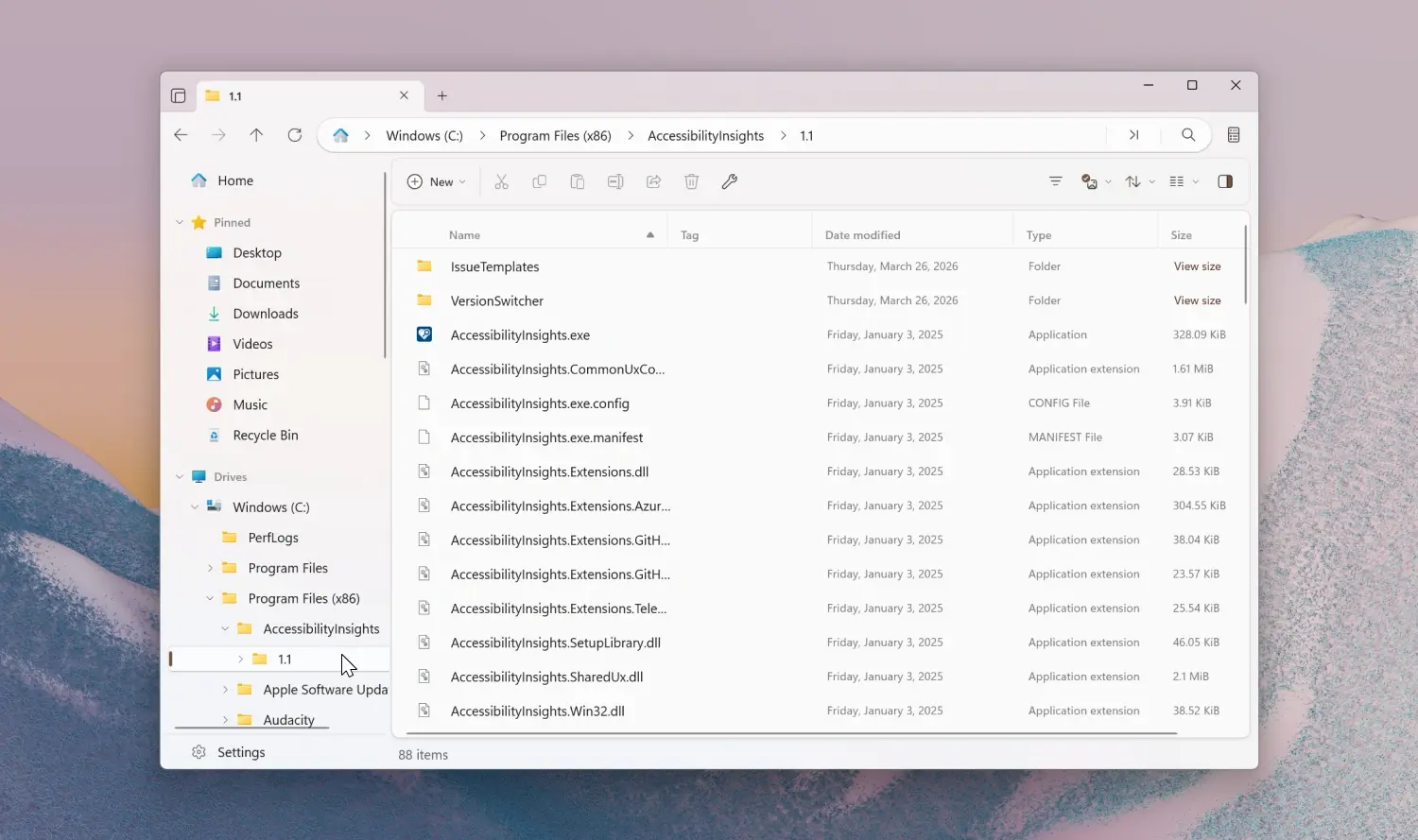
One of the new additions in this release is a new Tree View in the sidebar. The feature displays folders in an expandable hierarchy, allowing users to browse through deeply nested directories without constantly opening new locations. Thus, instead of navigating back and forth between folders, users can expand and collapse branches directly from the sidebar, making it much easier to move around large directory structures.
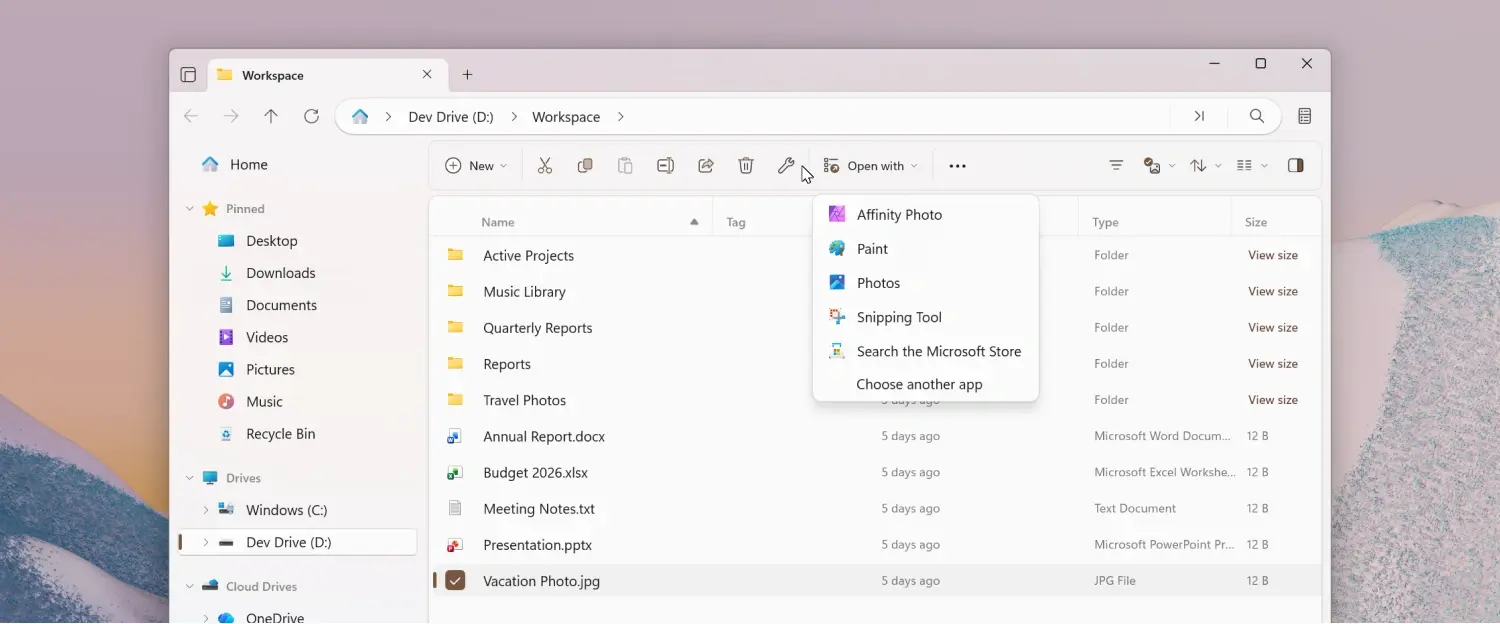
The update also introduces a new Open With flyout on the toolbar. Once added through the toolbar customization menu, the button provides quick access to applications capable of opening the currently selected file. Rather than relying on the traditional context menu, users can launch files with their preferred application directly from the toolbar, streamlining the workflow.
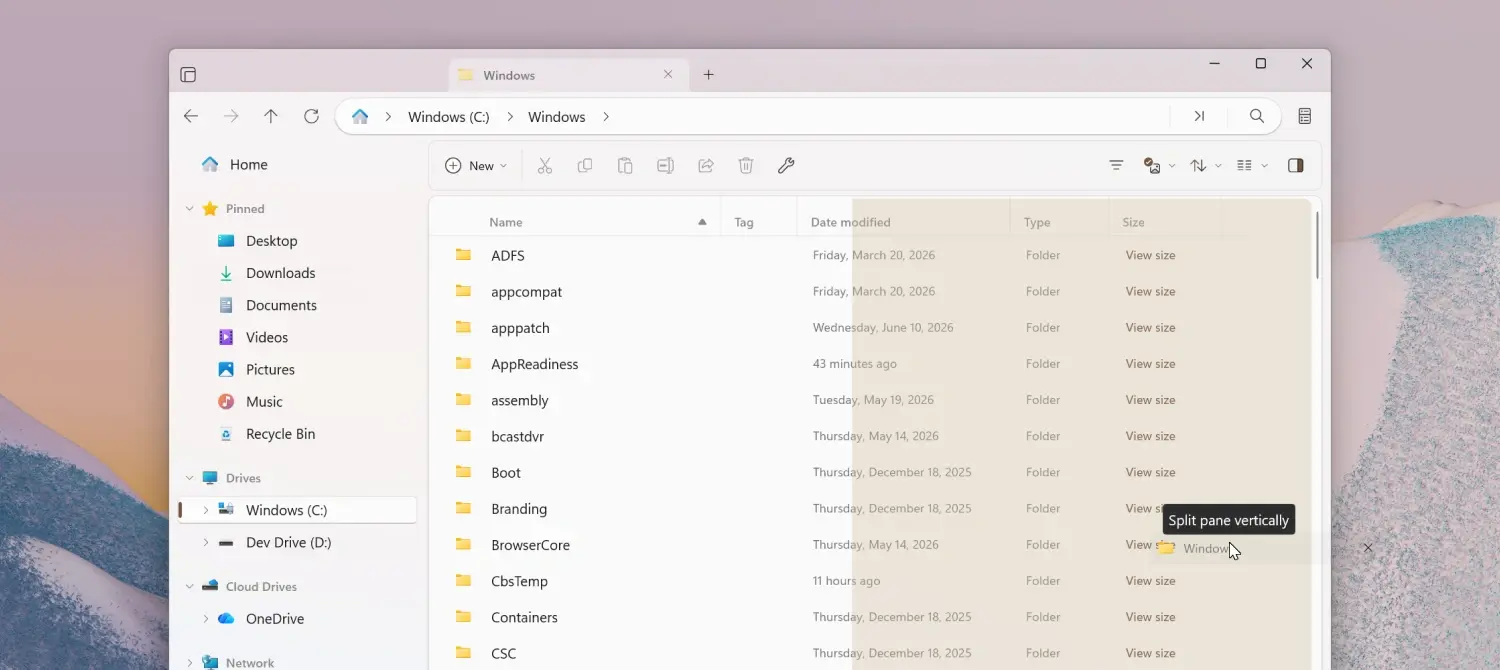
The dual-pane functionality has also received several improvements. Users can now create a second pane simply by dragging an existing tab. Dropping the tab on either side of the file area creates a vertical split, while placing it at the top or bottom creates a horizontal layout. The feature offers a much more intuitive way to set up multi-pane workspaces without having to manually create a new pane first.
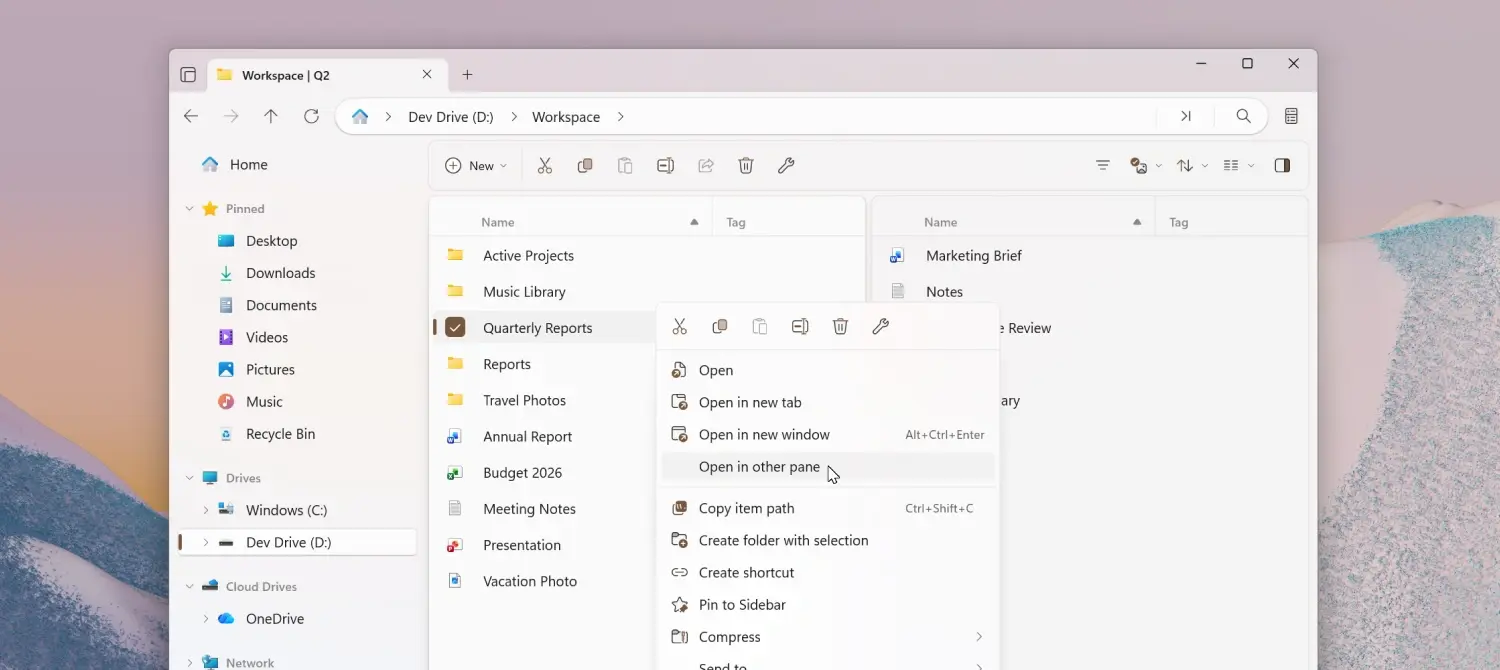
Alongside drag-to-split support, version 4.2 adds a new Open in other pane action. When working in dual-pane mode, users can right-click a folder and immediately open it in the opposite pane. The action is also available through the Command Palette and can be assigned to a custom keyboard shortcut from the Settings page.
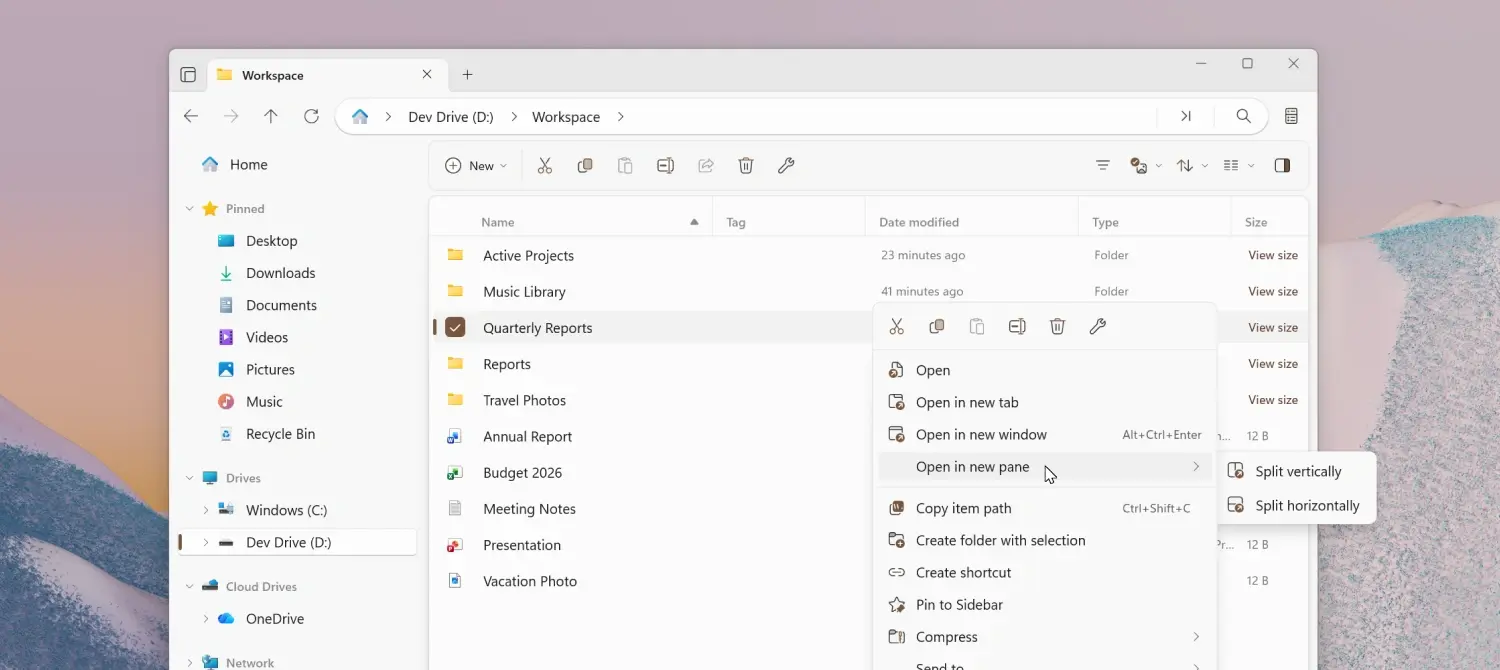
The existing Open in new pane option has, likewise, been refined. Instead of immediately creating another pane, the feature now allows users to choose how the new pane should be arranged before opening it. As with the new dual-pane action, it is accessible from both the context menu and Command Palette, with optional keyboard shortcut support.
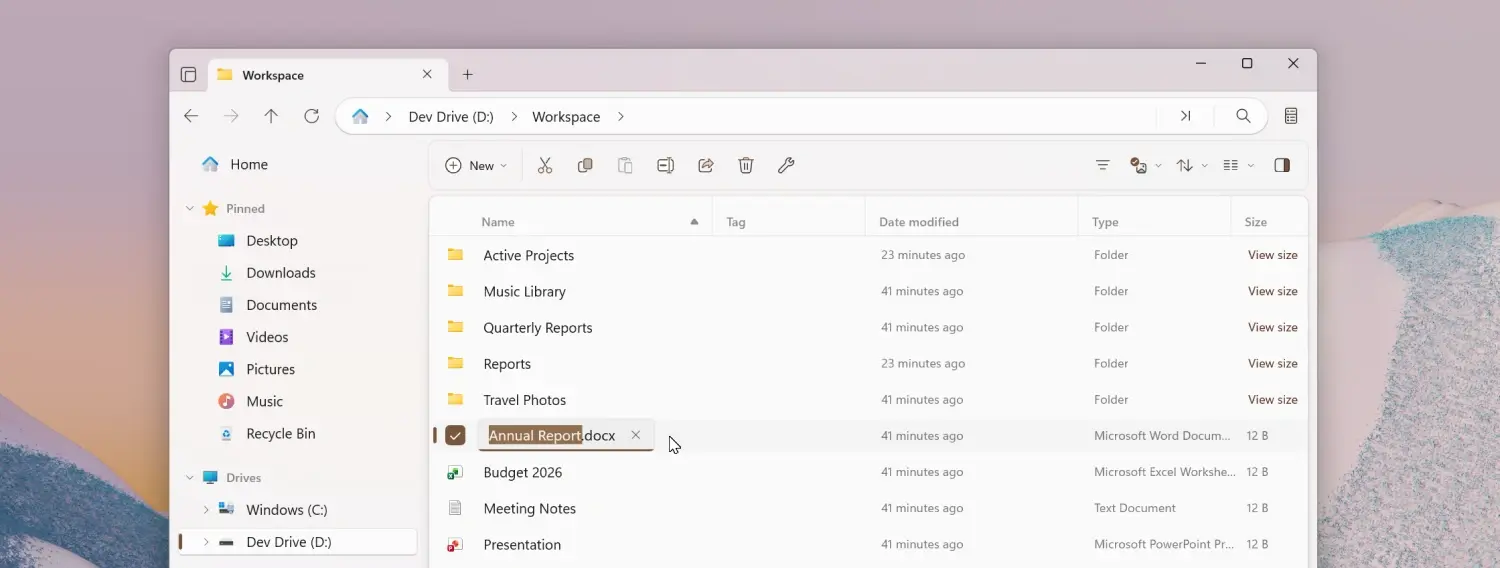
Another improvement is related to file renaming. Previously, users who chose to hide file extensions throughout the application would not see them while renaming files either. Starting with version 4.2, the file extension is always displayed during the rename process, making it easier to modify extensions when necessary while still keeping them hidden during normal browsing.
Media metadata editing has also become more capable. While Files already allowed users to edit existing metadata such as title, artist, album, year, and genre, the latest release removes a limitation, and as such, users can now populate metadata fields that were previously empty instead of only modifying existing information. Album artwork management has been expanded as well, with support for removing existing album covers directly from the Properties page.
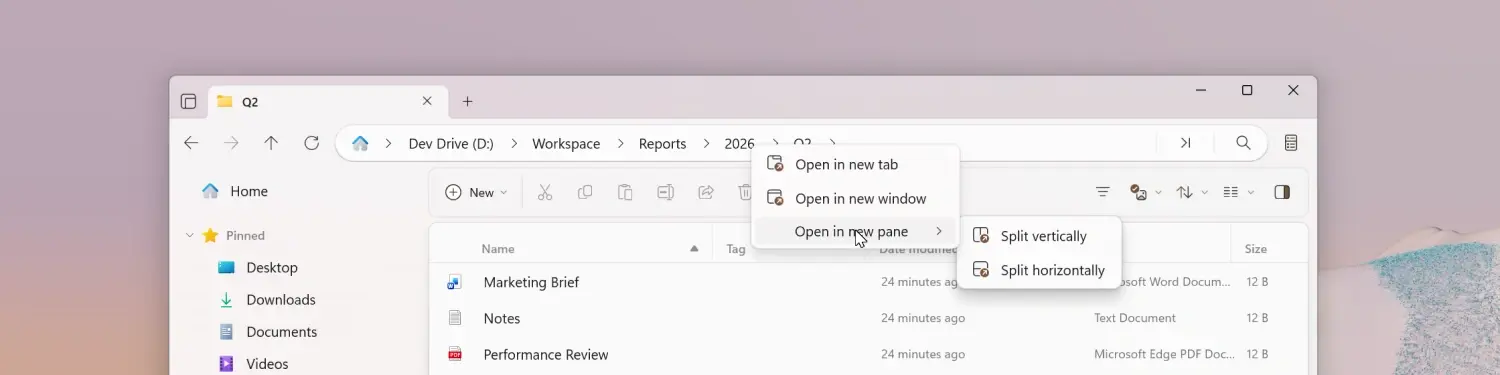
Navigation improvements extend to the breadcrumb bar too. A chevron will now appear after the final breadcrumb for a more consistent visual appearance. In addition, right-clicking any breadcrumb now opens a context menu with options to open that location in a new tab, a new window, or a new pane, providing quicker access to different workspace layouts.
Toolbar customization has become easier, thanks to the addition of a search box. Users who frequently personalize their toolbar can now quickly search for specific commands instead of manually scrolling through the complete list of available actions.
Layout switching has also received a small, but useful enhancement. Holding Ctrl while using the mouse wheel already resized items within the current layout. In version 4.2, continuing to scroll after reaching the smallest or largest icon size now automatically cycles into the next available layout mode, allowing users to move between layouts without interruption.
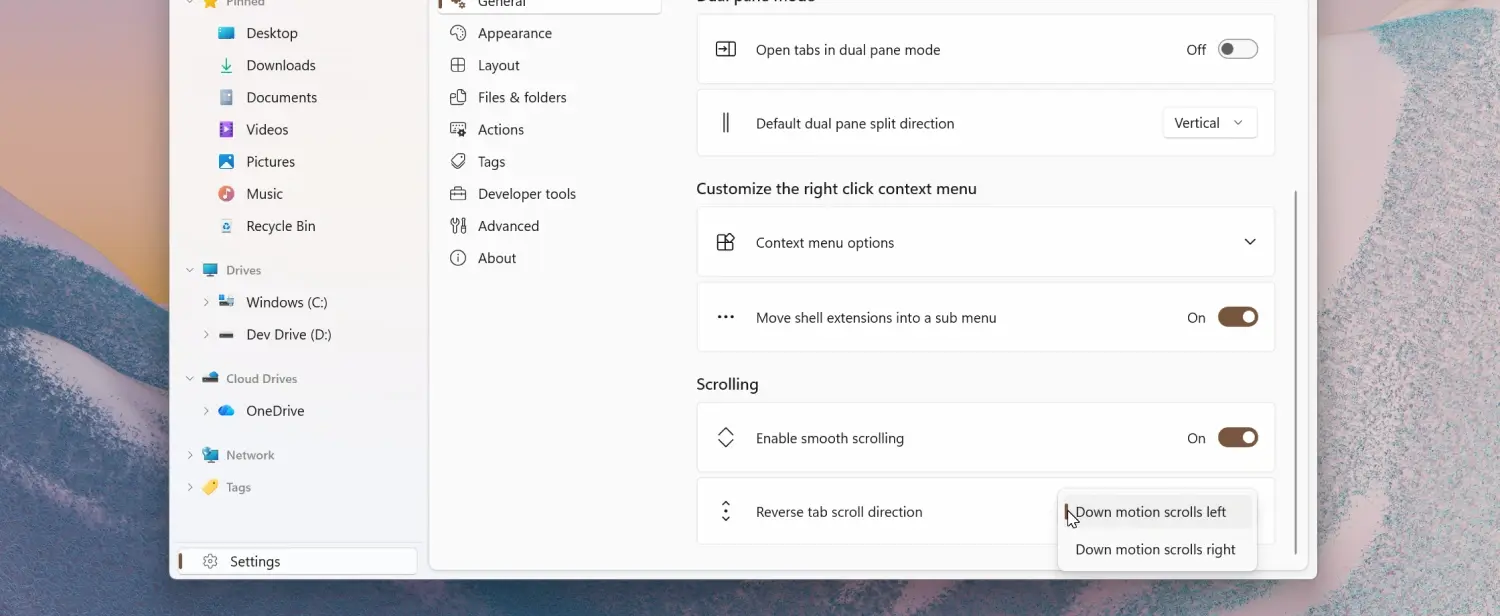
Another new personalization option lets users reverse the mouse wheel scrolling direction when moving through tabs. The setting is available under the application's scrolling preferences for those who prefer the opposite behavior.
Tab management has been refined further as well. Dragging a tab out of the tab bar to create a new window now opens that new window exactly where the tab was dropped, making the feature feel more natural during multi-window use cases.
The developers have also improved the Continue where you left off option, as previously opened tabs should now be restored more reliably and in the correct order between sessions, helping users resume their work with fewer inconsistencies.
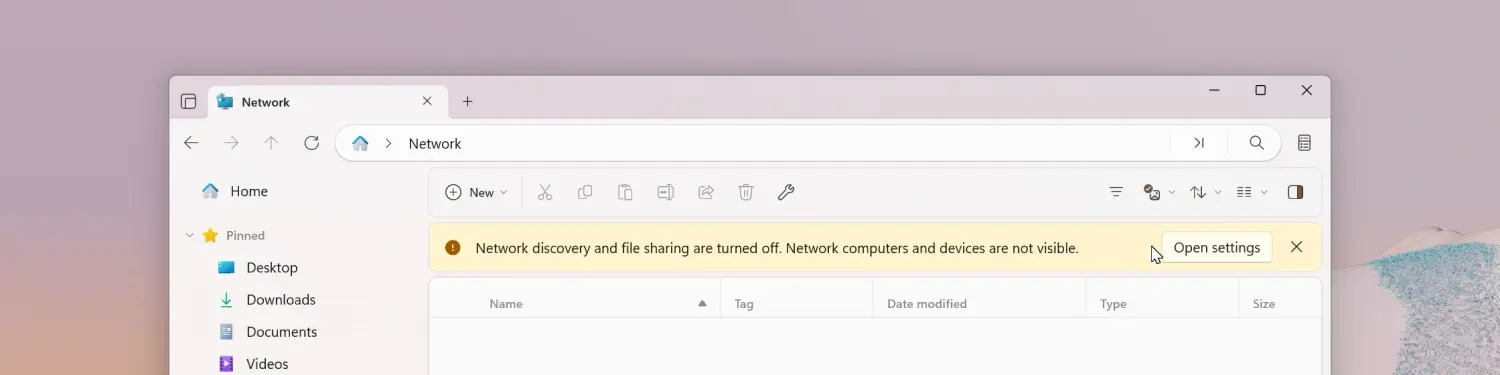
Finally, Files now displays a Network Discovery banner on the Network page whenever Windows has Network Discovery disabled. The notification lets users know that certain network locations may not appear until the Windows setting is enabled, helping explain why expected devices or shared folders might be missing.
The rest of the changelog is given below:
- Items inside the Windows Fonts folder now show proper thumbnails, so you can preview a font’s appearance directly from the file list.
- Creating a new archive now automatically selects it.
- The File In Use dialog now includes a Skip button.
-
Fixed an issue where the Command Palette would sometimes show duplicate entries.
-
Fixed an issue where focusing a pane via the Command Palette didn’t work as expected.
-
Fixed an issue where drag and hover behavior didn’t work correctly in the sidebar.
-
Fixed an issue where the shortcut overlay icon was rendered too large.
-
Fixed an issue where the Open with option appeared in the context menu when multiple items were selected.
-
Fixed an issue where right-clicking a folder in Columns View would open it.
-
Fixed an issue where opening shell flyouts sometimes closed the context menu.
-
Fixed an issue where the Omnibar would sometimes lose focus.
-
Fixed an issue where launching Files from the command line didn’t work correctly in some scenarios.
-
Fixed an issue where keyboard shortcuts didn’t work on the Release Notes page.
-
Fixed an issue where toolbar buttons were sometimes missing.
-
Fixed an issue with keyboard focus in Columns View.
-
Fixed an issue where archives weren’t displayed in the Recent Files widget.
-
Fixed an issue where a pinned library didn’t display correctly in the sidebar.
-
Fixed an issue where shortcuts weren’t displayed in search results.
You can download Files from the Microsoft Store (paid version) or its official website (free).
Hope you enjoyed this news post. Feedback welcome.
Posted Tuesday 7 July 2026 at 8:38 am AEST (my time).
News posts: 2023 5,800+ | 2024 5,700+ | 2025 5,700+ | 2026 (to end of June) 2,475
Recommended Comments
There are no comments to display.
Join the conversation
You can post now and register later. If you have an account, sign in now to post with your account.
Note: Your post will require moderator approval before it will be visible.