

3175x175(CURRENT).thumb.jpg.b05acc060982b36f5891ba728e6d953c.jpg)
Microsoft releases builds 26300.8772 (26H2) and 28120.2387 (26H1) for Windows 11 Experimental channels.
Microsoft has released new Windows 11 builds for Insiders in the the Experimental channels. The new builds are 26300.8772 for Windows 11 26H2 and 28120.2387 for 26H1. There are improvements related to the Taskbar, Account Control and more with the new update. The full changelogs are given below.
First we have the build 26300.8772:
[Recovery]
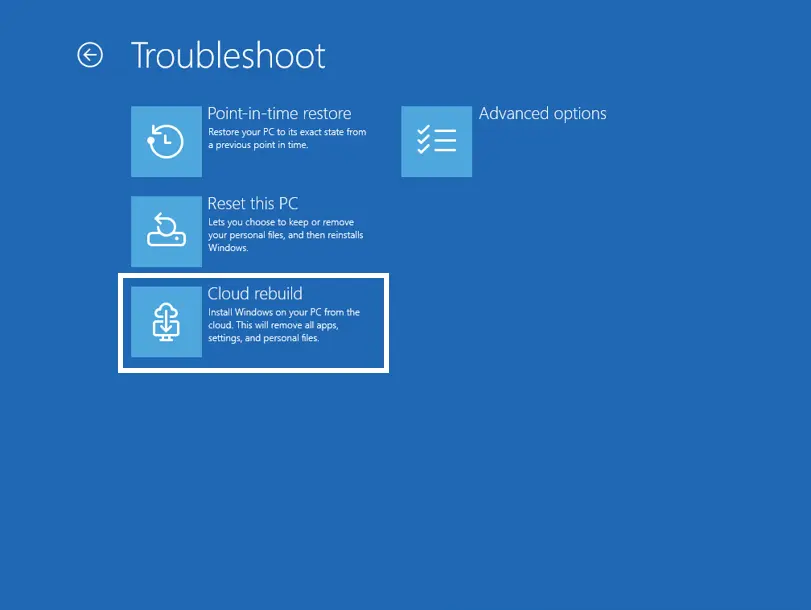
We're introducing Cloud rebuild, a new recovery option that restores a Windows 11 PC to a clean, known-good state by performing a full OS reinstall, even when Windows won't boot. Unlike Reset this PC, Cloud rebuild downloads both the target Windows image and the device's drivers from Windows Update, so the device comes back fully functional without USB media, without a custom image, and without depending on the health of the currently installed OS.
In this preview, you can try Cloud rebuild today:
Start it directly from the Windows Recovery Environment (WinRE) by selecting Troubleshoot > Recovery and uninstall > Cloud rebuild.
Connect over wired Ethernet or a Wi-Fi network from within WinRE.
Review the target Windows build, edition, and language, then confirm the data-loss warning before the rebuild begins.
The new Cloud rebuild option in Windows Recovery Environment (WinRE), enabling a full Windows reinstall using files downloaded from Windows Update.
[Backup and restore on by default for commercial]
Starting in Windows 11, version 26H2, the backup policy of Windows settings backup and restore will be enabled by default on eligible Microsoft Entra joined or Microsoft Entra hybrid joined devices. Windows settings backup is no longer something admins must configure first. It becomes a resilience baseline that automatically captures user settings and the Microsoft Store app list. So, when a device is reimaged or reset, users can return to a familiar setup without relying on prior configuration, improving recovery consistency, and reducing time to productivity.
Admins remain in full control: existing policies still apply, explicit configurations override the default, and restore remains opt-in and admin-managed. By making settings backup the default, this change establishes a more resilient, recoverable device experience, minimizing disruption and reducing setup friction.
[Account Control]
The Windows 11 Account Control flyout has a refreshed, modern design and a clear subscription badge to make the user's account status instantly visible. This helps users easily identify their plan, discover benefits, and explore upgrades.
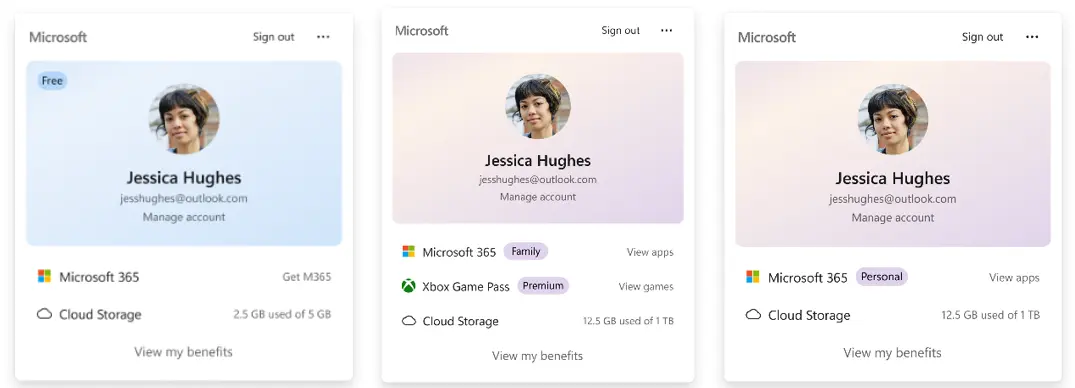
UI showing the refreshed Account Control flyout with subscription badges, account benefits, and storage details.
Feedback: Share your thoughts in Feedback Hub (WIN + F) under Settings > Start Menu.
[Search]
We are increasing the height of the search box by 4 pixels.
[Settings]
The Bluetooth quick settings page is now navigable using gamepad input.
[Taskbar]
Fixed issue where the search icon might be invisible when using the taskbar in a vertical position.
[Run]
Improved how keyboard focus is announced for screen readers when using the new Run design.
[Fonts]
Improved Mongolian Baiti shaping and rendering behavior to ensure accurate and consistent text output, increasing text fidelity for Mongolian script.
[Other]
If you were having issues with Outlook not responding to the close button last week, that should be addressed now.
Improved resource usage over time of title bar tooltips.
Now here is the changelog for build 28120.2387:
Changes and improvements gradually being rolled out
This update includes a small set of general improvements and fixes that improve the overall experience for Insiders running this build on their PCs.
[Taskbar]
Alternate Taskbar Position
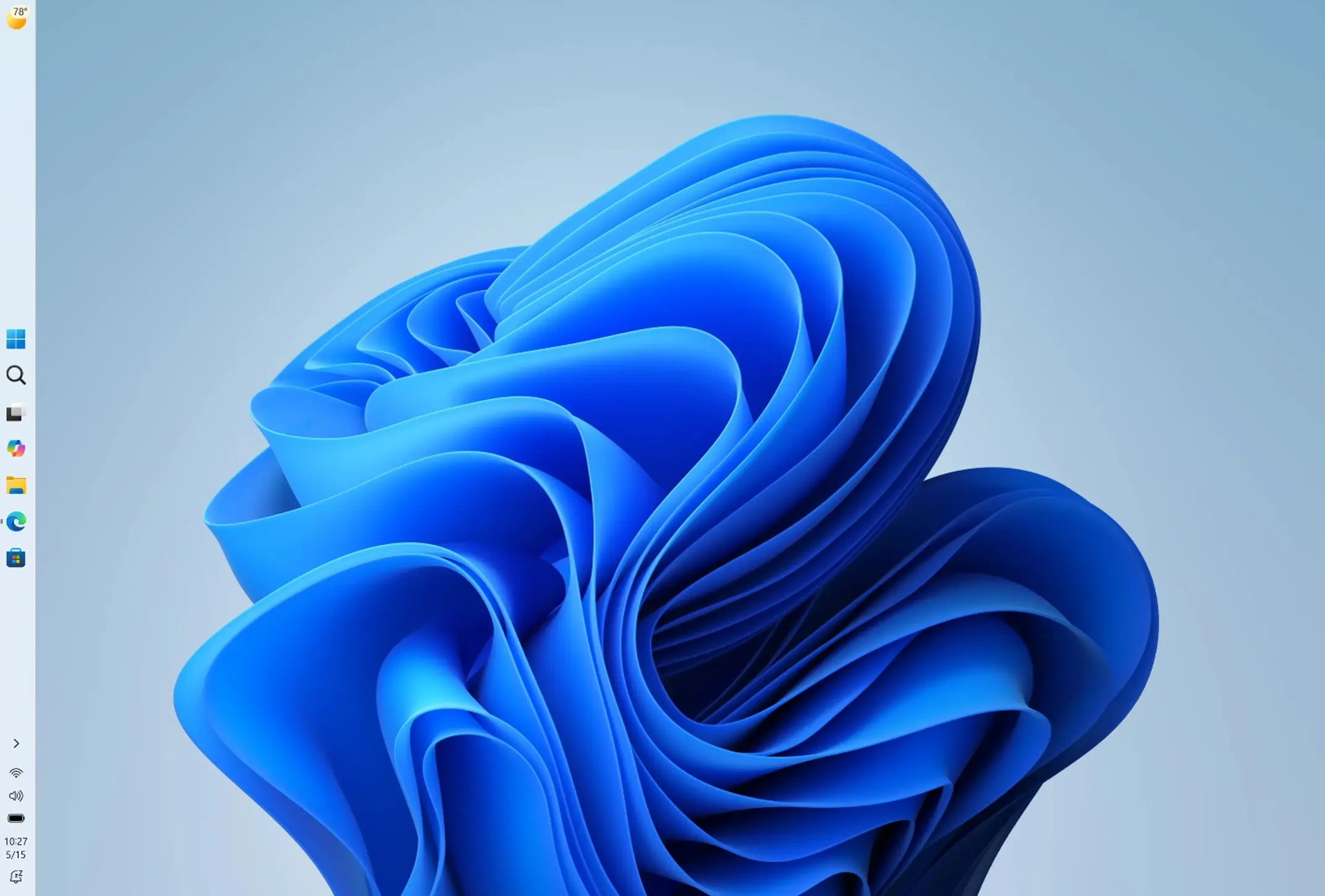
You can now change the position of taskbar on your screen. In Settings > Personalization > Taskbar > Taskbar Behaviors, you can select the side of the screen you want your taskbar on: bottom, top, left, or right. In these other positions, tooltips, flyouts, and animations will still come from the taskbar, and most customization settings like small taskbar and never combine taskbar icons will work with all locations.
Support for touch gestures, Search box, and Ask Copilot in alternate locations is in progress. Auto-hidden taskbar and touch optimized taskbar are not yet supported.
Smaller Taskbar
We're introducing a smaller taskbar for users who want to maximize screen space, especially on smaller devices. While the default taskbar remains unchanged, this setting provides a more compact experience with smaller icons and a reduced taskbar height, giving you more room for your apps. Core elements like Start, Search, and the system tray scale appropriately to stay aligned and consistent.
To change your taskbar size, go to Settings > Personalization > Taskbar > Taskbar behaviors > Show smaller taskbar buttons. When set to Always, both the icons and the taskbar height become smaller.
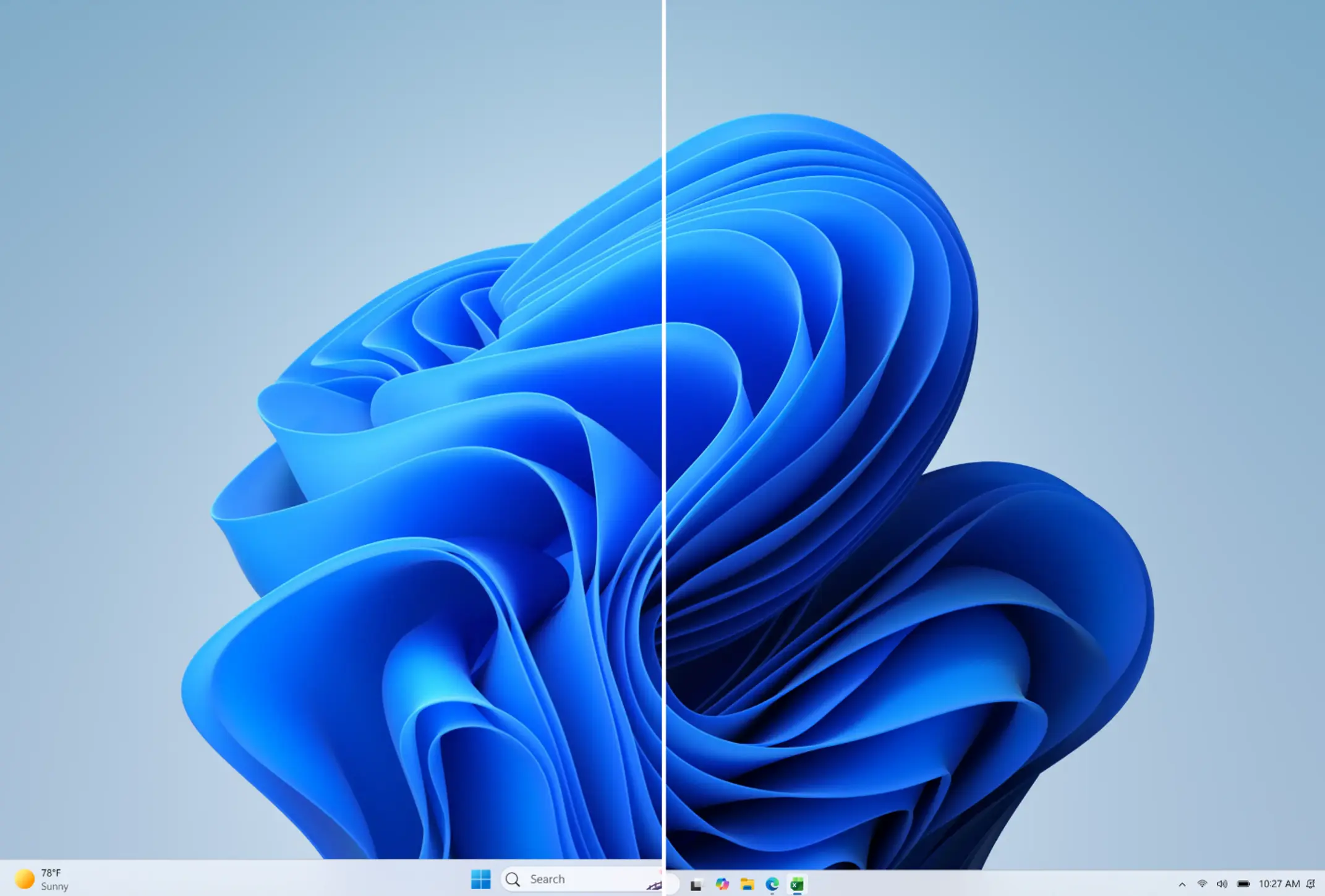
Side-by-side comparison of the standard and smaller taskbar heights on the same device and resolution, showing the additional screen space gained.
We're also working on improving taskbar settings to make resizing easier; these enhancements are currently in progress.
Feedback: Share your thoughts in Feedback Hub (WIN + F) under Desktop Environment > Taskbar.
[EDU]
Free upgrade path to Windows 11 Pro Education for K-12.
Windows Insiders in K-12 education environments can now experience a seamless upgrade path from Windows 11 Home to Windows 11 Pro Education edition, at no additional cost. This enables educational organizations to procure Windows 11 Home devices, upgrade them to Windows 11 Pro Education, and bring devices under school management.
To get started:
- Sign in to the device using a local account.
- Launch an elevated Command Prompt and initiate the upgrade by running Clipupgrade.exe.
- Sign in with your K-12 organization account to validate eligibility.
- The device prepares the upgrade and completes after a restart.
This upgrade is one-way only. Reverting to Windows Home is not supported without a clean OS reinstall.
Feedback: Share your thoughts in Feedback Hub (WIN + F) under Windows Installation.
[File Explorer]
Fixed an issue where the OneDrive shortcut in File Explorer stops working when File Explorer is run in administrative mode.
[Other]
If you were having issues with Outlook not responding to the close button last week, that should be addressed now.
You can find release notes for build 26300.8772 here and for build 28120.2387 here.
Hope you enjoyed this news post. Feedback welcome.
Posted Tuesday 7 July 2026 at 2:16 pm AEST (my time).
News posts: 2023 5,800+ | 2024 5,700+ | 2025 5,700+ | 2026 (to end of June) 2,475
- Fowler
-
 1
1
Recommended Comments
There are no comments to display.
Join the conversation
You can post now and register later. If you have an account, sign in now to post with your account.
Note: Your post will require moderator approval before it will be visible.