
Jump to content
  • Microsoft Store won't let you disable app updates, adds option to pause updates for 5 weeks


    Karlston

    • 2 comments
    • 766 views
    • 2 minutes
     Share


    • 2 comments
    • 766 views
    • 2 minutes

    Microsoft is changing how the Microsoft Store handles app updates, it has removed the option to disable app updates permanently. Instead, users will now be able to pause updates temporarily.


    Windows allows users to disable app updates from the settings. You could toggle the option off, and it would stop updating apps automatically. The only way to update apps is to trigger a manual download. This is how it works currently.
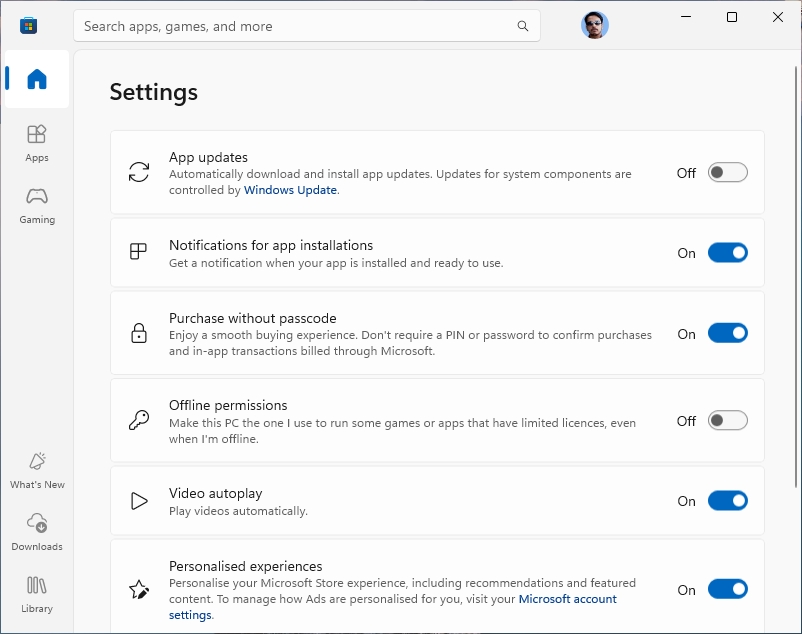
     

    Disable automatic app updates on Microsoft Store Windows 11


    However, with the upcoming change, Microsoft Store will kill the option to disable auto updates. It will let you choose to pause app updates for 1 week, or up to 5 weeks. After this time has passed, the apps will be updated automatically to the latest version.
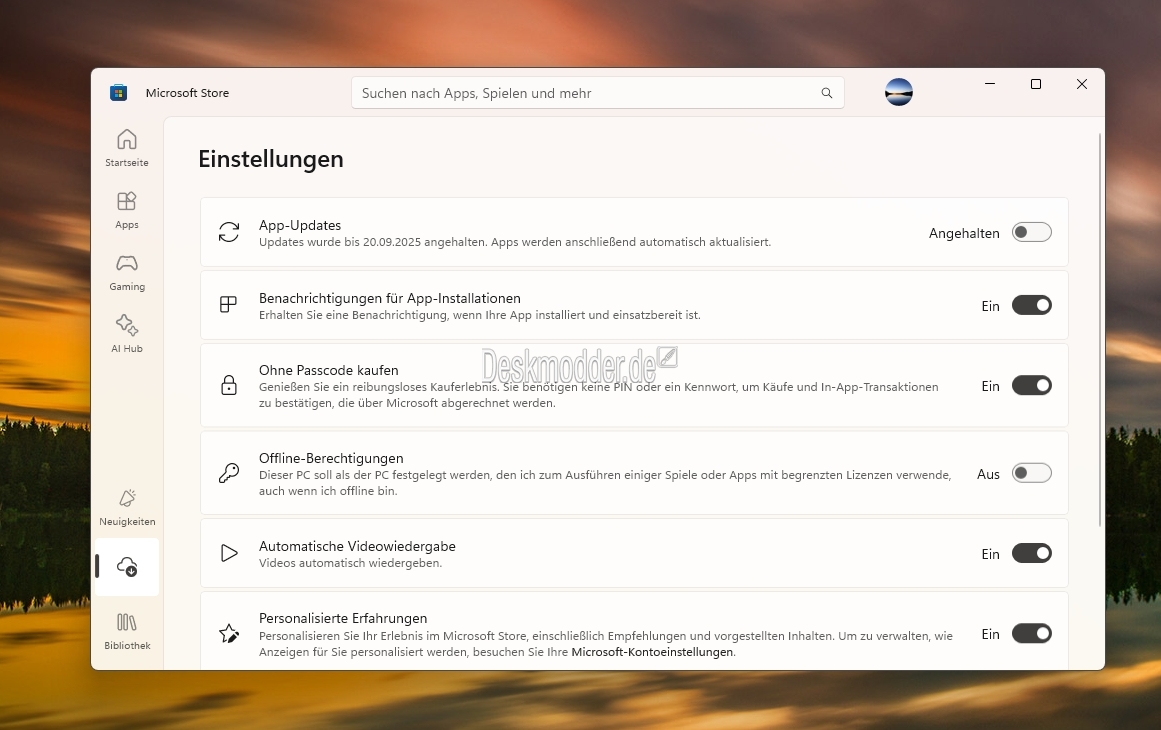
     

    Microsoft Store won't let you disable app updates, adds option to pause updates for 5 weeks


    (Image courtesy: Deskmodder.de)


    I don't see the new option in my Windows 11 virtual machine, or on another computer running Windows 10. So, it's rolling out slowly.


    It is not possible to change the update behavior via the Windows Registry, but you can change a Group Policy to stop app updates. Tom's Hardware reports (via Deskmodder) that the change may have been done for security reasons. Older versions of apps that contain security vulnerabilities could be exploited by hackers to attack computers. Forcibly updating an app could protect users, but this may not be the right approach.


    Why not just allow developers to warn users with an in-app banner or a pop-up warning, that informs users that the current version of the app is insecure, and offer an option to update it?


    There are many reasons why one may not want automatic app updates. Maybe you want to use an older version of an app because a new one is buggy, or the latest version has an interface/redesign that you don't like, or it introduced ads, or removed features, or locked formerly free options behind a paywall, or maybe an app got sold and its trash now, etc. It's a personal choice, but that's the issue here, lack of control.


    Source


    Hope you enjoyed this news post. Feedback welcome.

    Posted Monday 18 August 2025 at 6:42 pm AEST (my time).

    News posts... 2023: 5,800+ | 2024: 5,700+ | 2025 (till end of July): 3,458

    RIP Matrix

    • Like 1
    • Haha 1

    User Feedback

    Recommended Comments

    Quote

    It is not possible to change the update behavior via the Windows Registry, but you can change a Group Policy to stop app updates.


    Don't know if it's current or not, but found this method using Group Policy here...

    2] Disable auto-updating of Microsoft Store apps from the Group Policy Object Editor

    Open the Microsoft Management Console. If you don’t know where this is, search for MMC in the Start menu and select it. Click on Yes when prompted to open the MMC.

    In the Console window, go to File > Add/Remove Snap-in.. and find Group Policy Object Editor from the left-hand list. Select this snap-in and click the Add button in the middle.


    add-group-policy-object-editor-snap-in.p


    Click on Finish in the window that pops up. Finally, hit the Ok button to finish adding the Snap-in.


    Next, navigate to Local Computer Policy > Computer Configuration > Administrative Templates > Windows Components > Store.


    Double-click on Turn off automatic download and install of updates.


    disable automatic updates from policy


    On the window that opens, select the Enabled radio option and click on OK.


    HTH


    • Like 2
    • Thanks 1
    Link to comment
    Share on other sites


    Thanks @Karlston for sharing that method :)


    Another way is use Windows Update Blocker from Sodium, this program will block both Windows update and Windows store from being use.


    or


    WAU Manager (Windows Automatic Updates Manager) ,This program let you choose which part of windows update you want to block, Windows update , or windows store.

    • Like 3
    Link to comment
    Share on other sites


    Join the conversation

    You can post now and register later. If you have an account, sign in now to post with your account.
    Note: Your post will require moderator approval before it will be visible.

    Guest
    Add a comment...

    ×   Pasted as rich text.   Paste as plain text instead

      Only 75 emoji are allowed.

    ×   Your link has been automatically embedded.   Display as a link instead

    ×   Your previous content has been restored.   Clear editor

    ×   You cannot paste images directly. Upload or insert images from URL.


  • Recently Browsing   0 members

    • No registered users viewing this page.
×
×
  • Create New...