


3175x175(CURRENT).thumb.jpg.b05acc060982b36f5891ba728e6d953c.jpg)
Windows enthusiasts and users are often intrigued by PC cleanup, junk removal tools and utilities. What they typically do is help to "clean up" the system by removing temporary files and cache in order to free up disk space. There are several popular third-party, unofficial apps for the purpose of removal of such files including controversial ones like CCleaner.
Please note that the PC clean-up being discussed here is different from the "clean" installation of a Windows OS as the latter resets and removes the entire OS when the user freshly installs a new Windows image. The system clean-up and junk removal on the other hand is only for the deletion of temporary unnecessary files as they can can fill up space.
Interestingly, Microsoft itself also offers its own version of PC optimizer and performance boosting app called the "Microsoft PC Manager" and much like certain third-party apps, it too has had its fair share of critics and for good reasons.
Well as it turns out Microsoft has confirmed that you probably do not need any of those ever as Windows itself packs some very useful native tools for the cleaning and junk removal you wish to have. Neowin readers and tech-savvy users are probably well aware of them but users who are not such enthusiasts can certainly find this guide quite useful.
In an article published last year in November, the tech giant outlined in some good bit of detail on how to use tools like Storage Sense, Disk Cleanup, and more. All of these features are available inside Windows for free.
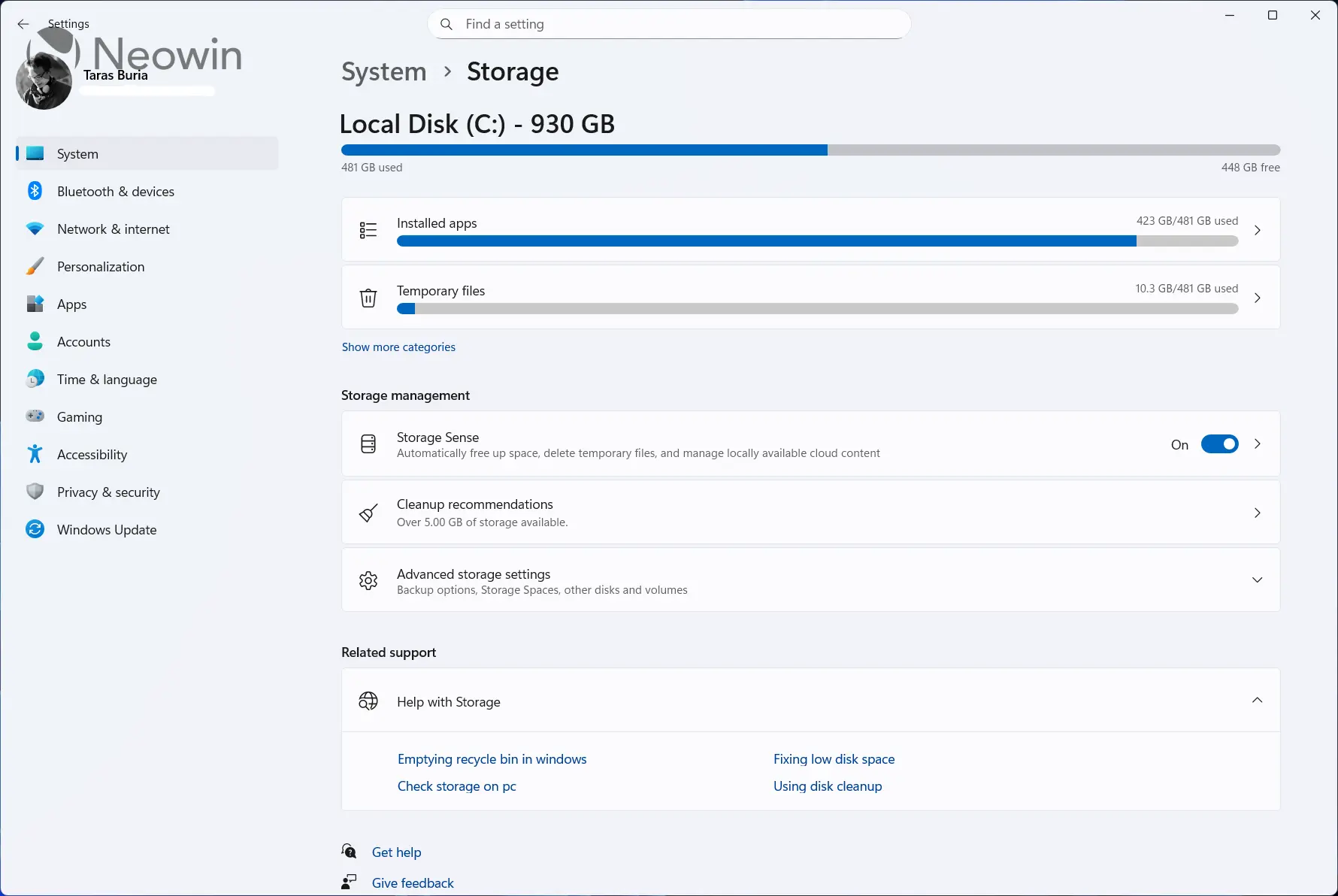
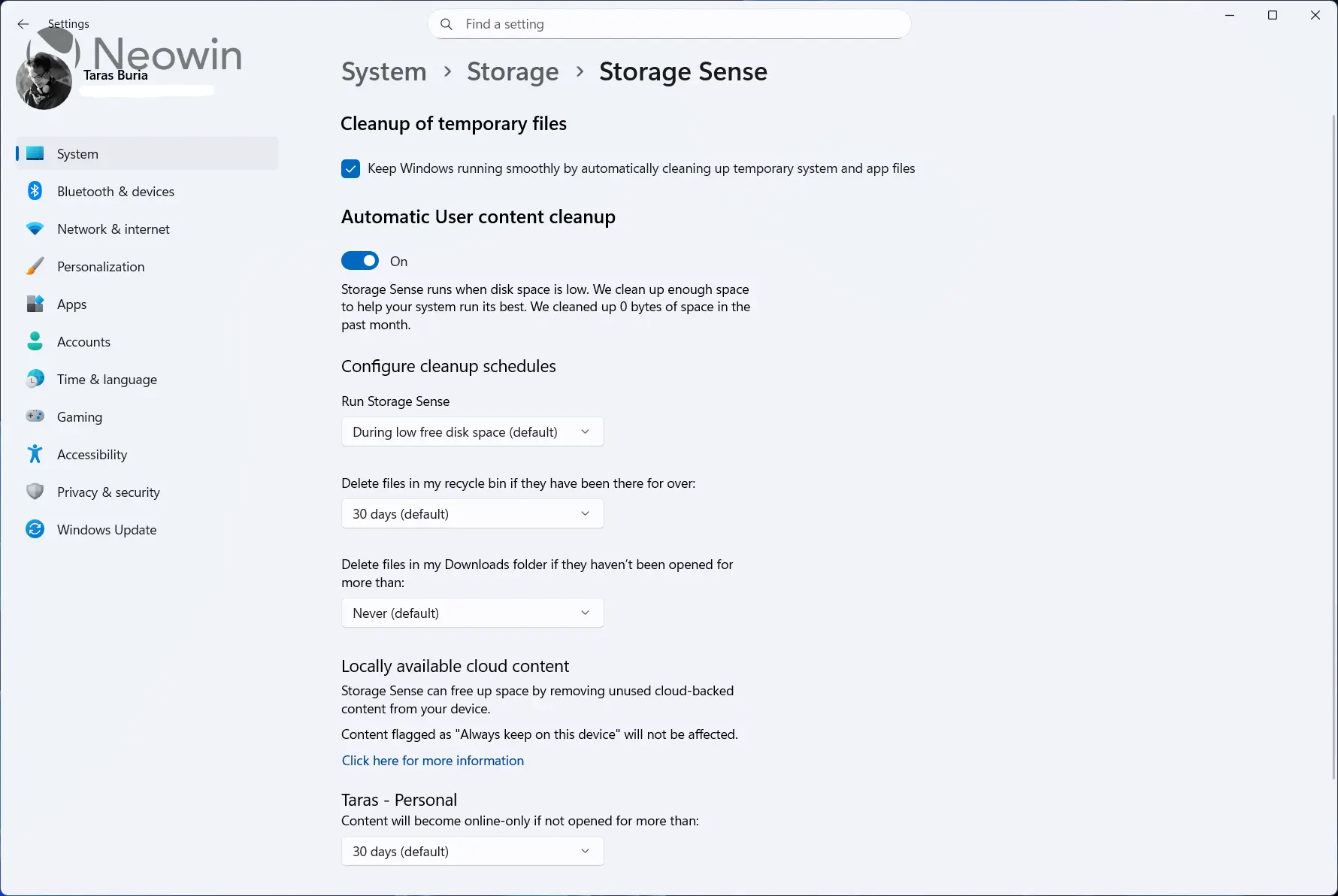
First, we have Storage Sense which essentially automatically frees up the system drive (the Windows installation drive or C:) space by getting rid of items that you no longer need, like temporary files and items in your Recycle Bin. Typically, the setting is not enabled on Windows 10/11 by default; you can check and switch it on by visiting Settings > System > Storage and toggling Storage Sense to "On" if it is not already.
Up next, Microsoft discusses Disk Cleanup, which also helps clear up lots of space across your different disk drives. It works by first scanning the selected drive, say C:, and then letting the user choose what they want to delete.
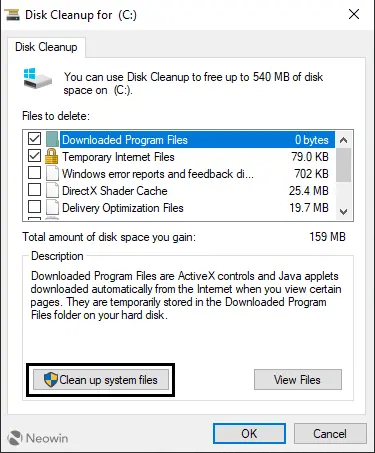
Microsoft also notes that by opting for the elevated "Clean up system files" option, users can free up "several gigabytes" of storage space. That is because the system files also include Windows Update Cleanup alongside the likes of Delivery Optimization Files (something we recently covered), DirectX Shader cache, and more.
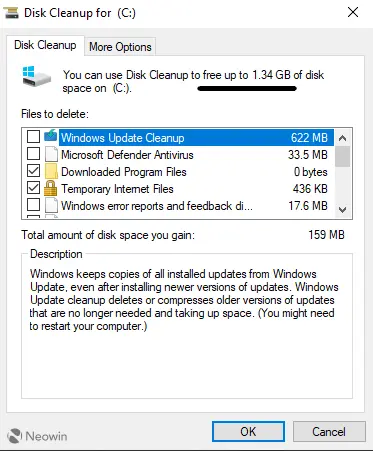
Additional elevated options feature removal of system restore points and volume shadow copies though neither Neowin nor Microsoft recommends you do that unless you have some specific reasons to.
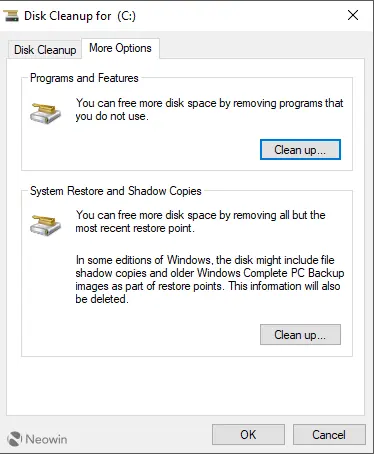
It is very important that users pay attention to the chosen options here since in the past Microsoft had even attempted to delete the entire Downloads folder.
Finally, the tech giant mentions the manual deletion of temporary files from the "Temp" folder. While Windows does tend to delete such files once the application or task ends, sometimes the temporary files are not deleted and can build up. You can find the guide here on Microsoft's official site.
It is noteworthy here that some users also delete contents from the "Prefetch" folder under the C:\Windows\Prefetch directory. However Neowin does not recommend doing that as the cached files actually help improve system performance tremendously by saving on CPU cycles, and typcially you don't even save more than 10-15 MB.
Hope you enjoyed this news post. Feedback welcome.
Posted Tuesday 6 January 2026 at 3:57 am AEST (my time).
News posts... 2023: 5,800+ | 2024: 5,700+ | 2025: 5,700+
Recommended Comments
Join the conversation
You can post now and register later. If you have an account, sign in now to post with your account.
Note: Your post will require moderator approval before it will be visible.