


3175x175(CURRENT).thumb.jpg.b05acc060982b36f5891ba728e6d953c.jpg)
The September 2025 non-security update for Windows 11 brought a few useful changes to the operating system, including additional language, time, mouse, and keyboard settings. Now, you no longer need the legacy Control Panel to customize date/time formatting, add extra clocks, or adjust the keyboard character repeat delay. However, there are plenty of important parts of the old Control Panel that should be ported to the Settings app. Here are five.
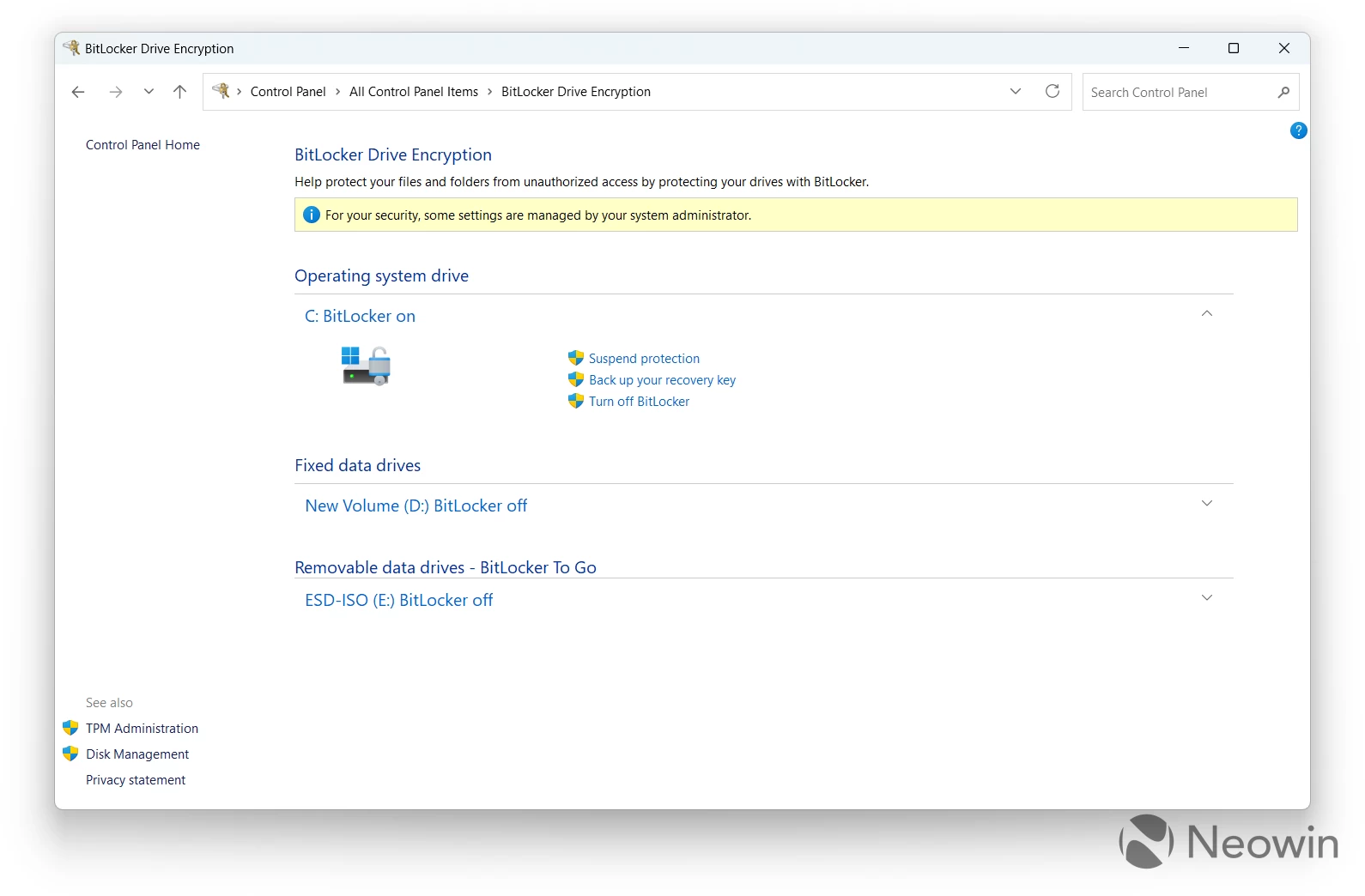
1. BitLocker Drive Encryption
Windows 11 version 24H2 and newer encrypt drives by default on every edition, which means users now have to learn what BitLocker is and where to find keys or how to remove BitLocker encryption. While you can get to BitLocker settings by simply right-clicking a drive and selecting "Manage BitLocker," all the options still reside in the old Control Panel, which does not support dark mode (we have some progress in this area), is not very convenient to use on touchscreen devices, and is less accessibility-friendly.
With Windows 11, Microsoft is ensuring everyone knows and uses BitLocker (willingly or not), so it is time to modernize settings that manage drive encryption.
2. File Explorer Options
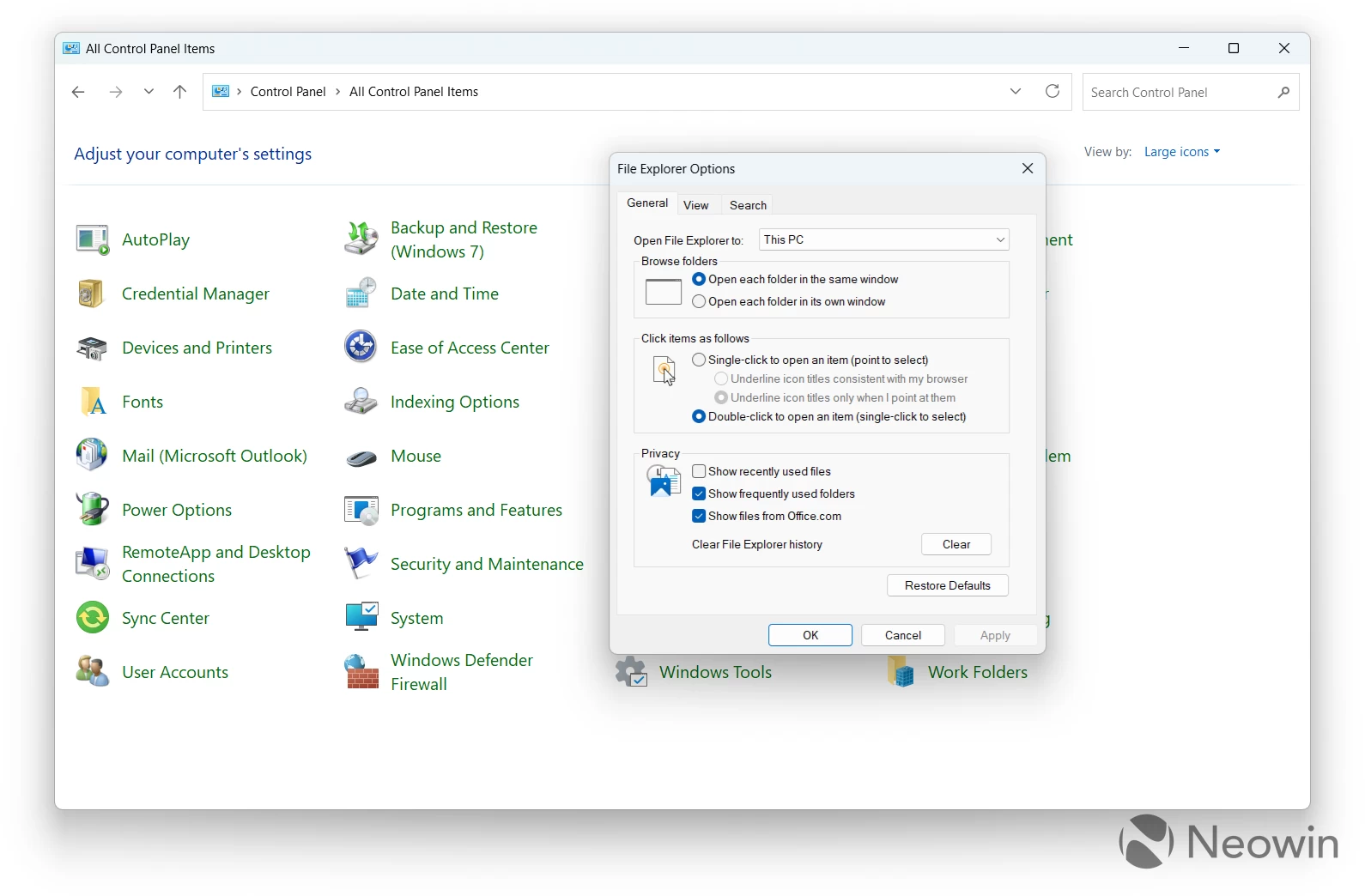
This legacy part of the old Control Panel contains quite a lot of useful features for customizing the File Explorer. From launching File Explorer on "This PC" instead of "Home," to showing hidden files, toggling checkboxes, managing tabs, and more, this applet is quite useful.
I wish I could manage all those settings in the modern Settings app, but it does not look like Microsoft plans to modernize them anytime soon. The company recently equipped File Explorer Options with dark mode support, so I guess it will stay with us for a while with its legacy Win32-based user interface. Microsoft, please prove me wrong.
3. Sounds
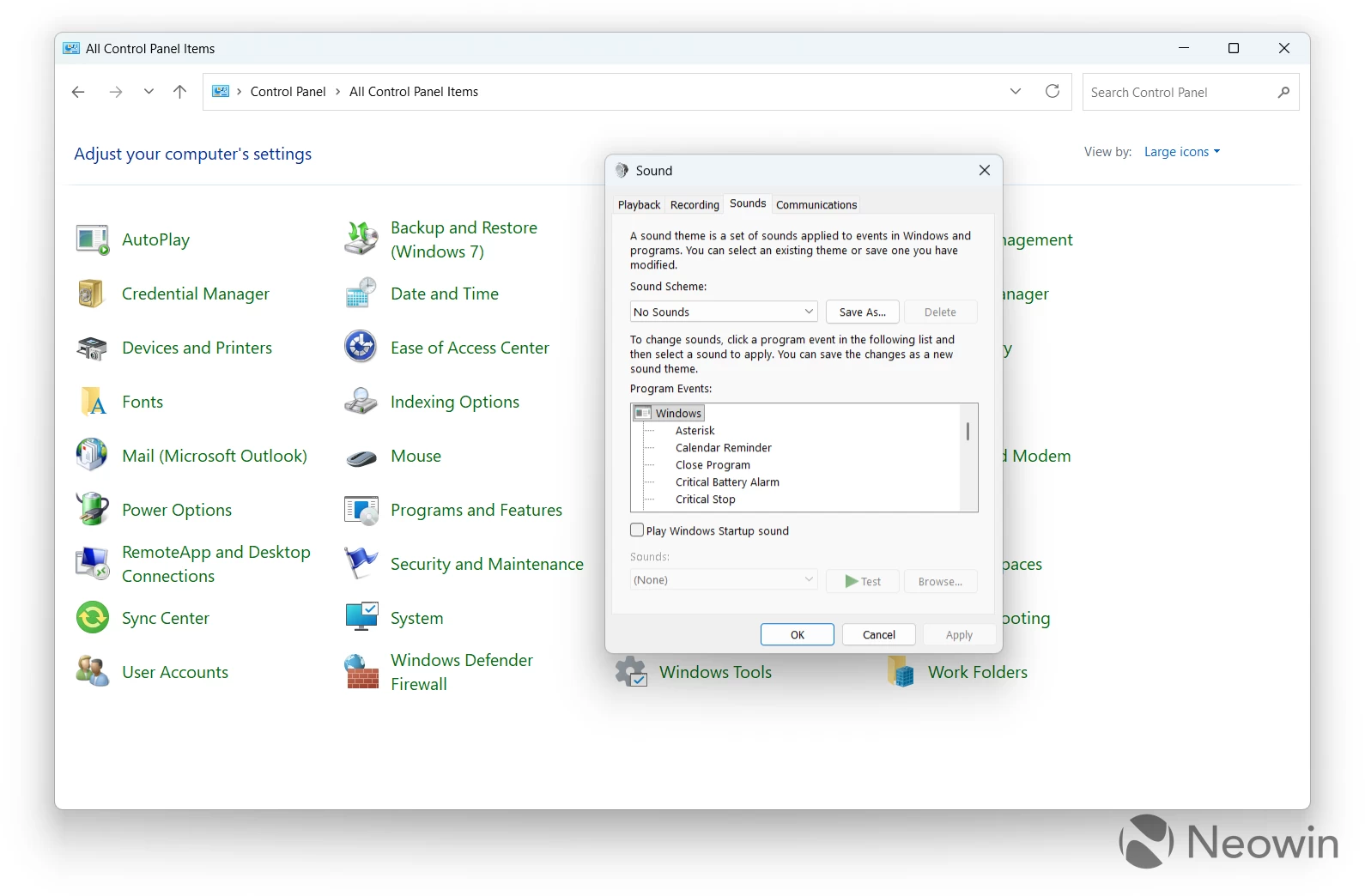
Windows 11 reintroduced startup sounds in the operating system (it even had a bunch of updates that brought back the iconic Windows Vista startup sound, albeit by mistake). Microsoft created a new startup jingle to make the experience a little more fun. However, there are quite a lot of users, including me, who do not want Windows to make any sounds. Turning off all sounds is among the first things I change after clean-installing the OS.
While the rest of the theme customization (background, color, and mouse cursor) have modernized settings in the Settings app, changing Windows sounds still requires using the old applet, even though the rest of the sound settings are already modernized.
4. Device and Disk Management
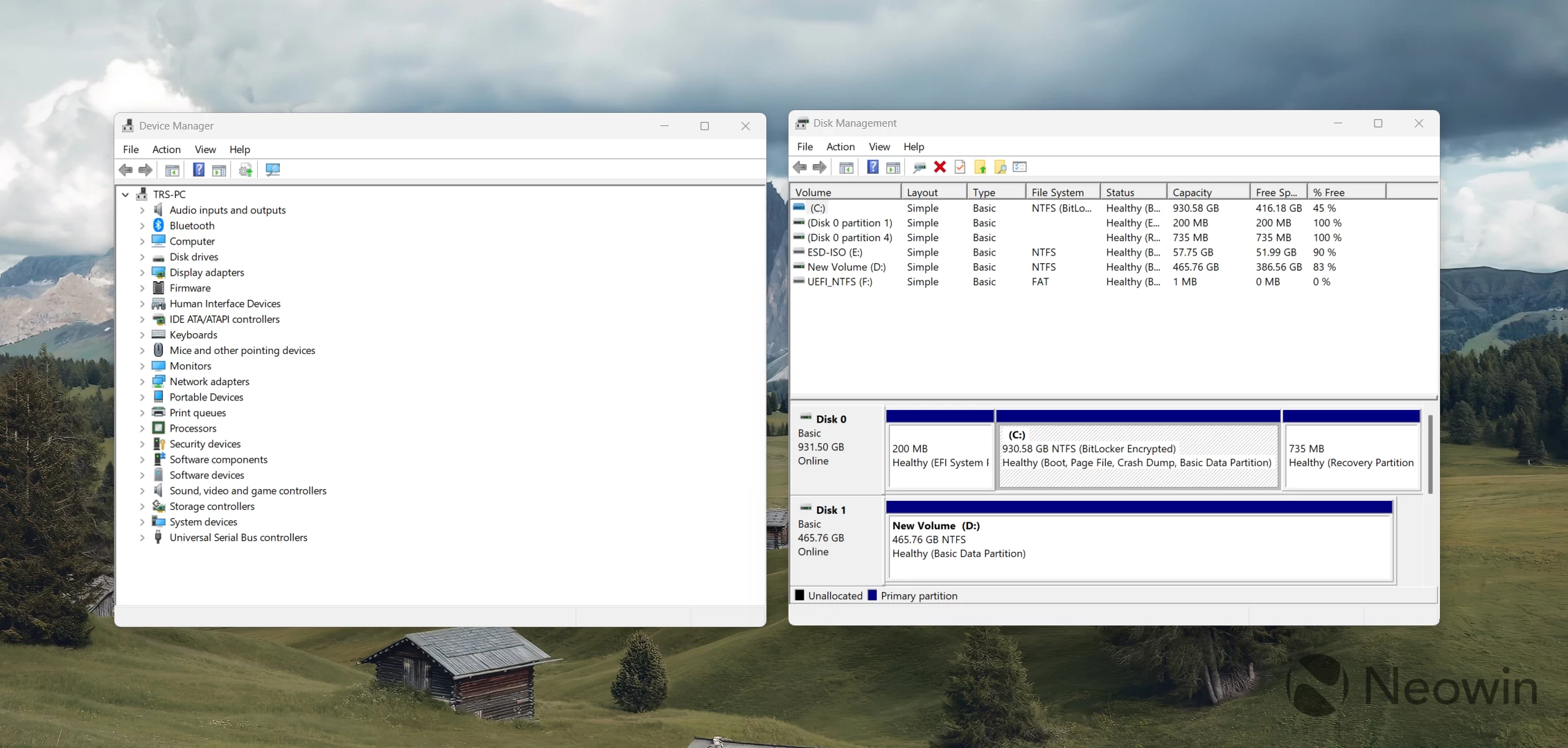
Unlike File Explorer and Sounds, these two are not something you use regularly. Still, that does not mean Microsoft should neglect them. Besides not having modern user interfaces and dark mode support, these applets do not even look good on high-DPI displays, which is a pretty wild thing for a desktop operating system in 2025. Setting up display scaling to anything above 100% results in a blurry and ugly UI.
5. Recovery
I know that Windows 11's Settings app has a dedicated Recovery section, but it misses a few important features. There, you can only find some troubleshooters, reinstall and reset options, access to advanced startup, and the recently introduced Quick Machine Recovery. Creating a recovery drive, going back to a restore point, or configuring system restore points remain useful and important tools for Windows maintenance and troubleshooting.
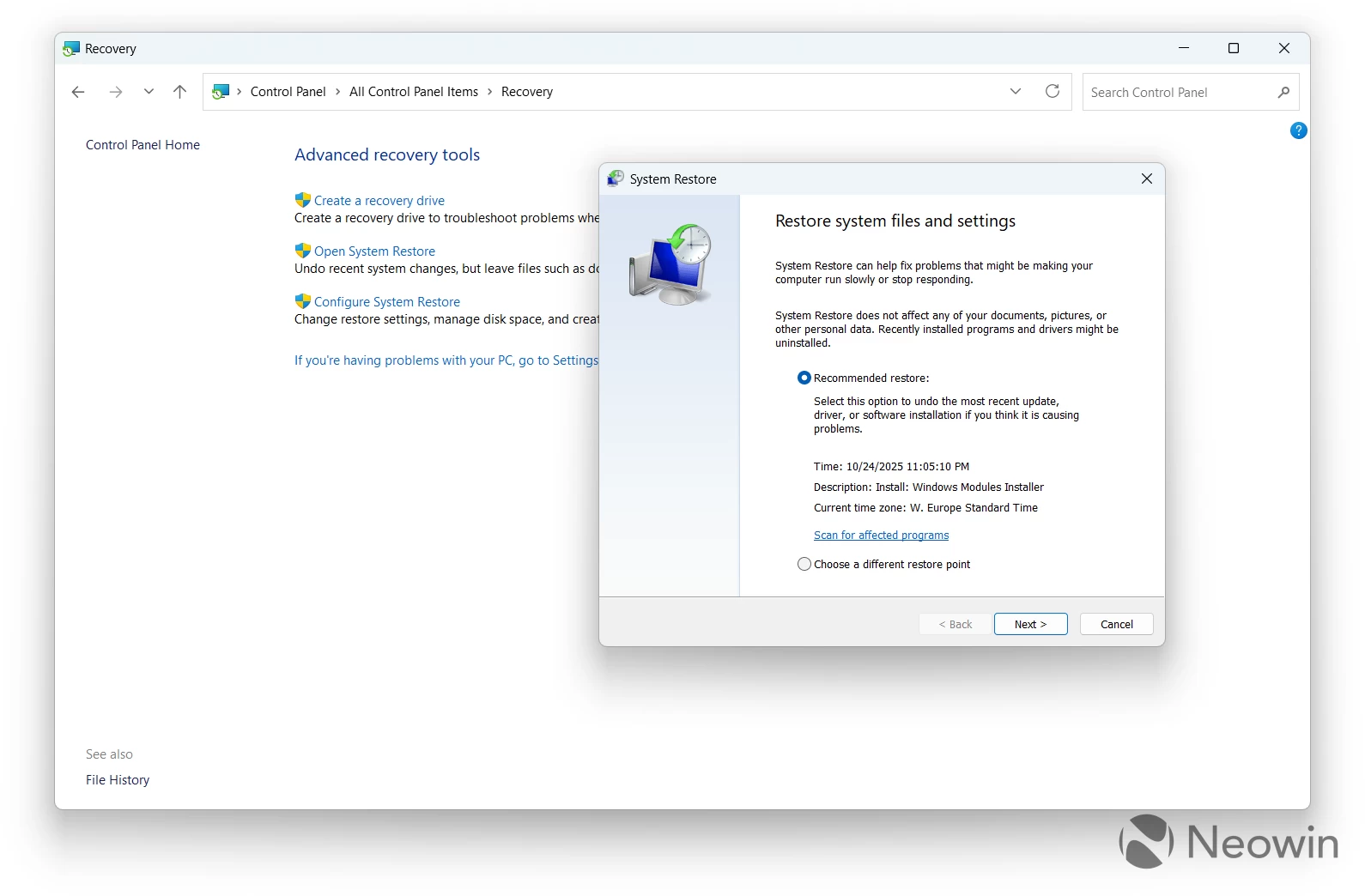
Sadly, these are still buried in the old Control Panel. If you want to configure system protection or restore points, you still have to deal with old dialogs and outdated UIs.
Should it, though?
I know, don't fix what is not broken. And I know that some of the modernized Control Panel bits made it to the Settings app without all the features. Also, removing the legacy controls will make some whine about the new Settings app and the need to retrain muscle memory. Still, Microsoft just has to rip the band-aid and make important parts of its operating system more modern.
The company has already started this ever-going modernization saga, and stopping halfway only makes things confusing for everyone, with some stuff in the Settings app and some in the Control Panel. I am unsure if my generation will ever see the complete migration from the Control Panel to the Settings app, but Microsoft at least should move the most common stuff. You can keep the Windows 7 Backup and Restore in the Control Panel (even though Microsoft still recommends using it), but useful things like sound settings, Recovery, disk management, device management, File Explorer options, and more, should finally embrace the Settings app.
Hope you enjoyed this news post. Feedback welcome.
Posted Tuesday 28 October 2025 at 1:02 pm AEST (my time).
News posts... 2023: 5,800+ | 2024: 5,700+ | 2025 (till end of September): 4,533
- dabourzannan
-
 1
1
Recommended Comments
There are no comments to display.
Join the conversation
You can post now and register later. If you have an account, sign in now to post with your account.
Note: Your post will require moderator approval before it will be visible.