


3175x175(CURRENT).thumb.jpg.b05acc060982b36f5891ba728e6d953c.jpg)
The boot spinners from Windows 8 are on their way out, with a more modern version replacing them in the latest preview builds.
In 2012, when Microsoft released Windows 8, the operating system received a major UI overhaul, and its bits and pieces remain in Windows 11 to this day. While Microsoft is slowly modernizing Windows 11 with updated user interfaces, some outdated stuff remains visible in plain sight. One of these outdated bits is the loading spinner that you see every time you sign in, sign out, or restart your computer.
Luckily, Microsoft is finally updating it with a newer spinner, the one that appears next to Windows 11 when your PC is booting. In the latest Windows 11 preview build from the Dev Channel, Microsoft quietly swapped the old Windows 8 spinner with the new one. The company has not announced it yet, and making it work requires the ViVeTool app, but we are finally getting there.
Here is the updated spinner in action:
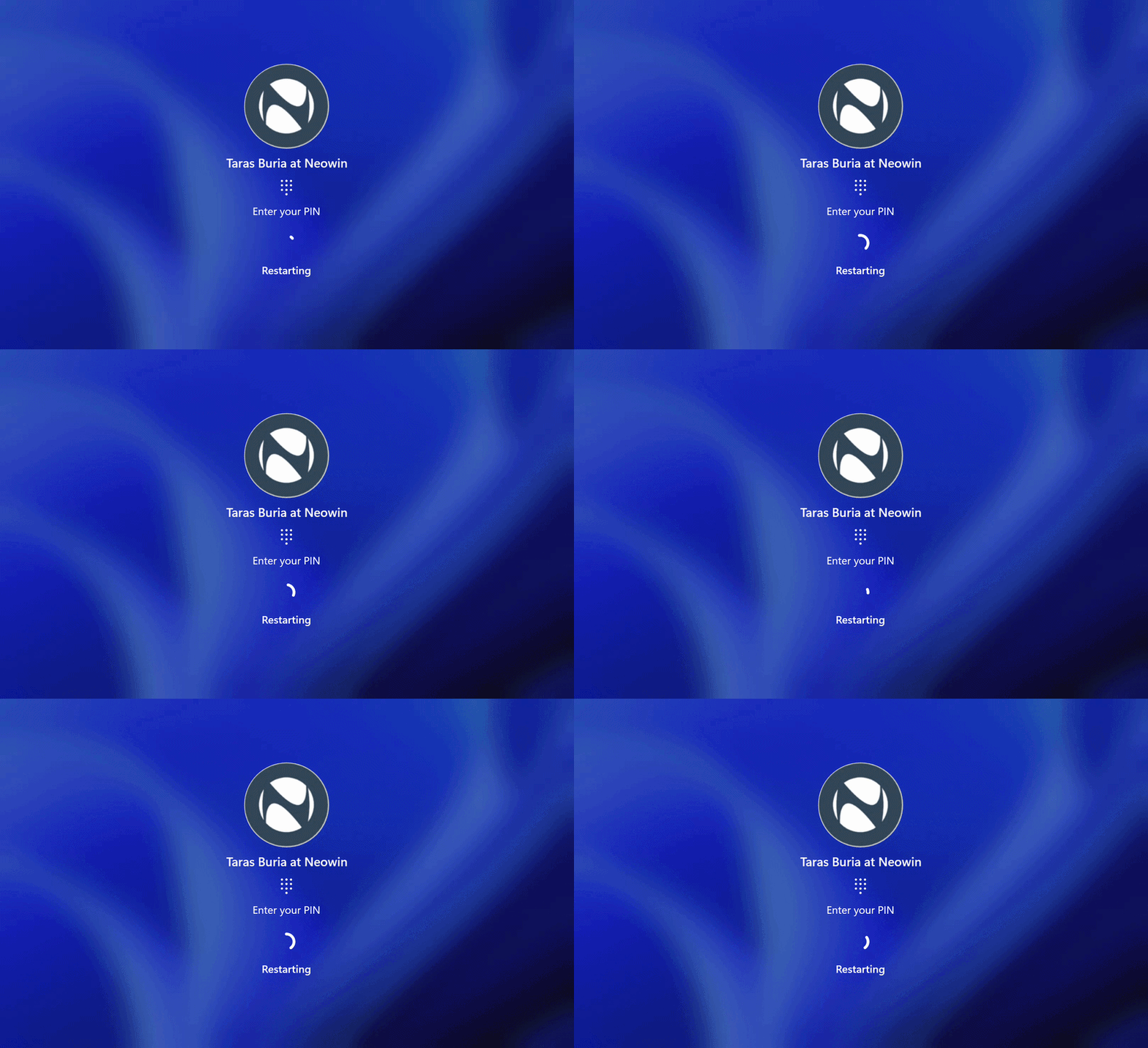
In all seriousness, mismatched spinners are probably the least of Windows 11's problems. Microsoft has a long laundry list of fixes for Windows 11, and a redesigned spinner is just a small step on the long road to make the operating system more cohesive and consistent. More important things that Microsoft is fixing include Windows Update improvements, new taskbar features, faster File Explorer, a clearer Windows Insider program, more stable updates, and more.
If you are on build 26300.8289 (Dev Channel), you can try the updated loading indicator yourself using the ViVeTool app:
- Download ViVeTool from GitHub and unpack the files wherever convenient.
- Launch Command Prompt as Administrator and navigate to the folder containing ViVeTool files using the CD command. For example, CD C:\Vive.
- Type vivetool /enable /id:59728252 and press Enter.
- Restart your computer.
You can read about other changes in Windows 11 build 26300.8289 in our dedicated article here.
Source: @phantomofearth on X
Hope you enjoyed this news post. Feedback welcome.
Posted Tuesday 28 April 2026 at 7:33 am AEST (my time).
News posts: 2023 5,800+ | 2024 5,700+ | 2025 5,700+ | 2026 (to end of March) 1,297
Recommended Comments
There are no comments to display.
Join the conversation
You can post now and register later. If you have an account, sign in now to post with your account.
Note: Your post will require moderator approval before it will be visible.