


3175x175(CURRENT).thumb.jpg.b05acc060982b36f5891ba728e6d953c.jpg)
Microsoft Edge quite often gets a lot of flak from users for having too many features, some of which consumers deem redundant, unnecessary, or just bloat. While it is true to some extent (even Microsoft admitted that by deprecating quite a lot of stuff in recent updates), Microsoft's browsers have a bunch of actually useful capabilities that make the browsing experience better, especially on lower-spec devices. One of those features is a memory consumption limiter. Here is how to use it.
Chromium-based browsers are known for being RAM-hungry sometimes. If you have a device with 8GB of memory or even less, memory consumption quickly becomes a serious issue, especially when you consider that a lot of modern work happens in the browser. Additionally, many popular apps are just web wrappers, such as WhatsApp, which recently ditched a native app in favor of a PWA.
While Microsoft Edge's built-in memory limit will not magically give you an extra 8GB of memory, it can help keep the browser in its lane, especially if you need to allocate memory to other apps. The feature is pretty simple, and using it is as easy as switching a bunch of toggles in settings. What I also like about it is that you can select when the limit applies—always or when you play a game. This is particularly handy when playing memory-taxing titles, and the feature takes care of memory management for you, with no need to manually toggle it on whenever you want to play.
Reduce memory consumption in Microsoft Edge.
Before you start, make sure you run the most recent Microsoft Edge version. You can check it by going to edge://settings/help. By the time this article is published, the most recent Stable version is Edge 140. The ability to limit how much memory Edge consumes has been present since Edge 125.
- Click the three-dot button in the upper-right corner of the screen and select Settings in the menu.
-
Go to System and Performance > Performance. Alternatively, type edge://settings/system/managePerformance in the address bar.
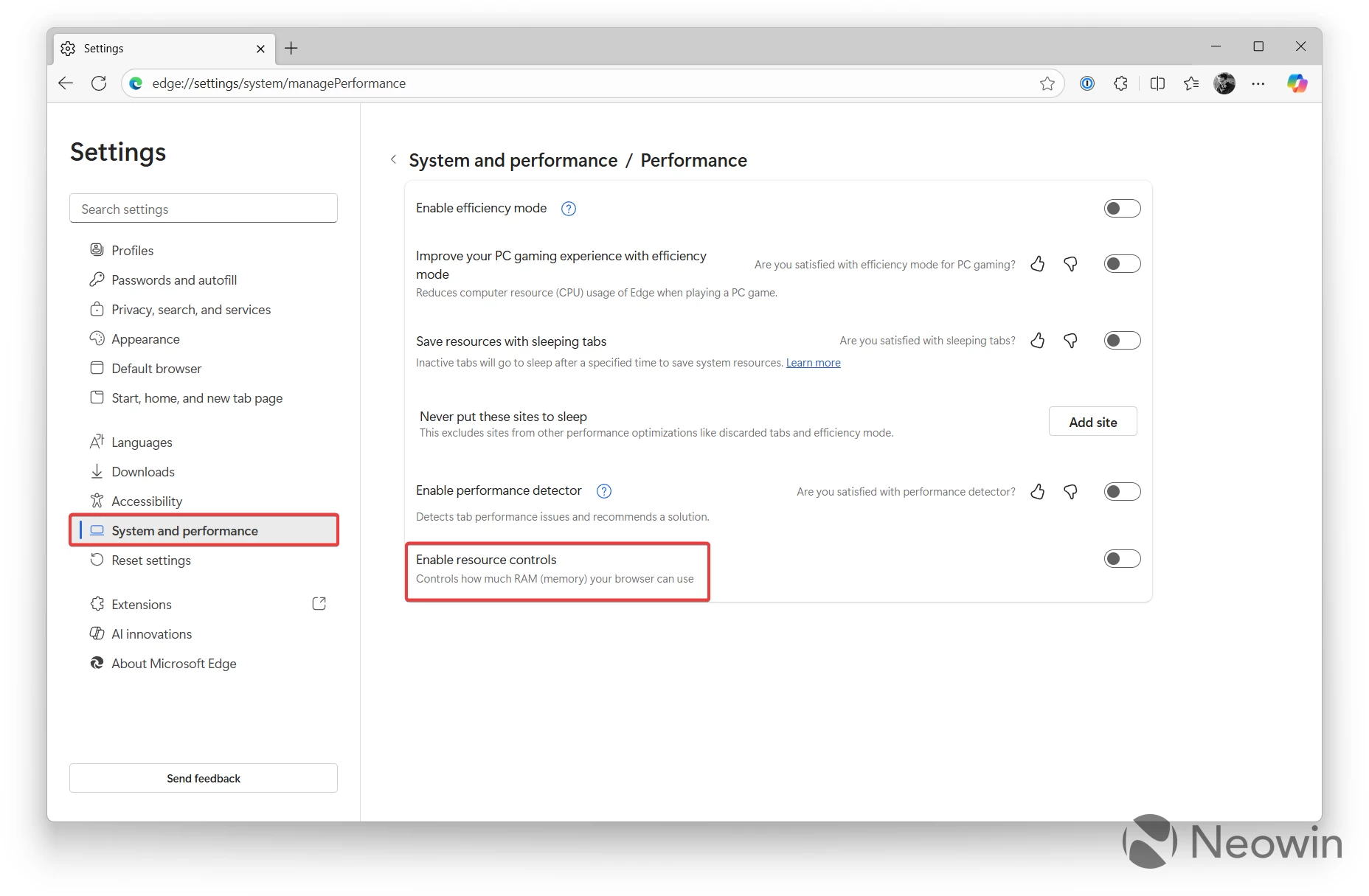
- Flick the "Enable resource controls" toggle. After that, you will see a bunch of additional elements.
-
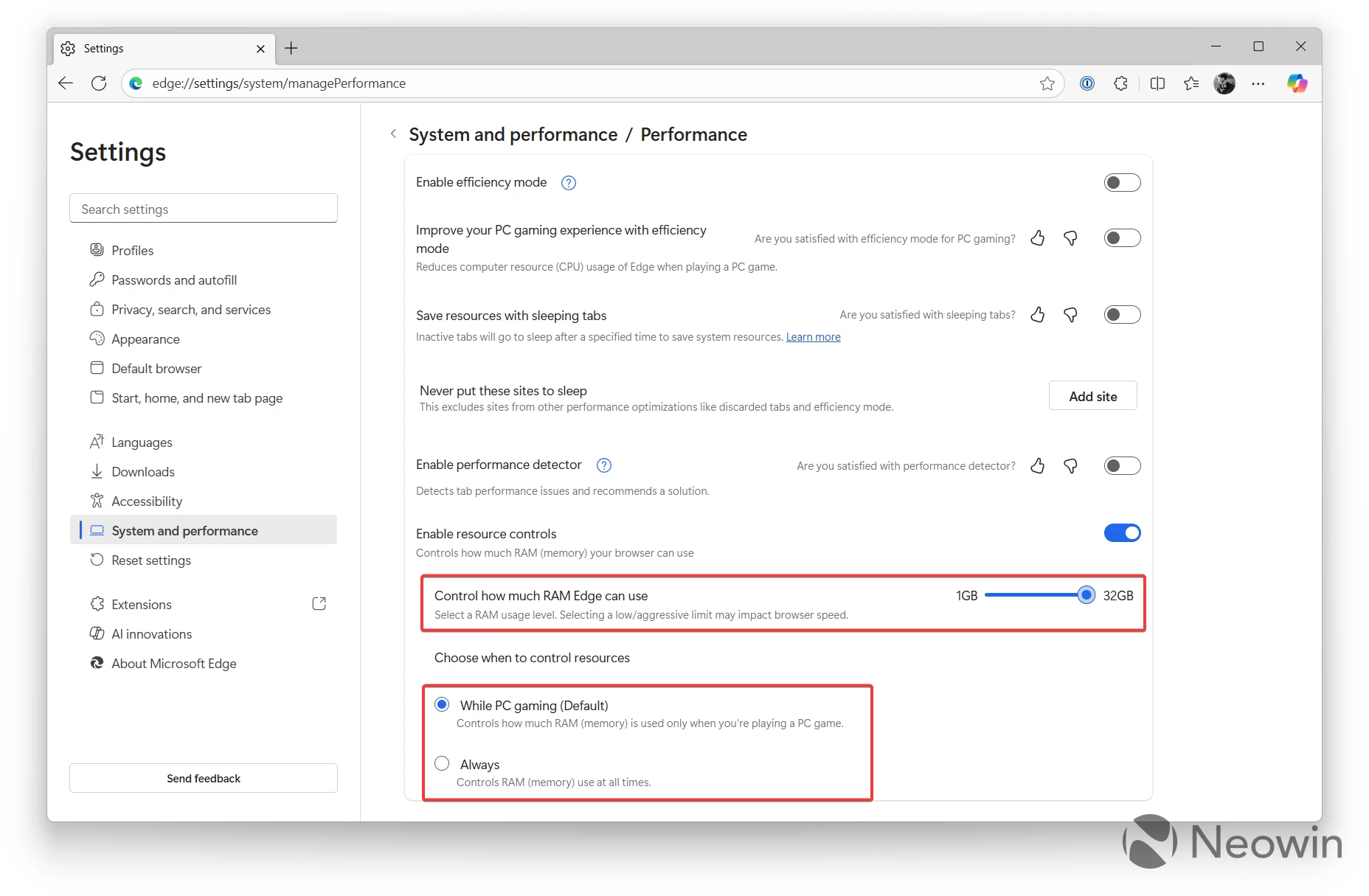
Now, set the maximum amount of memory the browser can use. Microsoft lets you select from 1GB to as much as your computer has. For example, my PC has 32GB of RAM, and I can allow Edge to use all 32GB if necessary.
-
Once the limit is set, select when it should be applied. Available options include "While PC gaming" or "Always." If you do not want Edge to exceed the specified limit all the time, select the second option.
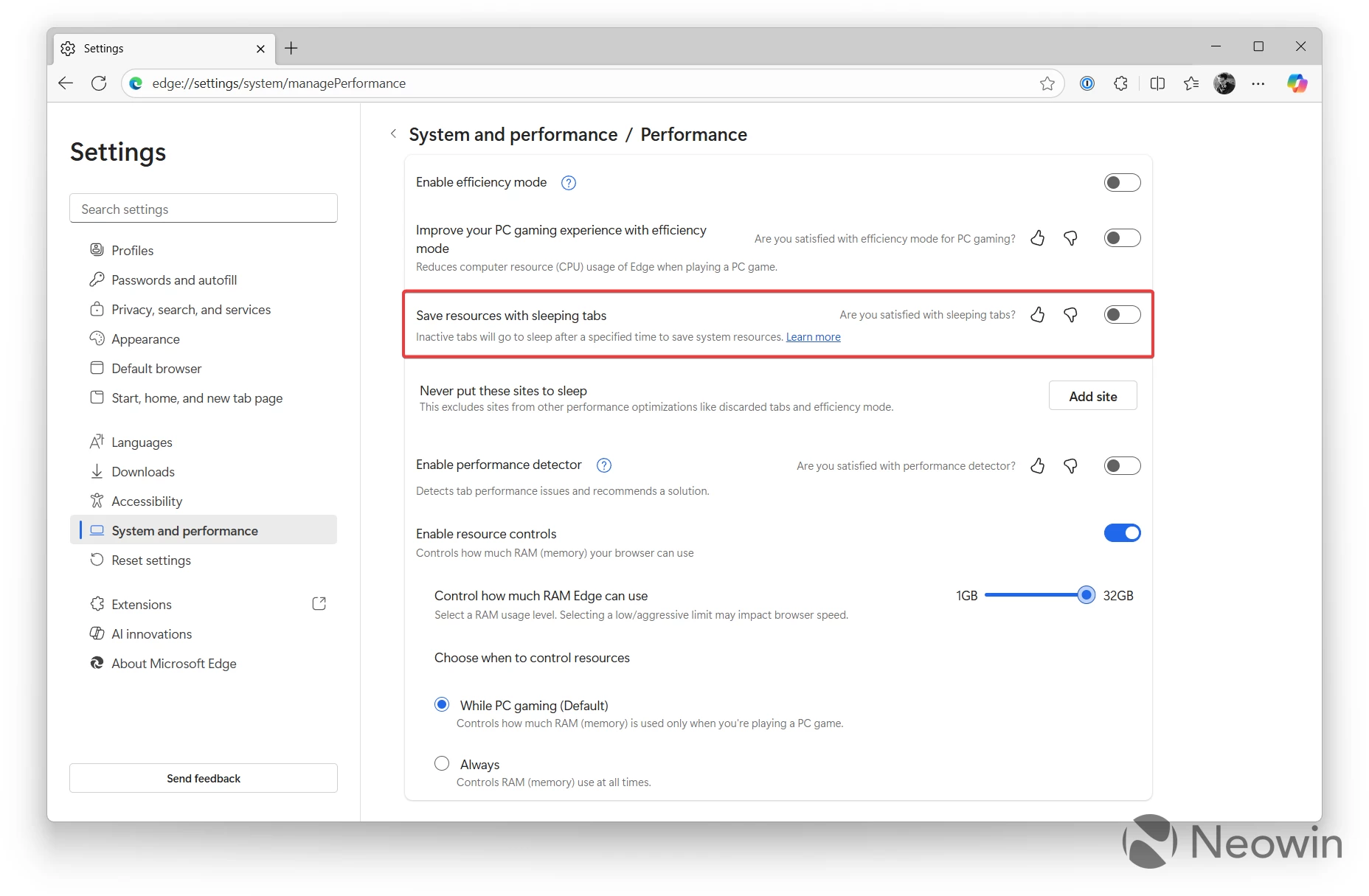
Keep in mind that the less memory you allocate to Edge, the slower it runs. Also, you are more likely to experience tab refreshes and temporary data loss. For the best results, use the Sleeping Tabs feature, which offloads idling tabs for more optimal memory consumption. You can turn on Sleeping Tabs on the same page using the "Save resources with sleeping tabs" toggle. Also, you can try several limits to find one that works best for your device.
Hope you enjoyed this news post. Feedback welcome.
Posted Monday 22 September 2025 at 2:17 am AEST (my time).
News posts... 2023: 5,800+ | 2024: 5,700+ | 2025 (till end of August): 4,048
Recommended Comments
Join the conversation
You can post now and register later. If you have an account, sign in now to post with your account.
Note: Your post will require moderator approval before it will be visible.