

3175x175(CURRENT).thumb.jpg.b05acc060982b36f5891ba728e6d953c.jpg)
Microsoft's June Insider preview builds show a growing focus on polishing the OS experience across accessibility, updates, and performance.
As part of the Windows Insider Program, Microsoft made available several preview builds of Windows 11 in early June 2026. Although these preview builds didn't introduce many new features, the company dedicated most of its work to improving existing ones.
In the first two weeks of June, the company unveiled a new Beta channel for version 26H1, and in the different channels, we've also seen a number of features and improvements. For example, we've seen new features like Screen Tint and Low Latency Profile.
In addition, a new version of Widgets with fewer distracting settings has rolled out, an updated Magnifier with new settings has also rolled out, and there are improvements for File Explorer.
Furthermore, Microsoft continues improving the Windows Update experience, Windows Search, and more.
In the Experimental track, we've seen builds 28120.2242, 26300.8687, 29610, and 28120.2302, and builds 26220.8575, 28020.2236, 26220.8680, and 28020.2298 have been released in the Beta channel.
In this recap, I'll highlight the latest and most noteworthy changes available through the Windows Insider Program.
Biggest improvements from the Windows Insider Program in June 2026
These are the most significant changes Microsoft has unveiled since the last roundup.
Screen tint new feature
On Windows 11 build 28020.2298, in the new Beta channel for version 26H1, Microsoft introduced a new accessibility feature called "Screen tint." It's a system-wide color overlay designed to reduce eye strain and soften overly bright or saturated displays.
Unlike the Night Light feature, which primarily reduces blue light for nighttime use, Screen tint changes the overall intensity and color tone of the display during the day. The software giant notes that the two features solve different problems and can work together.

(Image credit: Mauro Huculak)
The feature is available in Settings > Accessibility > Vision > Screen tint, with six preset tint colors and an option to create a custom color.
In addition, you can also adjust the intensity with the available slider. However, one thing to point out is that enabling Screen tint disables Color Filters, and vice versa.
In June 2026, Screen Tint also became available on build 26220.8680 through the Beta experience.
Low Latency Profile
Also, for version 26H1, on build 28020.2298, the company introduced Low Latency Profile, a feature that temporarily maxes out (or near-maxes) the processor frequency for 1 to 3 seconds during interactive tasks on Windows 11. Instead of focusing on sustained performance, the feature appears designed to reduce delays during actions like opening apps or opening flyouts, such as the Start menu, File Explorer, and context menus.
The feature can result in up to 40 percent faster application launch times and up to 70 percent faster interaction times with system features, such as opening the Start menu or context menu.
Low Latency Profile works automatically, so you won't find an option to turn it on or off in the Settings app or Control Panel.
It's important to note that responsiveness improvements will vary by hardware. Computers with lower-end or older components may notice the biggest difference because these systems typically struggle more with interface responsiveness, app launches, and short bursts of activity.
Widgets with quieter defaults
In the Beta channel for version 25H2, starting with build 26220.8680, the development team updated the Widgets experience with less distracting default settings.
For example, Widgets no longer open in hover and turn off badges in the Taskbar by default. In addition, alerts will be limited until you open the app and engage with the experience.

(Image credit: Mauro Huculak)
When you open the dashboard, Widgets will appear under your "widgets" rather than in the news feed. In addition, the company is updating the Taskbar badging to use a color scheme that follows the system accent color, rather than the red indicator, to reduce the sense of urgency.
Another change being developed is adaptive behavior for user engagement. This means that the system will now adapt the Widgets feature based on user interaction. For example, highly engaged users will continue to receive the current experience. On the other hand, less engaging users will notice quieter default settings, including reduced or disabled badging.
Magnifier additional controls
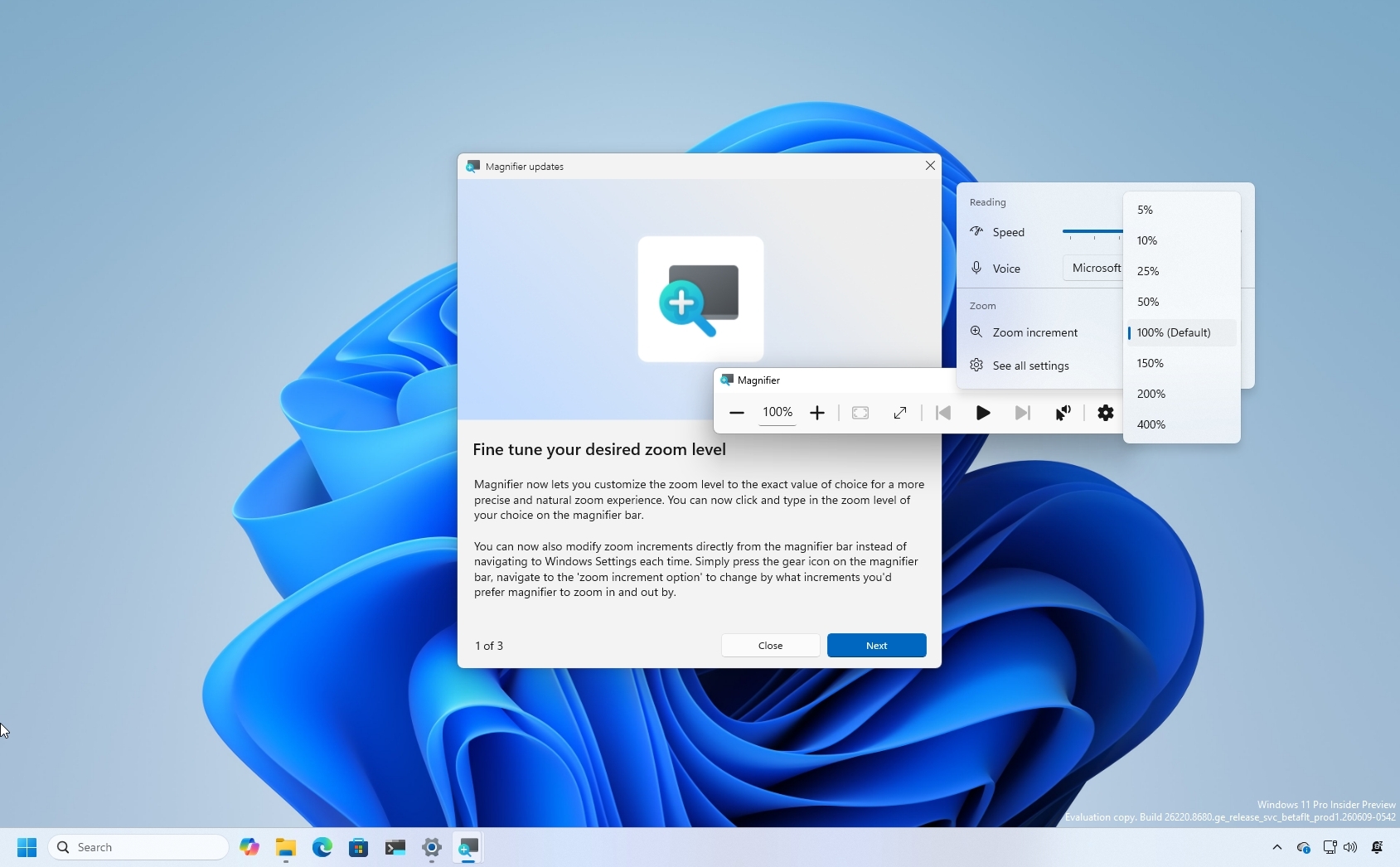
As part of the accessibility improvements, in build 26220.8680, the Magnifier feature is receiving several enhancements.

(Image credit: Mauro Huculak)
For example, it's now possible to enter a specific zoom percentage directly in the interface instead of repeatedly clicking the zoom-in and zoom-out buttons.
Also, in the Magnifier settings, you can now find additional zoom presets, including 5, 10, 25, 50, 100, 150, 200, and 400 percent.
File Explorer changes
Although File Explorer remains visually the same, Microsoft has been pushing various improvements focused on compatibility, performance, and reliability.
For example, on build 26220.8680, the address bar now supports paths with double backslashes and quotation marks. Microsoft has also improved performance when mounting ISO files to prevent the application from becoming unresponsive during SmartScreen scans.
On build 26300.8687, you can now use the middle-click support to open folders in a new tab directly from the address bar and the Home page.
In addition, the company has made further refinements to improve File Explorer responsiveness at higher text scaling.
Windows Update single monthly restart
Alongside the ability to pause updates indefinitely, Microsoft continues improving its Windows Update system, and starting with the release of build 26300.8687, the company is unifying drivers, .NET, and firmware updates with the monthly quality update install to reduce restarts to one per month.
Windows Search with typo handling
Starting with build 26300.8687, Windows 11 includes an updated version of the search experience that improves the handling of typos, missing letters, extra characters, and partial app names.

(Image credit: Mauro Huculak)
It all means that, when searching the system, making mistakes should now be more likely to show the right answer. For instance, if you type "utlook," the Outlook app should be the first result.
Furthermore, local results now take priority over web results.
Windows Central's Take
These June Insider builds don't introduce many brand-new features, but they do show where Microsoft's priorities are right now. The majority of the features highlighted this month have already appeared in other preview builds. However, they're now making their way across additional testing channels as the company continues developing future versions of Windows 11.
Personally, I think the most meaningful changes are the ones that improve everyday usability. The Windows Update changes, better search results, and ongoing File Explorer refinements may not generate the same excitement as a major new feature. However, they have the potential to make the operating system feel more polished and less frustrating to use over time.
What are your thoughts about these latest Windows 11 improvements? Let me know in the comments.
Hope you enjoyed this news post. Feedback welcome.
Posted Tuesday 16 June 2026 at 8:00 am AEST (my time).
News posts: 2023 5,800+ | 2024 5,700+ | 2025 5,700+ | 2026 (to end of May) 2,092
Recommended Comments
There are no comments to display.
Join the conversation
You can post now and register later. If you have an account, sign in now to post with your account.
Note: Your post will require moderator approval before it will be visible.