

3175x175(CURRENT).thumb.jpg.b05acc060982b36f5891ba728e6d953c.jpg)
Windows 11 includes many useful features hiding in plain sight, and Reddit users are sharing the ones that make the biggest difference every day.
Windows 11 includes dozens of useful features hiding in plain sight, and Reddit users are sharing the ones that make the biggest difference every day, or as the thread's title notes, "life-changing." A lot of users learn Windows through years of habits. They know how to open apps, browse files, and install programs, but Microsoft has accumulated dozens of small improvements that rarely receive attention.
The interesting thing about Reddit discussions around Windows 11 is that the "life-changing" features are rarely the flashy ones. Users aren't talking about the features Microsoft usually puts front and center. They're talking about small workflow improvements that remove friction dozens of times a day.
A clipboard manager may save only a few seconds each time, but when you use it 20 times a day, it becomes one of the most valuable features on the system.
In this guide, I'll list 10 features that, according to Reddit users, are "cool" and many people may know about.
1. Clipboard history turns copying into a productivity tool
One of the most repeated recommendations in the Reddit thread was Clipboard history.

(Image credit: Mauro Huculak)
Redditor yanni99 explained: "WIN + V, the most underrated and unused feature in Windows 11. I use this 20+ times daily."
This feature keeps a history of copied text and images, allowing users to retrieve something they copied earlier instead of losing it shortly after something else is copied.
Why it's useful
Traditional copy and paste assumes users only need one piece of information at a time. Modern work does not work that way. People constantly copy links, passwords, snippets of text, screenshots, and data between apps.
The hidden benefit is not just recovering old clipboard items. It changes how you work because you stop worrying about overwriting something important.
Insight
I have found this especially useful when writing, troubleshooting computers, or comparing technical information. Instead of repeatedly switching between browser tabs, documents, or notes to re-copy the same information, Clipboard history acts as a temporary workspace where I can quickly access multiple pieces of copied content.
Quick tip: Pin frequently used clipboard items so they survive restarts.
2. Snipping Tool is more than screenshots
A lot of users still think Snipping Tool is only a screenshot utility.

(Image credit: Mauro Huculak)
Reddit user picardo85 pointed out: "The snipping tool allows for screen recording." Another user highlighted: "Also does OCR! and the OCR is GOD TIER."
The Snipping Tool app on Windows 11 now combines screenshot capture, screen recording, text extraction from images, basic image editing, and GIF creation from short recordings.
Why it's useful
For years, users installed third-party apps for these tasks. Microsoft quietly turned a basic utility into a lightweight alternative for many everyday situations.
The text extraction capability is particularly useful. You can capture text from screenshots, scanned documents, error messages, or images without manually typing everything.
Insight
This is one area where the company has improved the operating system significantly but failed at communication. A lot of users still download third-party screenshot tools without realizing the built-in option has caught up.
Quick tip: Use the "Windows key + Shift + S" keyboard shortcut to bring up the Snipping Tool toolbar for quick access to the features.
3. End Task from the Taskbar finally fixes frozen apps
The popular Microsoft engineer jenmsft joined the Reddit discussion to highlight this feature: "In Settings > System > Advanced, you can enable showing an End Task option directly when right clicking apps in the taskbar."

(Image credit: Mauro Huculak)
This adds an "End Task" option directly to the Taskbar context menu. Previously, closing an unresponsive app usually required opening Task Manager, finding the process, and ending the task manually. However, now, users can terminate applications faster.
Why it's useful
It's a small feature, but it addresses one of the oldest frustrations, which is a frozen application blocking your workflow.
Insight
This feature is particularly useful for power users, developers, and anyone testing applications. It's faster than the traditional Task Manager approach and avoids navigating through multiple windows.
4. Windows Sandbox is a disposable PC inside your PC
Several Reddit users mentioned Windows Sandbox. For example, Redditor mikel_me wrote: "Windows Sandbox and I no longer need to have VirtualBox, lose dozens of GB of storage to test an .exe I don't trust."

(Image credit: Mauro Huculak)
Windows Sandbox creates a temporary Windows environment that disappears when closed.
You can use it to test unknown software, open suspicious files, and try settings without affecting your main installation.
Why it's useful
Some users download utilities, Registry tweaks, and scripts from the internet. The problem is that testing unknown software on your main system carries risk.
Sandbox provides a clean environment without maintaining a full virtual machine.
Limitation
Windows Sandbox is only available on Windows 11 Pro, Enterprise, and Education editions.
Also, since this is a limited Windows environment of around 100MB (not a full installation of the operating system), not every script may work correctly.
If you have to test complex scripts, the best approach is to use a virtual machine.
5. Winget command makes installing apps easier
Another feature mentioned by Reddit users that caught my attention was Windows Package Manager.

(Image credit: Mauro Huculak)
For instance, user relevant-frog explained: "I find it faster to install programs this way rather than looking for the program's website."
If you run commands like "winget install APP-NAME" and "winget upgrade --all" users can install and update applications from the command line.
Why it's useful
After reinstalling Windows 11, one of the biggest annoyances is rebuilding your software collection.
The winget command changes that. Instead of searching dozens of websites, users can restore many applications quickly.
Insight
This is one of Microsoft's most underrated changes because it brings Linux-style package management convenience to Windows.
6. Snap Layouts are better than dragging windows
Reddit user chella1cm highlighted: "Win+Z opens the Snap Layouts, even with number shortcut."

(Image credit: Mauro Huculak)
Windows 11 introduced improved window snapping, but many users still drag windows manually.
You only need to use the "Windows key + Z" to open the menu, allowing you to quickly arrange apps on the desktop.
Why it's useful
Modern monitors are larger, ultrawide displays are common, and multitasking has become normal. Snap Layouts turns window management into a structured workflow.
7. Windows key + Shift + Arrow is a multi-monitor lifesaver
One commenter (AMonkeyAndALavaLamp) wrote: "win+shift+arrows to move stuff between monitors." This shortcut instantly moves the active window between monitors.
Why it's useful
Anyone with two or more displays knows the frustration of dragging windows across screens. This shortcut solves that instantly.
It's a perfect example of a feature that does not look impressive in Microsoft's marketing material but improves daily use.
8. Voice Typing works almost everywhere
A Reddit user (mrnedryerson) mentioned: "Win + H Voice Type Anywhere." This feature lets users dictate text in almost any text field.

(Image credit: Mauro Huculak)
Why it's useful
Voice input has improved significantly with newer speech models. It's useful for drafting emails, writing notes, accessibility, and quickly entering text.
A lot of users never try it because they assume speech recognition is still the same as older versions.
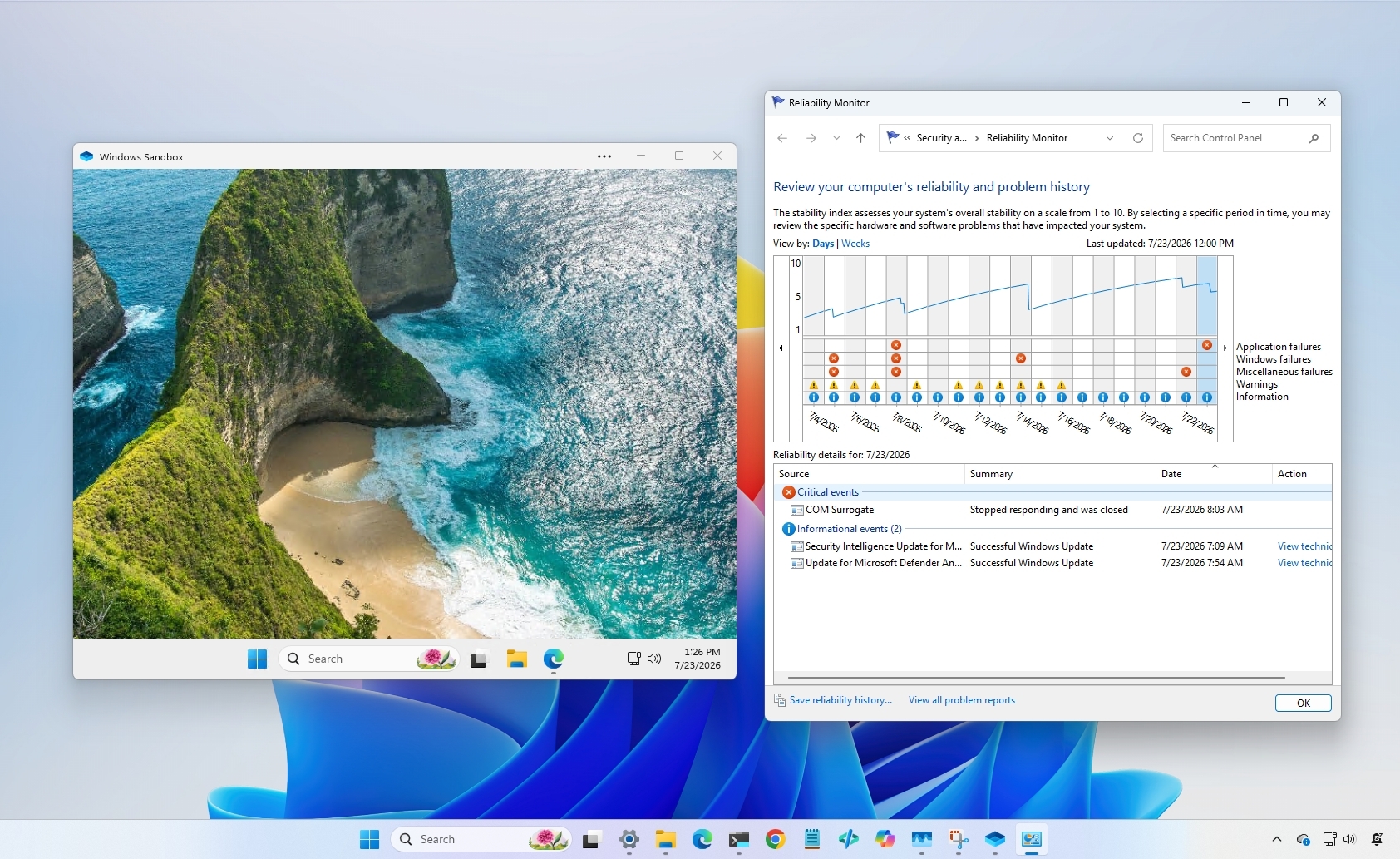
9. Reliability Monitor makes troubleshooting much easier
One Reddit user recommended running perfmon /rel, which opens the Reliability Monitor tool.

(Image credit: Mauro Huculak)
Unlike Event Viewer, Reliability Monitor presents crashes, failed updates, driver problems, and application errors on a simple timeline, making it much easier to identify when something started going wrong.
Why it's useful
When the system suddenly becomes unstable, many people immediately assume they need to reinstall Windows 11. Reliability Monitor often points directly to the update, driver, or app that triggered the problem, saving time and unnecessary troubleshooting.
10. Advanced Display settings: your monitor may be running slower than expected
One Reddit user shared a practical discovery: "Your screen might be more fluid than you think!"

(Image credit: Mauro Huculak)
A lot of monitors ship configured at 60Hz even when they support higher refresh rates.
Users can check Settings > System > Display > Advanced display and select a higher refresh rate.
Why it's useful
A 120Hz or 144Hz monitor running at 60Hz wastes the hardware users paid for.
This is one of the simplest performance upgrades available because it requires no hardware change.
Windows Central's Take
I've always found it interesting that some of the most useful features are also its least promoted. Reading through this Reddit discussion reinforced something I've noticed over the years, which is that people aren't asking for more big features as much as they're looking for tools that make everyday tasks faster and less frustrating. That's why Clipboard history, the Snipping Tool's OCR, Windows Sandbox, and winget kept coming up over and over again.
I also think Microsoft could do a better job of surfacing these capabilities. A lot of them have been built into the operating system for years or have quietly evolved into genuinely useful tools. Yet, they're still hidden behind keyboard shortcuts or Settings pages that most people never visit.
In my experience, discovering one of these features often has a bigger impact on your daily workflow than many of the headline additions.
If you haven't explored beyond the basics, it's worth taking a few minutes to try some of these recommendations. You might find that Windows 11 already includes a tool you've been downloading third-party software to replace.
What are your favorite underrated Windows 11 features? Let me know in the comments.
Hope you enjoyed this news post. Feedback welcome.
Posted Sunday 26 July 2026 at 7:58 am AEST (my time).
News posts: 2023 5,800+ | 2024 5,700+ | 2025 5,700+ | 2026 (to end of June) 2,475
Recommended Comments
There are no comments to display.
Join the conversation
You can post now and register later. If you have an account, sign in now to post with your account.
Note: Your post will require moderator approval before it will be visible.