

3175x175(CURRENT).thumb.jpg.b05acc060982b36f5891ba728e6d953c.jpg)
Don't have a spare mouse? You can use your phone as a wireless mouse to work on your computer.
Long story short, my mouse died recently. It's a Razer Viper Mini, the buttons work, so does the scroll wheel, but the cursor wouldn't move. I dismantled and cleaned it, but I think the sensor's a dud. So, while I was waiting for a new mouse to arrive, I decided to use my iPhone as a mouse.
There are probably other software that can do this, but I prefer to use KDE Connect, since I already use it for managing my phone's media. KDE Connect is free, open source, doesn't require an account to use. It works using your local Wi-Fi.
I'm using Linux Mint and an iPhone, but the process is the same on Windows and Android. I only tested Windows/Android briefly, but it worked fine. Disappointingly, it did not work on macOS 26.
How to use your phone as a wireless mouse
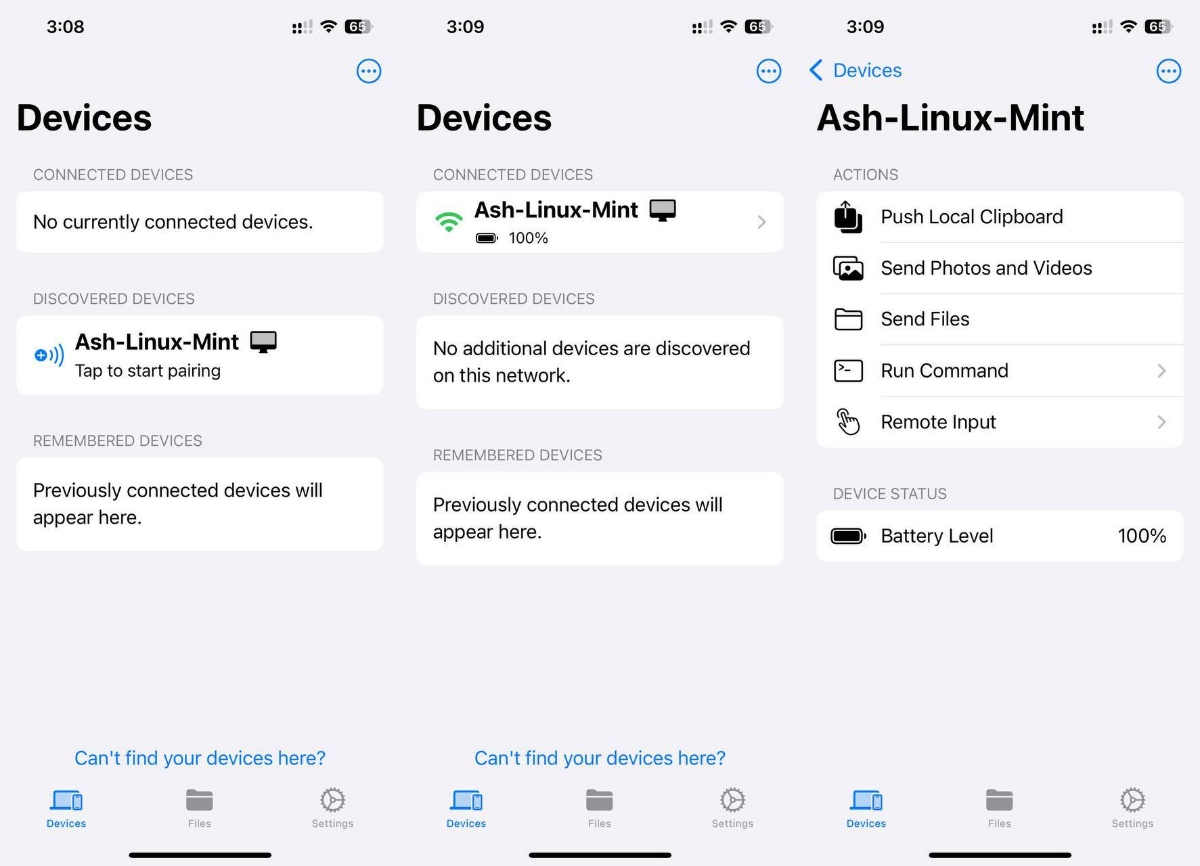
1. Download KDE Connect on your desktop (Windows, macOS and Linux).
2. Download KDE Connect on your Android mobile device or iPhone.
3. Pair your devices by using the app.
4. On your phone's KDE Connect, tap on the computer's name.
5. Select Remote Input.
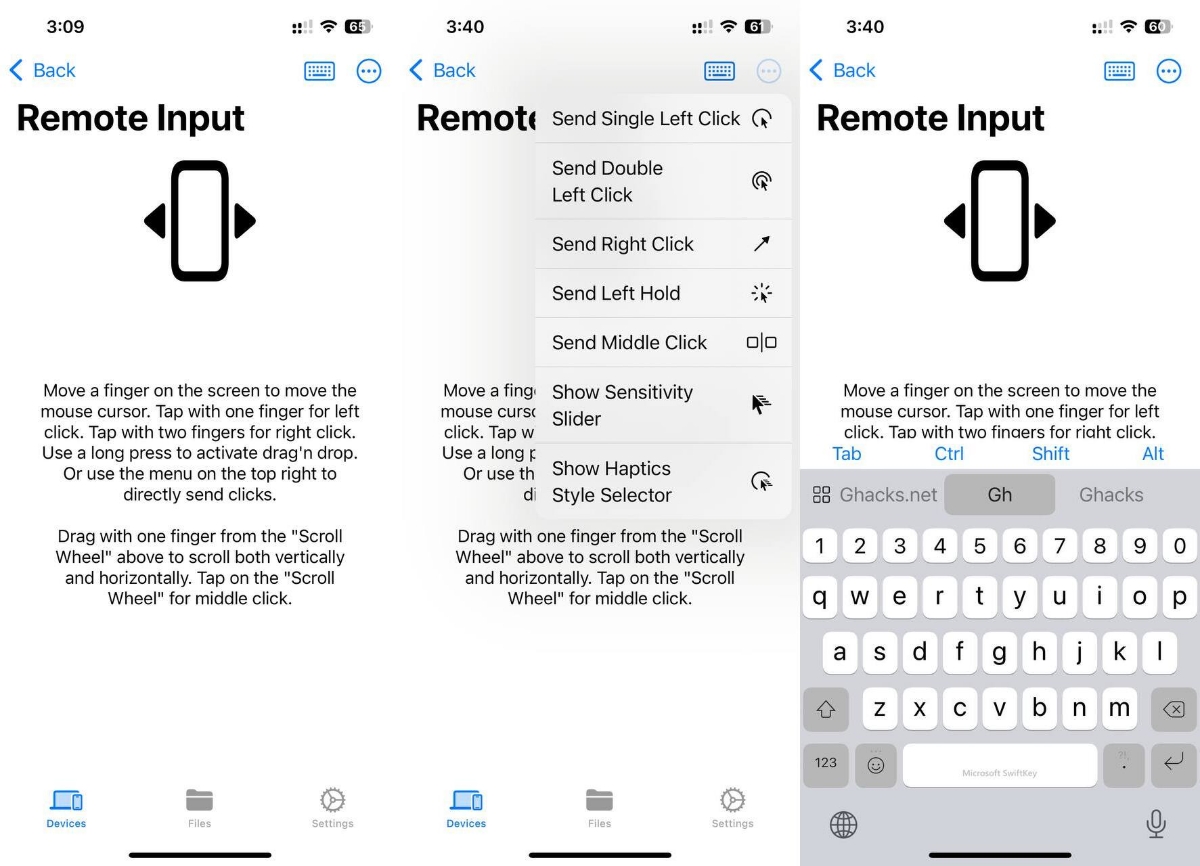
That's it, you can use your phone's screen like a touchpad and use it as your computer's mouse. Tap and hold your finger on the screen to move the mouse around. Tap on the blank space to the left of the scroll wheel to left-click, or tap the right side to right-click. The scroll wheel can be dragged up and down, just like how you would scroll pages on your phone. This can be annoying since dragging downwards scrolls up, and dragging upwards scrolls down the page. There is a bit of input lag, so watch out for that.
Tap on the three-dot menu button to view additional commands like the sensitivity slider, haptics-style selector, etc. In addition to using it as a mouse, you can also use KDE Connect as a wireless keyboard, by tapping on the keyboard icon at the top of the app. You should be aware that since your phone's screen will be awake while you use it for remote input, your battery is going to drain pretty quickly.
It's not the most convenient thing, but it's better than nothing when you don't have a mouse, but want something to work with. I wouldn't recommend it for gaming, but it should work fine for browsing, and basic usage.
Hope you enjoyed this news post.
Posted Friday 1 August 2025 at 4:22 am AEST (my time).
News posts... 2023: 5,800+ | 2024: 5,700+ | 2025 (till end of July): 3,458
RIP Matrix | Farewell my friend
Recommended Comments
There are no comments to display.
Join the conversation
You can post now and register later. If you have an account, sign in now to post with your account.
Note: Your post will require moderator approval before it will be visible.