


3175x175(CURRENT).thumb.jpg.b05acc060982b36f5891ba728e6d953c.jpg)
Microsoft allows uninstalling Edge in certain countries, and if you use certain useful apps, you can remove the browser from Windows 10 or 11 in the rest of the world as well. However, getting it back, should remorse hit you hard, may not be that straightforward for an unprepared user accustomed to downloading Chrome or any other browser from its respective website. Especially considering that there is no obvious "download" button on the official Microsoft Edge website.
In this small guide, you can learn how to reinstall Microsoft Edge after deleting it in Windows 10 or 11. This guide will also help those who try to install Edge on a computer without any browser installed.
Method 1: Install Microsoft Edge via the Microsoft Store
You can install Microsoft Edge on your PC via the Microsoft Store. Open the store app and type Edge into the search bar. You can also type any other browser, and Microsoft will kindly show you a shortcut to Edge. Alternatively, just click this link.
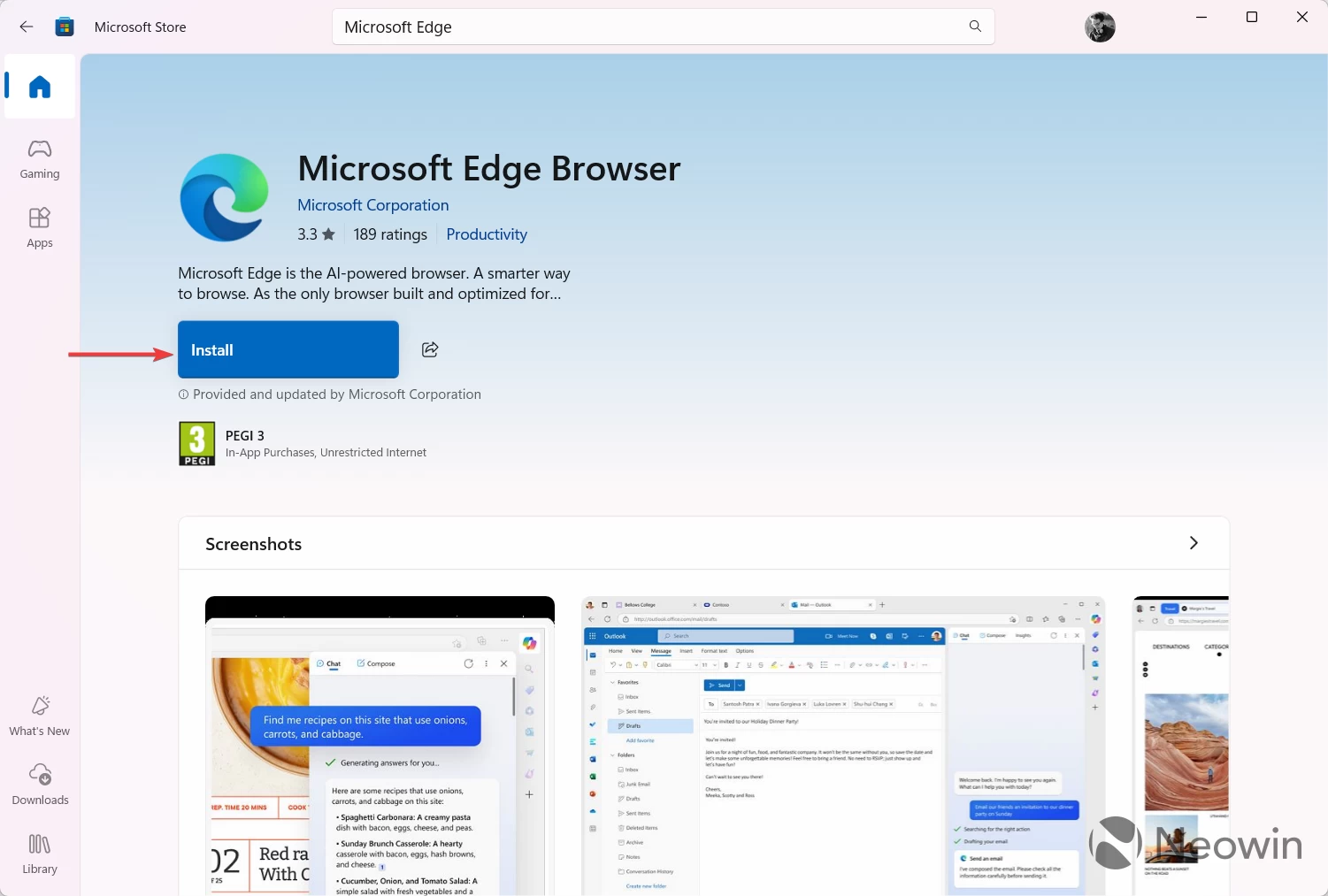
Open the browser's store listing and click install. You will see a User Account Control prompt, and after confirming, the installer will run. Done.
Method 2: Install Microsoft Edge on a PC without any browser
If you use a "debloated" Windows installation with nearly everything removed, including the Microsoft Store and Edge, you can install the latter without any other browser or the store app. Press Win + R and type "wt" to run Windows Terminal (you can launch it using any other method). Type winget install XPFFTQ037JWMHS and press Enter.
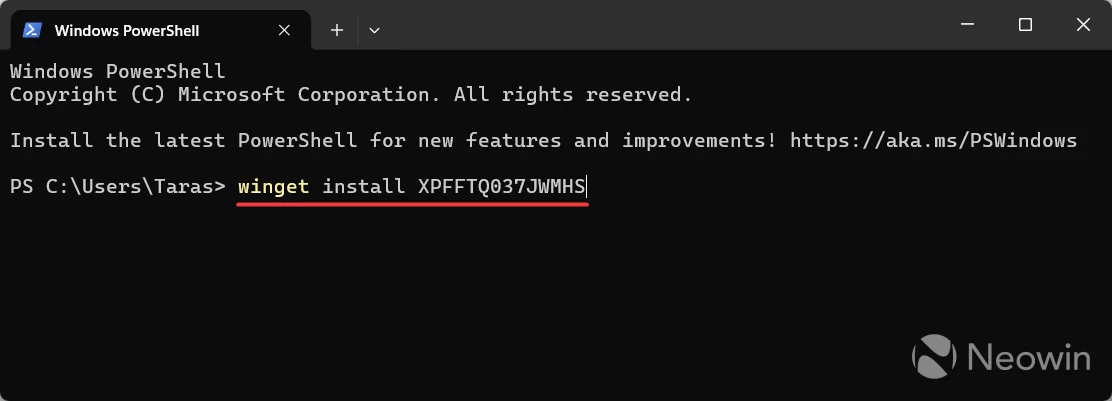
Windows Terminal will prompt you to accept the license: Press Y and hit Enter, then wait for Windows to download Microsoft Edge. Done.
Method 3: Download Microsoft Edge from the official website
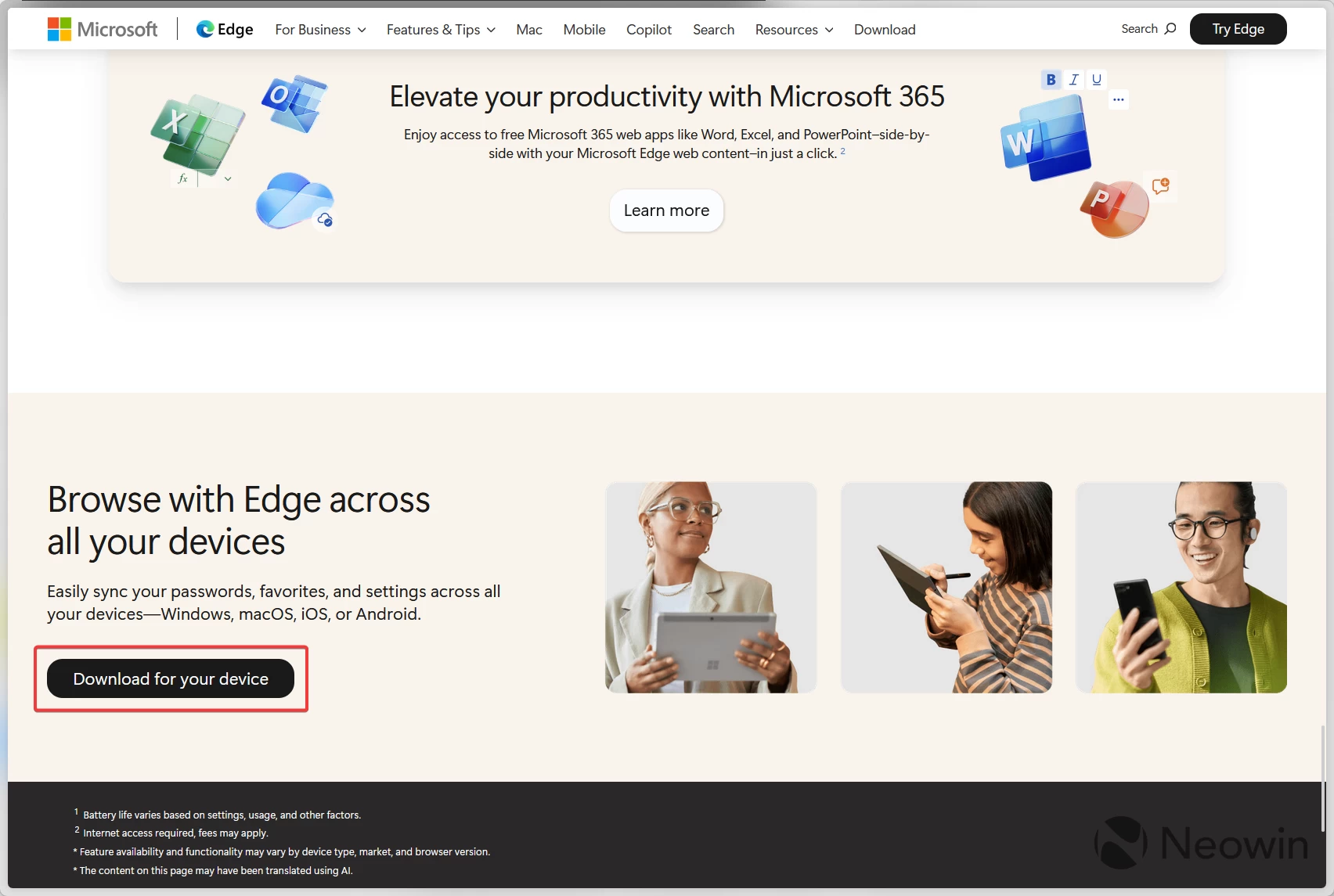
Typing "Download Microsoft Edge" in Google gets you to the browser's official website, and if you access it from Windows, it will tell you that Edge is already installed on your PC (lies, deception!). You can find the real download button by scrolling all the way to the bottom. Click "Download for your device."
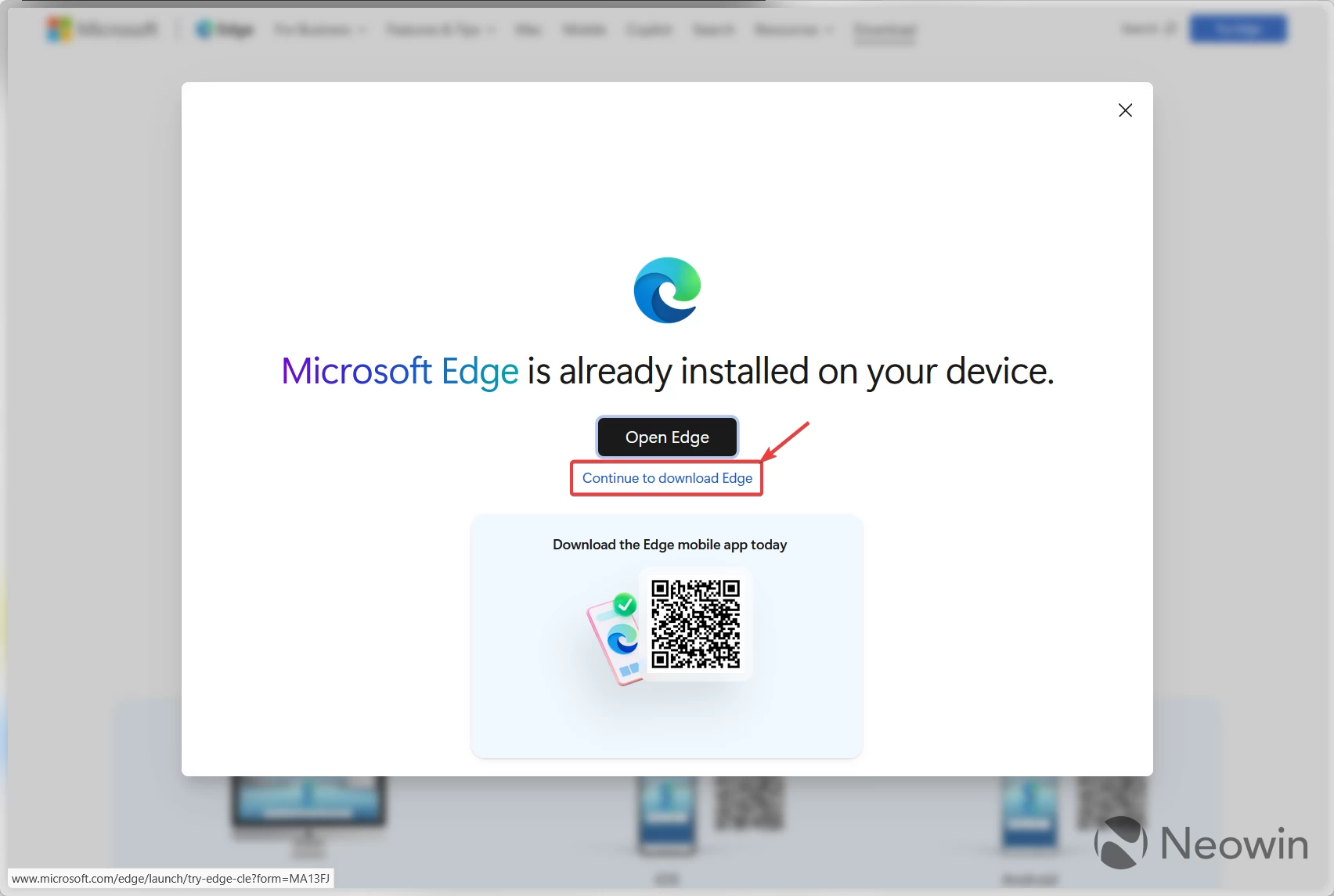
Microsoft will once again try to gaslight you, claiming that Edge is already installed. Just click "Continue to download Edge."
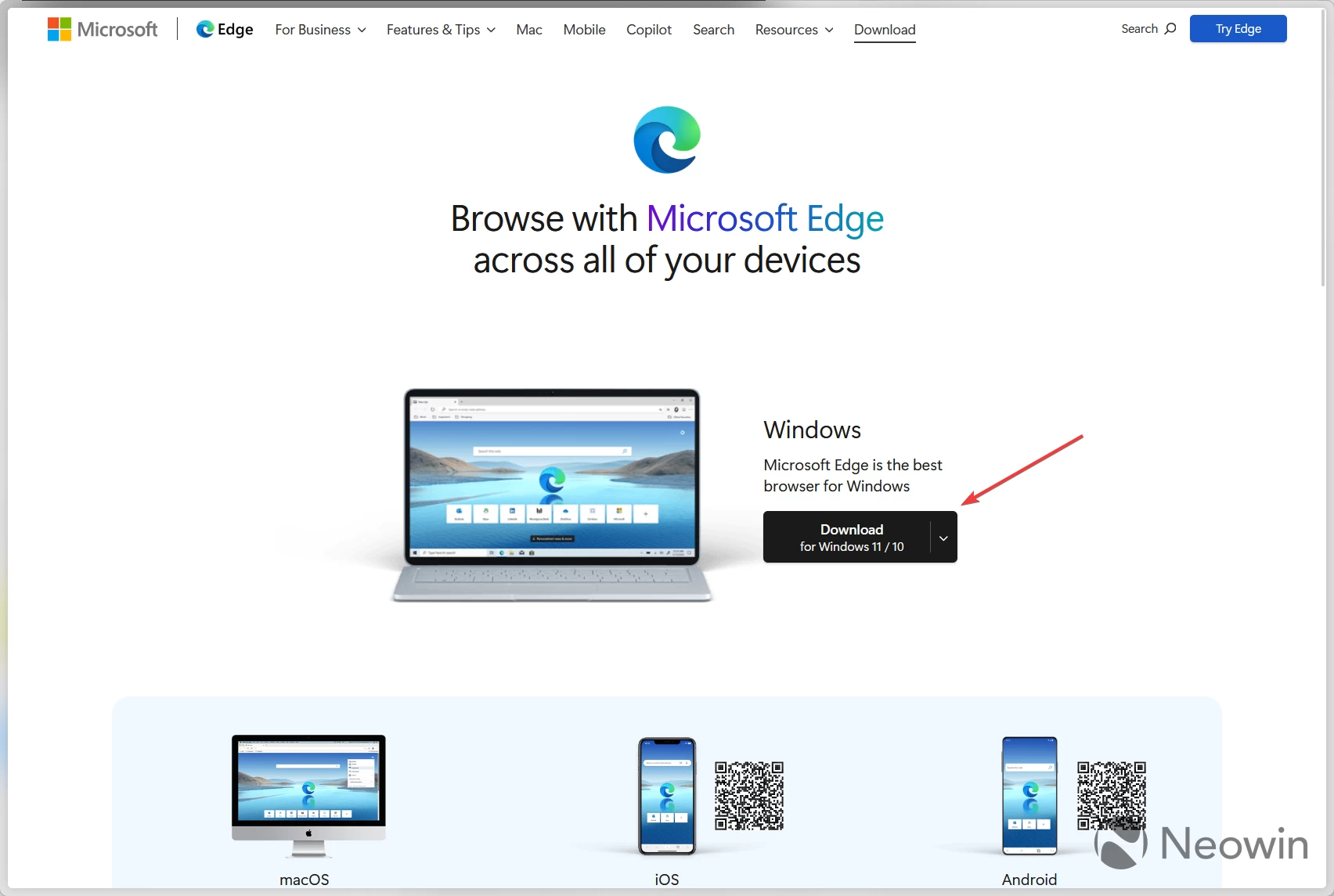
Click "Download for Windows 11 / 10." Windows 7 and 8/8.1 are no longer supported, but the latest supported version is still available for download. To do so, click the arrow-down button and select Windows 8.1 / 8 / 7. After that, run the installer.
That is it, now you have Edge running once again, and Microsoft could not be happier about it.
Hope you enjoyed this news post.
Posted Wednesday 6 August 2025 at 4:18 pm AEST (my time).
News posts... 2023: 5,800+ | 2024: 5,700+ | 2025 (till end of July): 3,458
RIP Matrix | Farewell my friend
Recommended Comments
There are no comments to display.
Join the conversation
You can post now and register later. If you have an account, sign in now to post with your account.
Note: Your post will require moderator approval before it will be visible.