

3175x175(CURRENT).thumb.jpg.b05acc060982b36f5891ba728e6d953c.jpg)
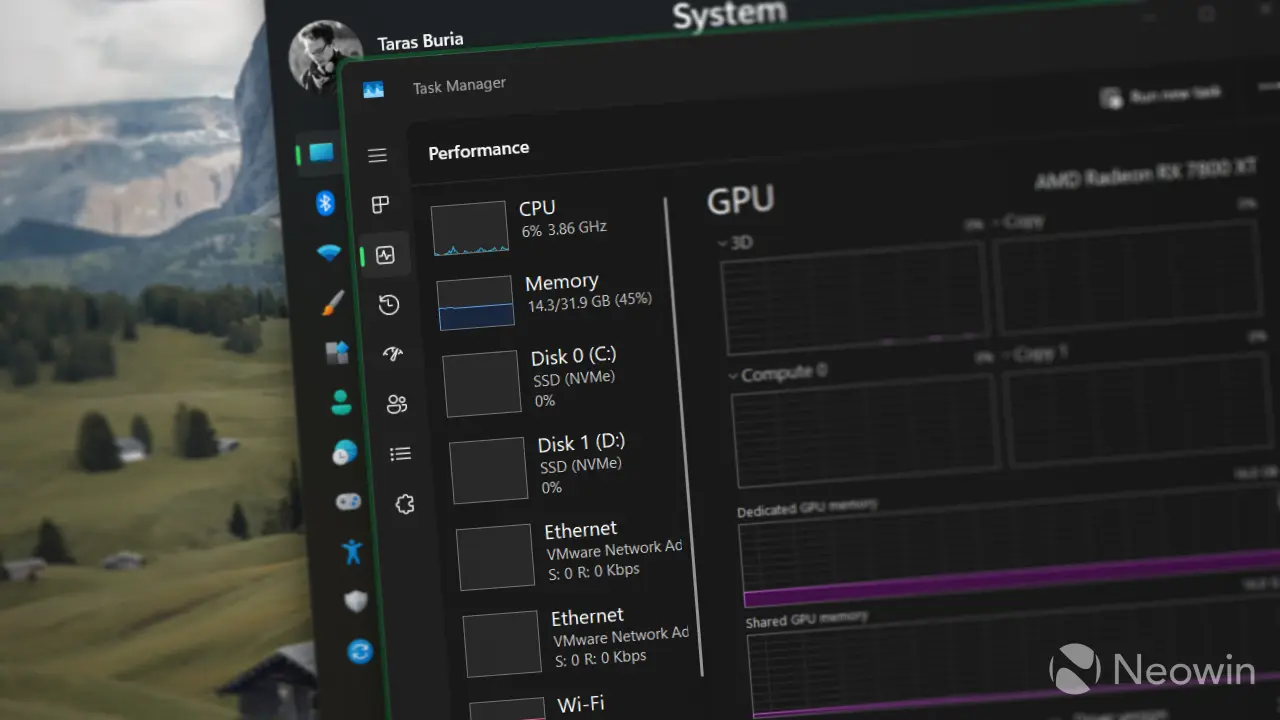
Did you know that you can make Task Manager stay always on top in Windows 11? There are several ways to do that, so check them out.
Task Manager is a crucial piece of every PC. From hardware monitoring to killing stuck or misbehaving apps, this part of Windows 11 can do quite a lot. Hardware monitoring is a common use case scenario. If you want to keep an eye on CPU usage, temperature, RAM usage, GPU, or network load, Task Manager is here to help you without downloading third-party software. Did you know that you can make Task Manager always on top? Here is how to do it.
Make Task Manager always on top in Windows 11
Windows 11's Task Manager can stay on top of other windows without extra tools:
- Open Task Manager using any method you prefer. Right-click the taskbar, press Ctrl + Alt + Delete, or hit Ctrl + Shift + Esc. By the way, the latter opens Task Manager directly without any extra clicks or menus, which is very convenient.
- Click the Settings icon in the bottom-left corner of the window.
-
Find the Window management section and place a check mark next to the "Always on top" option. Task Manager will restart and then stay above every other app.
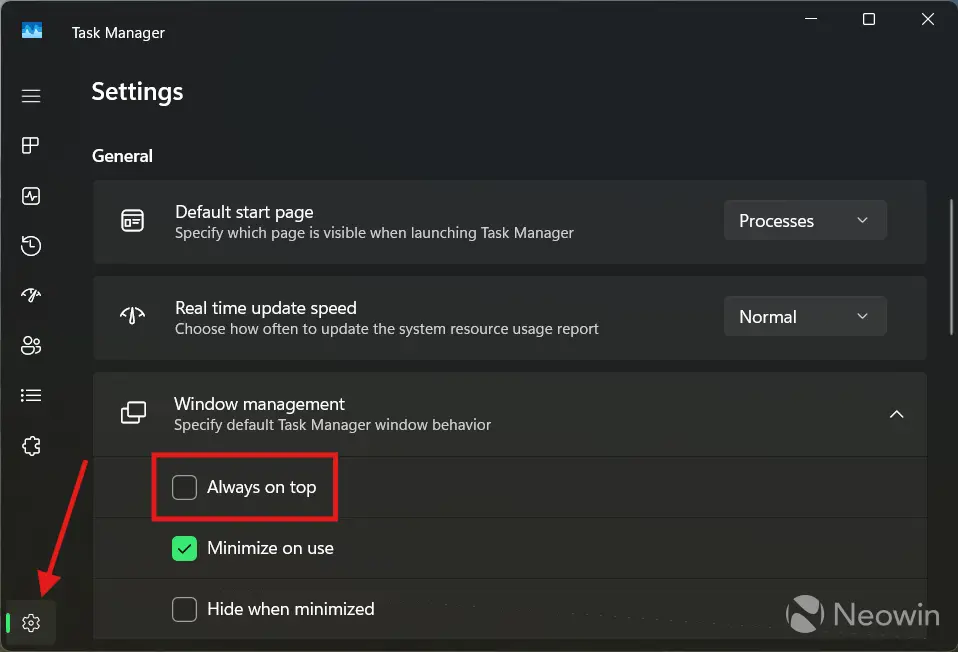
To disable Task Manager always on top in Windows 11, repeat the steps above and uncheck the "Always on top" option.
Task Manager always on top — Option 2
Microsoft has an official Always on Top tool for Windows 10 and 11, but it requires downloading PowerToys, a set of very useful utilities for the operating system. With Always on Top, you can use a dedicated, customizable shortcut to pin apps and windows above others in an instant. What makes Always on Top great, besides a dedicated shortcut, is the ability to pin several apps at once, highlight pinned apps, and even set custom transparency for each pin so that you can see what is below it.
It also works with Task Manager, but there is one important catch.
- Download and install PowerToys from the Microsoft Store. It is also available from GitHub here.
- Launch PowerToys and go to Always on Top. There, you can customize the module and set your own shortcut.
-
If you want to pin Task Manager above all other apps with Always on Top and its shortcut, you must run PowerToys as Administrator. Otherwise, Always on Top won't work with Task Manager and some other parts of the operating system. Go to PowerToys Settings > General and click "Restart PowerToys as Administrator."
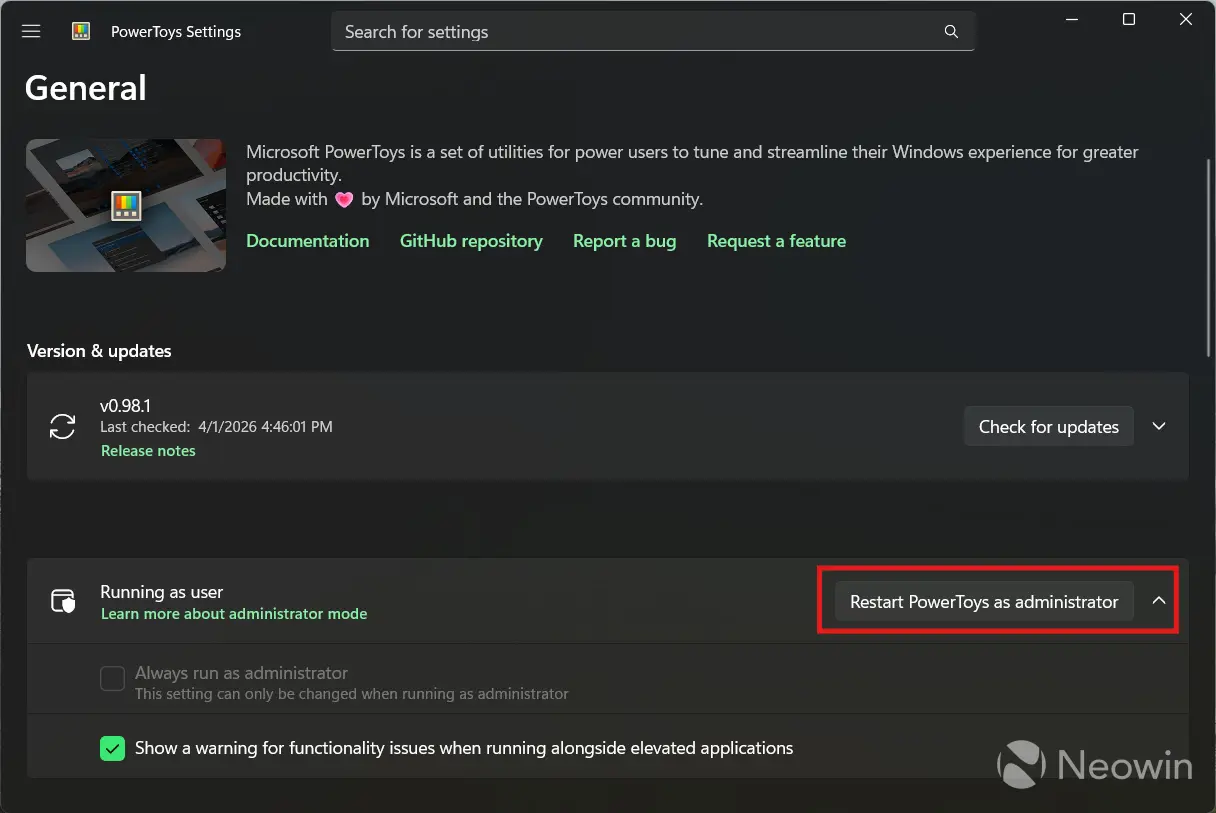
Now, with PowerToys running as Administrator, you can press your Always on Top shortcut to make Task Manager (or any other open window) always on top. Press the shortcut again to unpin it. And that is how you do it.
Hope you enjoyed this news post. Feedback welcome.
Posted Thursday 2 April 2026 at 12:23 pm AEST (my time).
News posts: 2023 5,800+ | 2024 5,700+ | 2025 5,700+ | 2026 (to end of March) 1,297
Recommended Comments
There are no comments to display.
Join the conversation
You can post now and register later. If you have an account, sign in now to post with your account.
Note: Your post will require moderator approval before it will be visible.