

3175x175(CURRENT).thumb.jpg.b05acc060982b36f5891ba728e6d953c.jpg)
Tired of switching themes manually? PowerToys can automate your light/dark mode routine in just a few clicks.
Windows 11 includes a wide range of traditional and AI-powered features with plenty of customization options. However, one capability has been notably missing, which is the option to switch between light and dark modes automatically. Microsoft is finally addressing this limitation, though not as a built-in feature.
Alongside long-requested additions like the ability to move the Taskbar to the top of the screen, users have also been asking for a way to change the system color mode automatically.
How to switch between system color modes on Windows 11
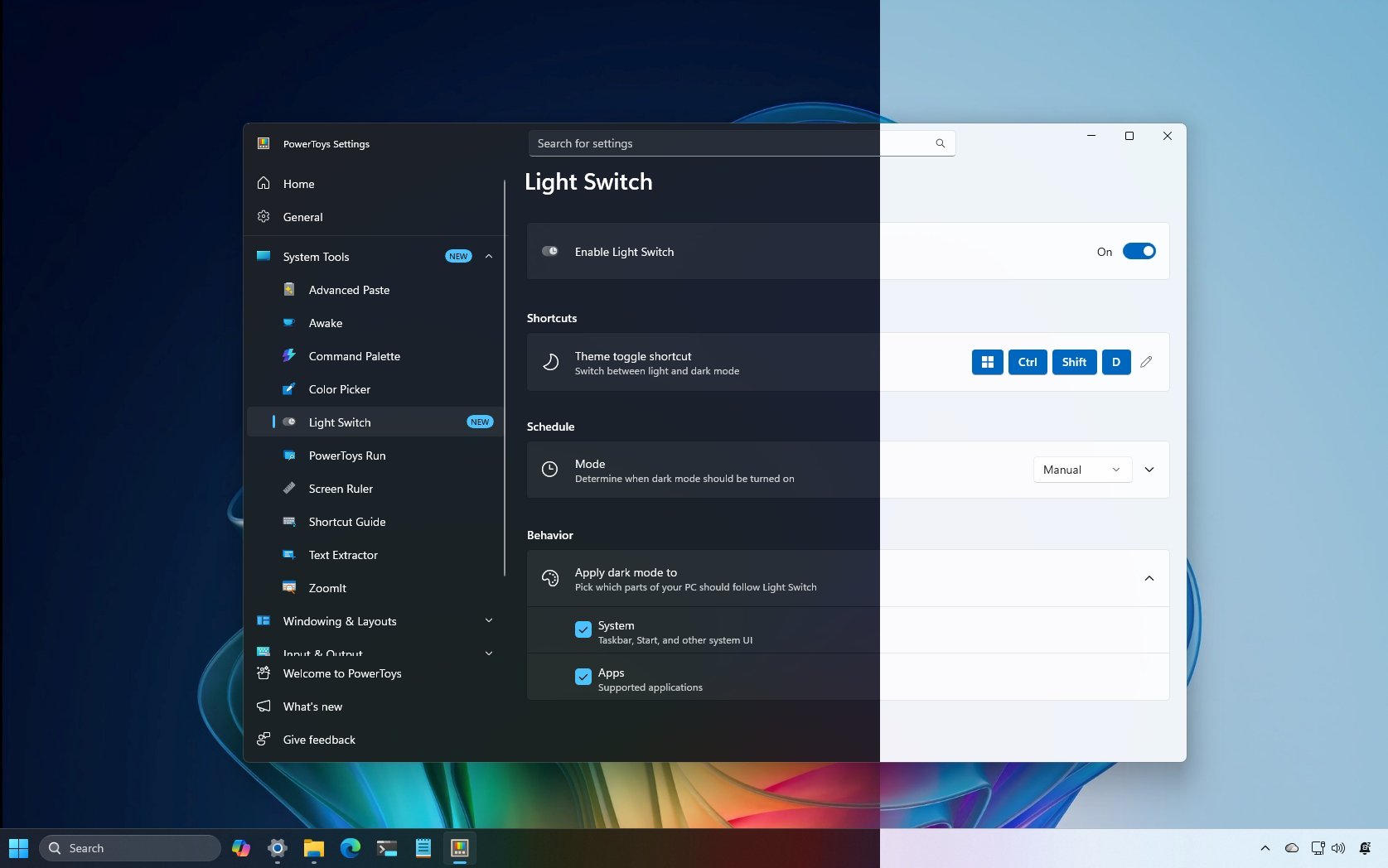
To schedule when the operating system should switch between the dark and light modes, you have to install PowerToys and configure the feature:
- Open Start.
- Search for Command Prompt, right-click the top result, and select the Run as administrator option.
- Quick note: If your computer already has the app, you can skip to step 5.
- Type the following command to install the latest version of the tool and press Enter: winget install --id Microsoft.PowerToys

(Image credit: Mauro Huculak)
- Open Start.
- Search for PowerToys and open the app.
- Click on System Tools.
- Click on Light Switch.
- Turn on the "Enable Light Switch" toggle switch.

(Image credit: Mauro Huculak)
- (Option 1) Choose the "Sunset or sunrise" option in the "Mode" setting to schedule an automatic switch between the dark and light modes based on your location.

(Image credit: Mauro Huculak)
- Click the Location button to allow the app to determine your approximate location.
- Use the Offset option to set the number of minutes to trigger the switch earlier or later (if applicable).
- (Option 2) Select the "Manual" option in the "Mode" setting.
- Confirm the schedule to turn the light mode on or off manually.

(Image credit: Mauro Huculak)
- (Optional) Select how the feature changes color modes for the system or system and apps using the "Apply dark mode to" setting under the "Behavior" section.

(Image credit: Mauro Huculak)
Once you complete the steps, PowerToys will change the color system mode, depending on your computer configuration.
If you want to switch system color modes on demand, PowerToys also offers a keyboard shortcut. The default shortcut is "Windows key + Ctrl + Shift + D," but from the "Shortcuts" settings on the Light Switch page, you can assign virtually any key combo.
FAQs about automating light and dark color modes
These are common questions regarding the PowerToys' Light Switch feature for Windows 11.
Can Windows 11 automatically switch between light and dark mode?
Not natively. Windows 11 doesn't include a built-in option to schedule automatic switching between light and dark modes. However, you can enable this feature through Microsoft’s PowerToys app using the new Light Switch feature.
What is the Light Switch feature in PowerToys?
Light Switch is a tool within PowerToys that lets you automatically toggle between Light and Dark modes on Windows 11. It can switch modes based on specific times you set or according to your local sunrise and sunset times.
How do I install PowerToys on Windows 11?
You can install PowerToys using the command line by running the winget install --id Microsoft.PowerToys command. Alternatively, you can download it directly from the Microsoft Store.
Can I customize how the light and dark mode switch applies?
Yes. Light Switch lets you choose whether the color mode change applies to the system only, apps only, or both. You can configure this under the "Behavior" section in the Light Switch settings.
Can I manually schedule the color mode switch?
Yes. You can select the "Manual" option and set specific times for when Windows 11 should switch between light and dark themes.
Does Light Switch use my location?
If you choose the "Sunset or sunrise" option, PowerToys will request permission to access your approximate location to determine when to automatically switch modes.
Is there a keyboard shortcut to switch modes instantly?
Yes. PowerToys includes a shortcut to toggle between modes on demand. By default, it’s "Windows key + Ctrl + Shift + D," but you can change it in the Light Switch settings.
Why isn’t this feature built into Windows 11?
Microsoft has not yet implemented a native automatic theme-switching feature in Windows 11. The Light Switch utility in PowerToys serves as an official workaround for users who want that functionality now.
Hope you enjoyed this news post. Feedback welcome.
Posted Sunday 9 November 2025 at 4:55 am AEST (my time).
News posts... 2023: 5,800+ | 2024: 5,700+ | 2025 (till end of October): 5,009
Recommended Comments
There are no comments to display.
Join the conversation
You can post now and register later. If you have an account, sign in now to post with your account.
Note: Your post will require moderator approval before it will be visible.