

3175x175(CURRENT).thumb.jpg.b05acc060982b36f5891ba728e6d953c.jpg)
Stop downloading apps one by one in your browser. Windows already includes a faster tool that many users still overlook.
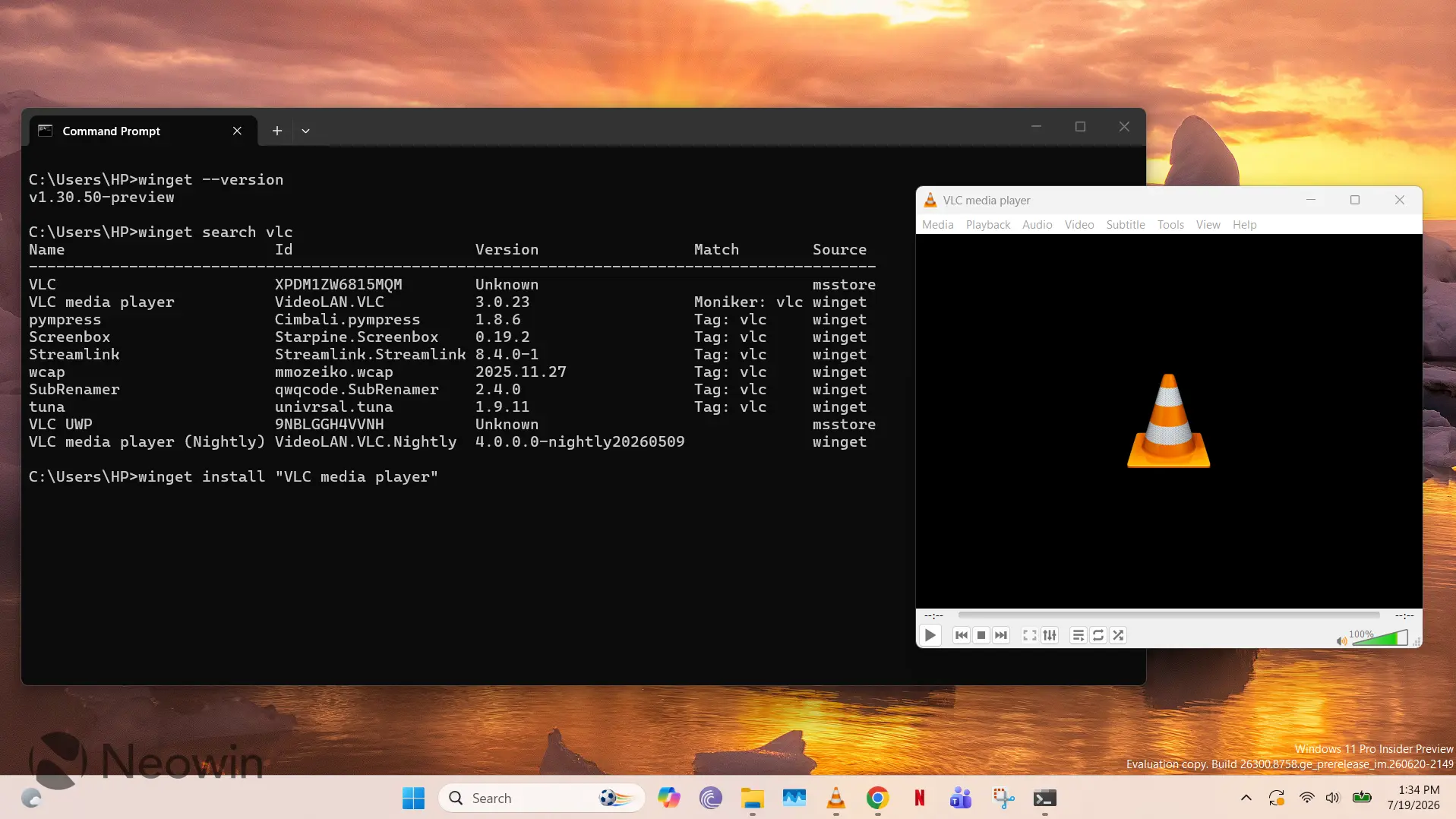
Although Windows 11 users have the ability to navigate to dedicated websites in their browser to download specific apps, the operating system actually offers a much faster way to perform the same process. This is through the power of Windows Package Manager (winget) that allows you to download thousands of apps without ever opening your browser window.
For those unaware, winget is the official command line utility that Microsoft has integrated into Windows 11, modern versions of Windows 10, and Windows Server 2025 that allows you to quickly manage and install apps through a centralized interface.
This guide will take you through the steps of downloading apps through winget. Without further ado, let's begin!
- Open Command Prompt
-
Although winget should be installed by default, check if it exist through the following command. If a version number pops up, you are good to go. If not, follow Microsoft's guide here to install winget.
winget --version -
Search for an app you want to install. In our example, this is VLC, but you can replace with an app of your choice (and if you really want to open the browser, you can view the app repository in the GUI here too)
winget search vlc -
You might get a list of apps, sometimes even the same version of app in different source repositories like winget and the Microsoft Store. For example, in our case, we want to download the VLC app that comes from winget. Identify the exact name of the app and install it using the following command:
winget install "VLC media player" -
That's pretty much all there is to it! Winget will download the installer and install the app in the default directory set by the app's developer (typically program folders like Program Files and WindowsApps). Some installers allow you to change the directory, and you can manage that in your install command as:
winget install "VLC media player" --location "D:\Apps"
There are tons of other useful commands that you can leverage to supplement your app management experience too. For example, our guide here walks you through the process of updating all your apps in one go with winget. Similarly, you can also use the following commands:
-
List all installed apps
winget list -
Display information about a package/app
winget show "VLC media player" -
Uninstall an app
winget uninstall "VLC media player"
Let us know in the comments section below if you use winget and if you know any other tips related to its use!
Hope you enjoyed this news post. Feedback welcome.
Posted Monday 20 July 2026 at 7:24 am AEST (my time).
News posts: 2023 5,800+ | 2024 5,700+ | 2025 5,700+ | 2026 (to end of June) 2,475
Recommended Comments
There are no comments to display.
Join the conversation
You can post now and register later. If you have an account, sign in now to post with your account.
Note: Your post will require moderator approval before it will be visible.