

3175x175(CURRENT).thumb.jpg.b05acc060982b36f5891ba728e6d953c.jpg)
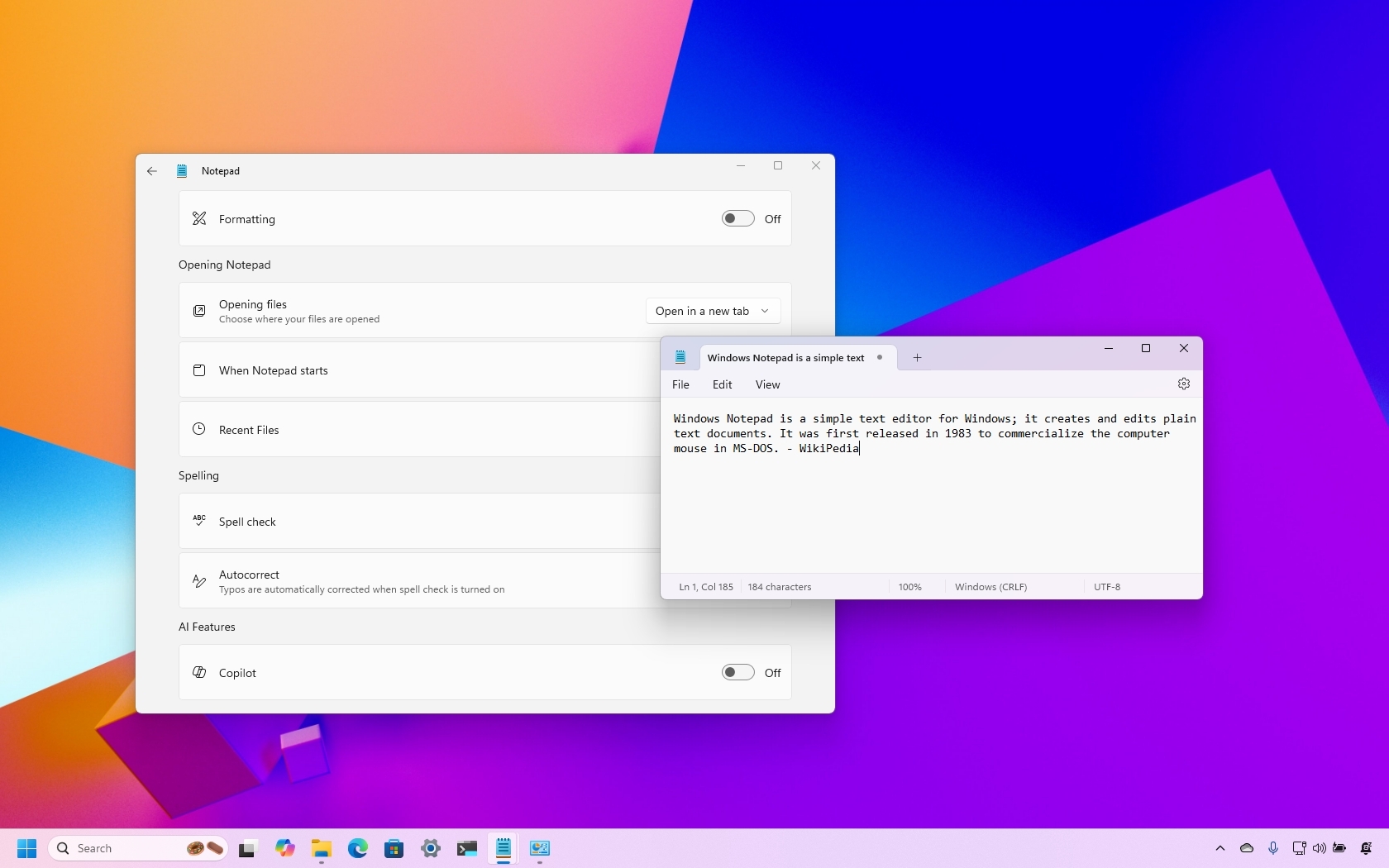
You can (sort of) get the classic Notepad experience back by disabling its extra features.
Notepad is one of those classic apps that stayed virtually unchanged for decades. For years, Microsoft shipped only minor tweaks and small improvements, with little attention to its development.
The real transformation began with the release of Windows 11 when the company finally started upgrading the Notepad interface. The app received a visual overhaul that introduced acrylic effects, rounded corners, and dark mode, along with functional enhancements like auto-save and a tabbed interface.
However, lately, Notepad has been shifting away from its original simplicity. What started as a simple note-taking app is now turning into a more capable tool, with spelling and AI features (like text rewriting and content generation) built right in. Microsoft is even testing light formatting capabilities through Markdown support.
While these additions aim to enhance usability, many users still prefer the clean, distraction-free experience that made Notepad a favorite in the first place.
The good news is that the software giant is not forgetting those who like simplicity. For most of these new features, Microsoft is providing options to turn them off, allowing users to restore the classic experience.
In this how-to guide, I'll outline the steps to turn off key features to make Notepad a simpler app on Windows 11.
Bring back the classic experience of Notepad to Windows 11
To remove the AI and the other extra features in Notepad, use these steps:
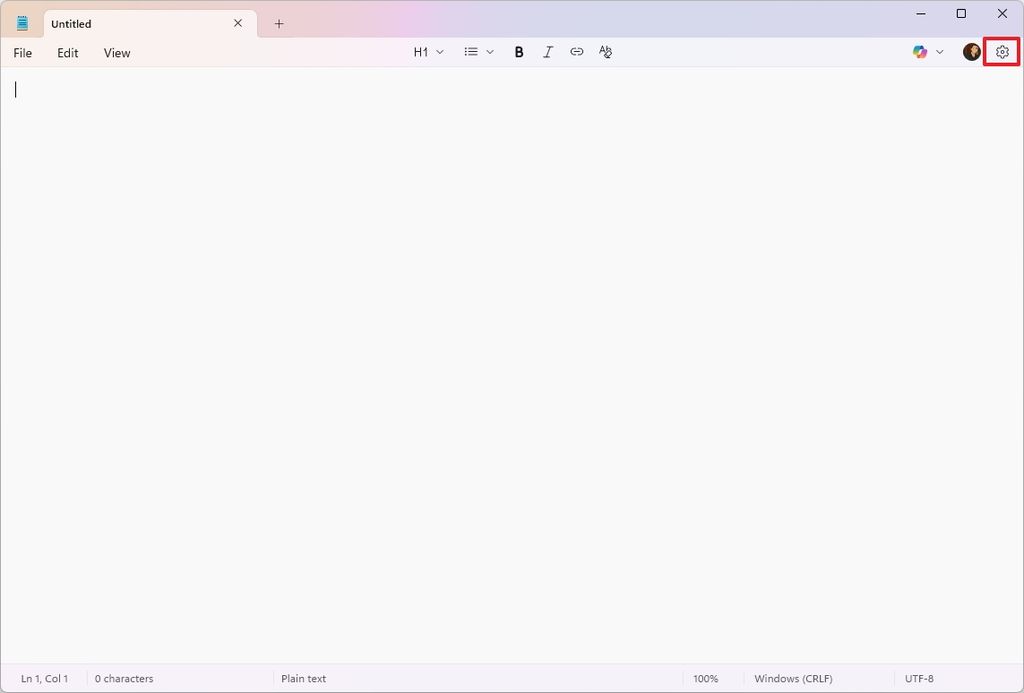
- Open Notepad.
- Click the Settings button in the top-right.
(Image credit: Mauro Huculak)
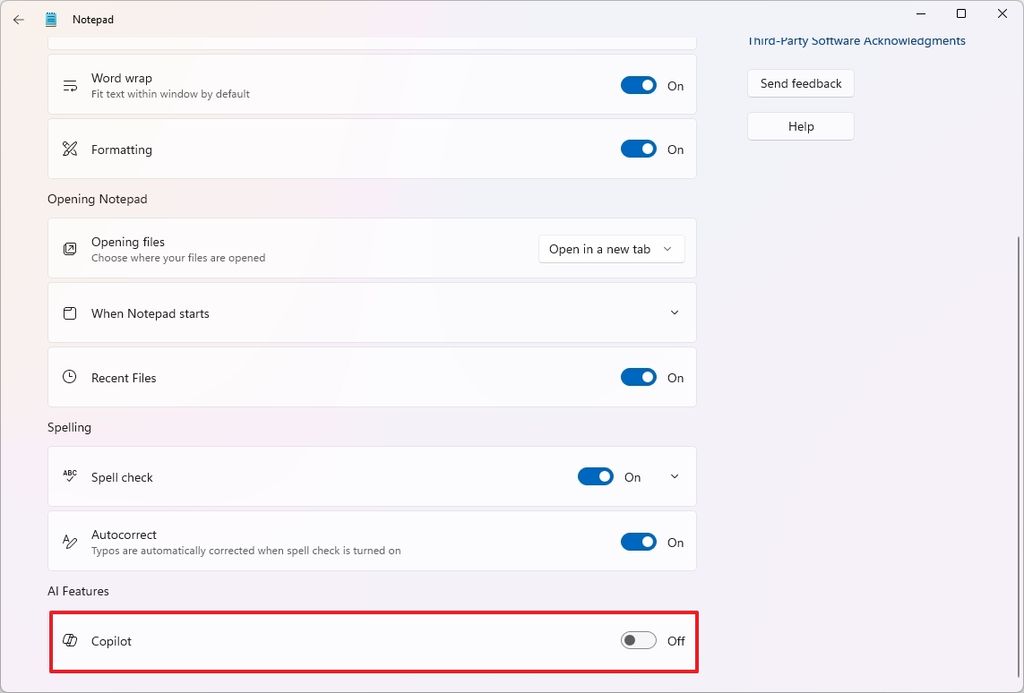
- Turn off the Copilot toggle switch under the "AI Features" section to disable all the AI features and remove the Microsoft account requirement.
(Image credit: Mauro Huculak)
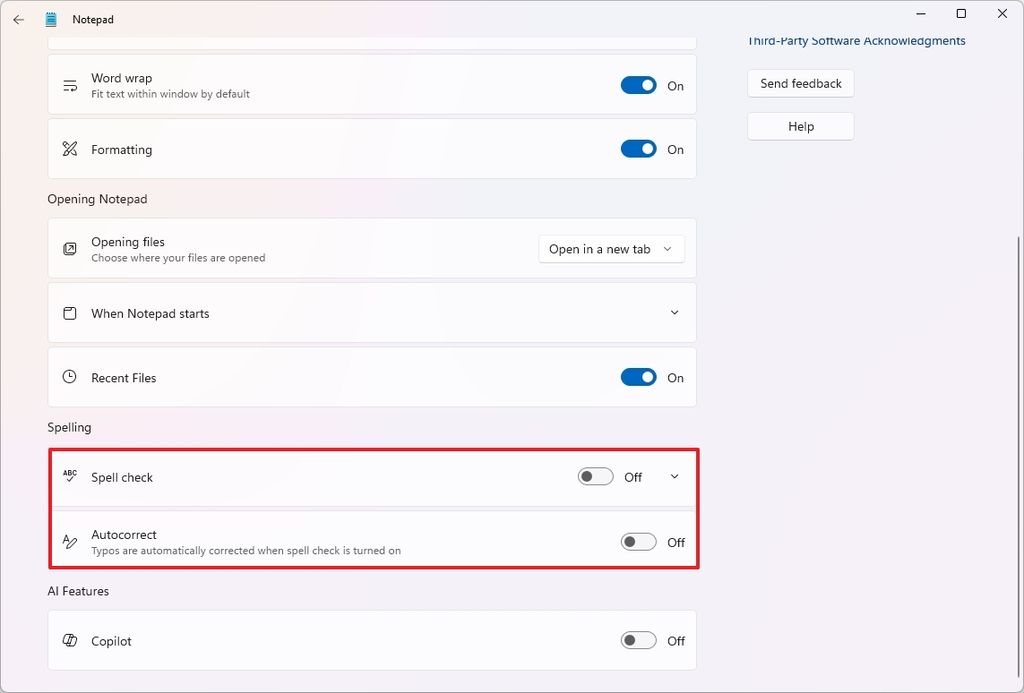
- Turn off the Spell check under the "Spelling" section to completely disable the app's ability to highlight misspelled words.
- Turn off the Autocorrect toggle switch to prevent Notepad from correcting typos automatically.
(Image credit: Mauro Huculak)
- Turn off the Formatting toggle switch to disable the Markdown support (if applicable).
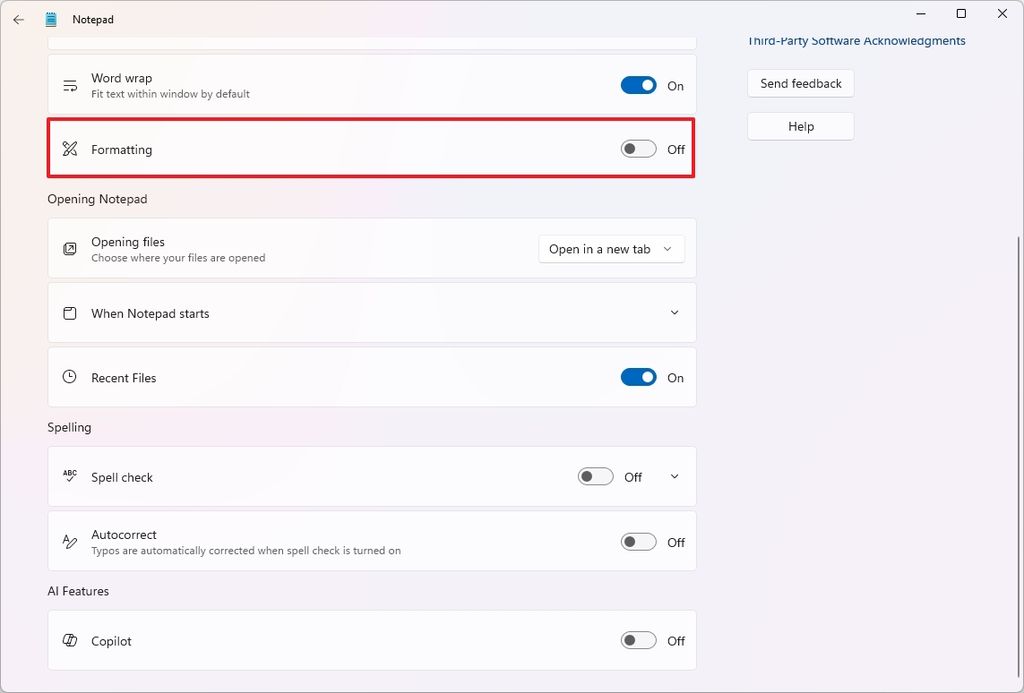
(Image credit: Mauro Huculak)
- Click the Turn off button to complete the process.
Once you complete the steps, you will end up with a version of Notepad that includes modern elements but with a more decluttered experience.
If you find the Spell check useful but only want to stop the feature from checking specific file types, you don't have to turn off the feature. Instead, select the "Spell check" setting and turn off the feature on the specific formats.
It's important to note that the spelling features won't interfere with log and source code files.
Microsoft is still in the early days of development to bring text formatting to Notepad. However, the company is already testing the feature through the Windows Insider Program, and if you have it, Notepad includes a new toggle to disable it from the Settings page.
Do you like the new design direction of the Notepad app? Let me know in the comments.
Hope you enjoyed this news post.
Thank you for appreciating my time and effort posting news every day for many years.
News posts... 2023: 5,800+ | 2024: 5,700+ | 2025 (till end of May): 2,377
RIP Matrix | Farewell my friend
Recommended Comments
There are no comments to display.
Join the conversation
You can post now and register later. If you have an account, sign in now to post with your account.
Note: Your post will require moderator approval before it will be visible.