

3175x175(CURRENT).thumb.jpg.b05acc060982b36f5891ba728e6d953c.jpg)
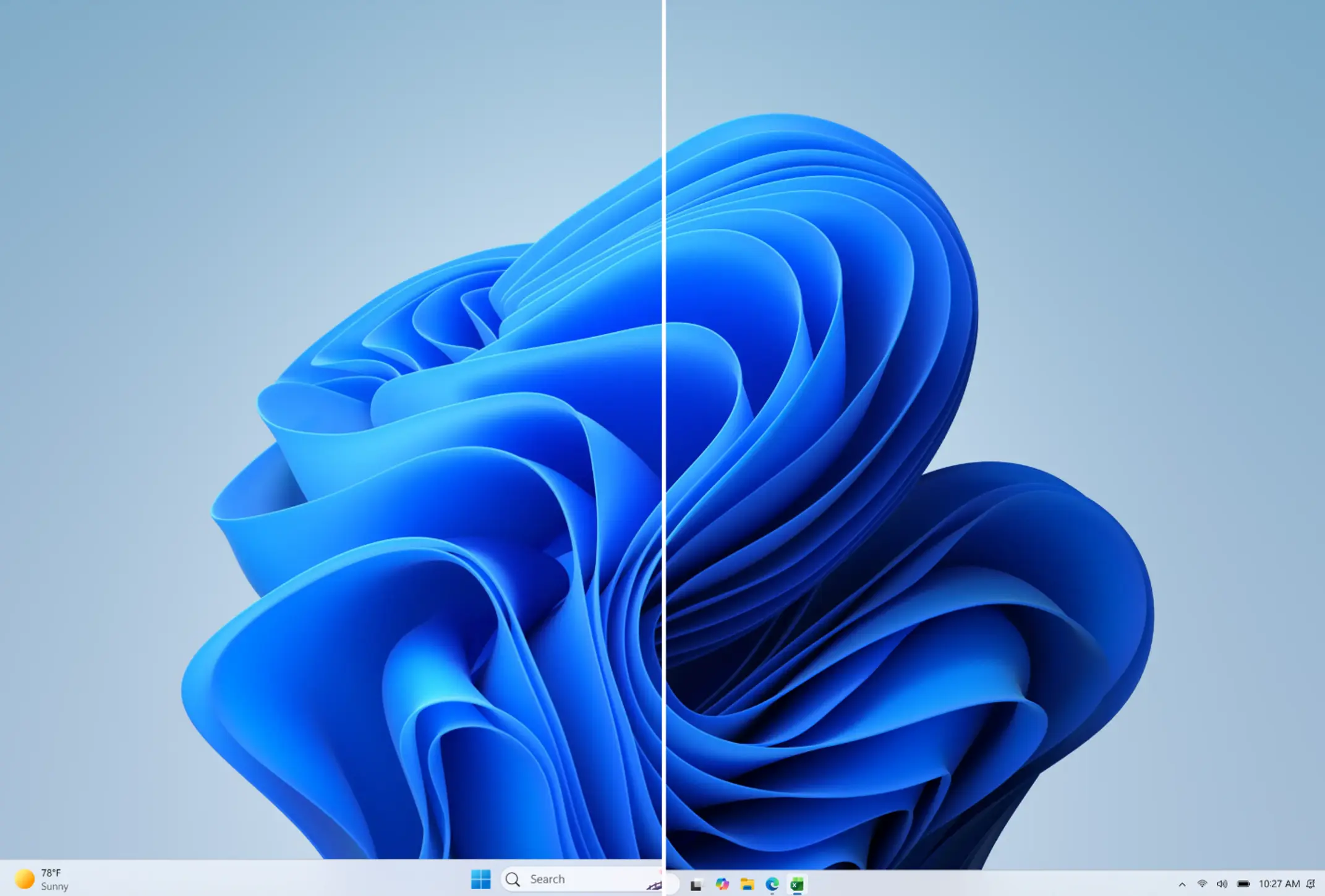
Windows 11 now finally lets you customize the taskbar. You can make the taskbar smaller, and place it on one of the 4 screen sides.
When Microsoft released Windows 11, the taskbar was one of the hottest topics of discussion. While some people praised the modern look, many users criticized Microsoft for some of its design and functionality choices. Microsoft eventually listened to some of the feedback, and the company implemented various changes to the Windows 11 taskbar over the past few years.
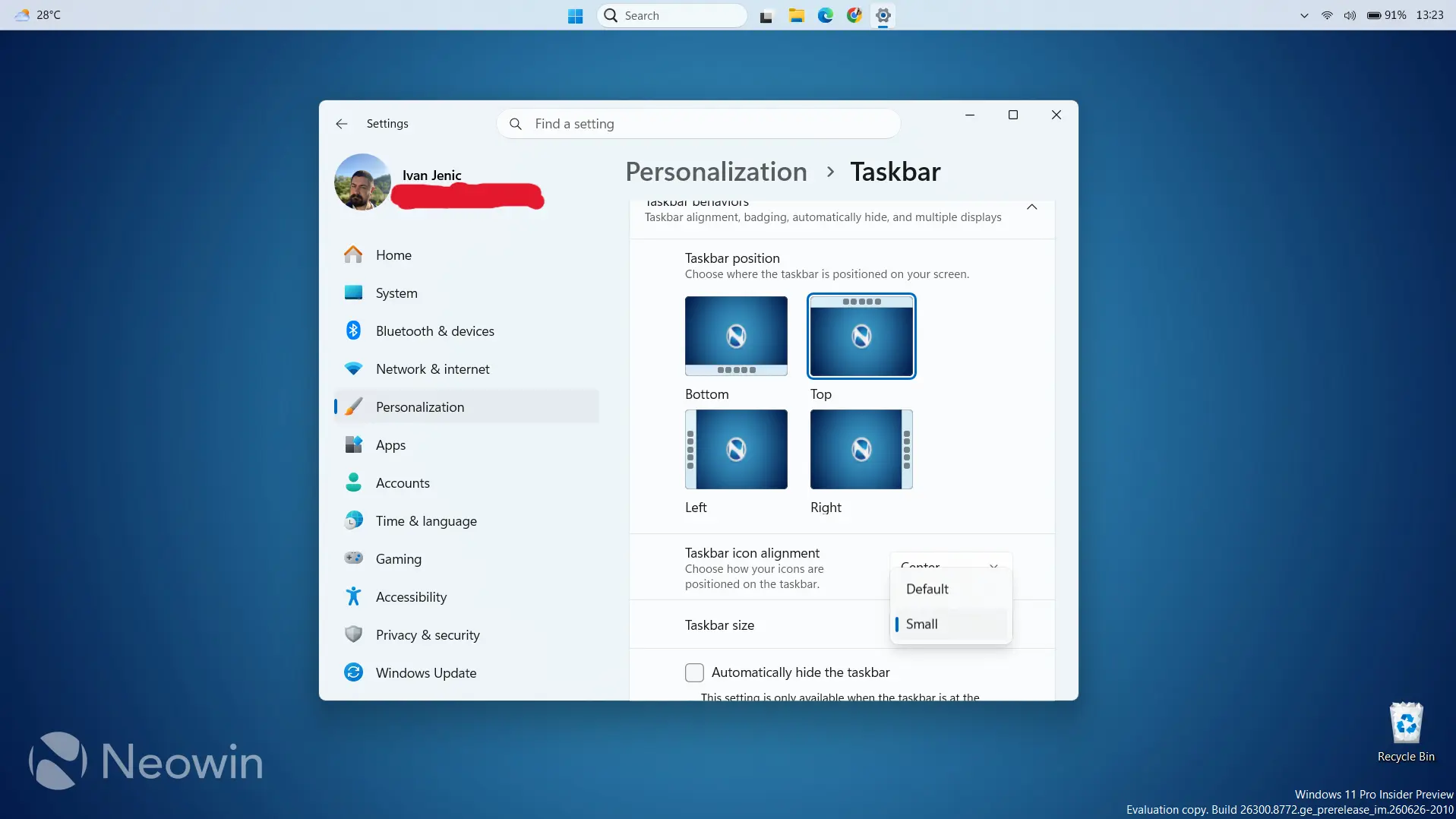
The latest change, and the one that will also produce various opinions, is the ability to change the taskbar’s position and size. You can now go to Settings and choose one of the four positions available, one for each corner of the screen. You can also resize the taskbar, although that might be a strong word, because you can only really make it smaller.
If this option is available to you, here’s how to change the taskbar position and size in Windows 11:
- Go to Settings > Customization.
- Head over to Taskbar > Taskbar Behaviors.
- Here, you can choose one of the four taskbar placement options: left, right, top, and bottom.
- In that same Settings window, you can also change the taskbar size, under the Taskbar size option. You can choose between the Default and Smaller options. There’s still no way to make the taskbar bigger.
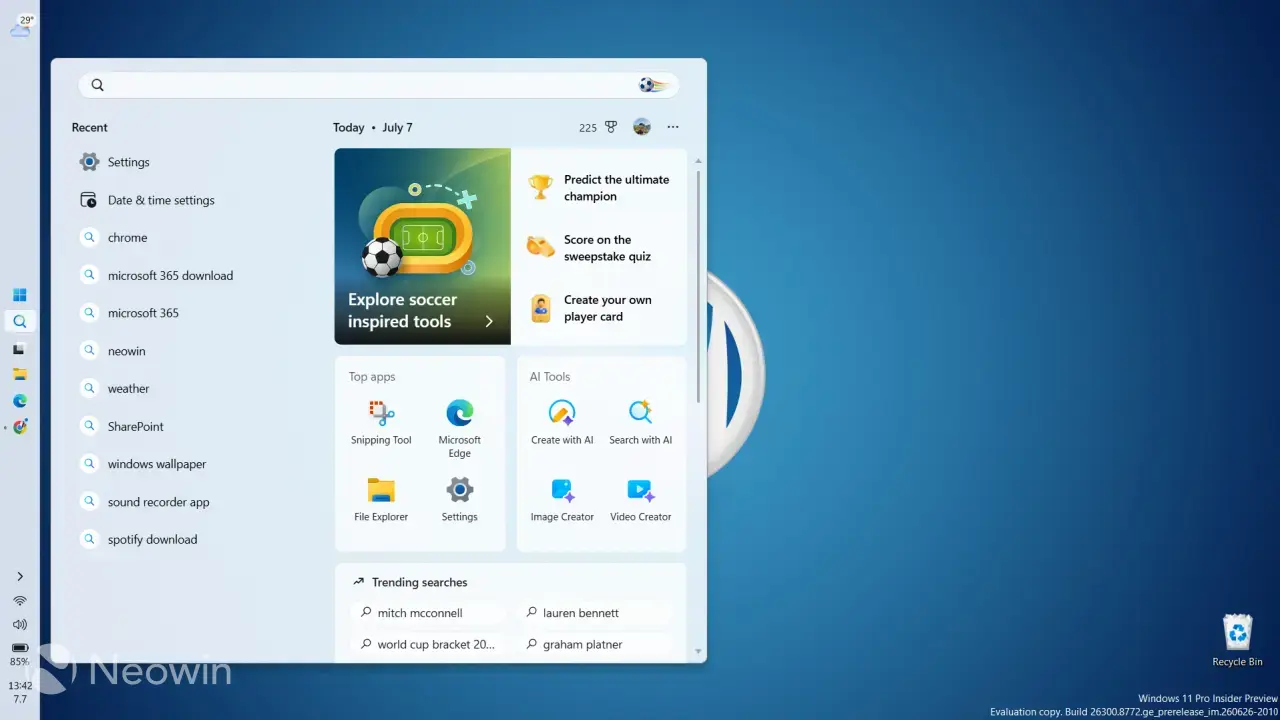
Placing the taskbar on the left side of the screen is probably the most popular option, especially with the rise of vertical tabs in browsers. But you can experiment with different alignments and see which one pleases your eye the most.
If you ask me, I still prefer my taskbar in a place where it's always been, at the bottom of the screen. Placing it on the left side still feels kind of weird. I caught myself struggling to locate which icon or button to press. But that's a personal preference, and the left side might very well work for you.
The sizing options, or should I say option, still aren't there. You can either leave it at default or make it smaller. I feel like implementing a slider with at least a few points would be a better idea, as it would give users more choices. But this is still the earliest iteration of the taskbar resizing feature, and Microsoft might give us more down the line.
These new customization options first appeared in Windows 11 preview build 26300.8493, and they still haven’t made their way to the public. So, keep in mind that if you’re a regular Windows 11 user and not an Insider, you still can’t do anything of what’s shown in this article. Microsoft will eventually roll out taskbar customization to the public in the coming months, so at least you’ll be ready when it arrives.
What do you think about the current state of Windows 11’s taskbar? Will you be changing its placement and making it smaller? Let us know in the comments below.
Hope you enjoyed this news post. Feedback welcome.
Posted Wednesday 8 July 2026 at 7:36 am AEST (my time).
News posts: 2023 5,800+ | 2024 5,700+ | 2025 5,700+ | 2026 (to end of June) 2,475
Recommended Comments
There are no comments to display.
Join the conversation
You can post now and register later. If you have an account, sign in now to post with your account.
Note: Your post will require moderator approval before it will be visible.