


3175x175(CURRENT).thumb.jpg.b05acc060982b36f5891ba728e6d953c.jpg)
Microsoft is making two new Import Functions (IMPORTTEXT and IMPORTCSV) available to certain Excel users. The aim of this is to help those who don't want to use something as "heavy" as Power Query for something as simple as pulling in data from a .csv or .txt file.
Starting with the first Import Function, IMPORTTEXT is a flexible tool for pulling data from text-based files like .txt, .csv, and .tsv directly into the grid. To use it in Excel, you first select the cell where you want the data to appear.
You then type =IMPORTTEXT and enter the path to your file, which can be a local path on your computer or a URL. The function's full syntax is: IMPORTTEXT(path, [delimiter], [skip_rows], [take_rows], [encoding], [locale])
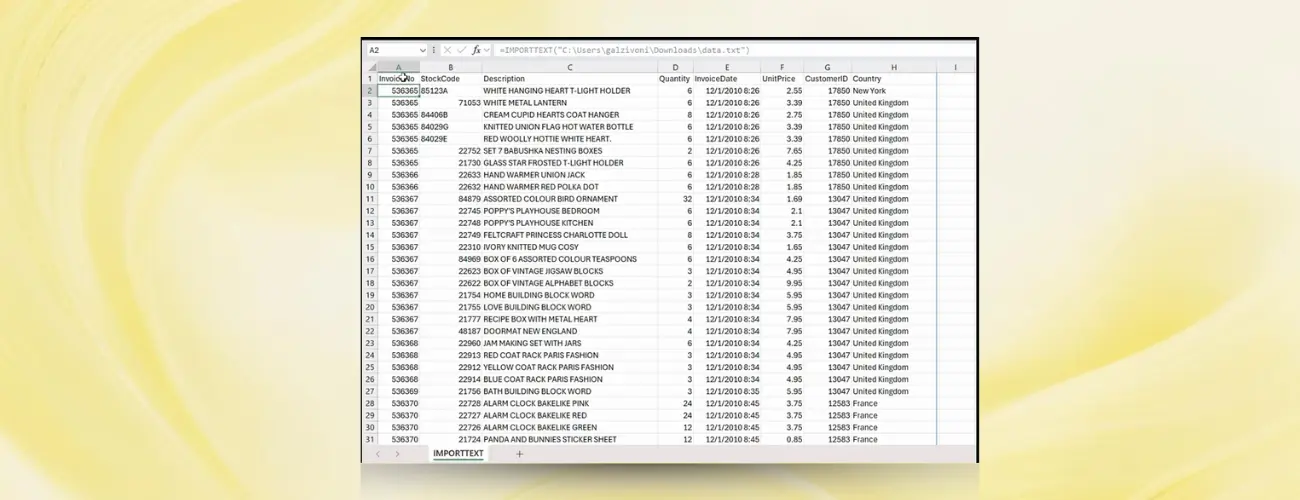
This lets you specify what character separates columns, how many rows to skip or import from the file, the file's encoding, and any regional formatting. Once you press Enter, the data populates as a dynamic array.
If the file you're connecting to is on the web, you will get an authentication dialog, where you'll need to select the correct authentication method to get access.
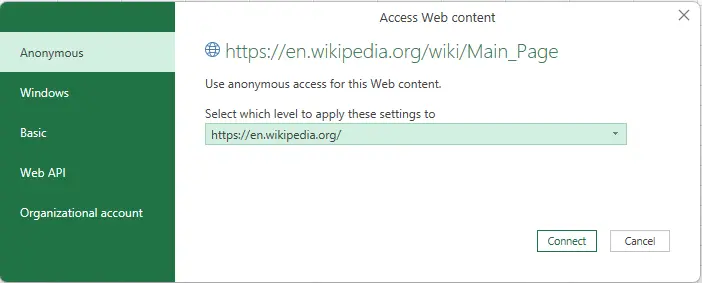
The options include "Anonymous" for public files, "Windows" for resources requiring your Windows credentials, "Basic" for username and password prompts, "Web API" if an API key is needed, and "Organizational account" for corporate sign-ins.
The second Import Function, IMPORTCSV, does what you can probably already guess from the name. It is designed specifically for .csv files. This function is essentially a simplified version of IMPORTTEXT with" smart defaults", using a comma as the delimiter and UTF-8 for encoding, which means you have fewer parameters to worry about.
Here's how to use it:
- Select the cell where you want the imported data.
-
Type
=IMPORTCSV. -
Enter the path to your .csv file, which can be local or a URL. You can optionally specify rows to skip or a locale if needed. The full syntax is
IMPORTCSV(path, [skip_rows], [take_rows], [locale]) - Press Enter, and the data from the file loads into the grid.
As mentioned earlier, this is only available to some Excel users for now. To get access, you'd need to be in the Beta Channel of the Microsoft 365 Insider program. Specifically, you must be running Windows Version 2502 (Build 18604.20002) or later.
The new functions also do not refresh automatically; you have to use the Refresh All button on the Data tab to update the imported data.
Hope you enjoyed this news post. Feedback welcome.
Posted Friday 16 January 2026 at 4:49 am AEST (my time).
News posts... 2023: 5,800+ | 2024: 5,700+ | 2025: 5,700+
Recommended Comments
There are no comments to display.
Join the conversation
You can post now and register later. If you have an account, sign in now to post with your account.
Note: Your post will require moderator approval before it will be visible.