



If you’ve used Windows long enough, you’re probably already familiar with System Restore and how powerful it is. Windows 11 now has something that works on the same principle but goes a lot further. It’s called point-in-time restore, and it automatically creates snapshots of your PC so you can roll back to exactly
things were at an earlier point.
Point-in-time restore is a major upgrade over system restore
Finally, a worthy successor
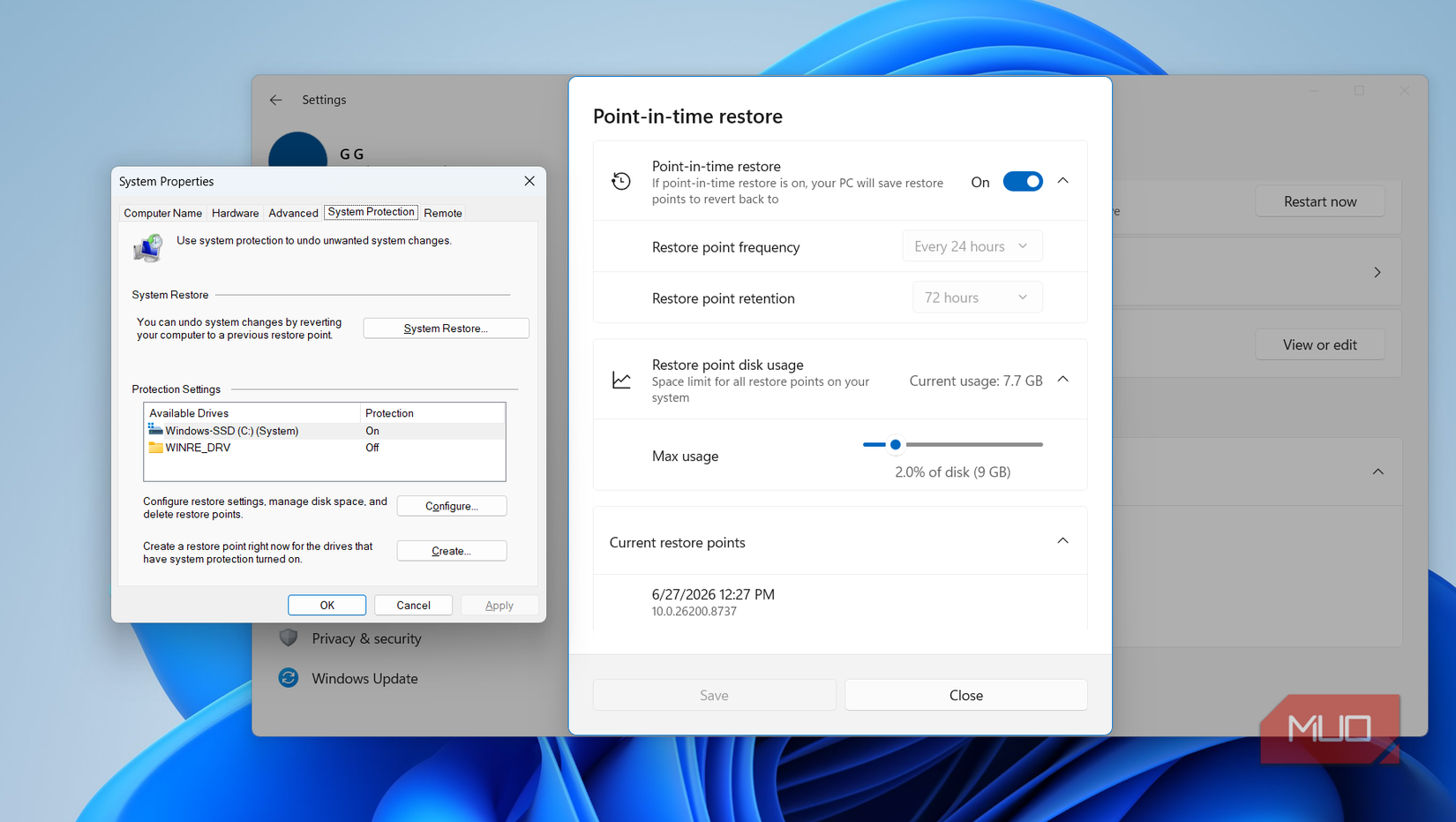
System Restore has been a lifesaver for Windows users all these years. It lets you create restore points manually or count on Windows to also create them automatically before any major changes. And since it doesn’t touch your personal files, it's often the quickest way to recover from a bad update or a faulty driver without reinstalling Windows.
Point-in-time restore builds on that idea and runs with it. The key difference is that it doesn’t wait for a major change to create a restore point — it automatically captures one every 24 hours. That means you’ll always have a relatively recent snapshot to fall back on. You can even increase the restore point frequency to every 4, 6, 12, or 16 hours if you want more coverage. And to keep storage from ballooning, Windows automatically deletes older backups after 72 hours, though you can shorten the retention period if space is tight.
The biggest difference, however, is what gets restored. System Restore leaves your personal files alone, but point-in-time restore doesn’t. It wipes everything after the selected restore point, and that includes your personal files, apps, passwords, certificates, and keys. So yes, you need to be careful while running it.
Another good thing about point-in-time restore is that it supports remote management. This is a big deal for IT admins handling multiple PCs at once.
Setting up and using point-in-time restore is as easy as it gets
It’s mostly a set-it-and-forget-it feature

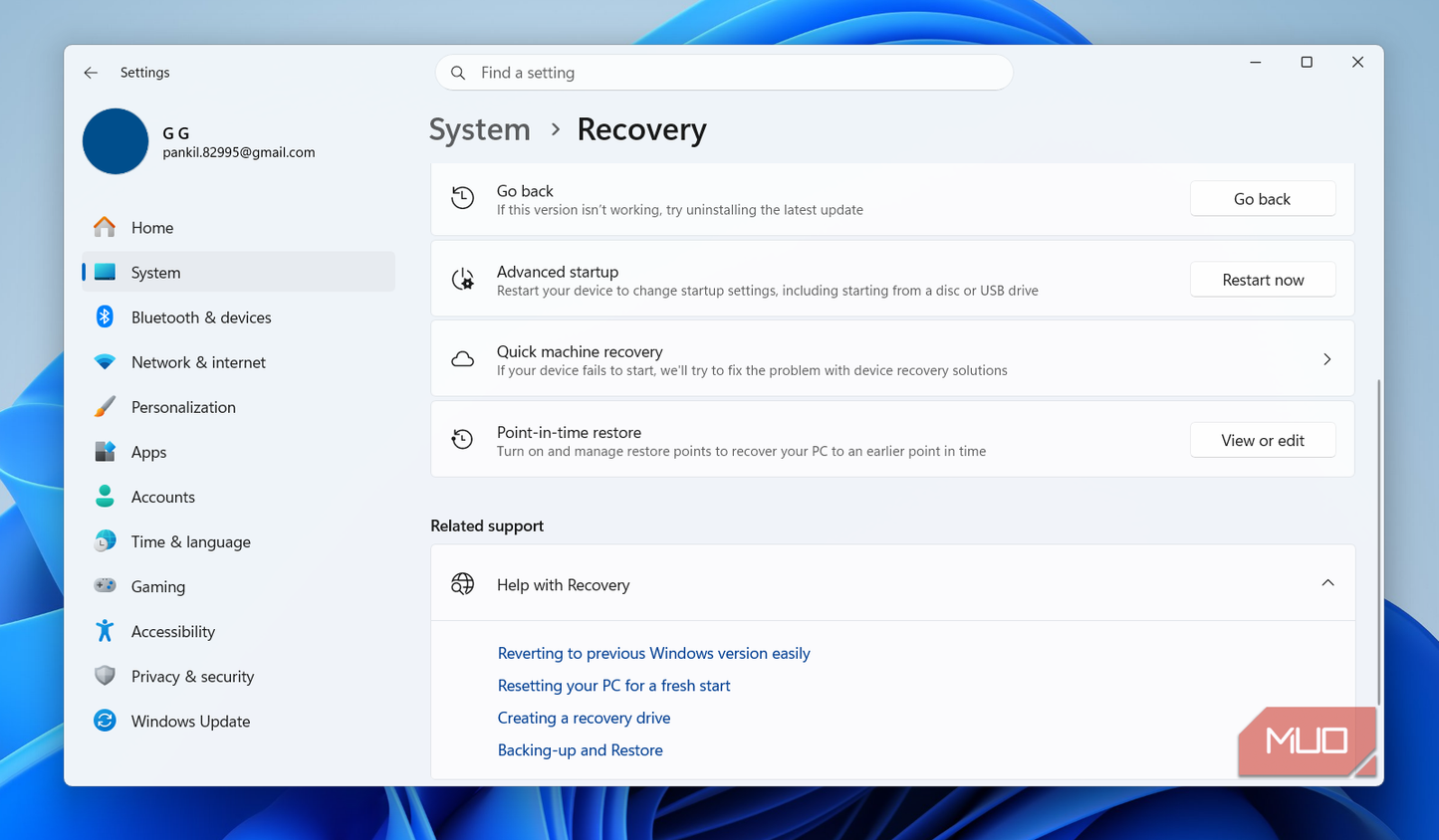
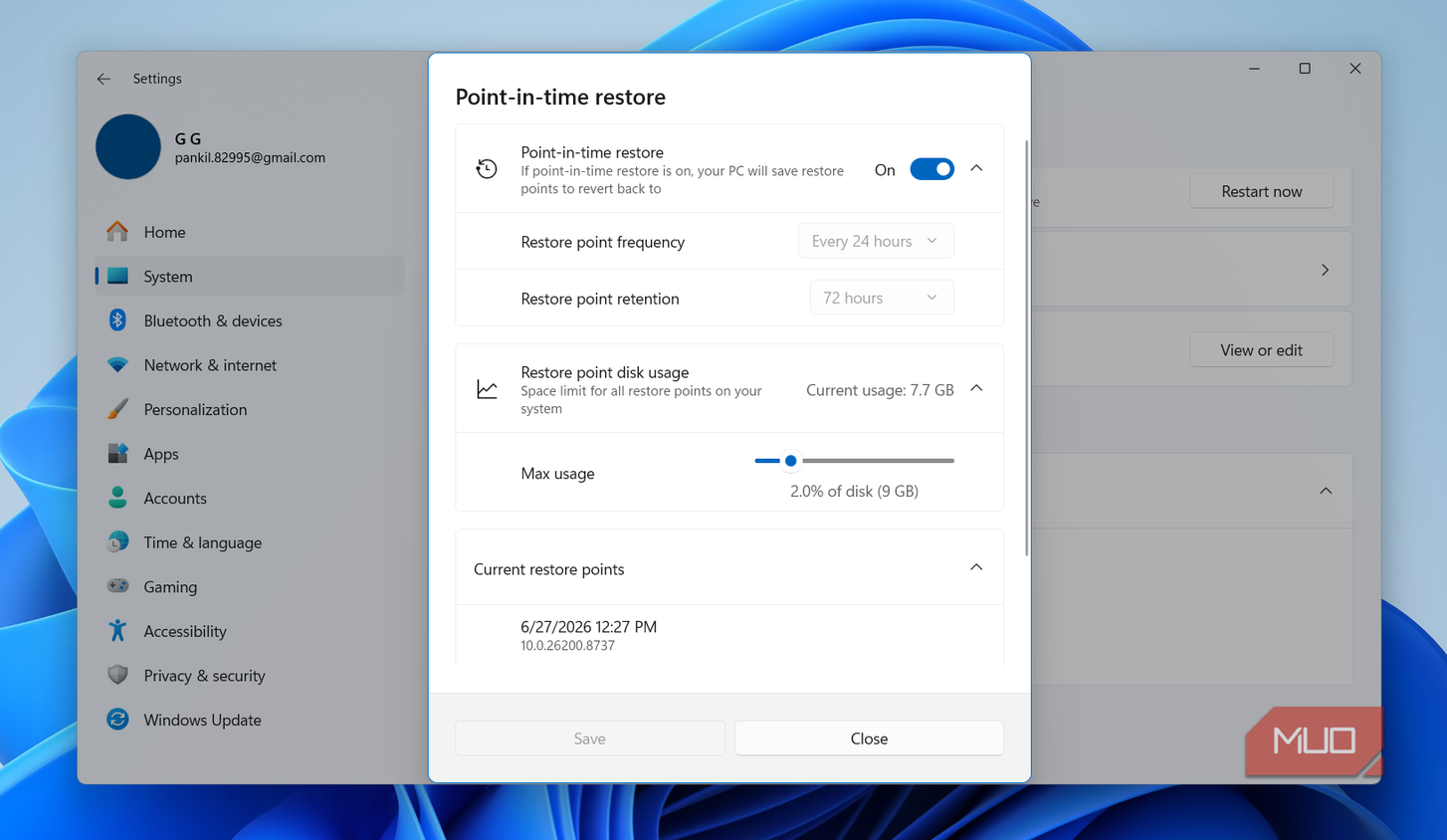

Unlike System Restore, point-in-time restore isn’t buried deep in the Control Panel — it's available through the Windows Settings app. Go to Settings > System > Recovery > Point-in-time restore. Once you’re in, you can enable or disable the feature, tweak how often Windows creates restore points, change retention period, and set how much storage space is reserved for snapshots. By default, this feature sets aside 2% of your drive for snapshots, but you can change that.
You probably won’t need to touch any of this because point-in-time restore is enabled by default on most Windows PCs. The only exceptions are systems with an OS drive smaller than 200GB and enterprise-managed machines, where admins can control the feature.
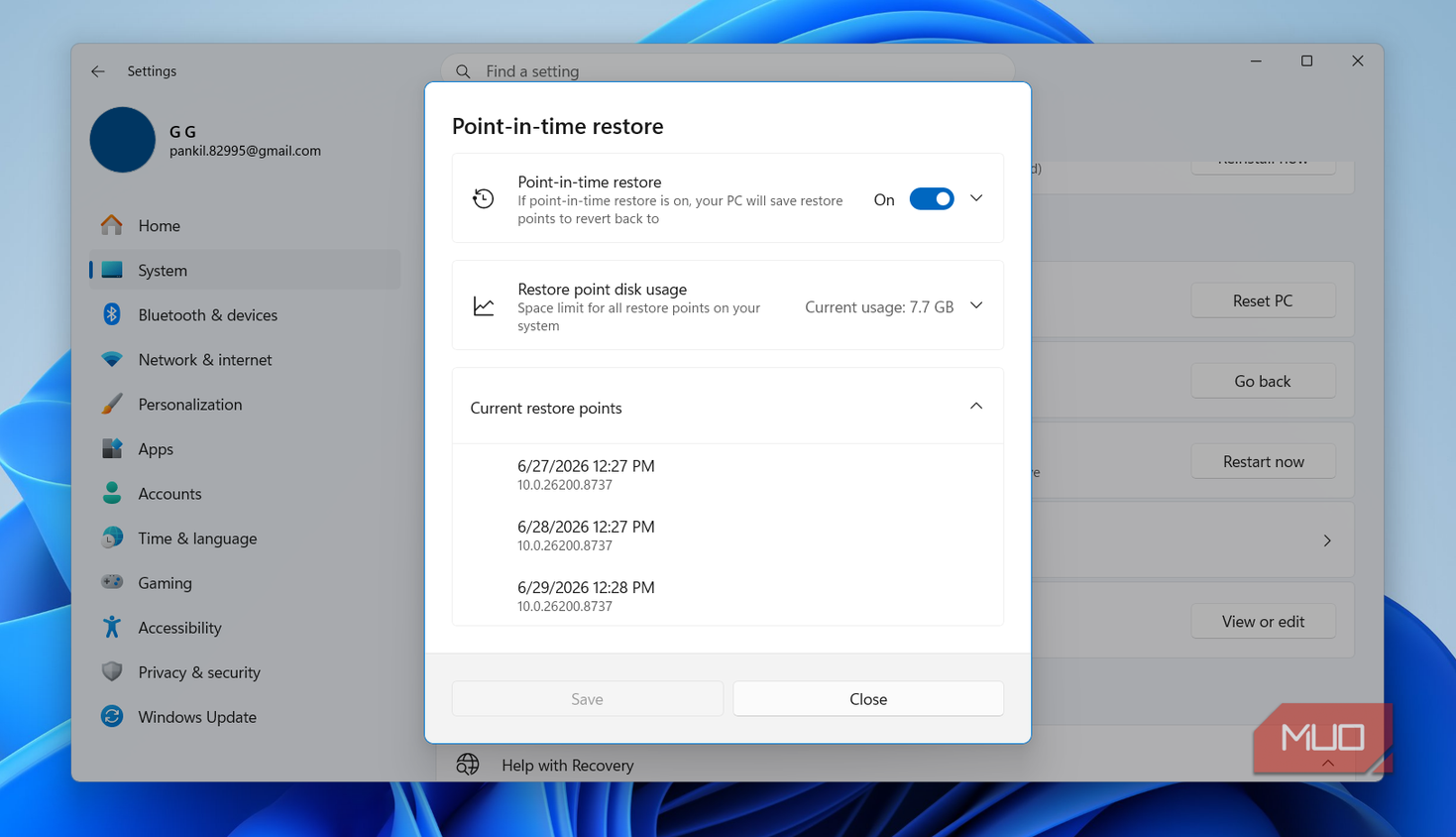
The point-in-time restore menu also lists every available restore point with the exact date and time it was created. The only catch is that you can’t use a snapshot directly from the Settings app. When things go south, you first need to boot your PC into recovery mode. Then go to Troubleshoot > Point-in-time restore and choose one of your snapshots. If your system drive is encrypted, make sure to keep the Bitlocker key handy.
Yes, it’s a few more steps than the standard system restore, but I feel it’s worth the hassle. Since the point-in-time restore captures snapshots regularly, it’s always likely to give you a more recent restore point when things go wrong. You don’t necessarily have to choose between the two, at least for now. If you have enough storage to spare, there’s nothing stopping you from keeping both these features enabled.
A feature I hope you never have to use
Point-in-time restore is a big deal. Anyone who’s ever spent an entire evening troubleshooting a Windows PC knows how quickly an issue can snowball into a complete mess. The whole point of this feature is simple. Windows wants to cut downtime and simplify troubleshooting as much as possible. And since it’s comprehensive by design, it’s more likely to work.
Of course, no feature is foolproof, so you shouldn’t rely exclusively on point-in-time restore to fix every problem. That’s why Windows offers multiple recovery tools, like Quick Machine Recovery, Startup Repair, update uninstall, and the built-in reset option. Each one works differently, and there are situations where one may be a better fit than another.
I know, nobody thinks about recovery features until Windows gives them a reason to. But by then, you’re usually starting a boot loop or an app that refuses to behave. So yes, it’s better to familiarize yourself with these features while everything is working rather than do it in a rush or under pressure.


Recommended Comments
There are no comments to display.
Join the conversation
You can post now and register later. If you have an account, sign in now to post with your account.
Note: Your post will require moderator approval before it will be visible.