

3175x175(CURRENT).thumb.jpg.b05acc060982b36f5891ba728e6d953c.jpg)
Over the past week or so, we have been taking an in-depth look at PowerToys utilities through our popular Closer Look series. So far, we have talked about Advanced Paste, Awake, and Command Palette. Now, it is time to take a closer look at another PowerToys utility clubbed under the System Tools category, namely Color Picker.
About Color Picker

Color Picker is one of the smaller utilities in PowerToys, just like Awake, and while I am not particularly a fan of the latter, as discussed here, I do think Color Picker is one of the better toys available in this package. Color Picker basically allows users to copy the exact color value from their screen and then copy it to the clipboard in a configurable format.
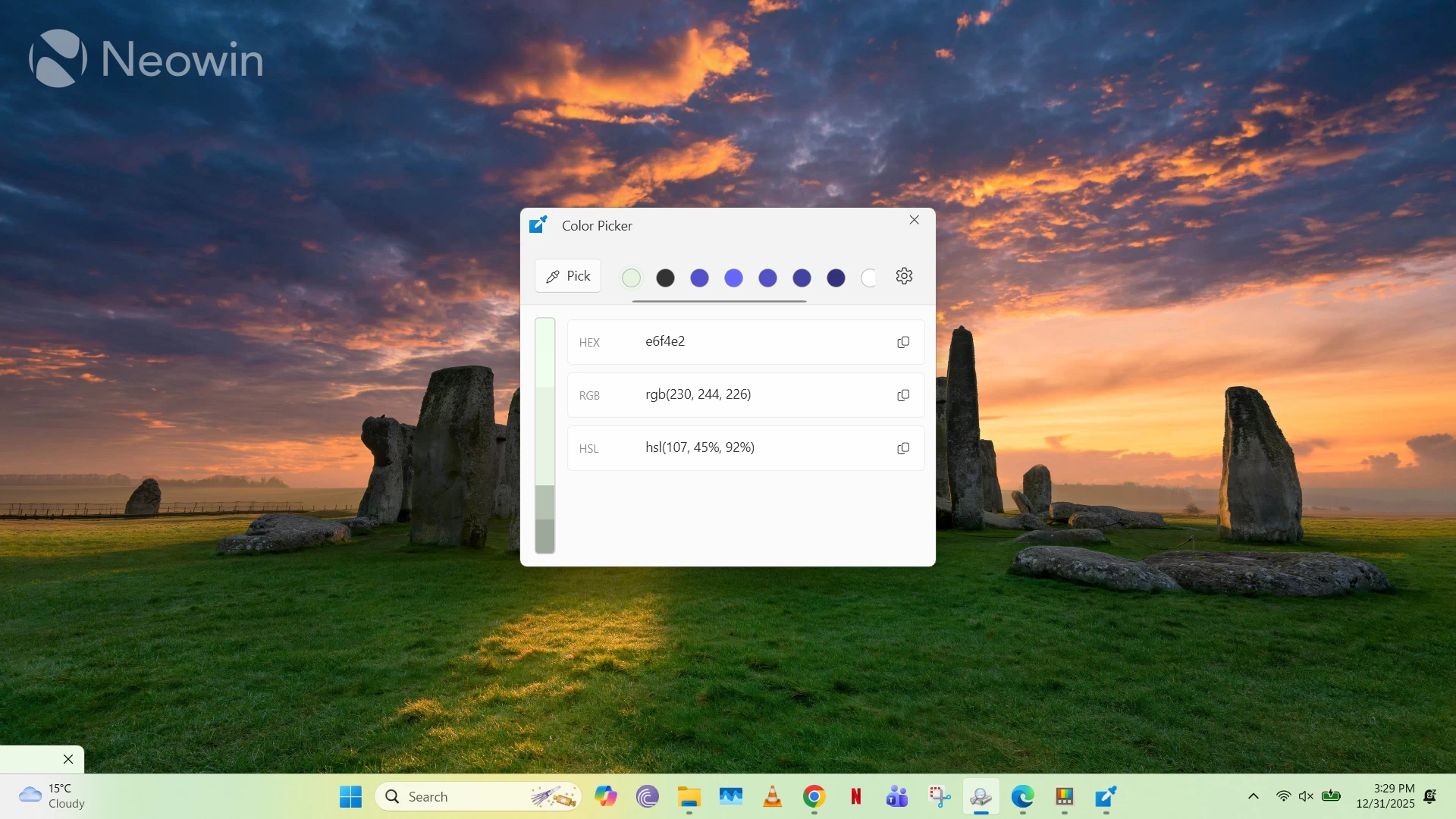
For example, if you activate it using the default Win + Shift + C shortcut, your cursor will get a small tooltip next to it, which will show you the hex value of the color of the element that you are currently hovering on. When you click on an element, you'll be greeted with a separate window that shows you the hex, RGB, and HSL (Hue, Saturation, Light) values of the selected color, which you can copy or configure further using the dropper options at the top or the color bar on the left. This makes it an excellent tool for designers and developers who are building their own products and want to reference a color scheme without using other third-party tools.
Color Picker Functionalities
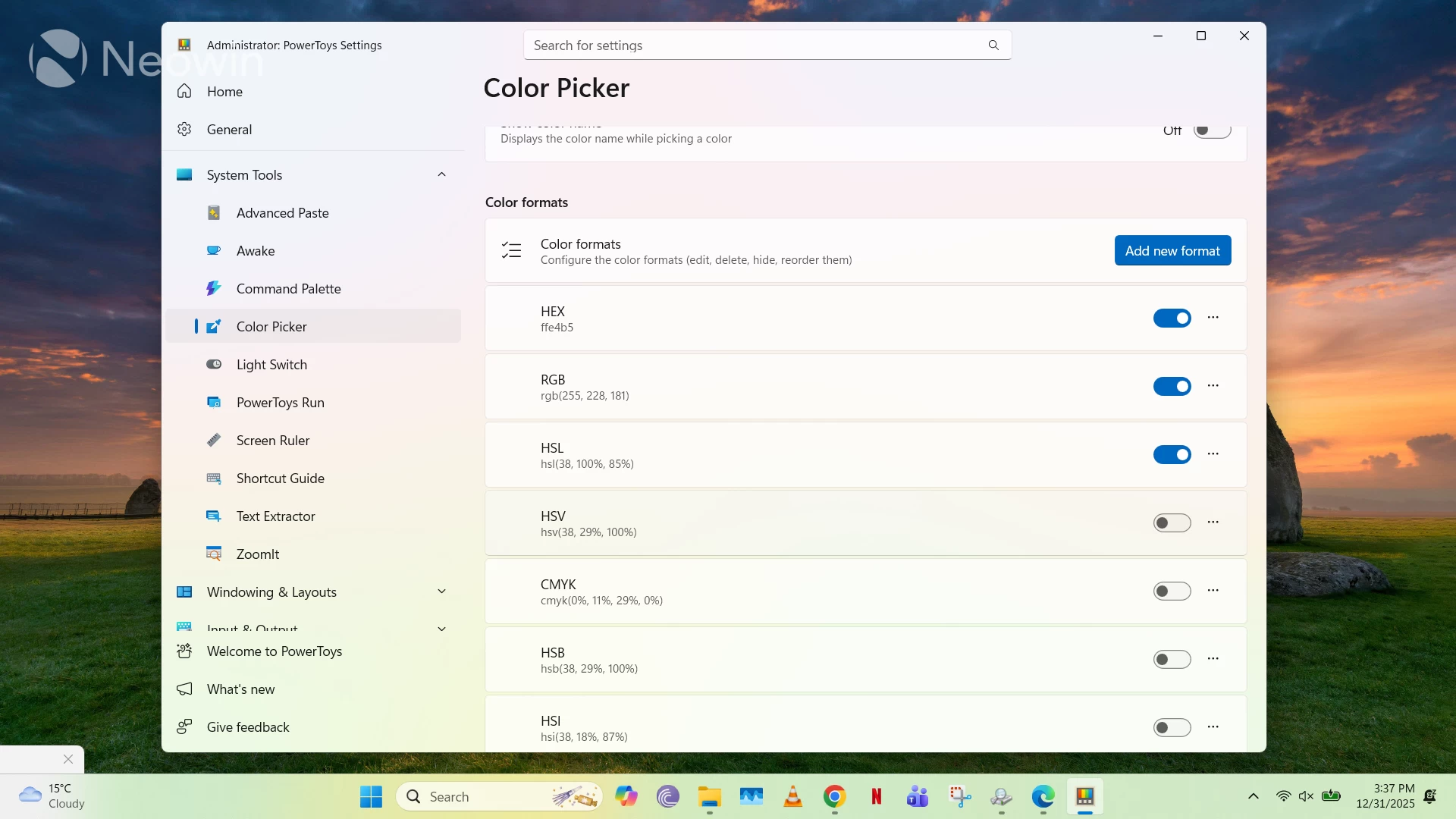
As with most PowerToys utilities, you can change the activation shortcut for Color Picker as well as the trigger behavior, where you can choose between directly opening the editor or picking a color first. I personally prefer the latter option. You can also choose what happens if you right-click, left-click, or middle-click on your mouse.
In addition, you can define which format gets copied to the clipboard by default; I usually keep it as hex, but you can set it to other formats like CMYK, HSL, RGB, HSV, etc. You can also add these formats directly to the editor and arrange them by order of preference. In addition, you can define a custom color format as well, but this option is more geared towards advanced users.
Meanwhile, the editor UX in Color Picker may appear slightly complicated at first, but it is quite powerful too. It stores a history of the most recent 20 colors, shows you the value of the currently selected color, enables you to fine-tune the selected color, and highlights similar color options. You can manually copy values of different color formats, export them, and remove colors from the history, too.
Since the color value depends highly upon the cursor position, animated elements that show different colors based on hover state can be difficult to capture. Microsoft recommends following the process below to capture the non-hover state of such elements:
- Move the mouse pointer close, but not over the element.
- Zoom in by scrolling the mouse wheel up. The image will be frozen.
- In the enlarged area, you can pick the color of the element.
Conclusion: Color Picker is a winner for designers and developers
Although Color Picker doesn't appeal to the mass market, it does offer a handy utility for the right type of user, namely, designers and developers. It is very easy to use and understand, and offers a great deal of configurability in UX and color formats. It's also nice to see that it bundles relatively niche color formats for those who need them too.
That said, Color Picker does have a few noteworthy limitations. It cannot display on top of the Start Menu or the Action Center, and does not support Wide Color Gamut (WCG) and High Dynamic Range (HDR) formats. Additionally, if you want to see the color values of an application running in administrator mode, you'll need to first run PowerToys with administrator privileges too. However, I don't think these are major limitations, and Color Picker should meet the needs of most users anyway.
This Closer Look piece is based on version 0.96.1 of Microsoft PowerToys, which is the latest version at the time of writing. Functionalities may change in newer versions of PowerToys when they become available.
You can check out our other Closer Look pieces for PowerToys utilities here:
- Closer Look: Advanced Paste in Windows PowerToys
- Closer Look: Awake is not my favorite tool in PowerToys on Windows
- Closer Look: Command Palette in PowerToys puts Windows Search to shame
Hope you enjoyed this news post. Feedback welcome.
Posted Thursday 1 January 2026 at 4:33 am AEST (my time).
News posts... 2023: 5,800+ | 2024: 5,700+ | 2025: 5,700+
Recommended Comments
There are no comments to display.
Join the conversation
You can post now and register later. If you have an account, sign in now to post with your account.
Note: Your post will require moderator approval before it will be visible.