

3175x175(CURRENT).thumb.jpg.b05acc060982b36f5891ba728e6d953c.jpg)
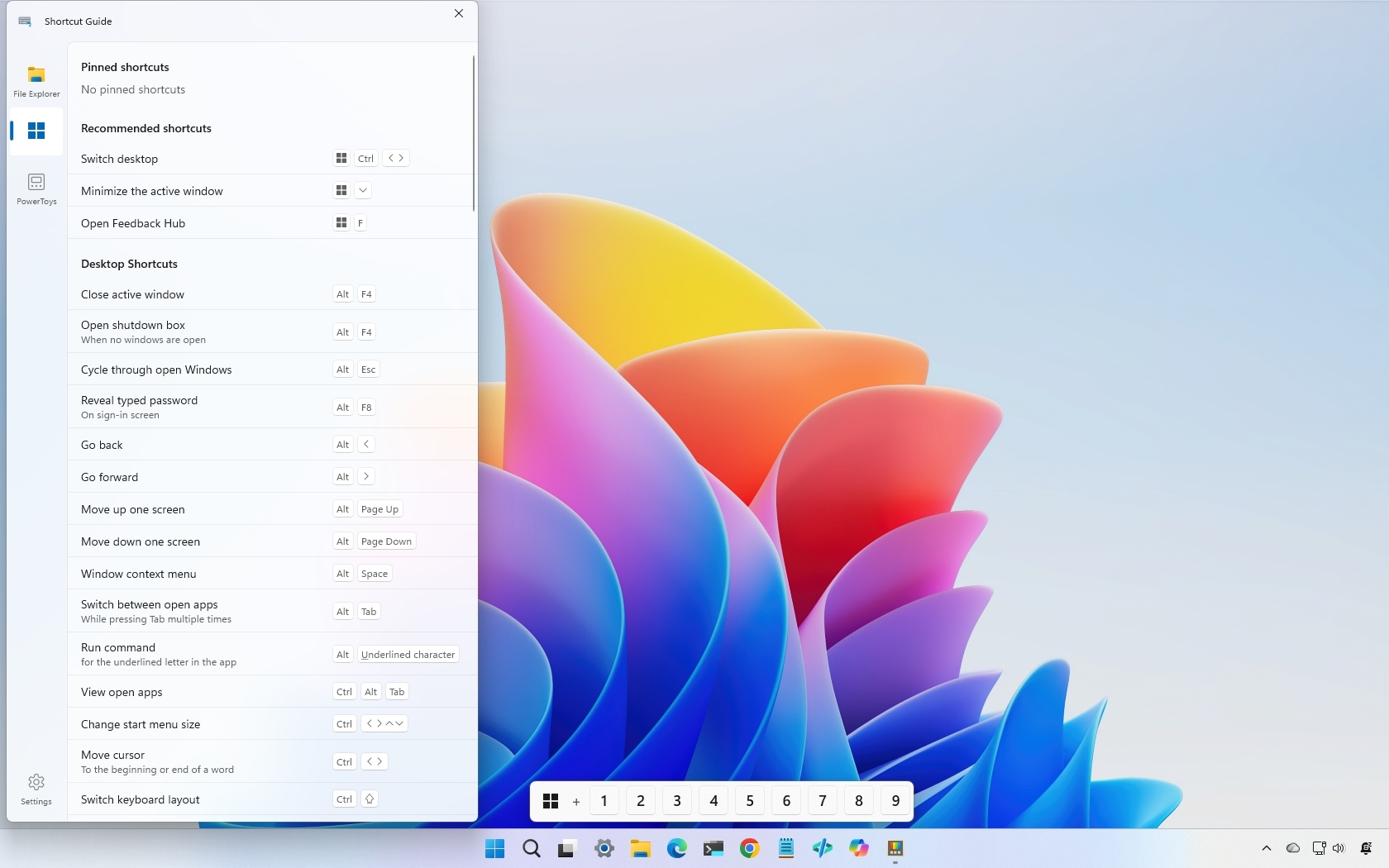
PowerToys' Shortcut Guide makes it easier to discover Windows 11 keyboard shortcuts with a new context-aware experience.
On Windows 11, keyboard shortcuts remain one of the fastest ways to navigate the desktop, but most users know only a handful. While commands like "Windows key + E" to open File Explorer or "Ctrl + C" and "Ctrl + V" to copy and paste content can save time every day, many useful shortcuts remain hidden unless users actively search for them.
Microsoft team behind PowerToys is now making shortcut discovery easier with a redesigned Shortcut Guide in version 0.100.
A smarter shortcut reference for Windows 11
The Shortcut Guide has been part of PowerToys for a long time, but the latest version feels much more practical.
Instead of opening a static reference page filled with generic commands, the guide now appears as a flyout that adapts to the application you're currently using. The result is a more focused experience that highlights shortcuts relevant to the task at hand.
Whether you're working in File Explorer, browsing the web, or editing text, the guide can surface keyboard commands without forcing you to stop what you're doing and search online.
Why keyboard shortcuts still matter
Despite improvements to the Windows 11 interface, keyboard shortcuts remain the quickest way to perform many actions.
Whether switching apps, managing windows, opening system features, or navigating File Explorer, keyboard commands can often complete a task faster than using a mouse.
The challenge has always been discovering and remembering those shortcuts.
The majority of users know only a small subset of available commands, while many of those shortcuts for productivity remain underused simply because they're difficult to remember.
The new Shortcut Guide addresses that problem by putting relevant shortcuts directly in front of users when they need them.
Learning shortcuts without leaving your workflow
One of the biggest advantages of the redesign is that it teaches you as you work.
Instead of requiring someone to memorize a long list of commands, the guide can provide shortcuts that apply to the current application or feature. Over time, you'll naturally learn the keyboard commands they use most often.
If you want to access the Shortcuts Guide, you have to install PowerToys. You can do this by running the "winget install --id Microsoft.PowerToys" command on Command Prompt or PowerShell (admin). You can also download the tool from the official page or Microsoft Store.
Once the app is installed, launch it, and from PowerToys > System Tools > Shortcut Guide, turn on the "Shortcut Guide" toggle switch.

(Image credit: Mauro Huculak)
From the same page, you can also choose the color theme and the flyout position.
Optionally, you can also exclude apps from the experience.
After configuring the tool, you can access it using the "Windows key + Shift + /" keyboard shortcut. However, you can change this process page by customizing the "Activation shortcut" setting.

(Image credit: Mauro Huculak)
You can also access the guide through the PowerToys flyout in the Taskbar's System Tray.
By default, when you open the Shortcut Guide, it'll show shortcuts in different tabs. If you don't have any apps in focus, you'll access the list of keyboard shortcuts for Windows 11, and the second tab will include the shortcuts for PowerToys.
While I was writing this guide, I noticed shortcuts would appear at least for Notepad, Microsoft Edge, and File Explorer.
This tool doesn't include shortcuts for every app, but the development team also provides instructions for developers to integrate their apps into the list.
Windows Central's Take
I've always thought the operating system has plenty of useful keyboard shortcuts, but most users never discover them. The redesigned Shortcut Guide from PowerToys addresses that problem by putting relevant shortcuts in front of users when they actually need them.
Perhaps the most interesting aspect of this guide is the context-aware experience. Instead of overwhelming users with a long list of commands, the guide focuses on shortcuts related to the app they're currently using. That's a much more practical way to learn and adopt keyboard shortcuts.
Do you regularly use keyboard shortcuts on Windows 11, or do you still rely mostly on the mouse for everyday tasks? Let me know in the comments.
Hope you enjoyed this news post. Feedback welcome.
Posted Friday 19 June 2026 at 8:30 am AEST (my time).
News posts: 2023 5,800+ | 2024 5,700+ | 2025 5,700+ | 2026 (to end of May) 2,092
Recommended Comments
There are no comments to display.
Join the conversation
You can post now and register later. If you have an account, sign in now to post with your account.
Note: Your post will require moderator approval before it will be visible.