


3175x175(CURRENT).thumb.jpg.b05acc060982b36f5891ba728e6d953c.jpg)
Apple TV works well out of the box, but tvOS has accumulated enough features over the years that a default setup is rarely the best one. A handful of small changes can remove friction, reduce interruptions, and make the whole experience feel faster and more predictable.
These are practical tweaks that improve day-to-day use without installing apps or changing how you watch content.
1. Turn off the full-screen profile picker
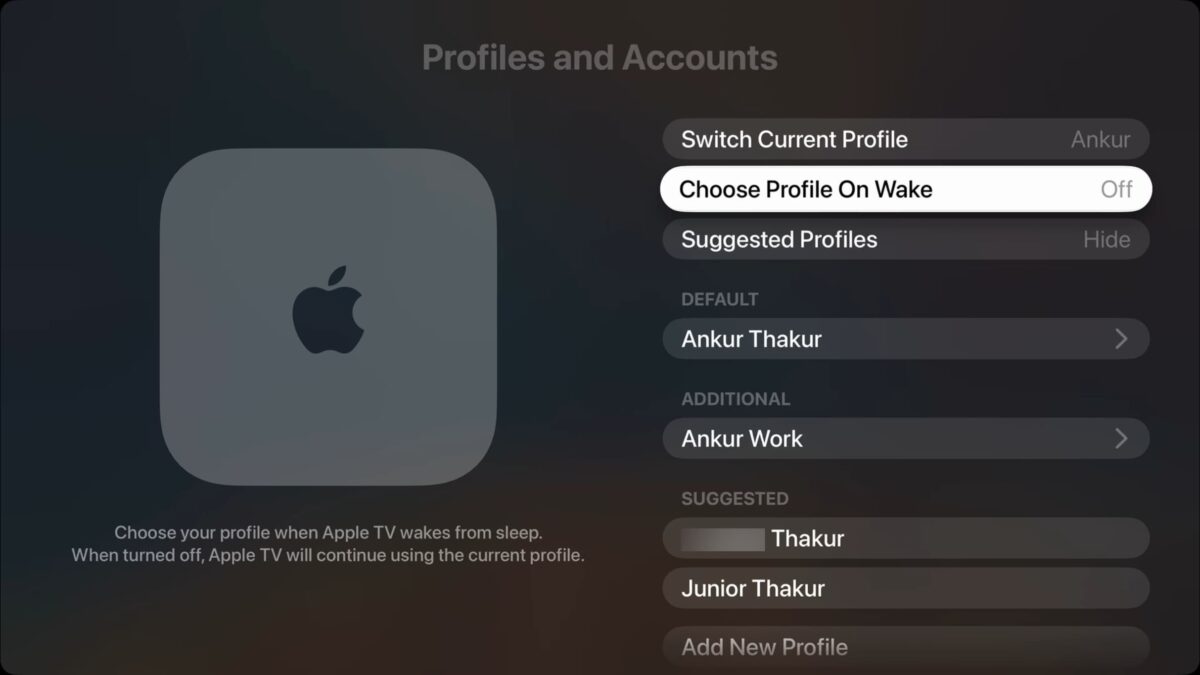
Recent tvOS versions show a profile selector every time Apple TV wakes. That makes sense in shared households, but it slows things down if you usually stick to one profile.You can disable it from Settings > Profiles and Accounts by turning off Choose Profile on Wake. Profiles remain available, just not forced on startup.
2. Remap the TV button to go Home
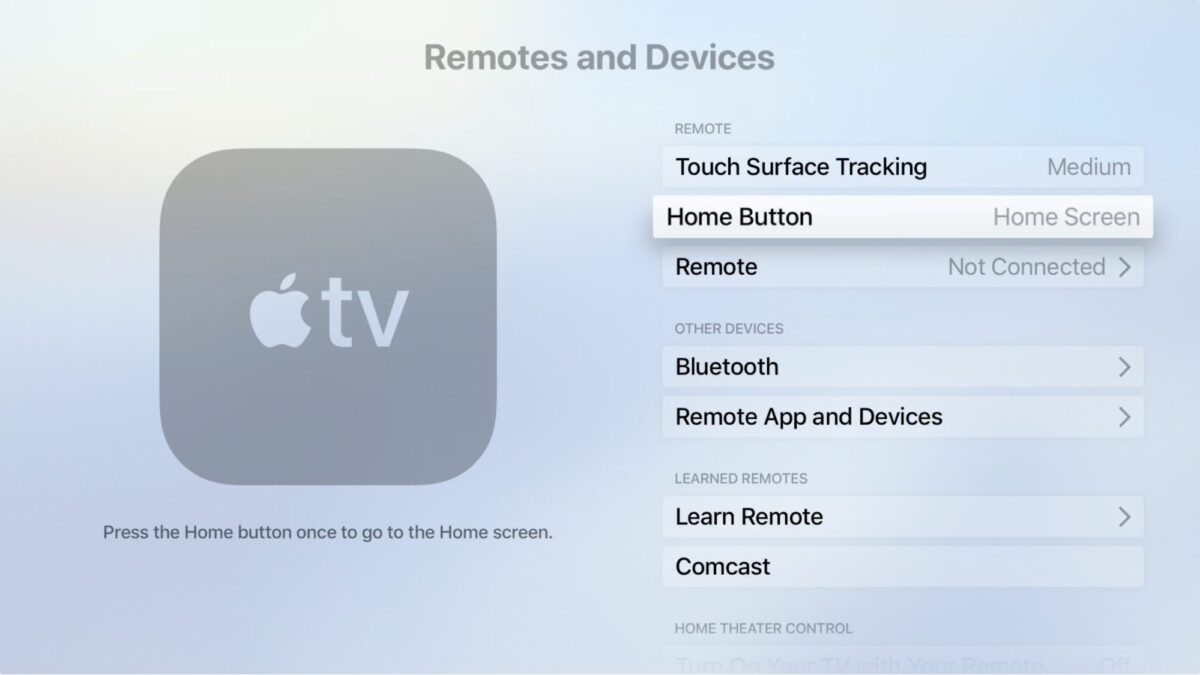
By default, pressing the TV button opens the TV app instead of the Home screen. Holding the button goes Home, which feels backwards.Go to Settings > Remotes and Devices > TV Button and switch the behavior to Home Screen. One press now does what most people expect.
3. Disable auto-playing previews
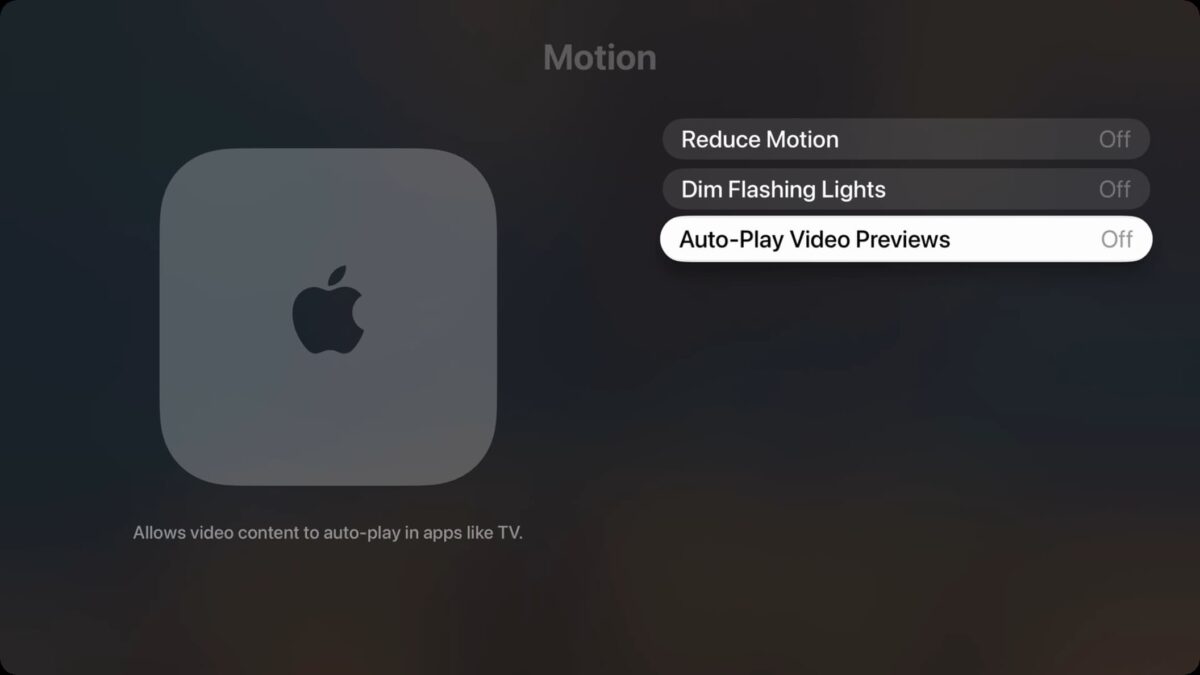
Auto-playing previews are distracting and noisy. You can disable them system-wide for the TV app from Settings > Accessibility > Motion > Auto-Play Video Previews.Other streaming apps require changes on their websites, but it's worth doing once to stop constant background playback.
4. Make the remote easier to use
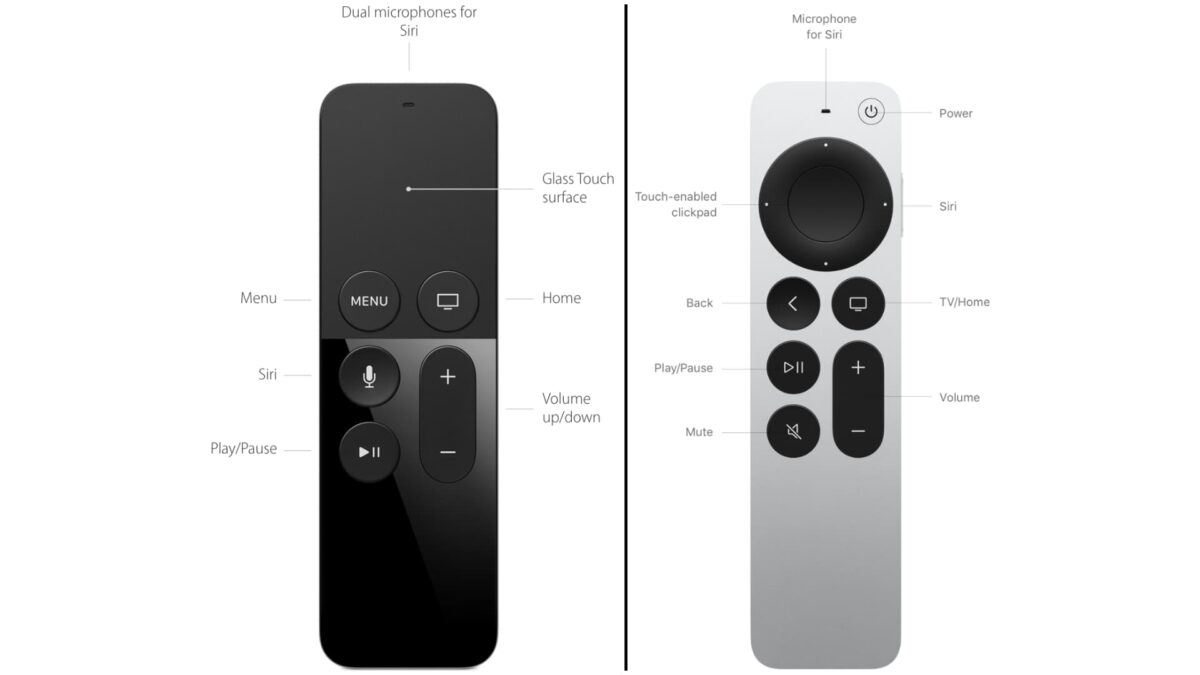
The clickpad supports swipe gestures, which many people accidentally trigger. If kids or guests struggle with navigation, switch it to button-only mode.Go to Settings > Remotes and Devices > Clickpad and select Click Only.
5. Use your iPhone or Apple Watch as a remote
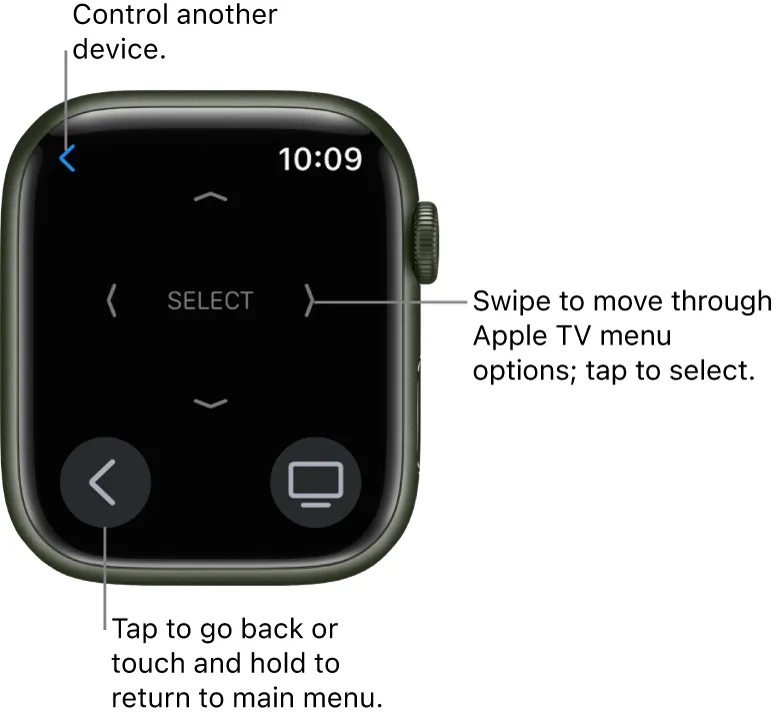
If the physical remote goes missing, you don't need to panic. iPhones and Apple Watches can fully control Apple TV.On iPhone, add the Apple TV Remote to Control Center. On Apple Watch, open the built-in Remote app. Both work as long as the devices are on the same network.
6. Set HomePods or AirPlay speakers as default audio
You can permanently route Apple TV audio to HomePods or compatible AirPlay speakers.Go to Settings > Video and Audio > Audio Output and select your speakers as the default. This avoids switching outputs every time you watch something.

7. Pair AirPods for private listening
AirPods integrate tightly with tvOS. Once paired through Settings > Remotes and Devices > Bluetooth, they'll automatically appear as an audio option when you put them on.This is especially useful for late-night viewing.

8. Force-quit misbehaving apps
If a streaming app stutters or loses audio sync, force-quitting usually fixes it.Double-press the TV button, swipe to the app, and swipe up to close it. Relaunching often resolves playback issues instantly.

9. Reduce motion to speed things up
On older Apple TV models, animations can feel sluggish.Enable Reduce Motion under Settings > Accessibility > Motion to make transitions faster and the interface more responsive.

10. Disable unnecessary notifications
Apple TV can show FaceTime calls, Home alerts, and fitness notifications while you're watching something.Go to Settings > Notifications and turn off anything you don't want on your TV screen. You can also enable Do Not Disturb from Control Center.

None of these tweaks change what Apple TV can do, but together they remove small annoyances that add up over time, especially if you use the device every day.
Hope you enjoyed this news post. Feedback welcome.
Posted Thursday 15 January 2026 at 5:10 am AEST (my time).
News posts... 2023: 5,800+ | 2024: 5,700+ | 2025: 5,700+
Recommended Comments
There are no comments to display.
Join the conversation
You can post now and register later. If you have an account, sign in now to post with your account.
Note: Your post will require moderator approval before it will be visible.