

3175x175(CURRENT).thumb.jpg.b05acc060982b36f5891ba728e6d953c.jpg)
A free tool that finally fixes automatic app updates to winget on Windows 11.
On Windows 11, I'm always looking for ways to make Windows Package Manager (winget) more practical for everyday use, especially for keeping apps updated without the constant manual work.
By default, you still have to run commands like winget upgrade --all, which works fine, but only if you remember to do it. And while the Microsoft Store handles updates automatically, that applies only to Store apps, not the majority of traditional desktop apps you may have installed via winget.
The GUI makes WAU actually accessible
One of the biggest limitations with Winget-AutoUpdate is that it's primarily designed around scripts and configuration files. It works great if you're comfortable with the command line, but it can feel unnecessarily complex if you want to set it up and forget about it.
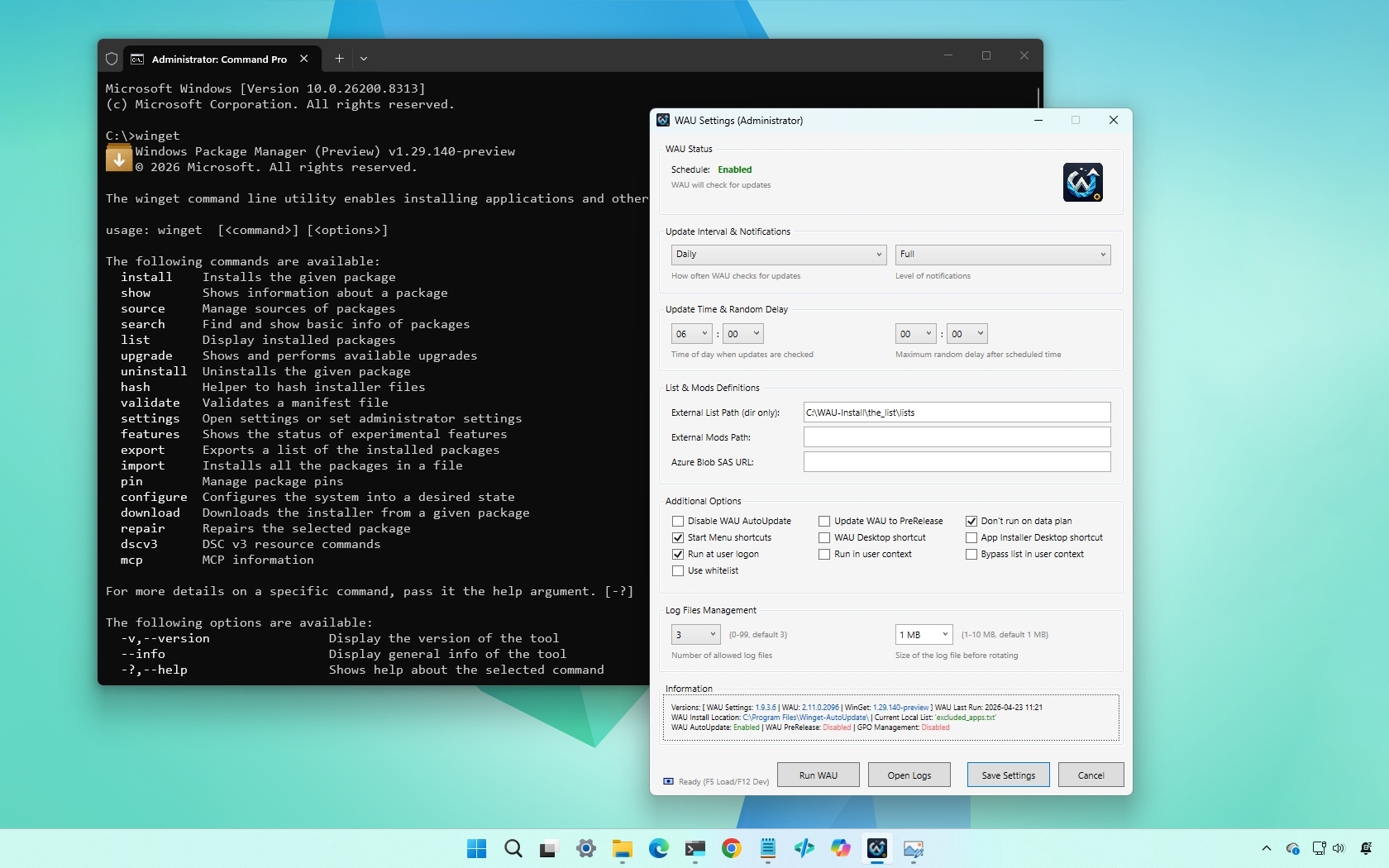
That's where the WAU Settings GUI makes a noticeable difference. This is the second part of the project, and the GUI adds a proper interface on top of the tool, allowing you to configure everything without touching scripts. Instead of manually handling scheduled tasks, you can manage the entire setup visually.
As you proceed with the installation, you'll set up the main tool (without a GUI), then the graphical interface (all in the same wizard). The installation is similar to installing any other application, but you'll be prompted to choose a folder to install the app and store app lists, which you may want to create at the root of "C:."
Configuring WAU using the GUI
Once in the interface, you can turn on or off automatic updates, set schedules, configure allowlists and blocklists for specific apps, control notifications and logging behavior, and change advanced options.
You can always click the "Run WAU" button to update all your winget applications. As apps receive their updates, the tool will pop up toast notifications to let you know which app has been updated.

(Image credit: Mauro Huculak)
Of course, you want to automate this process so you can do it from the "Update Time & Random Delay" section, and don't forget to set the "Update Interval & Notifications" to something other than "Never."
If you want to exclude applications, create an "excluded_apps.txt" file in the folder you specify for storing your lists, listing the apps' IDs for which you want to turn off auto update.
In the same way, if you want to update only specific apps, create an "included_apps.txt" with the ID of the apps you want to auto-update in the folder you specify to store your lists.

(Image credit: Mauro Huculak)
Finally, click the "Save Settings" button to apply the changes. For more details, you can change this page.
Who actually needs Winget-AutoUpdate
This tool is not meant for everyone. It becomes useful in very specific scenarios.
If you install a lot of apps using the Windows Package Manager and want a maintenance-free system, WAU keeps everything updated automatically without manual checks.
The tool also comes in handy for users who want more control, as you can configure allow and block lists, and you can use wildcard filtering, version pinning, and custom arguments.
What it’s like to use
Once set up, Winget-AutoUpdate runs quietly in the background. There is no need to trigger updates or check for outdated apps manually.
The experience is straightforward. You configure it once, let run it on schedule, and receive updates automatically with notifications.
It does not feel intrusive and avoids the constant update management cycle many users are accustomed to.
For users who rely on multiple tools and utilities, it quickly becomes one of those "set it and forget it" system components.
Windows Central's take
Winget-AutoUpdate is a free tool that handles updates for all your winget-installed apps on Windows 11 and effectively fills one of the most obvious gaps in Windows Package Manager (winget).
By default, winget still relies on manual commands like winget upgrade --all, which works fine but depends entirely on the user being proactive. And while the Microsoft Store handles updates automatically, that applies only to Store apps, leaving most traditional desktop software outside that system.
That's where Winget-AutoUpdate (WAU) makes a real difference. It automates the entire update process, running in the background on a schedule and handling everything without user intervention. Once set up, it eliminates the need to check for updates or manually trigger upgrades.
The result is a more complete package management experience on Windows 11. Instead of treating updates as something you periodically manage, WAU makes them continuous and largely invisible, which is exactly how it should feel on a modern system.
Hope you enjoyed this news post. Feedback welcome.
Posted Monday 27 April 2026 at 7:45 am AEST (my time).
News posts: 2023 5,800+ | 2024 5,700+ | 2025 5,700+ | 2026 (to end of March) 1,297
- dannlat
-
 1
1
Recommended Comments
There are no comments to display.
Join the conversation
You can post now and register later. If you have an account, sign in now to post with your account.
Note: Your post will require moderator approval before it will be visible.