

3175x175(CURRENT).thumb.jpg.b05acc060982b36f5891ba728e6d953c.jpg)
Apple's iOS 26.2 update landed worldwide for supported iPhones, bringing several new features. We have already seen that the Cupertino giant has a high adoption rate for its software updates; much of the credit goes to its tight integration and control over hardware and software. Chances are you're already running iOS 26 on your device.
While you might be busy downloading iOS 26.2, what better time is there to talk about the iOS 26 features overall? The Liquid Glass design language and other major features steal the limelight, but there are several small and useful iOS 26 features you should know about.
Here's a roundup of numerous such features and changes you can find on iOS 26:
Note: These features are not arranged in any order of preference.
1. Swipe from anywhere on the screen to go back
For years, you have swiped from the left edge of the screen to go back to the previous page or menu on iOS. Apple has made things a bit easier, and now you can swipe left to right anywhere on the screen to go back, such as in the Settings app. However, this gesture may not work everywhere.
2. The alarm button of your dreams
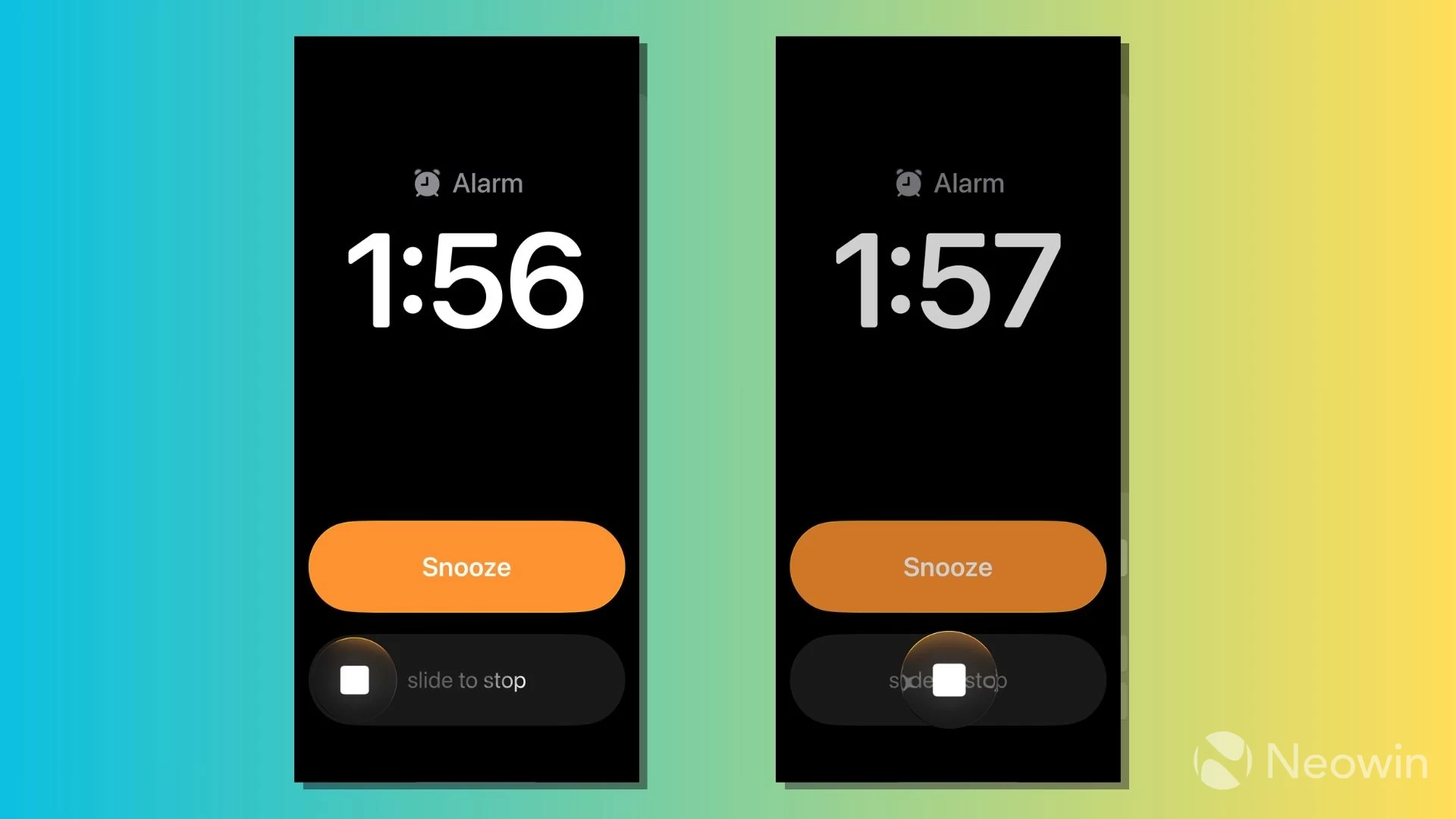
Apple is done with the tiny Stop button for alarms. iOS 26 comes with revamped Stop and Snooze buttons that are big enough to see from your dreams. The Stop button also features a Lock Screen-style slider that makes it a bit harder to cancel the alarm during those sleepy mornings.
3. Set Snooze duration
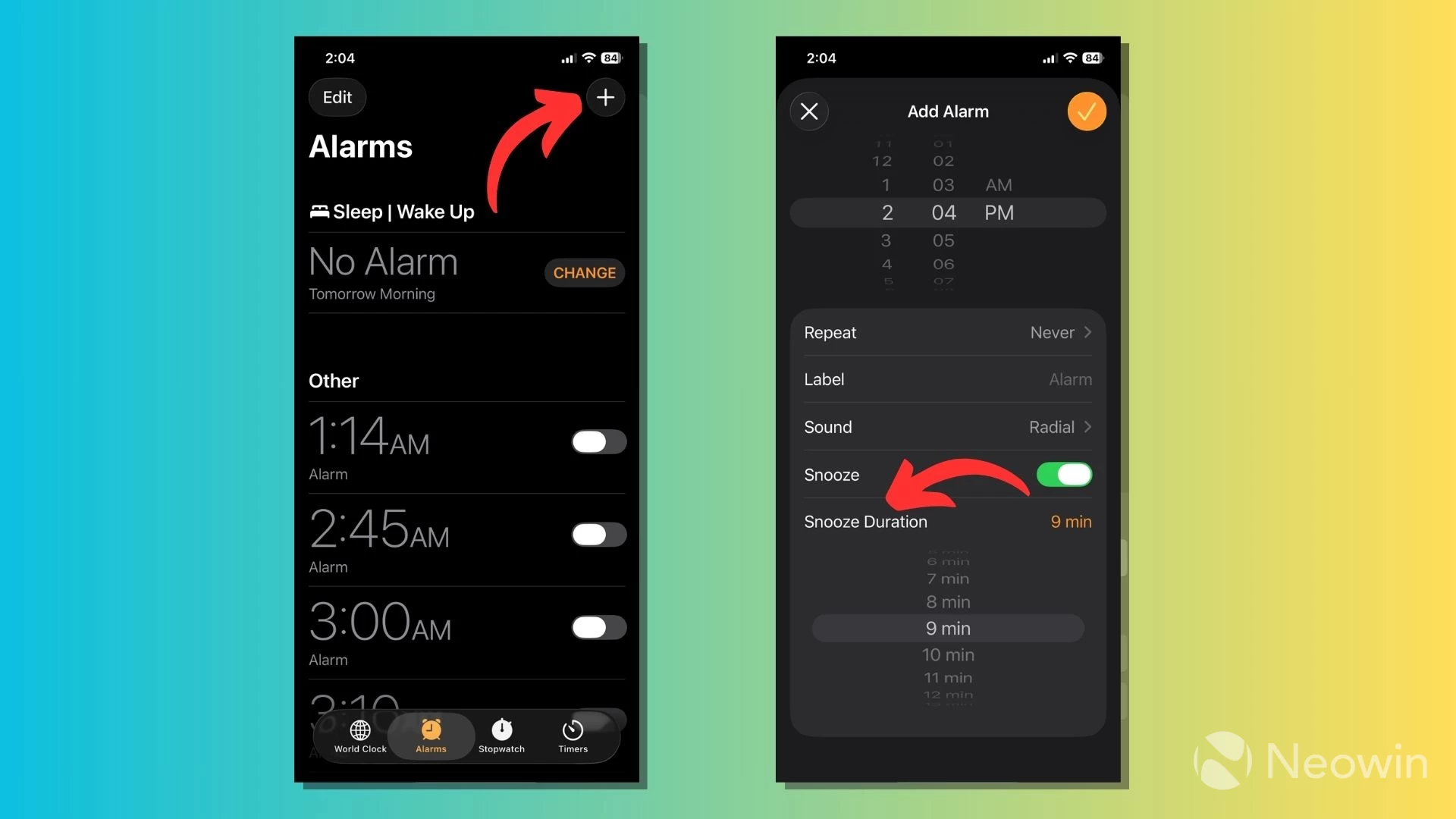
You can also set the snooze duration for each alarm in the Alarms section. The snooze window can range from one to 15 minutes, depending on your preference. You can set the snooze duration while creating a new alarm or tapping an existing one.
4. Use AirPods to take pictures
Maybe your phone is mounted on a tripod, or you're on a solo trip with no one else to take photos. If you own a pair of AirPods, iOS 26 turns your wireless earbuds into a camera remote to take images and record videos from a distance.
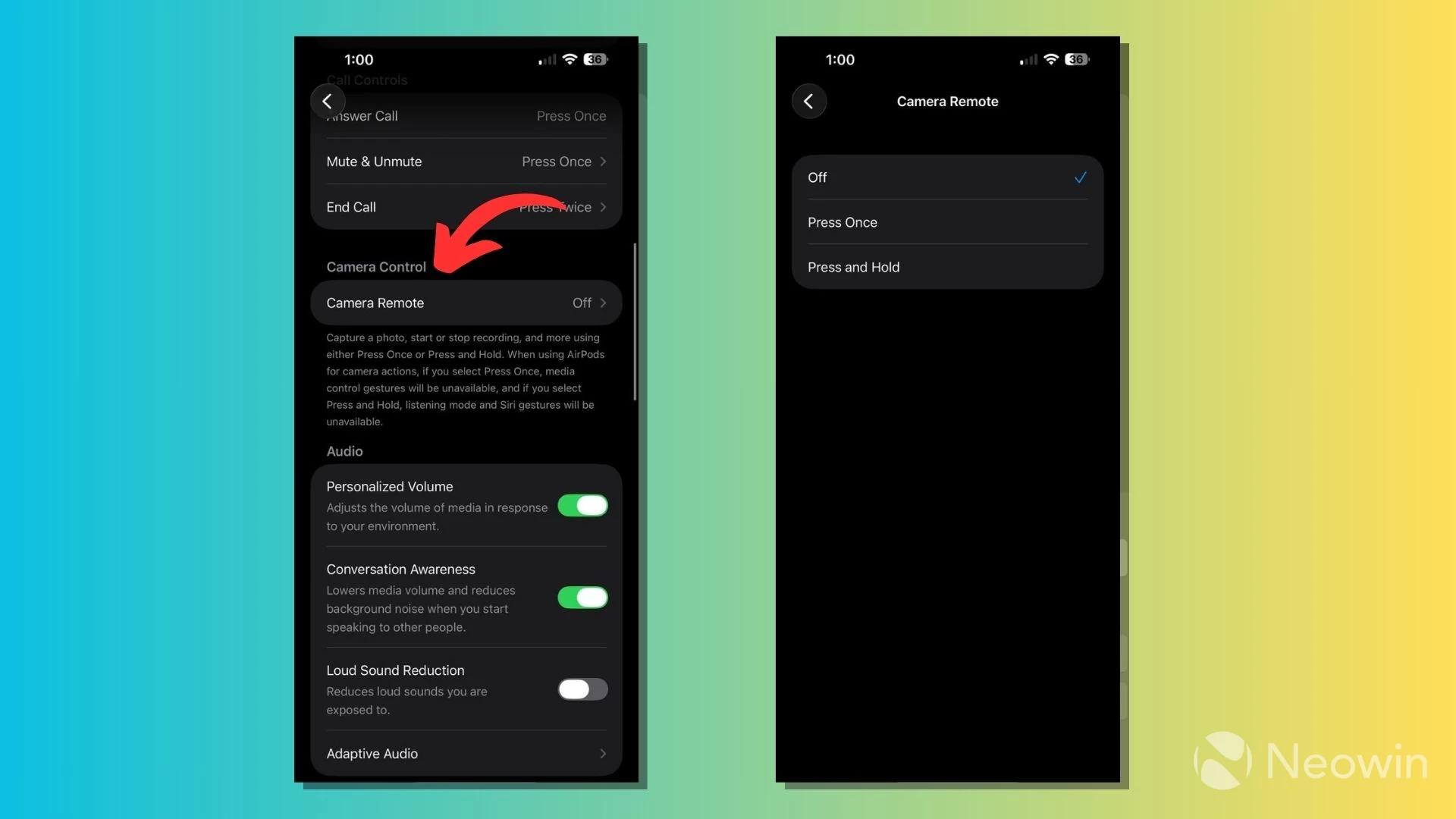
The feature works with AirPods Pro 3, AirPods Pro 2, and AirPods 4. You can go to Settings > Tap on your AirPods name > Camera Remote, and choose whether you want to use "Press Once" or "Press and Hold" the AirPods stem to trigger the shutter button.
5. Restore your iPhone without a Mac or PC
iPhone is getting more independent of Mac and PC with each iOS update. It can already store everything in the cloud, and with iOS 26, Apple has added a new feature that lets you restore your iPhone using another iPhone or iPad running iOS 18/iPadOS 18 or later version.
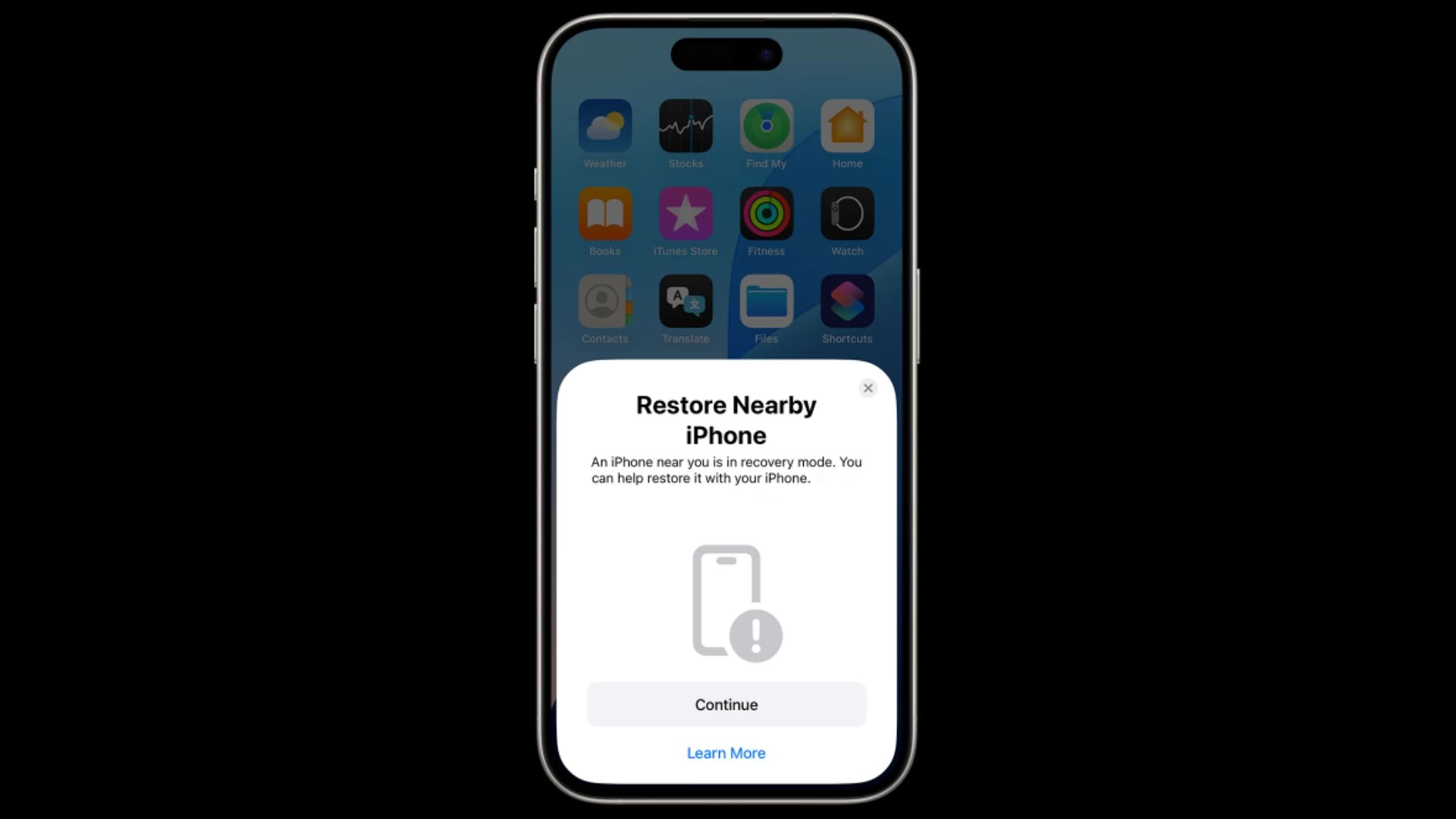
According to a support document, when your device (in recovery mode and connected to a power source) is placed near another device (unlocked and connected to Wi-Fi), you should see a "Restore Nearby [device]" message. Follow the steps to pair the devices and finish the restore process.
This feature is supported on the following devices, including iPads:
- iPhone 17 series, iPhone Air, iPhone 16 series, iPhone 16e, iPhone 15 Pro models
- iPad Pro M5/M4 models
- iPad Pro 12.9-inch 6th/5th generations, iPad Pro 11-inch 4th/3rd generations
- iPad Air M3/M2 models, iPad Air 5th generation, iPad mini (A17 Pro), iPad (A16)
6. Pinned Music in Apple Music
If your Apple Music library is stuffed with too many songs and albums, you can pin your favorite music to the top of the screen for quick access. This is similar to pinning your favorite contacts to the top of the Phone app.
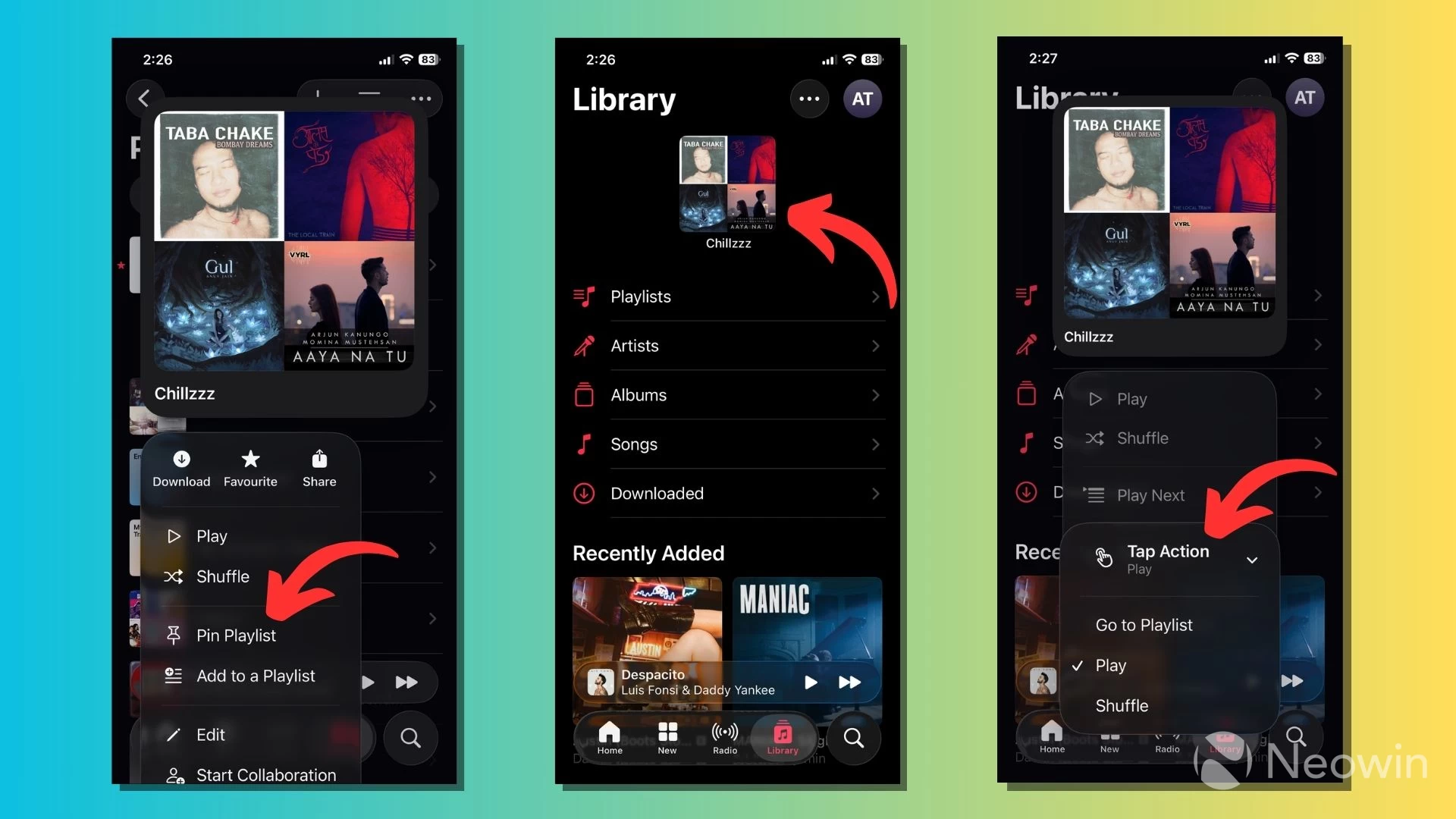
You can also choose what happens to a pinned item when you tap it. You can configure it to open a playlist page, start songs in shuffle, or play them in order. Top and hold a playlist/artist page/album, then select the Pin Playlist/Pin Artist/Pin Album from the drop-down menu.
7. Lyrics Translation in Apple Music
Apple Music now offers Lyrics Translation for songs that are not in your native language. You can understand what the lyrics mean and how the words are pronounced. You'll find the Translations and Pronunciation button after you open the lyrics for a song in Apple Music.
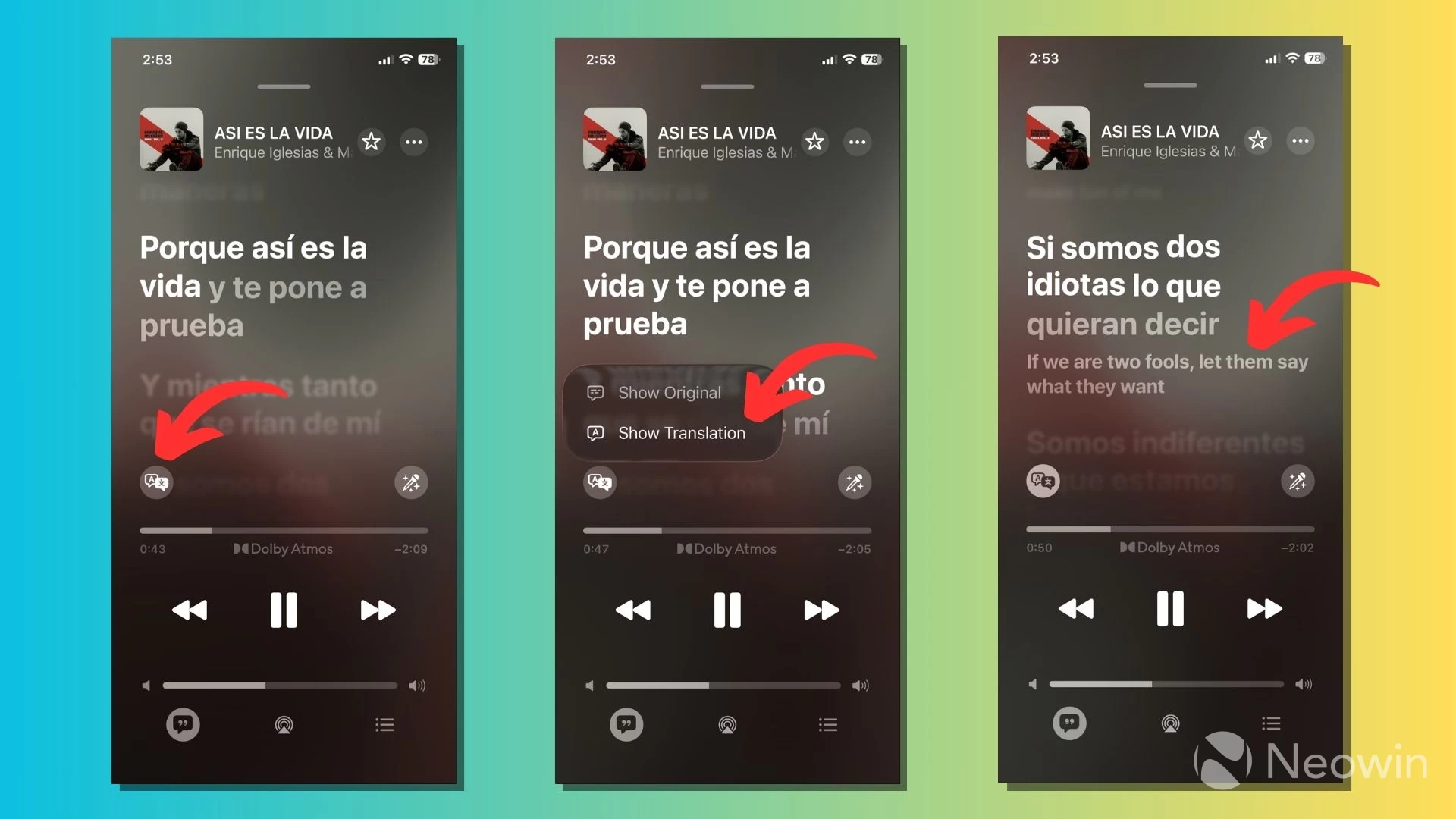
Depending on the song, you can see the translated lyrics, see their phonetic pronunciation, and find an option to hide the original lyrics. The Lyrics Translation feature currently supports a limited number of song translations in the following language pairs: English to Chinese (Simplified), English to Japanese, English to Korean, Spanish to English, Korean to English, and Korean to Japanese.
Meanwhile, pronunciation support is available for select songs in the following scripts: Japanese to Romanized, Korean to Romanized, Punjabi to Romanized, Hindi to Romanized, Korean to Katakana, Cantonese to Jyutping, Chinese (Simplified) to Pinyin, and Chinese (Traditional) to Pinyin.
8. Lens cleaning hints
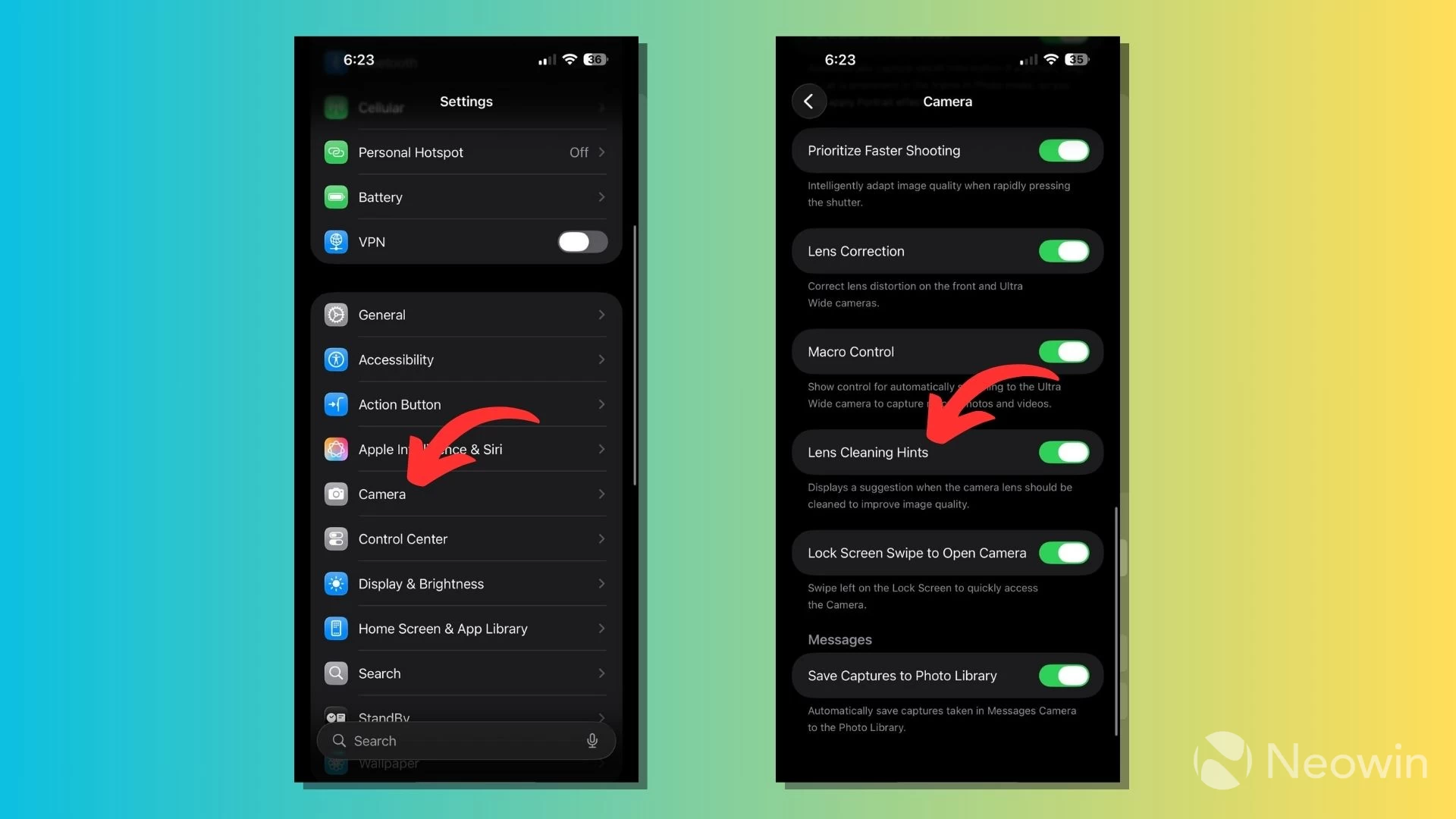
On iOS 26, iPhone can detect a dirty camera lens and display a message asking you to clean it to get the clearest possible photo. You can disable Lens Cleaning Hints by going to Settings > Camera, then turning off the toggle labeled "Lens Cleaning."
9. Estimated Time to Charge
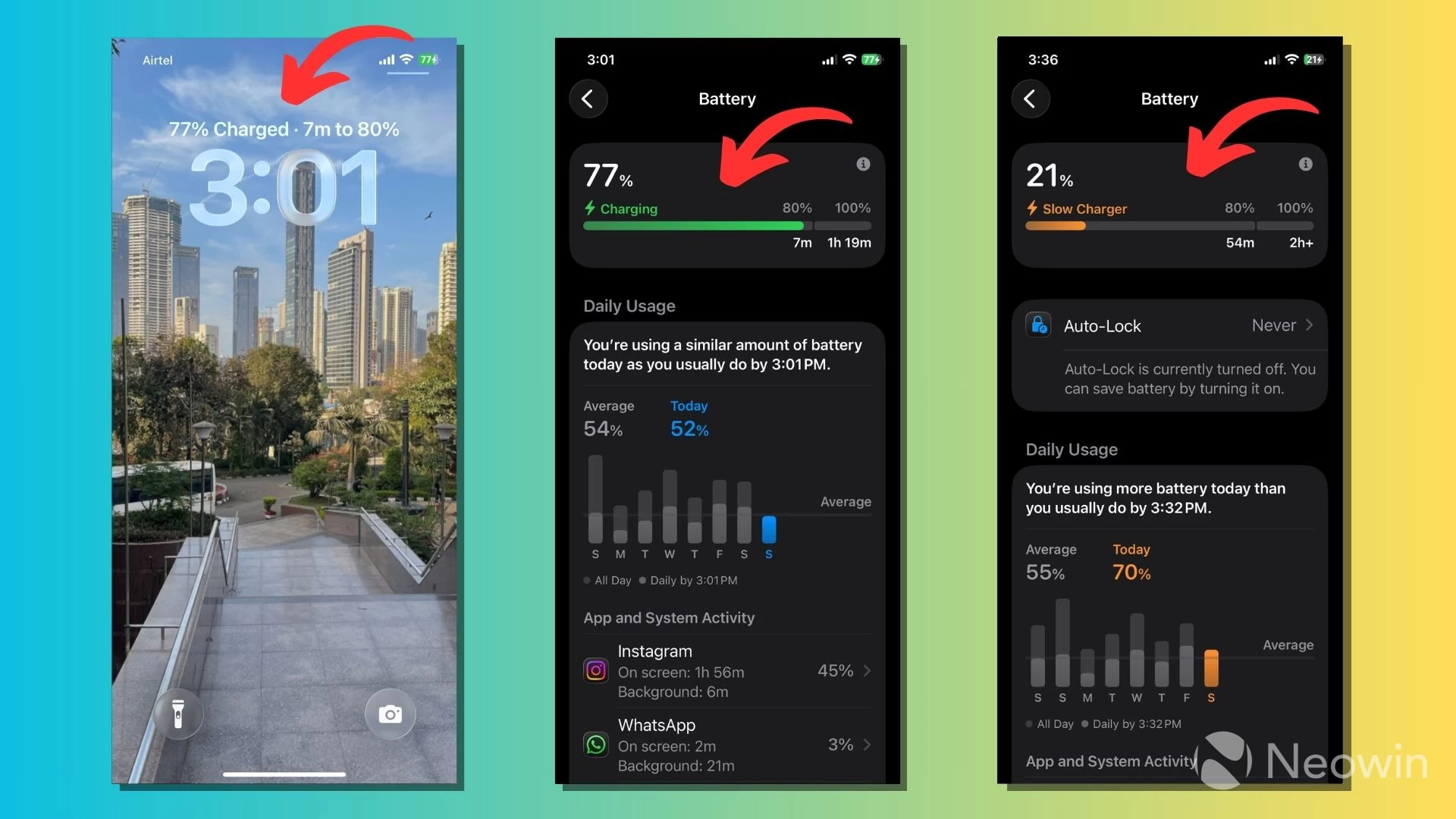
After you connect a charger, the Lock Screen starts showing the estimated time to charge the battery to 80% capacity. You can get a better idea about the charging estimates by going to Settings > Battery. Here, you'll see a progress bar showing the estimated time to fast-charge to 80%, then trickle-charge to full capacity.
10. Convert 2D images into their 3D self
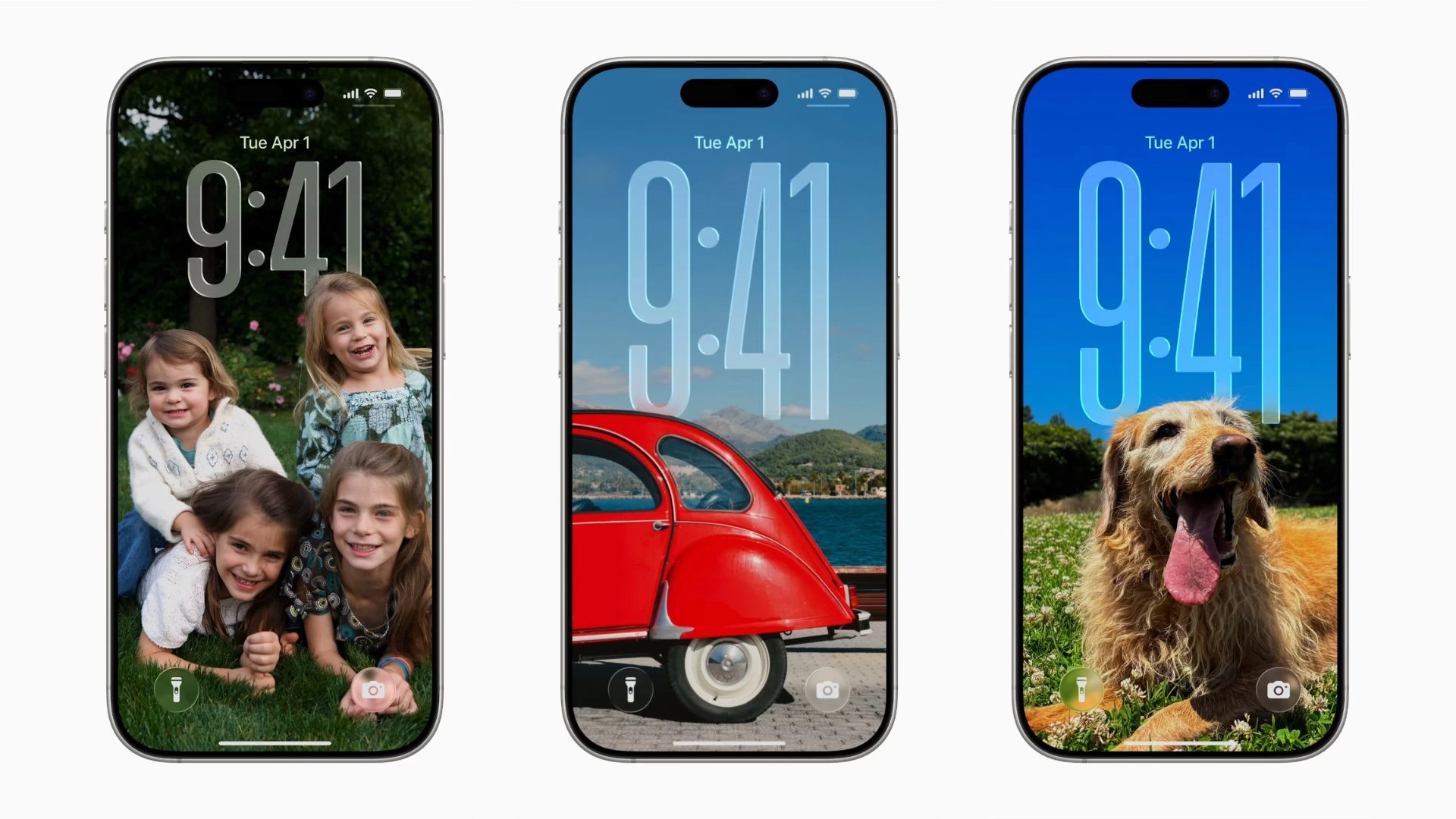
A party trick Apple has baked into iOS 26 is Spatial Scenes, a new feature that converts your regular 2D photos into their 3D versions. It gives you the feeling that you can look around the subject in the image and tilt your phone in different directions to change the perspective.
You can read our detailed guide on how to use Spatial Scenes on iOS 26.
11. Take screenshots in HDR

Apple has updated iPhone screenshots in iOS 26 to support HDR (High Dynamic Range), allowing the device to capture the full dynamic range of the content being displayed on the screen. You can read our detailed guide on using HDR Screenshots on iOS 26.
12. Customizable folder icons
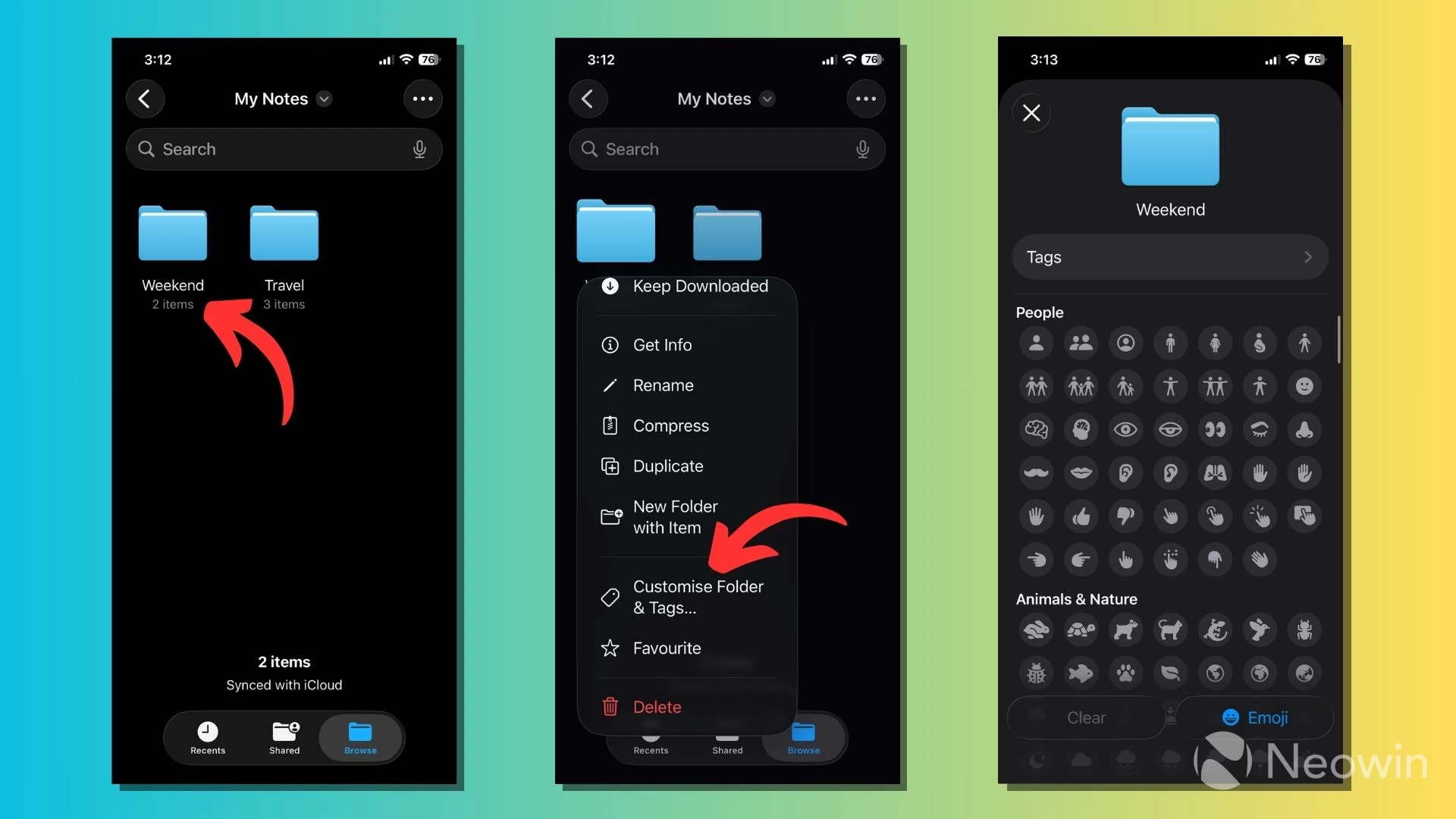
In the Files app, you can add emojis and custom icons to your folders and make them easier to identify by picking different colors. All the changes you make to the folders are synced across your Mac and iPad.
13. Select specific parts of a message
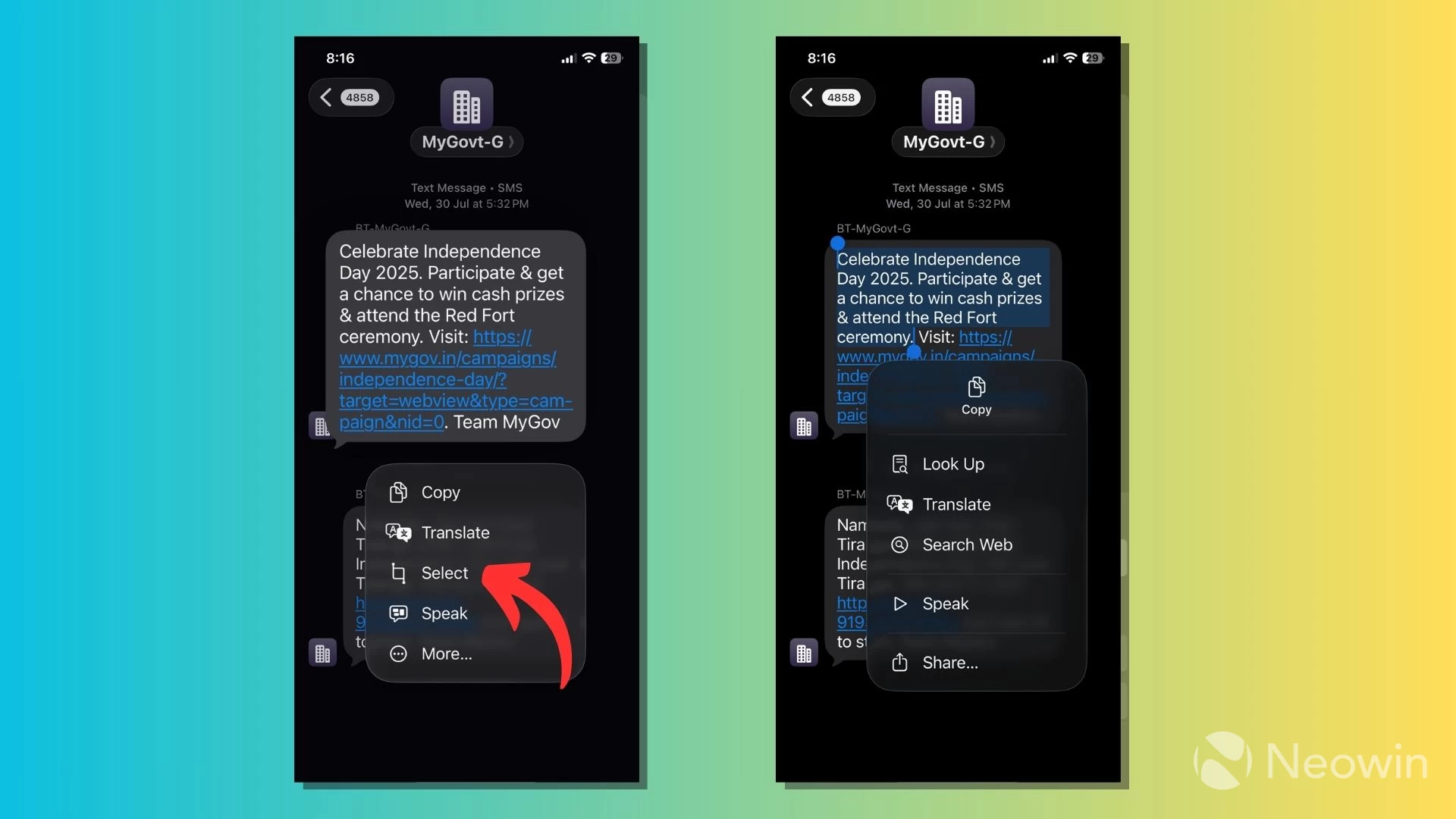
A minor feature in the Messages app lets you select portions of the text from a single message bubble instead of the entire thing. This makes it easier to copy and share snippets of text from a long message. To use the feature, long-press a message in the Messages app, then tap on "Select."
14. Natural language search in Maps
When using Apple Maps, you can search for places by asking questions in natural language instead of entering keywords. For instance, you can ask Apple Maps to "find restaurants with Chinese food" in plain English.
Read our detailed guide to learn about other new iOS 26 features in Apple Maps.
15. Automatic Tint
iOS 26's redesigned look offers more tinting options for home screen icons and widgets. But iOS 26 can also automatically match the tint color of your apps and widgets to the color of your attached Apple MagSafe case.
To use the feature, long-press in the empty area on the Home Screen > Customize > Tinted.
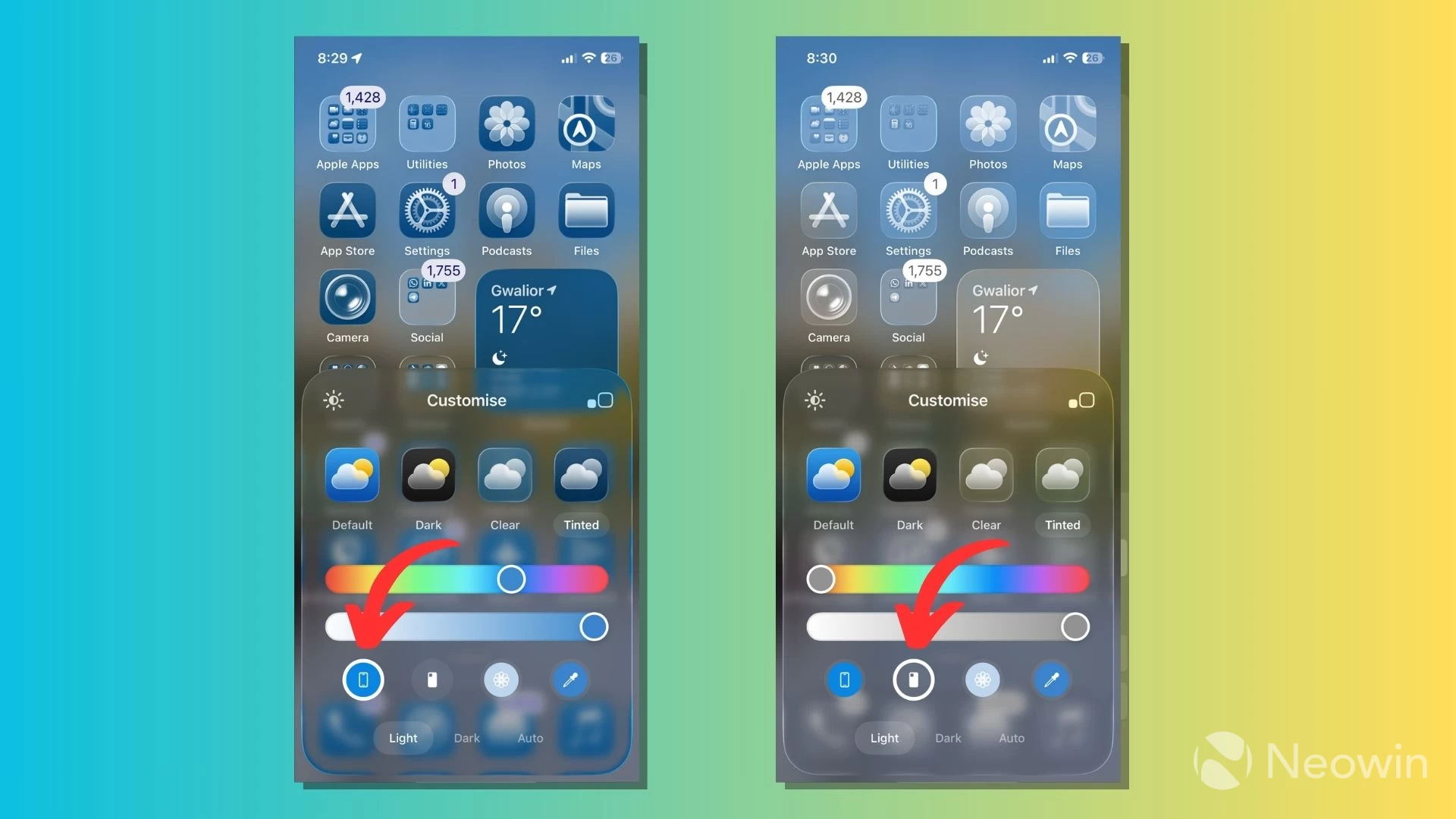
The feature currently works with select colors of FineWoven, Leather, and Silicone cases. Moreover, iOS 26 can also match the tint to your iPhone's color if you don't have a compatible case.
16. Clear icons and widgets
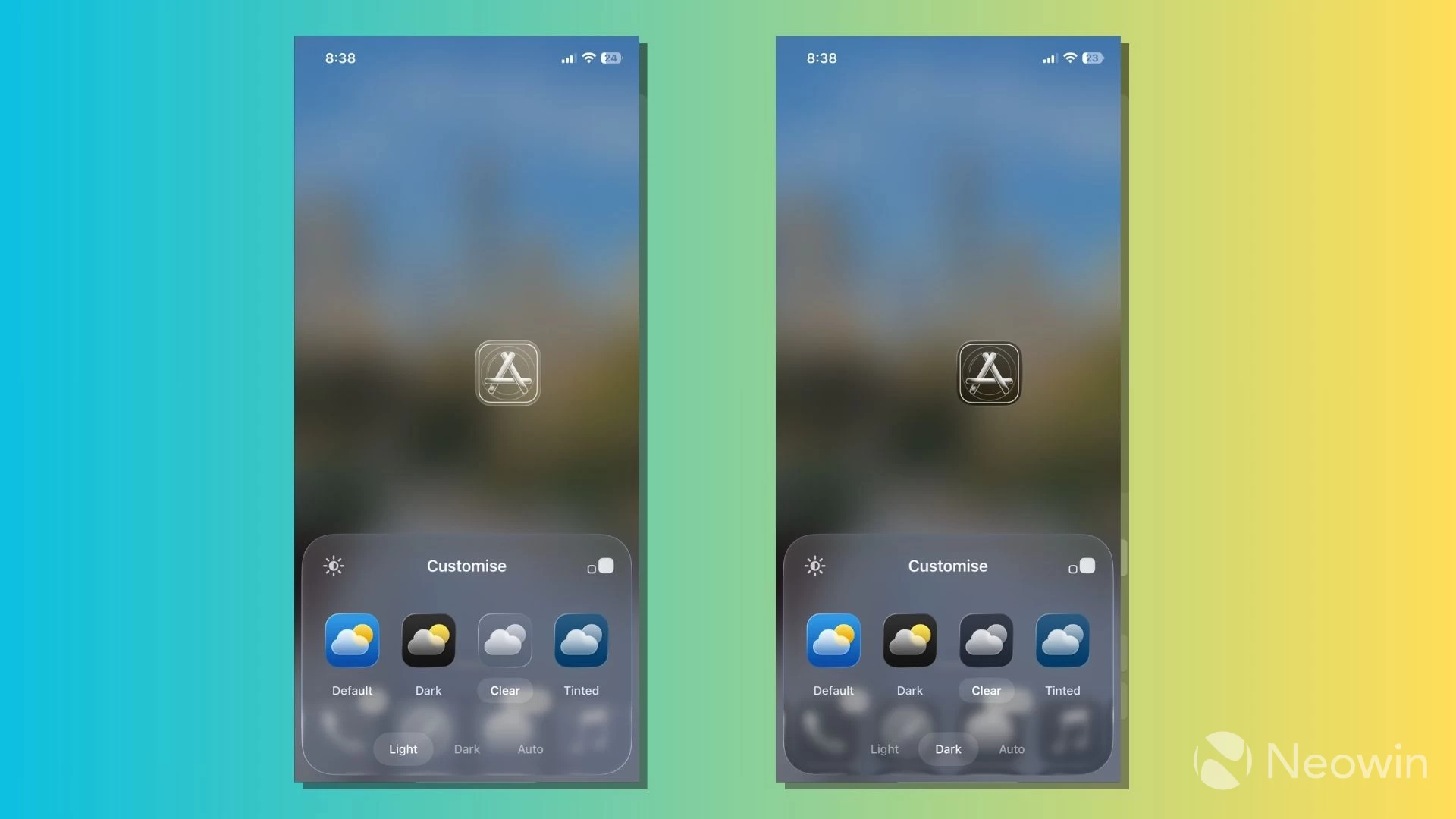
The Home Screen now includes a new "Clear" customization option that makes all apps and widgets appear translucent, with no color tint. It adds a glass-like effect to the home screen, reflecting Apple's new Liquid Glass design language.
17. View event details right in Photos
The Info panel (aka the "i" button) in the Photos app can now analyze images to show more information, such as event details for concerts, sports, and other events.
18. Add to Home Screen
Safari has got a lot to offer with iOS 26. You can turn regular web pages into web apps by pinning them to your Home Screens. A page turned into a web app opens in full-screen mode without the Safari UI and appears in the App Switcher.
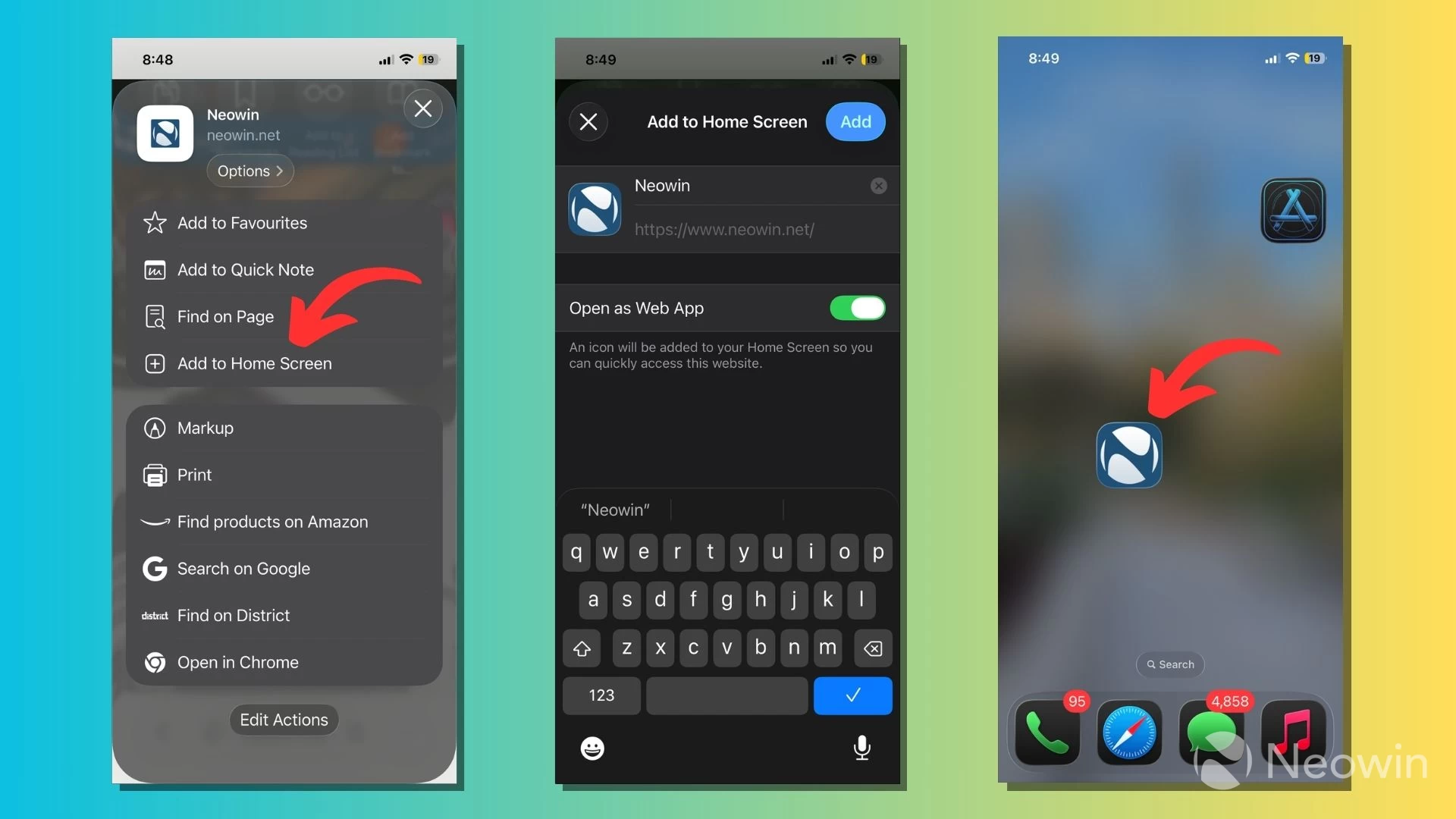
To use the feature, open a web page, tap the Share button, then tap "Add to Home Screen." You can type a custom name and choose whether you want to open it as a web app or as a regular page in Safari.
19. SharePlay on Phone calls
Apple's SharePlay feature is now supported in the Phone app on iOS 26. Already available on FaceTime, you can start screen-sharing sessions on a phone call and use applications that work with SharePlay.
Read our detailed guide on about 10 new features in the Phone app.
20. Easier pairing with DualSense controllers
You can connect a Sony DualSense controller to your iPhone automatically by plugging it into the USB-C port. iOS 26 also lets you pair multiple Apple devices with your DualSense or DualSense Edge controller, and you can switch between them through the controller or Bluetooth settings.
21. Accessibility Nutrition Labels
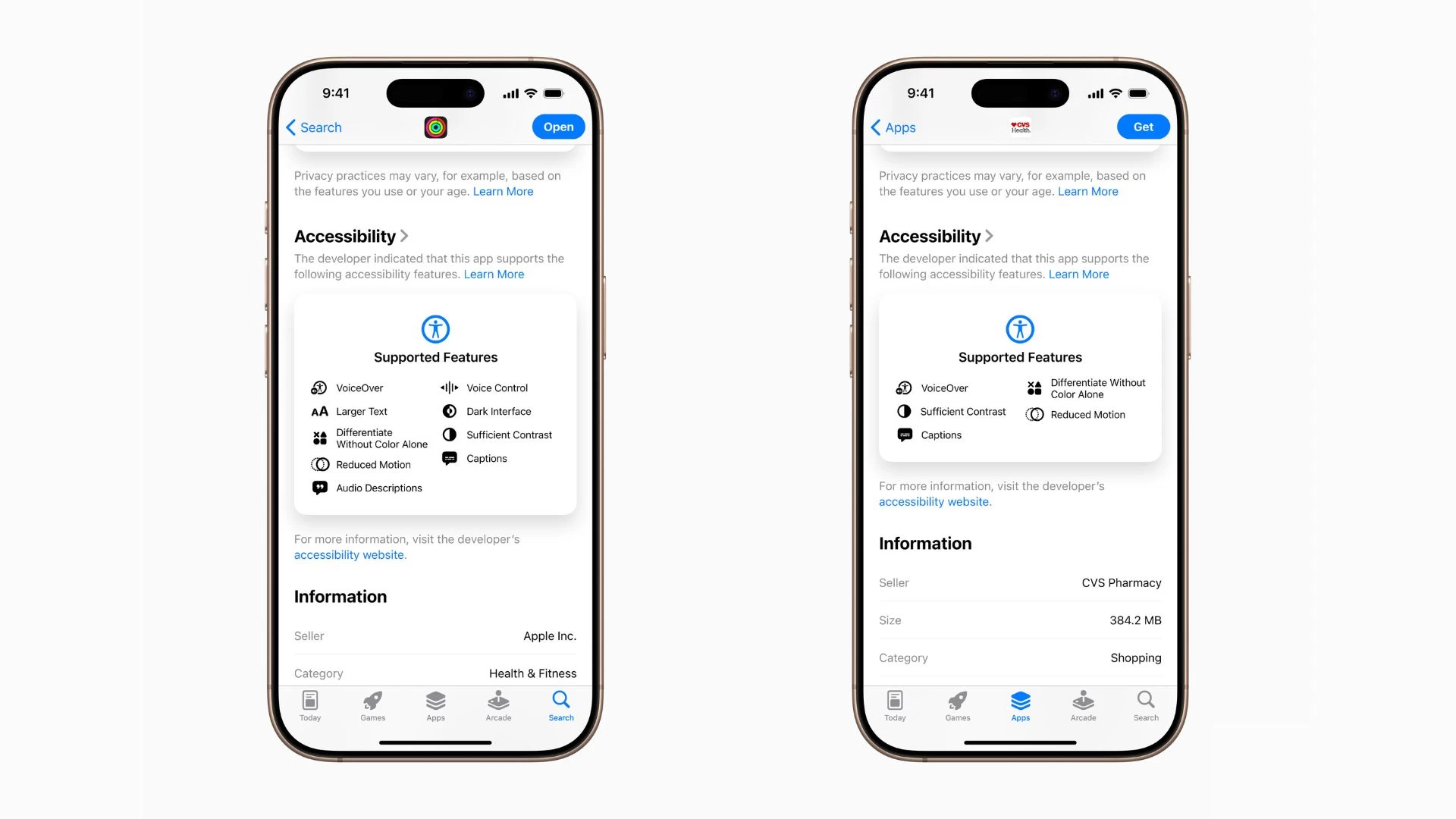
You can find out what accessibility features an app offers before downloading it to your devices. Apple has added Accessibility Nutrition Labels for apps and games on the App Store. These labels highlight accessibility features such as Voice Control, VoiceOver, Larger Text, Reduced Motion, and more.
22. Decentralized AirPlay experience
Apple has made some tweaks to how AirPlay works with HomePod speakers. When you AirPlay music to your HomePod, other iPhone users in your family can see what's playing, control the music, and switch which HomePod speaker is playing it.
23. Graph in three dimensions
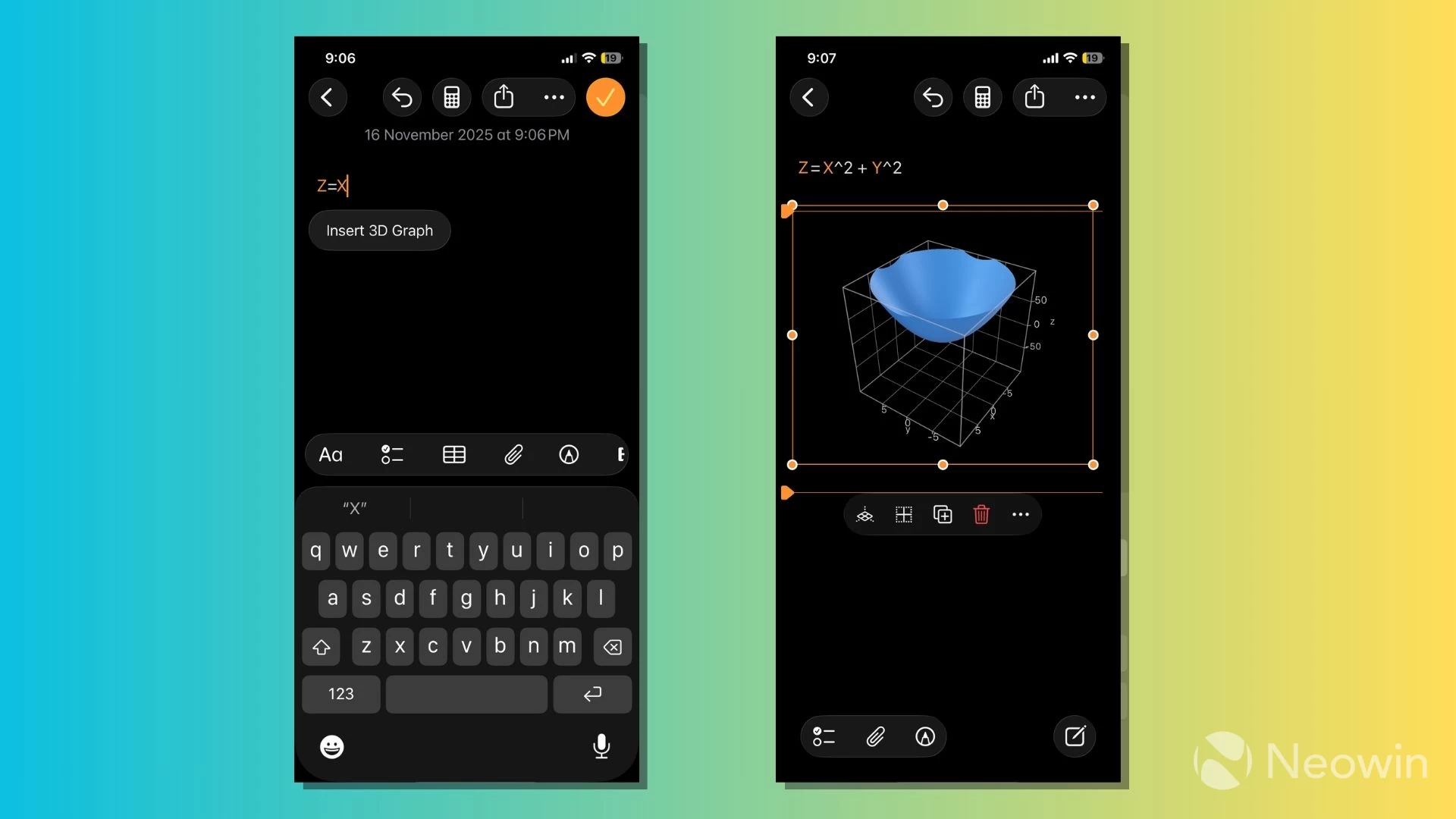
If you use your iPhone to solve math problems, Calculator and Notes now support 3D graphs in Math Notes. You can create three-dimensional graphs by writing an equation starting with "z=."
24. Adaptive Toolbar in the Notes app
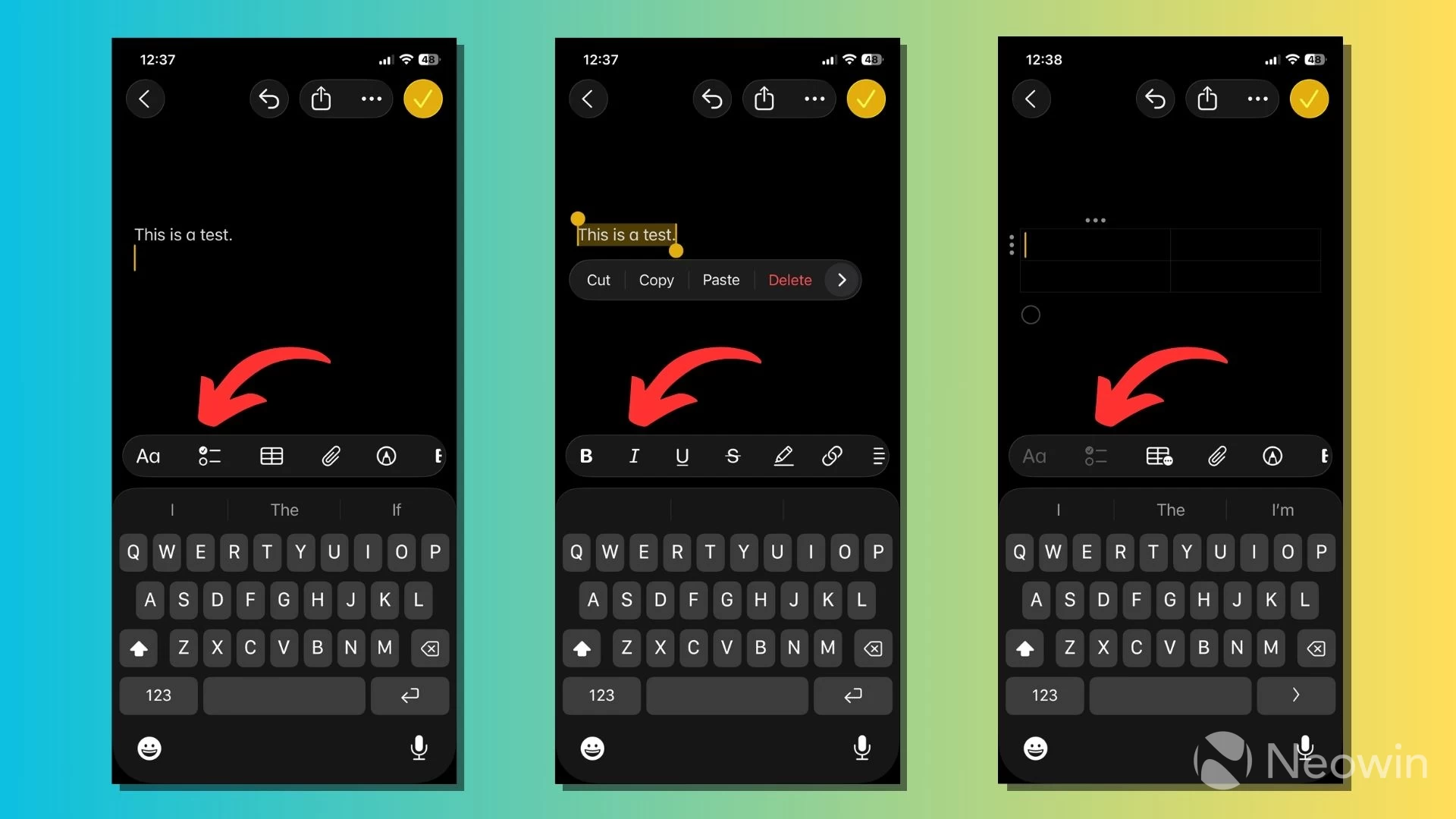
Apple has added several new "Adaptive" features to iOS 26, and the Adaptive Toolbar in the Notes app is one of them. It's a Liquid Glass-inspired upgrade from the static toolbar we see in iOS 18, where you can slide to reveal more controls that change depending on what you're editing.
25. Maintain multiple Journals
The Journal app was introduced last year, and Apple finally did it justice by bringing it to bigger screens. However, a small but useful addition to the Journal app is the ability to create multiple journals to write about different aspects of your life while keeping them separate.
26. Adaptive Power
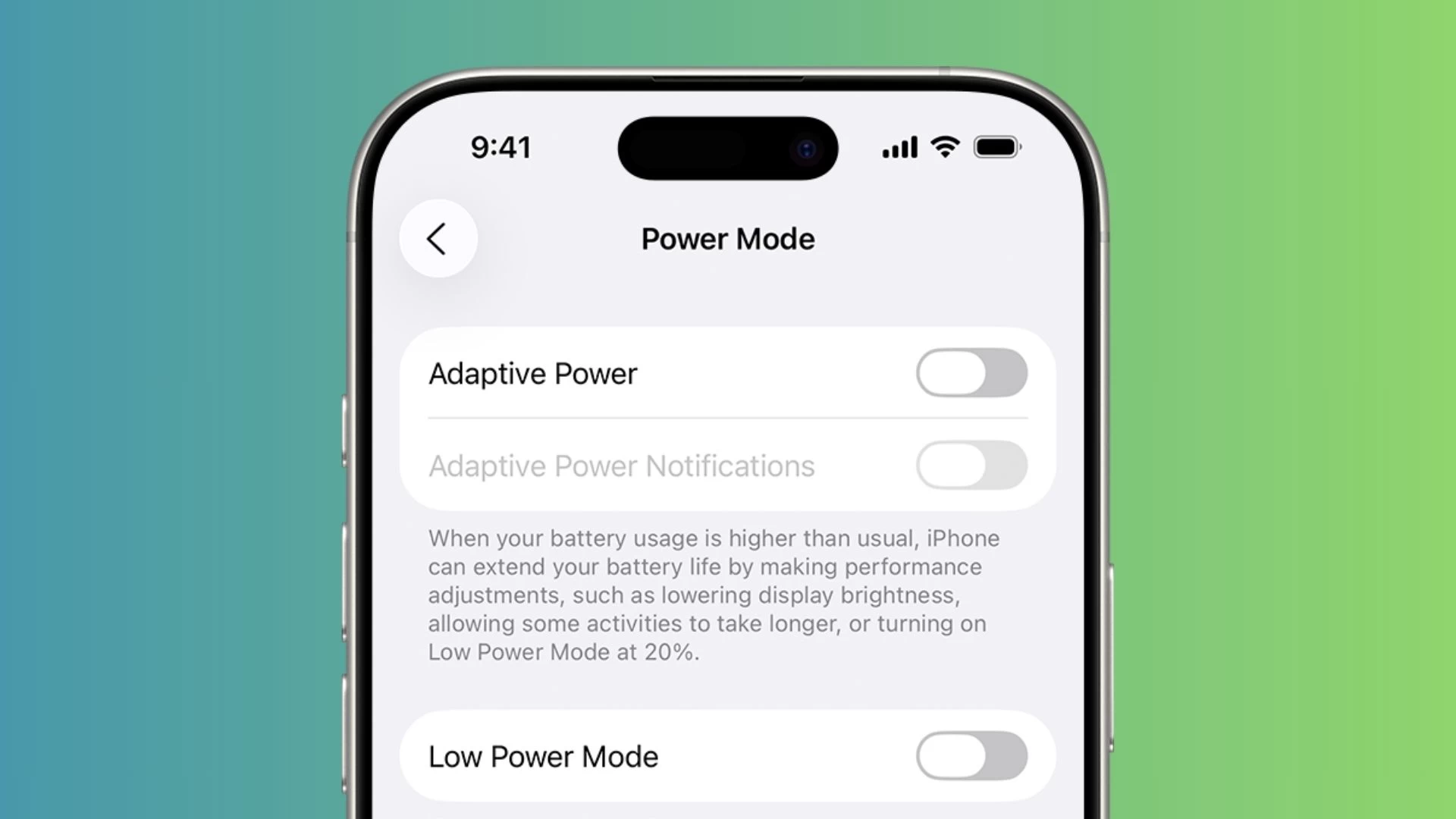
Adaptive Power is a new built-in mechanism designed to save your battery life on those busy days, of course, using machine learning. Available on iPhone 15 Pro and later models, your device's ultimate goal is to stay afloat until you can make it to a charger.
You can know more about Adaptive Power in our detailed post.
27. Enhance Dialogue, Custom Speed Settings
If you find it hard to figure out what people are saying in a podcast, the Podcasts app now has a feature called Enhance Dialogue. As the name says, it uses machine learning and real-time audio processing to isolate voices from background noise and make them sound clearer.
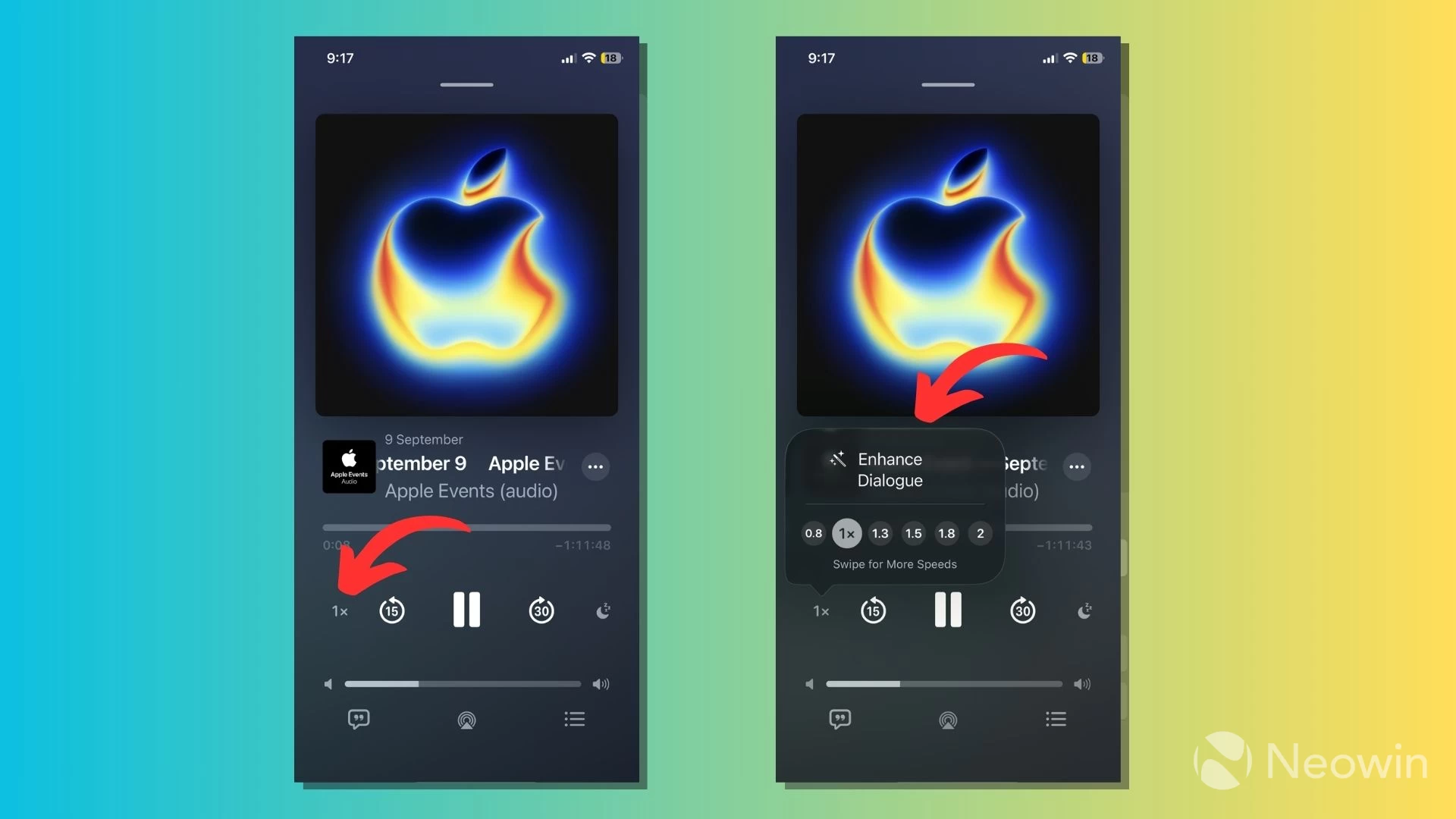
After you open a podcast episode, tap on "1x" or the Speed & Audio Adjustments button, then tap on Enhance Dialogue. Here, you can also change the playback speed of the show. You can choose to enable or disable Enhance Dialogue and set different playback speeds for each show.
28. Password history
Since iOS 18, all your passwords are stored in a separate app called Passwords. Apple has updated the Passwords app to show a timeline of changes you have made to each account. This includes a history of previous passwords and passwords generated by the app. You'll find an option called "View History" when you open the credentials page for a website or app.
29. Time Zone Support
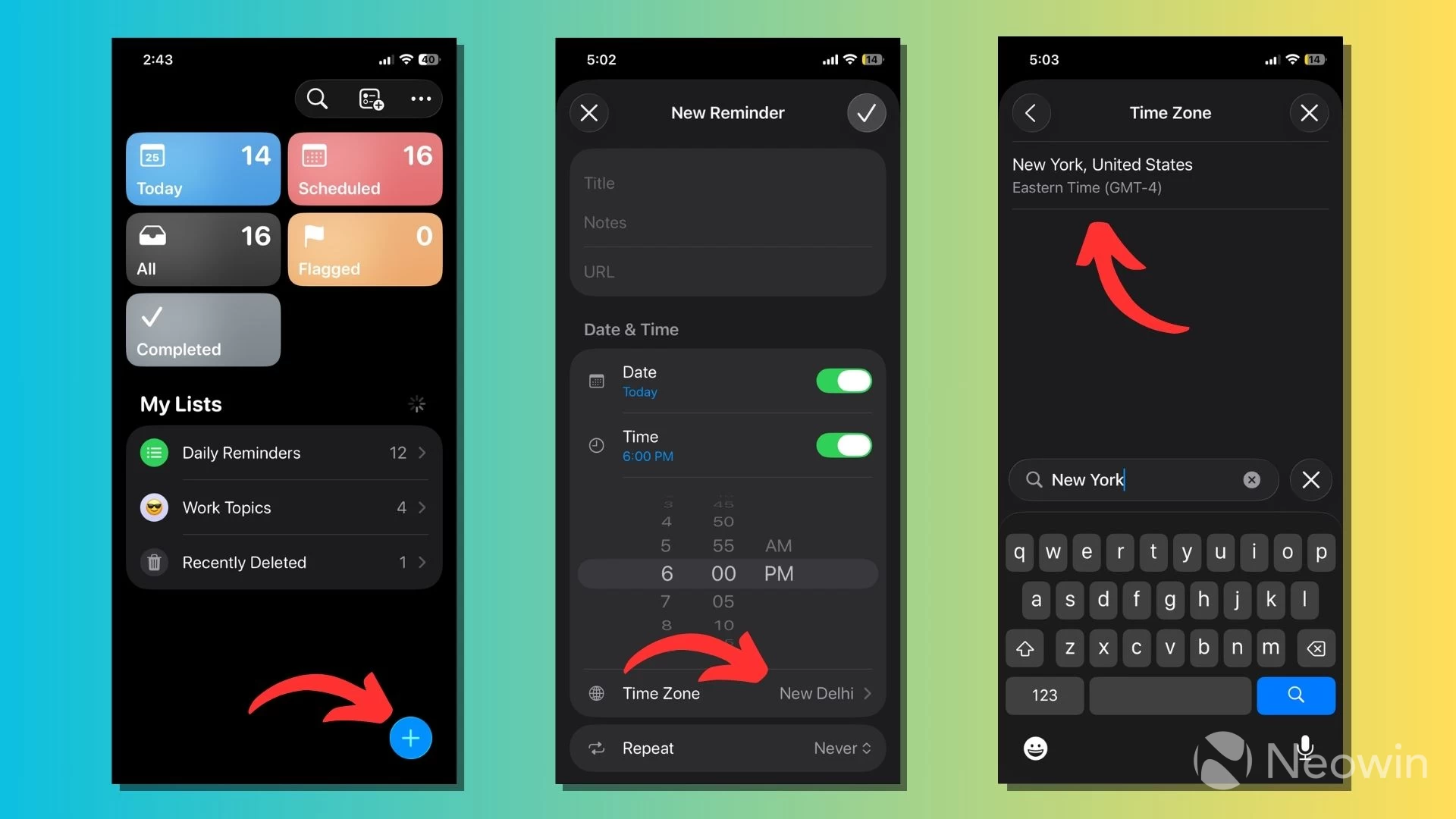
You can add time zones to your reminders after installing iOS 26. You can do so for new reminders or set a universal time zone for the entire Reminder app. Read our detailed guide on iOS 26 Reminders app features to know about adding time zones and other features.
30. Centralized Blocked List in Settings
There are times when we have no choice but to block people or those annoying marketing calls. In iOS 26, Apple has added a new unified blocked contacts list you can use to restrict people across the Phone app, Messages, FaceTime, and Mail.
To access it or add new names, go to Settings > Privacy & Security > Blocked Contacts.
31. Severe Weather Alerts for Significant Locations
You can get severe weather alerts on your device for locations your iPhone thinks are important based on your preferred routes. You'll have to press a few buttons to turn on this feature on your device.
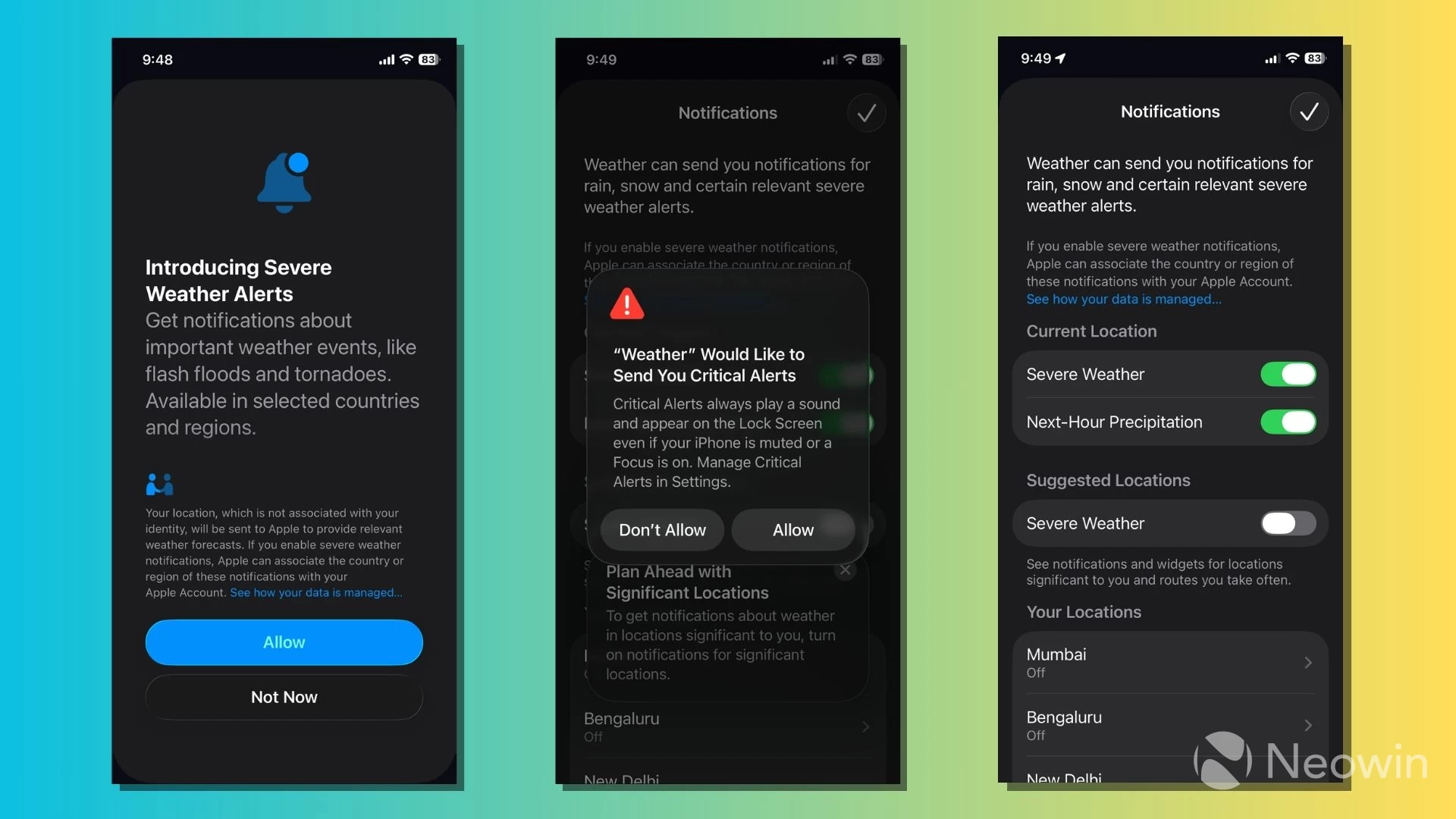
- First, go to Settings > Privacy & Security > Location Services.
- Scroll to the bottom of the screen and tap System Services.
- Tap Significant Locations & Routes, then turn on the namesake toggle on the screen.
- Go to Settings > Apps > Weather. Here, tap Location and select "Always."
- Return to the previous screen and turn on Suggested Locations.
- Now, open the Weather app > tap on the List icon in the bottom right corner > tap on the three-dot menu in the top-right corner.
- Go to Notifications and turn on Severe Weather under Suggested Locations. Here, the Weather app might automatically show a prompt screen to enable the feature.
32. Operate your iPhone using your head
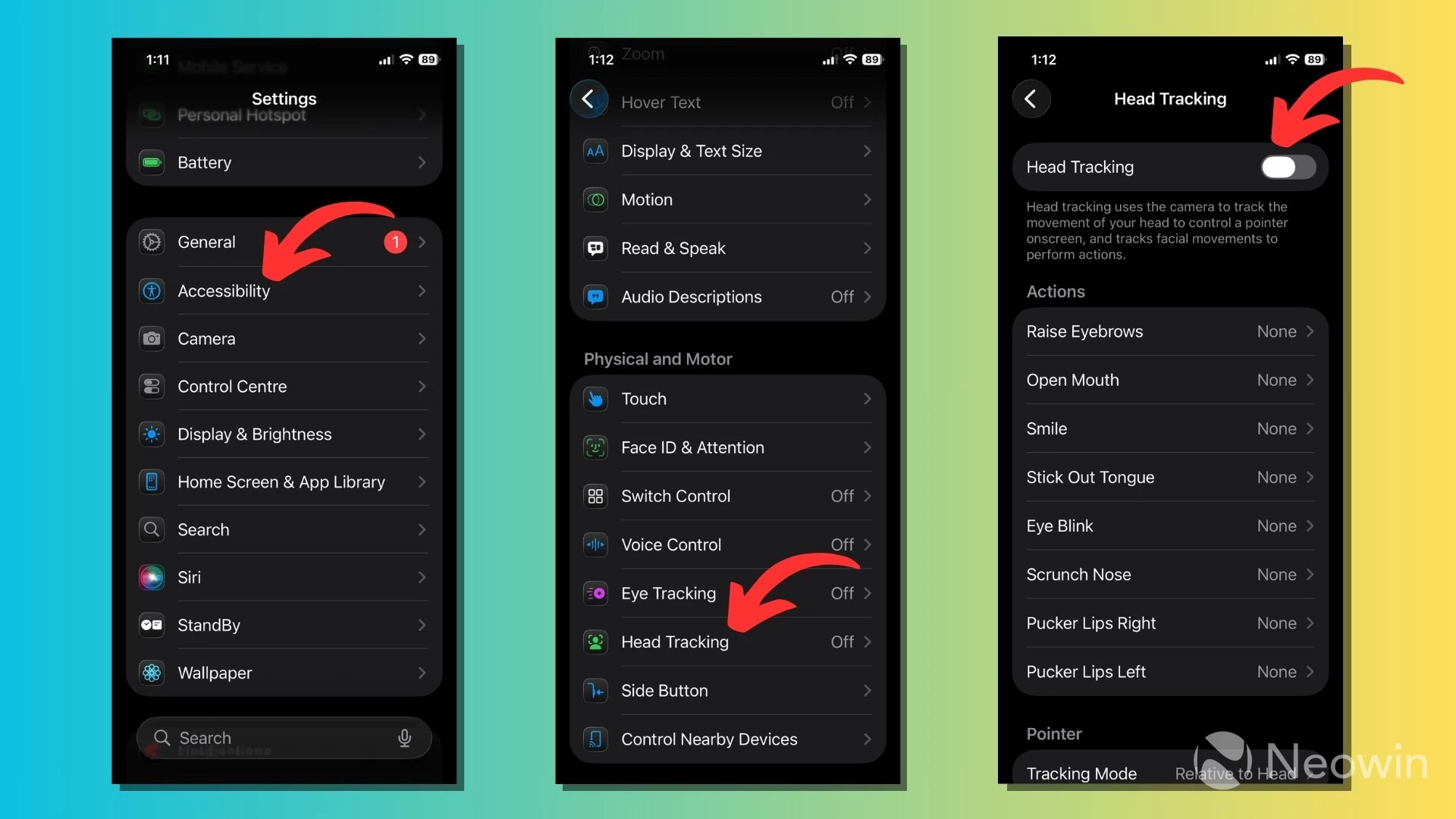
Apple added the Eye Tracking feature to iOS 18 last year. The latest software update lets you operate an iPhone using your head movements. You can read our detailed guide on how head tracking works on iOS 26 and how to use it.
33. Check your Sleep Score
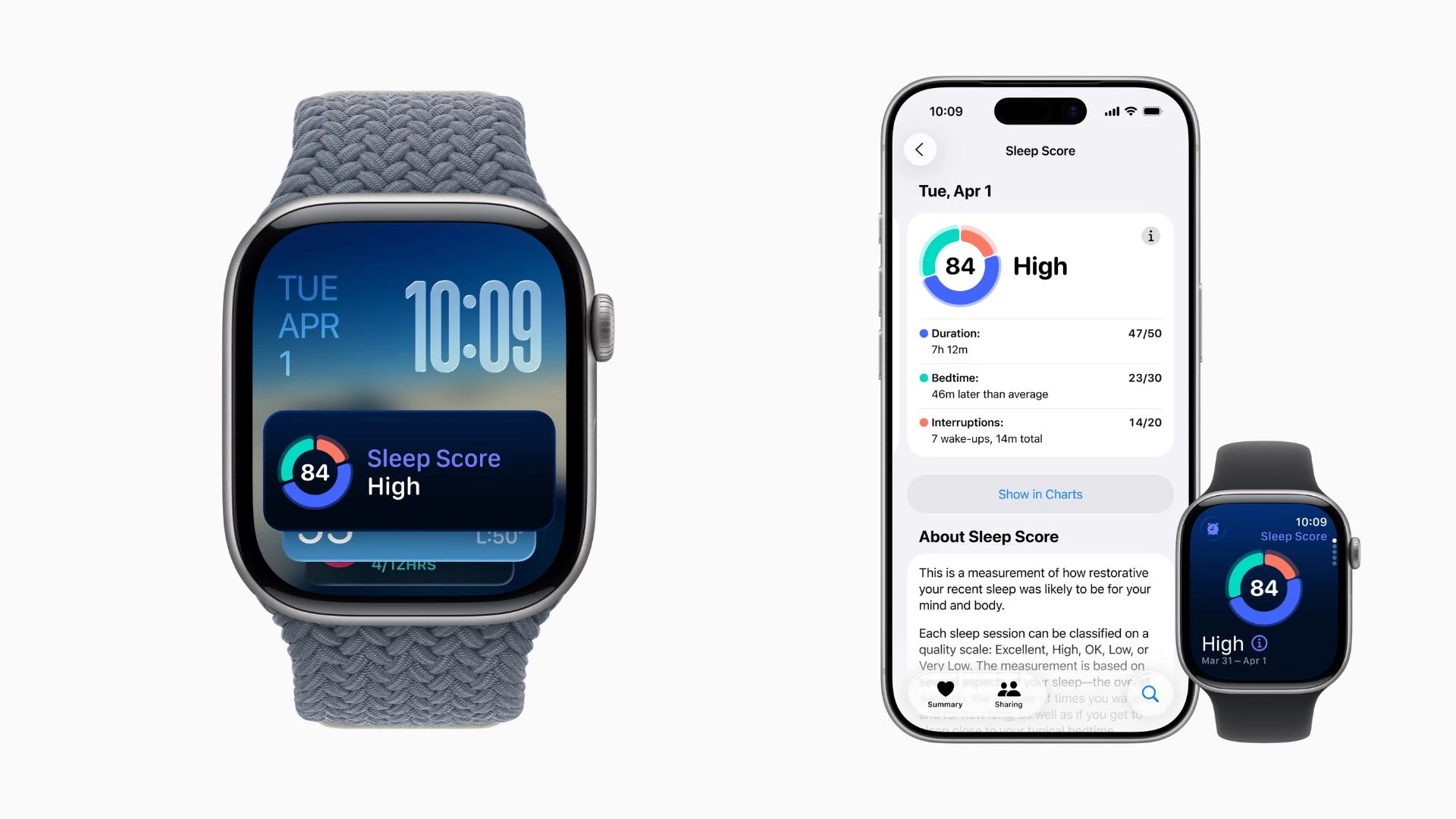
If you have an Apple Watch, one of the useful additions Apple has made this year is the Sleep Score, a number that helps you understand your sleep quality and how to make it more restorative. Apple breaks down the 100-point sleep score into duration (50 points), consistency (30 points), and interruptions (20 points).
With iOS 26.2 and watchOS 26.2, Apple classifies the sleep score into the following updated categories: Very Low (0-40), Low (41-60), OK (61-80), High (81-95), and Very High (96+).
So, these are some of the small and useful changes you can find in the iOS 26 update. Overall, the latest iOS update is about major visual changes in the form of Liquid Glass, which are among the biggest Apple has pushed in years.
However, iOS 26 is also about refining several existing apps and features. We have tried to cover these changes over the months through a series of articles around the Phone app, Camera app, Reminders app, Apple Maps, and other areas of iOS 26.
If you haven't got the update on your device yet, read about the 10 things you should do before installing iOS 26 and what the visual changes you'll immediately notice.
What do you think about iOS 26? Tell us in the comments.
Hope you enjoyed this news post. Feedback welcome.
Posted Sunday 14 December 2025 at 11:42 am AEST (my time).
News posts... 2023: 5,800+ | 2024: 5,700+ | 2025 (till end of November): 5,412
Recommended Comments
There are no comments to display.
Join the conversation
You can post now and register later. If you have an account, sign in now to post with your account.
Note: Your post will require moderator approval before it will be visible.